Table of Contents >> Show >> Hide
- Why Creating a Minecraft Account Now Means Creating a Microsoft Account
- Way 1: Create Your Minecraft Account Directly on Minecraft.net
- Way 2: Create a Microsoft Account First, Then Sign In to Minecraft
- Way 3: Create or Link Your Account Inside Minecraft on Console or Mobile
- How to Choose the Best Method for You
- Common Mistakes to Avoid When Creating a Minecraft Account
- Security Tips That Will Save You Future Headaches
- Final Thoughts
- Extra Experiences and Real-World Lessons From Creating a Minecraft Account
- SEO Tags
If you are trying to create a Minecraft account, here is the first truth bomb: these days, a “Minecraft account” is really a Microsoft account that works with Minecraft. In other words, there is no magical hidden cave where fresh Mojang accounts are still being forged by torchlight. For new players, Microsoft is the front door, the doorman, and the person reminding you not to forget your password.
That sounds simple enough, but the process can still feel weirdly confusing because Minecraft lives on PCs, consoles, tablets, phones, and smart fridges probably next week. Some players buy the game first and create an account during checkout. Others make a Microsoft account ahead of time and then connect it to Minecraft later. Console and mobile players often create or link their account inside the game using a code on a second device. All three methods are valid, and each one makes sense depending on where and how you plan to play.
In this guide, we will break down the 3 ways to create a Minecraft account, explain which option is best for different players, and show you how to avoid the classic mistakes that lead to password drama, wrong gamertags, or that special kind of panic that hits when your kid asks, “Why can’t I join multiplayer?” five minutes before bedtime.
Why Creating a Minecraft Account Now Means Creating a Microsoft Account
Before we get into the three methods, it helps to understand the modern account system. Minecraft uses Microsoft accounts for sign-in, security, purchases, and online features. That applies whether you want to play Minecraft: Java Edition on a computer, Bedrock Edition on a console or mobile device, or jump into features like Realms and cross-platform play.
This matters because a lot of older advice online still talks about Mojang accounts like they are alive and roaming free. They are not the path for new players anymore. Today, if you are starting from scratch, you need a Microsoft account. That account can be tied to your game purchase, your gamertag, your multiplayer access, and your settings across devices.
The upside is convenience. One account can handle your Minecraft identity across multiple platforms. The downside is that account setup now involves a few extra details, like email verification, security steps, and family settings for younger players. That is not a bug. That is just modern internet life wearing a blocky helmet.
Way 1: Create Your Minecraft Account Directly on Minecraft.net
Best for: First-time PC players who want the cleanest, most official route
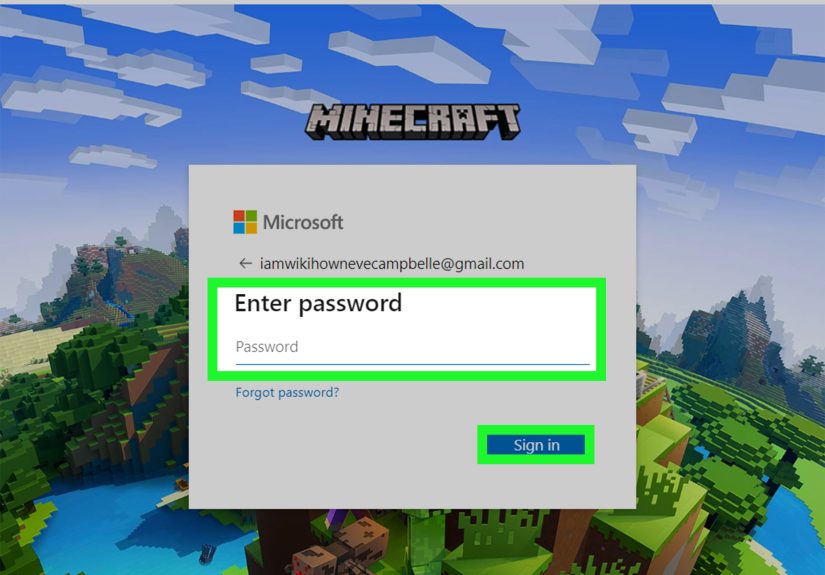
The most straightforward method is to start on the official Minecraft website. This is ideal if you are buying Minecraft for PC and want to set everything up in one clean sweep. You visit the site, choose to sign in or create an account, and the process leads you into creating a Microsoft account if you do not already have one.
Here is how it usually works:
- Go to the official Minecraft site and choose the sign-in or create account option.
- If you do not already have a Microsoft account, select Create account.
- Enter an email address you want to use.
- Create a secure password.
- Select your country or region and enter your birth date.
- Verify your email with the code sent to your inbox.
- Choose your Xbox gamertag and avatar.
That last part surprises some people. You are not just creating a boring login. You are also creating your Xbox identity, which becomes part of how Minecraft recognizes you in the Microsoft ecosystem. So yes, if your dream name is taken, this is where you may begin your journey into increasingly chaotic variations like BlockWizard4721.
This method is especially useful if you are buying Minecraft for PC because it naturally blends account creation with purchase flow. You are less likely to end up with a game on one email and a login on another, which is one of the fastest routes to future regret.
Another bonus: starting on Minecraft.net makes it easier to understand what edition you are actually getting. New players on PC often need to know whether they are dealing with Java, Bedrock, or the bundled PC offering. Beginning on the official site helps reduce the chance of buying first and reading details later, which is a hobby nobody should have.
Way 2: Create a Microsoft Account First, Then Sign In to Minecraft
Best for: Players who want one account for Minecraft, Xbox, Windows, and Microsoft services
The second option is to create your Microsoft account before touching Minecraft at all. This is a smart route if you like doing things in logical order, enjoy keeping your digital life organized, or have been burned before by making accounts in the middle of a checkout process while muttering, “This seemed easier in my head.”
With this approach, you create your Microsoft account first through Microsoft’s account system or from the Minecraft Launcher, and then use that account to sign into Minecraft afterward.
Here is the basic setup:
- Create a Microsoft account using your preferred email address, or register a new Outlook address.
- Choose a password that is strong and memorable.
- Verify your email and complete any security prompts.
- Pick your gamertag if prompted.
- Open Minecraft or the Minecraft Launcher and sign in with that Microsoft account.
This method works beautifully if you already use Microsoft services on Windows, Xbox, Outlook, or OneDrive. It keeps everything under one umbrella and makes sign-in more seamless later. If you plan to play on Windows, this approach can be especially tidy because Minecraft often works alongside your Microsoft and Xbox app sign-ins.
There is also a security advantage here. If you create the Microsoft account first, you can immediately add recovery methods, turn on two-step verification, and make sure your login details are correct before buying or launching the game. That gives you more control and can save you from classic setup disasters like mistyping your email once and spending the next hour wondering why the verification code never arrived.
For adults setting up accounts for themselves, this route is probably the most efficient if they want a long-term login they can trust. For parents, it is also useful because it gives them time to understand family account options before handing the keyboard to a small human with strong opinions about creepers.
Way 3: Create or Link Your Account Inside Minecraft on Console or Mobile
Best for: Bedrock players on PlayStation, Nintendo Switch, phones, tablets, and some console setups
The third method is the one many console and mobile players run into first. You launch Minecraft, choose the option to sign in with a Microsoft account, and then complete the process on a second device using a code. It feels a bit like logging into your TV app, except with more cubes and fewer streaming recommendations.
This method is common on platforms like PlayStation and Nintendo Switch, and it is also familiar to players using mobile devices. Instead of typing everything directly on your console with that painfully slow on-screen keyboard, Minecraft gives you a code and asks you to finish the sign-in flow on a phone, tablet, or computer.
The process usually looks like this:
- Launch Minecraft on your console or mobile device.
- Select Sign in with a Microsoft account.
- On a second device, open the sign-in page shown in Minecraft.
- Enter the code displayed by the game.
- Sign in with your existing Microsoft account, or create a new one if needed.
- Confirm the link and return to Minecraft.
This method is great for players who already own Minecraft on a non-PC platform and simply want online features, cross-play support, access to purchases, or a smoother multi-device experience. It is also helpful for people who do not want to create an account on a desktop first. Everything starts from the device they already use.
One important thing to remember: on some platforms, signing in with a Microsoft account unlocks the features people actually want, such as playing with friends across devices, using Realms, and syncing content. So even if the game launches fine without a linked account in some situations, the Microsoft sign-in is often what turns Minecraft from “nice solo sandbox” into “full online experience.”
How to Choose the Best Method for You
If you are still wondering which path makes the most sense, here is the simple version.
Choose Way 1 if you are buying Minecraft for PC and want the official all-in-one route from the Minecraft website.
Choose Way 2 if you want to build your Microsoft account first, set up your security details properly, and then sign into Minecraft with less chaos.
Choose Way 3 if you already play on console or mobile and want to create or link your account from inside the game using a second device.
None of these methods is “more real” than the others. They all lead to the same basic destination: a Microsoft-backed Minecraft login that lets you play, manage your identity, and use online features. The difference is just where you begin.
Common Mistakes to Avoid When Creating a Minecraft Account
Using the wrong email address
This is the number-one facepalm moment. If you create the account with one email and buy the game with another, future sign-ins can become a detective story. Use one email consistently if possible.
Choosing a weak password
Minecraft may look cute, but account theft is not cute. Use a strong password and consider two-step verification. A strong account setup beats explaining to support why your login now belongs to someone named DiamondLord_9000.
Ignoring family settings for child accounts
If a younger player cannot access multiplayer, Realms, or chat, the problem may not be the game itself. It may be family safety or privacy settings tied to the Microsoft or Xbox account. Parents should expect to spend a few extra minutes configuring permissions.
Assuming “Minecraft account” and “Microsoft account” are separate things forever
This old distinction confuses a lot of people. In practical terms, your Microsoft account is the account you now use for Minecraft. Thinking of them as two unrelated identities causes a lot of unnecessary confusion.
Security Tips That Will Save You Future Headaches
Once your account exists, take five extra minutes to protect it. Seriously. Future You will be thrilled.
- Add backup verification methods like a second email or phone number.
- Turn on two-step verification if you are comfortable using it.
- Keep your email inbox accessible, since verification and recovery often depend on it.
- Write down which email you used for the account if you are setting it up for a child.
- Make sure the correct Xbox profile or gamertag is signed in on Windows or console.
Many account problems are not really Minecraft problems. They are identity and sign-in problems. When your login is clean, secure, and documented, everything else gets easier.
Final Thoughts
Learning how to create a Minecraft account is much easier once you realize there are really three practical ways to do it. You can start on Minecraft.net, build your Microsoft account first and connect later, or create and link everything from inside the game on console or mobile. Each route works. The best one simply depends on where you are playing and how organized you want to be before you start punching trees.
If you are a new player, the safest advice is to slow down just enough to choose the right email, pick a strong password, and understand whether you are setting the account up for yourself or for a child. After that, the rest is easy. Soon you will be mining, crafting, and pretending that your first dirt house is “minimalist architecture.”
Extra Experiences and Real-World Lessons From Creating a Minecraft Account
One of the funniest things about creating a Minecraft account is that it often feels like a tiny side quest before the real adventure starts. You sit down thinking, “I’ll be playing in five minutes,” and then suddenly you are choosing a gamertag, checking an email for a code, resetting a password you swear you just created, and explaining to your child why “SuperUltraDragonKing” is somehow already taken by somebody on Earth. It is a humble reminder that even in a game about building castles, your first boss battle might be account setup.
For adult players, the experience is usually a mix of convenience and mild annoyance. The good part is that once the Microsoft account is done, it can work across services and devices in a way that feels organized. The annoying part is that organization requires a tiny amount of actual effort, which many of us try to avoid until the exact moment the login page refuses to budge. Players who take the extra time to store their login details and add recovery information usually have a much smoother long-term experience.
For parents, the process can feel like building a treehouse while simultaneously reading the instruction manual upside down. The child is excited. The game is downloaded. The snacks are ready. But then multiplayer does not work because family permissions are still locked down, or purchases need approval, or the account was created under the wrong birth date. None of these problems is impossible, but they can turn what should be a fun setup into a small domestic event. The good news is that once the family settings are sorted out, the account usually becomes much easier to manage.
Console players often have the strangest first impression because the linking process depends on a second device. That can feel awkward at first, but it is actually one of the smoother options once you understand the flow. Instead of typing a full email and password with a controller, you just enter a code on your phone or computer and let the system do the heavy lifting. The process looks odd the first time, then feels perfectly normal forever after.
There is also a very real emotional component to choosing a gamertag. It sounds silly until you are staring at the screen realizing this name might follow you into multiplayer, cross-play sessions, and friend invites for years. Some people go with something clever. Some people go with something terrifying. Some people panic and accept the autogenerated suggestion because dinner is ready and the moment has gone on too long. All of these are valid human responses.
In the end, the account creation process is not the most glamorous part of Minecraft, but it does shape your experience more than you might expect. A well-made account means smoother sign-ins, easier purchases, safer recovery options, and fewer multiplayer surprises. A rushed setup, on the other hand, can create the kind of confusion that follows you from device to device like an especially persistent zombie. Spend a few extra minutes doing it right, and the rest of your Minecraft journey becomes a whole lot more fun.