Table of Contents >> Show >> Hide
- Way 1: Use Built-In Search Like You Mean It (Filters, “Kind,” and File Types)
- Way 2: Follow the Trail of Photo Apps and Cloud Sync (Photos, iCloud, OneDrive, Google Photos)
- Way 3: Do a Targeted “Photo Sweep” (Common Folders, Hidden Spots, and Metadata Clues)
- Wrap-Up: The Simple Strategy That Works Most
- Bonus: of Real-World Experiences (a.k.a. “Where Photos Go to Hide”)
You know that feeling when you know you have a photo somewherebecause you can picture it perfectlyyet your computer acts like it’s a myth,
like Bigfoot wearing a JPEG hat? Don’t worry. Most “missing photos” aren’t actually missing. They’re just:
stored in a different folder than you expected, hidden inside an app library, synced to the cloud (but not fully downloaded), or named something like
IMG_4829(3)_FINAL_FINAL_reallyfinal.jpg.
This guide walks you through three practical, non-maddening ways to find digital pictures on your computeron Windows or Macusing tools you already have.
We’ll keep it efficient, show specific examples, and add a few pro moves (without turning this into a computer science class).
Way 1: Use Built-In Search Like You Mean It (Filters, “Kind,” and File Types)
The fastest way to find pictures is usually the simplest: search your computerbut do it with filters so you’re not wading through every PDF,
spreadsheet, and “Resume_2019” file you’ve ever touched.
On Windows: File Explorer Search + Picture Filters
Step 1: Open File Explorer and decide how wide you want to search:
start in a specific folder (like Pictures) for speed, or start at This PC if you truly have no clue where they landed.
Step 2: Click the search box (top right) and try one of these searches:
- kind:=picture (shows common image formats)
- *.jpg or *.png (find a specific extension)
- kind:=picture datemodified:>=01/01/2025 (narrow by date modified)
Step 3 (power move): Use the Search/Filter options to narrow results by Date, Size, or Type.
If you’re hunting phone photos, you can also try searching for common camera filenames like IMG_, DSC, or PXL_.
Common “why is this taking forever?” note: If you search your entire drive and Windows feels slow, that’s normalbig searches can take time.
Searching inside likely folders first (Pictures, Downloads, Desktop) usually gets you answers much faster.
On Mac: Spotlight + Finder “Kind: Images”
On a Mac, you’ve got two great options: Spotlight (quick) and Finder search (more filters).
- Spotlight: Press Command (⌘) + Space, then search using:
kind:images plus a keyword (example: kind:images beach). - Finder: Open a Finder window, click the search bar, and use:
kind:images at the end of your search (example: New York kind:images).
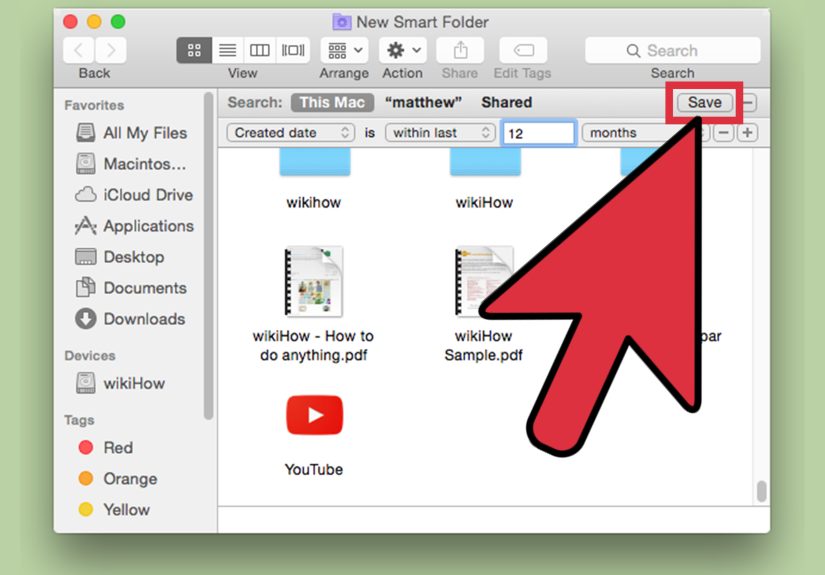
Pro tip: In Finder search results, click the + button (near the top right of the window) to add criteria like
Kind, Created date, or File extension. It’s basically “advanced search” without the drama.
Quick Wins for Both Windows and Mac
- Search by extension: JPG, JPEG, PNG, HEIC, WEBP, TIFF, GIF.
- Sort by date: When you see results, sort by Date taken (if available) or Date modified.
- Search inside likely places first: Pictures, Downloads, Desktop, and any “import” folders.
Way 2: Follow the Trail of Photo Apps and Cloud Sync (Photos, iCloud, OneDrive, Google Photos)
A huge percentage of “missing pictures” are hiding in plain sight inside a photo appor living in a cloud folder that looks local but isn’t fully downloaded.
Translation: your photo exists, but it’s wearing a disguise.
Windows: The Photos App + OneDrive Gallery
If you use the Photos app on Windows, try searching inside the app first. It can group pictures and make them easier to find by
location or other hints (depending on what metadata exists).
If you use OneDrive, your pictures might be synced into OneDrive’s folder structure. Common places include:
- OneDrivePictures (often where synced photos land)
- OneDrivePicturesCamera Roll or Camera Imports (depending on your setup)
Reality check: Sometimes cloud folders show placeholders. If you see an image but can’t open it offline, you may need to right-click and
choose an option like “Always keep on this device” (wording varies by setup) so it actually downloads.
Mac: Apple Photos Library (It’s a “Package,” Not a Normal Folder)
On Mac, if you import pictures into the Photos app, those images are typically stored in a Photos Library that lives in your
Pictures folder. It’s not a bunch of neatly named files sitting aroundit’s a library file (a “package”) managed by the app.
Practical implications:
- If you search Finder for a photo you imported, you might not see the original file sitting openly in a folder.
- The Photos app may be the best place to search if you imported everything there.
- You can often reveal where the library is stored from within Photos settings/options.
iCloud Photos on Windows: Where Did It Go?
If you use iCloud Photos on a Windows PC, your photos may download into a dedicated iCloud Photos directory under your user profile.
The key idea: they may not be in your regular Pictures folders where you’d “normally” look.
Also, inside File Explorer you might see an iCloud Photos entry in the sidebar. That’s often the fastest way to confirm whether iCloud is
the culprit (in a good way).
Google Photos: The Photo Exists… But Maybe Only Online
With Google Photos, it’s common to assume photos are “on your computer” when they’re actually just backed up online.
If you can see the image in Google Photos on the web, you can download a local copy to your computer.
If you use Google Photos’ desktop workflow (or manually download), your pictures might end up in:
Downloads, a chosen backup folder, or a folder you picked once and then forgot about forever (we’ve all been there).
Way 3: Do a Targeted “Photo Sweep” (Common Folders, Hidden Spots, and Metadata Clues)
When search and apps don’t immediately solve it, do a short, systematic sweep.
Not an all-day archaeological digmore like checking the usual hiding places where photos love to squat.
The 10-Minute Folder Sweep Checklist (Windows + Mac)
Start with these folders because they’re responsible for an astonishing amount of “lost” images:
- Pictures (including subfolders like Imports, Saved Pictures, Camera Roll)
- Downloads (screenshots, attachments, web images)
- Desktop (temporary saves you forgot to move)
- Documents (yes, people save photos here; yes, it’s chaos)
- Messaging app folders (attachments saved from email/chat tools)
- Cloud sync folders (OneDrive, iCloud Drive, Dropboxwherever you sync)
- External drives / USB sticks (the “I’ll move it later” graveyard)
Use Metadata Clues: Date Taken, Camera Names, and Keywords
Photos usually carry metadata like Date taken, device model (iPhone, Pixel, DSLR), and sometimes location.
That means you can narrow a hunt dramatically if you remember even one clue:
- Rough timing: “It was last Thanksgiving” → filter around that date range.
- Device: “It was from my iPhone” → search for HEIC or look for Apple-style filenames (IMG_####).
- Type of image: screenshot vs camera photo → search for “Screenshot” in filename or sort by dimensions.
On Windows, sorting by columns like Date taken (if shown) can be a lifesaver. On Mac, Finder search criteria can do something similar.
Don’t Forget the “Hidden” Angle (Especially on Windows)
Some folders are hidden by default, and some system or app folders don’t show everything unless you enable viewing hidden items.
If you strongly suspect you downloaded or imported something and it vanished, checking hidden items can helpjust be careful not to delete random system files.
When You Find Them: Lock It In So This Never Happens Again
Once you’ve rediscovered your photos, take 2 minutes to future-proof yourself:
- Create one “Inbox” folder (e.g., PicturesPhoto Inbox) where all new imports land.
- Rename in batches with date + event (e.g., 2026-01 Ski Trip) so searches work later.
- Back up to an external drive or trusted cloud service so a single computer problem doesn’t wipe your memories.
Wrap-Up: The Simple Strategy That Works Most
If you want the shortest path to success, do this:
(1) search by file type with filters,
(2) check photo apps + cloud sync folders,
and (3) sweep the usual suspects (Downloads, Pictures, Desktop).
Most photo hunts end in under 15 minutes once you stop looking “everywhere” and start looking in the places photos actually go.
Bonus: of Real-World Experiences (a.k.a. “Where Photos Go to Hide”)
Here are some common, very real scenarios people run intoshared here as mini “case files” so you can recognize your situation faster.
No lab coat required.
Experience #1: “I Downloaded It… So Why Isn’t It in Pictures?”
This one wins awards for most predictable plot twist. A lot of people assume images automatically land in the Pictures folder.
In reality, your browser usually drops downloads into Downloads, and many apps save attachments wherever they feel like
sometimes in a subfolder you didn’t pick, sometimes in the last folder you used, and sometimes in a location that made sense three years ago.
The fix is simple: search Downloads first, then sort by Date modified. If you remember the website,
search for a keyword in the filename (like “invoice” or “wedding”) plus kind:images on Mac or kind:=picture on Windows.
Once found, move the photo into a consistent folder (like PicturesPhoto Inbox) so your future self doesn’t have to reenact this detective story.
Experience #2: The Cloud Folder That Looks Local (But Isn’t)
Cloud sync is wonderful until it’s confusing. People often “see” photos in a OneDrive or iCloud Photos view and assume they’re saved on the computer.
But some setups use on-demand placeholders: you can browse thumbnails, but the full file downloads only when you open it.
Then the moment you go offline, the photo acts like it never existed. The giveaway is usually a small icon on the file.
The fix is to mark the folder or key albums as “always keep on device” (wording varies) or explicitly download what you need.
If you’re organizing photos, do it while you’re online so the files can fully syncotherwise you’ll end up reorganizing ghosts.
Experience #3: “I Imported Everything Into Photos… Now Where Are the Files?”
Mac users run into this constantly. Importing into Apple Photos feels like “copying photos onto the computer,” but the originals are managed inside the
Photos Library package. That’s not badit’s just different. Finder searches may not surface those originals as independent files the way you expect.
So people panic, thinking the photos are gone, when they’re actually safe inside Photos. The best solution is to search in the Photos app by date/event,
then export copies if you need standalone files for sharing or backup. If you prefer a traditional folder-based workflow, you can keep your originals in
folders and import by reference (depending on your settings), but you’ll want to be consistentor you’ll end up with half your life in a library and the
other half scattered like confetti.
Experience #4: The Screenshot Pileup Nobody Admits To
Screenshots are the modern equivalent of sticky notes: helpful, temporary, and somehow permanent.
On many systems, screenshots have their own default location (and that location can vary by settings).
People take a screenshot, share it, and then forget it existsuntil storage fills up and a search reveals thousands of images named “Screenshot (412).png.”
If your missing image is a screenshot, search for “Screenshot” plus a date range. Once you find the right folder, consider a monthly cleanup habit:
move “keep” screenshots into a labeled folder and delete the rest. Your future searches will get dramatically easier.
Experience #5: The Duplicate/Triplicate Problem
The final boss: duplicates. Photos get copied during imports, transfers, edits, messaging, and “quick backups.”
You end up with the same picture in Downloads, Pictures, OneDrive, and a random folder called “Old Laptop Stuff.”
This makes searching harder because you get too many results and none feel “right.”
The fix is to pick one master location (local folder or a photo app library), consolidate into it, and then back it up.
After that, duplicates become less of a lifestyle and more of an occasional inconvenience.