Table of Contents >> Show >> Hide
- Before You Start: A Quick Reality Check
- Way #1: Turn Internet Explorer 11 On (Windows Feature Method)
- Way #2: Install Internet Explorer 11 Using an Official Microsoft Installer (Legacy OS Method)
- Way #3: “Install” the Internet Explorer Experience with IE Mode in Microsoft Edge (Recommended)
- Troubleshooting: When Internet Explorer Still Won’t “Install” (or Behave)
- Security Notes: The “Just Because You Can…” Section
- FAQ
- Final Takeaway
- of Real-World Experiences People Commonly Have With “Installing” Internet Explorer
Internet Explorer is the denim jacket of web browsers: iconic, stubbornly still in some closets, and absolutely not what you should wear to a modern job interview.
Microsoft ended support for the Internet Explorer 11 desktop app on many Windows 10 versions back in 2022, and on newer systems (hello, Windows 11) the classic IE app simply isn’t a thing you can “install” anymore. What is still a thing is the Internet Explorer enginekept around mainly to power IE mode in Microsoft Edge for legacy sites that refuse to join the 21st century.
So, this guide is built around real-world reality (the best kind): depending on your Windows version and your goal, “installing Internet Explorer” can mean
(1) turning IE11 back on as a Windows feature where it’s still available,
(2) installing IE11 from an official Microsoft installer on older supported environments, or
(3) installing the Internet Explorer experience via Edge’s IE modethe approach Microsoft actively recommends for compatibility.
Before You Start: A Quick Reality Check
What “Internet Explorer installation” can mean in 2026
- Windows 10 (some editions/builds): IE11 may still exist as an optional Windows feature, but many systems now redirect or have IE11 permanently disabled.
- Windows 11: You generally can’t install the standalone Internet Explorer app. If a site needs IE, the practical solution is IE mode in Microsoft Edge.
- Older OS environments (Windows 7 SP1 / certain legacy server setups): IE11 installers exist, but this route is mostly for controlled, legacy, or lab environmentsnot everyday browsing.
Translation: if your mission is “I must open one ancient line-of-business site that only works in IE,” you probably don’t need the full IE browser at allyou need
a compatibility mode that behaves like it. That’s why Method #3 is the one you’ll use most often.
Way #1: Turn Internet Explorer 11 On (Windows Feature Method)
If you’re on a Windows 10 PC where Internet Explorer is still present (or just hiding), the simplest “install” is really enabling it.
Think of it like finding a forgotten appliance in your kitchen pantry: it’s already in the house, you just need to plug it back in.
Best for
- Windows 10 systems where IE11 is still available as a Windows feature
- Situations where you need the actual IE11 app interface (not just compatibility)
Step-by-step: Enable Internet Explorer 11 on Windows 10
- Open the Start menu and search for Turn Windows features on or off.
- Open it, then scroll the list until you see Internet Explorer 11.
- Check the box next to Internet Explorer 11.
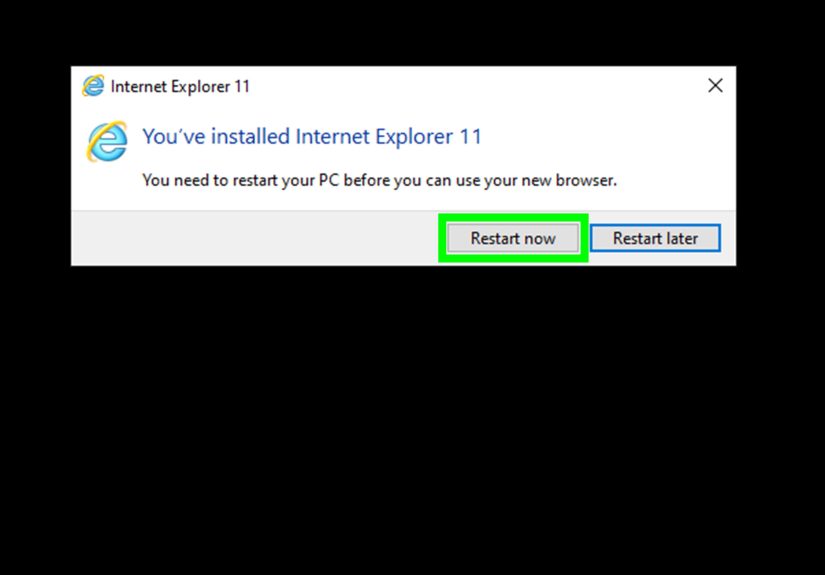
- Click OK, then restart your PC when prompted.
- After restarting, search Internet Explorer from Start to launch the desktop app (if available on your system).
Common “Why can’t I find it?” explanations
- IE11 may be permanently disabled on certain Windows 10 versions. Some updates shift users to Edge and disable IE11 as a standalone browser.
- Your organization may have policies set that disable IE11. On managed devices, IT can enforce settings that prevent IE from being used directly.
- You’re actually on Windows 11. Windows 11 doesn’t play the “bring back IE” game the way older Windows 10 builds did.
If this method doesn’t work on your machine (or IE opens but immediately shuffles you into Edge like a bouncer at a trendy club), don’t panic.
That’s not youit’s the modern Windows ecosystem. Skip to Way #3 for the compatibility-first approach that Microsoft intends people to use.
Way #2: Install Internet Explorer 11 Using an Official Microsoft Installer (Legacy OS Method)
This method is for the situations where IE11 truly isn’t on the computer yettypically because you’re working in a legacy environment such as Windows 7 SP1
(often in a lab, a virtual machine, or a locked-down legacy setup). The key word here is official: if you’re installing IE11, stick to Microsoft’s
download pages or trusted enterprise channels, not random “free download” sites that also offer a complimentary malware sampler platter.
Best for
- Legacy environments (for example, Windows 7 SP1 in controlled setups)
- Testing or maintaining older internal apps (especially if they rely on older browser behaviors)
- Virtual machines used for compatibility testing
Step-by-step: Install IE11 safely in a legacy environment
- Confirm your OS and architecture:
check whether you’re on 32-bit or 64-bit Windows, and confirm the OS version. - Update prerequisites:
older Windows installs may require specific service packs or updates before IE11 can install cleanly. - Download the official IE11 installer for your OS/architecture from Microsoft’s download pages.
(If you’re in a business environment, use your standard software distribution tools so it’s tracked and consistent.) - Run the installer (as an administrator if required), follow prompts, and allow it to complete.
- Restart when prompted, then launch Internet Explorer 11 from the Start menu.
Important warning: Legacy OS ≠ safe OS
If you’re doing this on a computer that connects to the open internet, you’re basically taking a classic car with no airbags onto a modern highway.
Legacy OS setups should be isolated when possible, patched as far as that OS allows, and used only for the specific legacy task at hand.
If the purpose is simply “I need that one site to work,” Way #3 is usually safer and easier.
Way #3: “Install” the Internet Explorer Experience with IE Mode in Microsoft Edge (Recommended)
Here’s the modern truth: for most people, “installing Internet Explorer” really means turning on IE mode in Edge.
IE mode uses the legacy Internet Explorer engine inside Edge, letting you load old sites that depend on older behaviors
(and yes, sometimes ancient technologies like ActiveXalthough that comes with serious security considerations).
Best for
- Windows 11 users who can’t install the standalone IE app
- Windows 10 users whose IE11 desktop app is disabled/redirected
- Anyone who needs a legacy site to work without running a fully deprecated browser full-time
- Organizations managing multiple legacy web apps
Step-by-step: Turn on IE mode in Edge
- Open Microsoft Edge.
- Click the three-dot menu (top-right) and choose Settings.
- Go to Default browser.
- Find Allow sites to be reloaded in Internet Explorer mode (IE mode) and set it to Allow.
- Restart Edge when prompted (this is Edge’s way of saying, “I heard you, but please clapafter reopening me.”)
- Under Internet Explorer mode pages, click Add and enter the URL of the legacy site you need.
- Visit that site in Edge, then reload it. If everything is set correctly, Edge should open it in IE mode.
How to tell you’re in IE mode
Edge typically shows an on-screen indicator/banner when a page is running in IE mode. You’re still inside Edge, but the page is rendered using the
Internet Explorer engine for compatibility.
Power tip for workplaces: Enterprise Site List
If you’re managing multiple legacy sites (or you’re tired of walking co-workers through settings like you’re narrating a cooking show),
IT admins can configure IE mode centrally using enterprise policies and an Enterprise Site List.
That way, specific URLs automatically open in IE mode without each user setting it up manually.
What if IE mode is missing or locked?
- Managed device: Your organization may control the setting via policy. Contact IT.
- Old Edge version: Update Edge. IE mode depends on Edge being current enough to support the feature.
- Wrong setting area: In many builds, IE mode controls live in Settings → Default browser.
Troubleshooting: When Internet Explorer Still Won’t “Install” (or Behave)
Problem: IE opens but instantly redirects to Edge
On many systems, this is expected behavior because IE11 has been retired and redirected. The clean fix is to use IE mode for the specific site
rather than trying to force the standalone browser back into daily use.
Problem: The website only works in IE and breaks in Edgeeven with IE mode
A few legacy apps are extremely picky. Try these sanity checks:
- Confirm the exact URL (including the right subdomain and protocol) is listed in Internet Explorer mode pages.
- Reload the page after adding itIE mode doesn’t always flip on retroactively without a reload.
- Check whether the site requires compatibility settings (older document modes) configured through enterprise tools.
- If you’re in a business environment, use an Enterprise Site List so document mode and compatibility can be controlled per site.
Problem: “I need IE for one specific tool… and it uses old plugins”
If your legacy tool relies on older browser technologies, you’re balancing compatibility and security.
Use the most limited approach possible:
open only the required internal sites in IE mode, keep everything updated, and avoid using that environment for general browsing.
Security Notes: The “Just Because You Can…” Section
Internet Explorer’s retirement didn’t happen because the browser was “too beloved.”
Older browser tech has a long history of being targeted, and running a deprecated browser for everyday browsing is a risky move.
If you must use legacy compatibility, keep it scoped:
- Use IE mode only for the exact sites that need it (preferably internal business apps).
- Do not use IE/IE mode as your everyday browser for random internet wandering.
- Keep Windows and Edge updated, because IE mode depends on maintained components.
- Consider isolating legacy access (virtual machine, restricted network segment) when feasible.
In other words: treat legacy browser compatibility like hot sauceuse a tiny amount, only when needed, and don’t rub your eyes afterward.
FAQ
Can I install Internet Explorer on Windows 11?
In practical terms, nonot as the classic standalone Internet Explorer desktop app. The modern path is using Internet Explorer mode in Microsoft Edge
for sites that require IE compatibility.
Is Internet Explorer completely gone?
The standalone IE11 app has ended support for many Windows 10 versions, but the IE engine still exists primarily to support IE mode in Edge for legacy compatibility.
That’s why IE mode remains the official bridge for older web apps.
How long will IE mode stick around?
Microsoft has stated IE mode will be supported through at least 2029, giving organizations time to modernize legacy apps.
Do I need admin rights to enable IE mode or IE features?
Sometimes. On personal PCs, you can often enable IE mode yourself. On school/work devices, your organization may lock those settings behind policy.
Final Takeaway
If you’re trying to “install Internet Explorer” today, you’re usually trying to solve a compatibility problem, not a browsing preference.
The simplest, most future-proof route is almost always IE mode in Microsoft Edge.
Only use the standalone IE11 app (or legacy installers) when you have a controlled environment and a specific need that can’t be met any other way.
of Real-World Experiences People Commonly Have With “Installing” Internet Explorer
Most people don’t wake up and think, “You know what would really brighten my day? Internet Explorer.” The journey usually starts with a legacy website
often an invoicing portal, HR tool, industrial control dashboard, or government form sitethat was built back when “mobile-friendly” meant “the page loads on a Blackberry
if you whisper encouragement to it.” The first experience many users have is pure confusion: they search for Internet Explorer on Windows 11, don’t find it, and assume
they’re missing a download button somewhere. Spoiler: they’re not. The button moved out years ago and left a note that says, “Try Edge.”
The second common experience is the “I enabled it… why did it still open Edge?” moment. On certain Windows 10 systems, people successfully check the IE11 box in
Windows Features, restart, and feel victoriousuntil launching IE promptly redirects to Edge. That’s typically when the emotional arc shifts from optimism to bargaining:
“What if I click it harder?” (It doesn’t help.) This is also the point where folks discover that modern Windows updates can permanently disable the standalone IE app on
some builds. It feels unfair, like buying a toaster and being told you can only use it to warm your handsnot toast bread.
Then comes the surprisingly pleasant plot twist: IE mode in Edge. Once people enable IE mode and add their problem website to the IE mode list, the legacy page often
springs back to life like it just heard its favorite 2009 ringtone. Users frequently report that it’s smoother than the old IE app because Edge handles tabs, modern
security features, and general browsing better. The “aha” moment happens when they realize they don’t need to resurrect Internet Explorer for everythingonly for that
one stubborn site that refuses to modernize.
In workplaces, the experience becomes more team-based. One person gets IE mode working, and suddenly they’re the unofficial “legacy wizard,” walking coworkers through
Edge settings on repeat. That’s why IT teams often move to centralized configuration using an Enterprise Site List: it turns a weekly “help me” ritual into a one-time
deployment. People also learn a practical habit: keep legacy browsing scoped. They’ll open only the required internal tool in IE mode, do the task, and then return to
normal browsingbecause nobody wants to discover the hard way that “old browser behavior” can include “old security problems.”
Finally, there’s a bittersweet experience that shows up again and again: IE mode works, but it also reveals the real issuetechnical debt. The browser wasn’t the
real problem. The real problem was an app that hasn’t been updated since flip phones were cool. Many users end up using IE mode as a bridge, not a permanent home:
it buys time while teams plan a modernization path. And honestly, that’s the healthiest relationship anyone can have with Internet Explorer in 2026: brief, purposeful,
and with strong boundaries.