Table of Contents >> Show >> Hide
- Before You Start: What “Xbox Live” Means in 2026
- The 3 Ways to Set Up an Xbox Live Account
- Choosing the Right Subscription (If You Want Online Multiplayer)
- Smart Setup Choices Most People Skip (Then Regret)
- Troubleshooting: Fixes for Common Xbox Live Account Setup Problems
- Quick Comparison: Which Setup Method Should You Use?
- Final Thoughts
- Experiences That Make the Setup Stick (500+ Words of Real-World Flavor)
Setting up an Xbox Live account (a.k.a. your Xbox profile on the Xbox network) is the fastest way to go from
“New console smell” to “Why is my friend already level 80?” The good news: creating the account is free, takes minutes,
and you can do it three different wayson your console, on the web, or through the Xbox app/Windows Xbox experience.
This guide walks you through each setup method, what you’ll need, what to expect (gamertag drama included),
and a few smart choices that save headaches laterlike turning on two-step verification before someone “accidentally”
buys 14 copies of a cosmetic pack.
Before You Start: What “Xbox Live” Means in 2026
People still say “Xbox Live,” and that’s totally fine. Officially, Microsoft uses “the Xbox network” as the name for
the underlying online service, and your Xbox profile is tied to a Microsoft account. In practical terms, you’re creating:
- A Microsoft account (email + password, or other sign-in method)
- An Xbox profile (gamertag, avatar/gamerpic, friends list, achievements, privacy settings)
Important distinction: creating the profile is free. Online multiplayer for most paid games typically requires a subscription
(commonly Xbox Game Pass Core or another eligible tier), but you can still sign up, play offline games, buy games,
use parties/messages, and manage your account without paying.
The 3 Ways to Set Up an Xbox Live Account
Pick the method that matches where you are right now. If you’re already holding an Xbox controller, start with Method #1.
If you’re on a laptop/phone and just want the account ready to go, Method #2 is your best friend.
If you like scanning QR codes and letting your phone do the heavy lifting, Method #3 is for you.
Method 1: Set Up Your Xbox Live Account Directly on Your Xbox Console
Best for: brand-new console setup, shared household consoles, anyone who wants the “official tour” of Xbox menus.
What you need
- An internet connection (Wi-Fi or Ethernet)
- An email address (or the ability to create one)
- About 5–10 minutes and one decent gamertag idea
Step-by-step
- Turn on your Xbox and open the guide (press the Xbox button).
- Go to Profile & system and choose Add or switch > Add new.
-
Sign in with an existing Microsoft account, or select the option to
Get a new account if you’re starting from scratch. - Follow the prompts to verify your email/phone (if requested) and complete the Microsoft account setup.
-
Choose your gamertag. If your dream tag is taken, Xbox will usually suggest variations.
(Yes, it’s emotionally devastating. No, “xXx_D4rkL0rd_xXx” isn’t the solution. Probably.) - Review privacy defaults. You can adjust them now or later in settings.
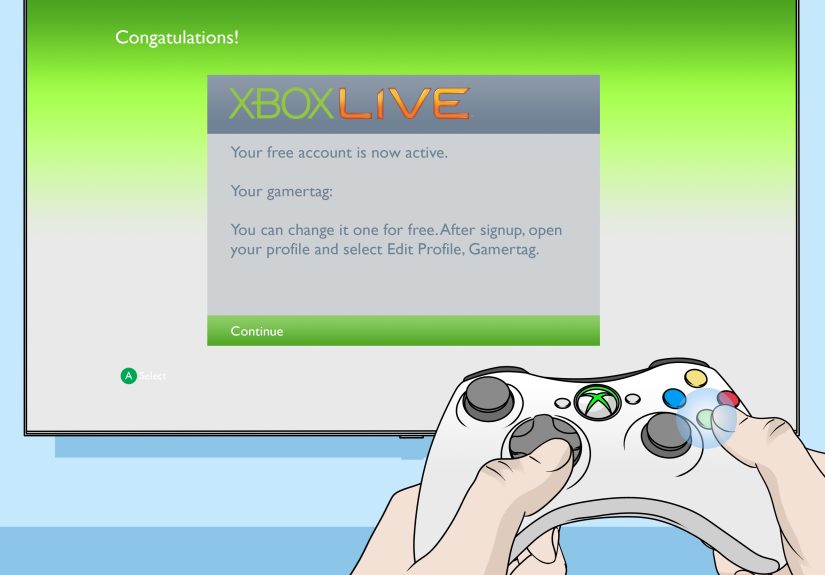
- Finish setup, sign in, and you’re liveprofile created.
Console-specific tips that save time
-
Multiple users at home? Add each person as their own profile so achievements, saves,
and purchases don’t get mixed into one mega-account. -
Kids playing? Create a child account (Method 1 makes this straightforward) and manage
permissions through family settings. - Already have a Microsoft account? Use iteven if it’s a Gmail address. Microsoft accounts are not limited to Outlook emails.
Method 2: Create Your Xbox Live Account on the Web (PC or Mobile Browser)
Best for: setting up ahead of time, easier typing, fewer on-screen keyboard tantrums, and people who want to pick a gamertag calmlylike an adult.
What you’ll do
You’ll create (or sign into) a Microsoft account, then make sure your Xbox profile is created and linked.
This is also the easiest path if you’re managing accounts for multiple family members from one device.
Step-by-step
- Create a Microsoft account (or sign in to your existing one).
- Go to the Xbox account/profile area and complete profile creation if prompted.
- Pick your gamertag and confirm profile details.
- Optional but recommended: enable two-step verification and review account security.
- Sign into your Xbox console later using this Microsoft account, and your profile will come with you.
Why the web method is underrated
- Faster text entry: no hunting for letters with a thumbstick like it’s a mini-game you didn’t ask for.
- Cleaner account security setup: easier to add backup email/phone, recovery options, and sign-in methods.
- Great for troubleshooting: if your console is acting weird, creating the account in a browser often sidesteps the issue.
Common “Wait, why is it asking me this?” moments
-
Gamertag already taken: try a different spelling, add a word you actually like, or use a subtle variation.
You’ll see suggestionssome good, some… generated by chaos. -
Account recovery prompts: take them seriously. The fastest way to lose an account is to skip recovery options
and forget your password six months later.
Method 3: Set Up Using the Xbox Mobile App (and/or Windows Xbox App)
Best for: people who’d rather scan a QR code than type a password on a TV, and anyone setting up a new Xbox console for the first time.
What you’ll do
Install the Xbox app, sign in or create a Microsoft account, and let the app help you connect your profile to your console.
On Windows, you can also use the Xbox app experience to confirm your profile is working for PC gaming.
Step-by-step (mobile app approach)
- Install the Xbox app on iOS or Android.
- Open the app and sign in with your Microsoft accountor create a new one if you don’t have one yet.
- Follow prompts to set up your Xbox console (if you’re in the new-console flow) or to connect to an existing console.
- Confirm your gamertag/profile details if prompted.
- Once you sign in on the console with the same Microsoft account, your Xbox profile appears automatically.
Step-by-step (Windows Xbox experience)
- Open the Xbox app on Windows and sign in with your Microsoft account.
- If prompted, complete your Xbox profile setup (gamertag/profile creation).
- Launch an Xbox-enabled game and confirm it recognizes your Xbox profile for achievements and friends.
Why this method feels “modern” (in a good way)
- Less typing on TV: passwords and emails are much easier on your phone.
- Quick console onboarding: the app can guide setup and reduce menu hunting.
- Great for households: parents can help kids sign in without handing over a controller.
Choosing the Right Subscription (If You Want Online Multiplayer)
Your Xbox profile is free. The part that sometimes costs money is online multiplayer for many paid games.
Today, Xbox positions Xbox Game Pass Core as the evolution of the old Xbox Live Gold-style membership.
If you mostly want online play and a smaller rotating library, Core is usually the “entry tier.”
If you want a bigger catalog and extra perks, other Game Pass options may make more sense.
Quick reality check: some free-to-play games may not require the same subscription for online play.
Always check the game’s store page or Xbox’s current policy notes, because requirements can vary.
Smart Setup Choices Most People Skip (Then Regret)
1) Turn on account security early
If you do one “adulting” task today, make it this: set up strong security.
Add recovery options and use two-step verification where available.
It’s way easier to do this calmly than after someone signs in from a different continent and buys a game you already own.
2) Set privacy and communication settings to match your vibe
Xbox privacy controls let you decide who can message you, see your activity, or add you as a friend.
If you stream, play competitively, or just prefer peace, start more private and open up later.
3) Households: create separate profiles (and use family tools)
Sharing one account across multiple people is like sharing one toothbrush:
technically possible, deeply unsettling, and it causes fights. Make separate profiles.
For kids, use child accounts and family settings so purchases and communications are age-appropriate.
Troubleshooting: Fixes for Common Xbox Live Account Setup Problems
Problem: “I can’t create a gamertag” or the system won’t finish profile creation
- Try the web method (Method 2) to create the profile first, then sign in on the console.
- Check your connection: unstable Wi-Fi can cause setup loops.
- Restart the console and try again. Simple, yes. Effective, also yes.
Problem: “My kid needs an account but I don’t want them to have full permissions”
Create a child account and add it to your family group. That lets you control screen time,
spending, and communication settings without turning every gaming session into a negotiation summit.
Problem: “I already have a Microsoft accountdo I need a new email?”
Usually, no. Any existing Microsoft account works, and it can be tied to many email providers.
The key is consistency: use the same Microsoft account everywhere (console, mobile, PC) to keep your Xbox profile synced.
Quick Comparison: Which Setup Method Should You Use?
- Console setup (Method 1): best if you’re already on the Xbox and want everything done in one flow.
- Web setup (Method 2): best for speed, easier typing, and account security setup.
- Xbox app / Windows (Method 3): best for new-console onboarding and avoiding TV keyboard pain.
Final Thoughts
Setting up an Xbox Live account is really setting up your identity in the Xbox ecosystem: your gamertag,
your friends list, your saves, your achievements, and (let’s be honest) your reputation for either being
the reliable teammate or the person who “accidentally” walks into every trap.
Whether you create your account on-console, on the web, or through the Xbox app, the best setup is the one
you’ll remember and secure. Pick a gamertag you won’t cringe at later, lock down security, and set privacy
rules that match how you actually play. Then go do what you came for: play.
Experiences That Make the Setup Stick (500+ Words of Real-World Flavor)
The funniest thing about creating an Xbox Live account is that it feels like a small stepuntil you realize it’s the “front door”
to everything you’ll do on Xbox for years. Here are a few common real-world setup experiences (the kind players talk about in group chats),
and what they teach you before you learn the hard way.
The “Gamertag Spiral” Experience
Someone sits down thinking, “I’ll be gaming in five minutes,” and then spends twenty of those minutes negotiating with the gamertag system
like it’s a hostage situation. Their ideal name is taken. Then their second choice is taken. Then the system suggests something like
“CoolPanda873516,” and suddenly they’re questioning every decision they’ve ever made. The lesson: brainstorm two or three backup names
before you start. A good formula is two words + a subtle number (not your birth year, unless you want strangers doing math).
And remember: funny beats edgy most of the timefuture you will appreciate it.
The “TV Keyboard Olympics” Experience
Typing an email address and password with a controller is a rite of passage… but it’s also a test of patience you didn’t sign up for.
Players often begin Method 1 (console setup), then realize halfway through that typing “CorrectHorseBatteryStaple!” with a thumbstick
is basically CrossFit for your soul. This is where Method 3 shines: the Xbox app makes sign-in feel like 2026 instead of 2006.
If you’re setting up more than one accountsay for a partner, roommate, or kidsusing the web or app method can save a surprising
amount of time and reduce the likelihood of a password typo that haunts you later.
The “Family Console” Experience
In households, the most common early mistake is creating one account and letting everyone use it “for now.” “For now” usually lasts
about three days, until someone’s save file is overwritten or a sibling unlocks achievements in a game the other person wanted to
experience fresh. The smarter pattern is separate profiles for each person from day one. Parents also learn quickly that a child
account isn’t about being strictit’s about avoiding accidental purchases and letting kids play safely in social spaces. Once family
settings are in place, the console becomes calmer. Less arguing, fewer surprises, and no mysterious midnight cart additions.
The “I Just Want to Play Online” Experience
Many players equate “Xbox Live account” with “I can play online now,” then get confused when a multiplayer game asks for a subscription.
The reality is: the account is your identity; the subscription (often Game Pass Core or another eligible plan) is the ticket for online
multiplayer in many paid games. Once players understand that separation, decisions get easier. Some people buy a subscription right away
because online multiplayer is the whole point. Others skip it because they mainly play single-player games or couch co-op. Either choice
is validjust make it intentionally, not because a menu surprised you.
The “Security Wake-Up Call” Experience
The least fun story is also the most useful: the player who didn’t set up recovery options, forgot their password, and discovered that
losing access to an account can mean losing access to purchases and progress until recovery is complete. The fix is simple: add recovery
email/phone info, use strong passwords, and enable extra verification where possible. Most people never need ituntil they really do.
A secure setup is like an umbrella: you don’t appreciate it on sunny days, but you’re thrilled you have it when the storm hits.
Taken together, these experiences point to one theme: the best Xbox Live account setup isn’t just “successful”it’s comfortable.
Comfortable to sign in, comfortable to manage, comfortable to share a console responsibly, and comfortable to trust. Pick the method that
reduces friction for you (console, web, or app), set your basics (security, privacy, family rules), and you’ll spend your time gaming
not troubleshooting.