Table of Contents >> Show >> Hide
- Quick reality check: Are your contacts deleted or just hiding?
- Way 1: Restore contacts from a computer backup (Finder / iTunes / Apple Devices)
- Way 2: Extract contacts from an existing backup without wiping your iPhone
- Way 3: Resync contacts from Google, Outlook, Exchange, or another mail account
- Way 4: Import contacts from a SIM card or a vCard (VCF) file
- Way 5: Rebuild contacts using call history, messages, and contact suggestions
- What if none of these work?
- How to prevent this next time (without iCloud)
- Real-World Recovery Stories and Lessons Learned
Losing iPhone contacts feels like watching your social life evaporate in real time. One minute you’ve got “Maya (Do NOT text after 10)” and “Dentistow” saved forever.
The next minute you’re staring at an empty list like your phone just moved to a remote cabin to “find itself.”
The good news: if you’re not using iCloud (or don’t have an iCloud backup), you still have several realistic ways to recover deleted contactsor at least rebuild them fast.
The key is to stop tapping random buttons out of panic and follow a plan that doesn’t make things worse.
Quick reality check: Are your contacts deleted or just hiding?
Before you declare your phone a villain, make sure your contacts are actually gone. On iPhone, “missing” contacts are often just filtered out by account or list settings.
This happens a lot if you use Gmail/Outlook/Exchange, switched phones, updated iOS, or added a new account.
Check these in 60 seconds
- Show all contact lists/groups: Open the Contacts app and tap Lists or Groups (wording varies by iOS).
Make sure All iPhone and any mail accounts (Google/Outlook/Exchange/Yahoo) are selected. - Confirm account syncing is ON: Go to Settings > Apps > Contacts > Contacts Accounts. Tap each account and ensure
Contacts is enabled. - Search smarter: Use the search bar inside Contacts and try the person’s first name, last name, and even their company.
Sometimes a contact is there but displayed differently (like “Robert” instead of “Rob”).
If your contacts reappear after changing lists or toggling an account on, congratulationsnothing was deleted. Your iPhone just got dramatic.
If they’re truly deleted, move on to the recovery options below.
Way 1: Restore contacts from a computer backup (Finder / iTunes / Apple Devices)
If you’ve ever backed up your iPhone to a computer, you may be able to restore your contacts from that backup. This does not require iCloud.
It does, however, come with a big caveat: a full restore can replace data on your iPhone with whatever was on the backup date.
Best when
- You have a Mac or PC you regularly connect to (or used to).
- You suspect the missing contacts existed at the time of a prior backup.
- You’re okay with a “restore, then rebuild” approach if needed.
Step-by-step (safer version)
- Make a fresh backup first (to preserve today’s data):
Connect your iPhone to your computer and create a backup in Finder (Mac), iTunes (older Windows/macOS), or the Apple Devices app (newer Windows).
This gives you a “today” checkpoint. - Look at your backup dates and pick the one that likely contains the missing contacts (for example, a backup from last week or last month).
- Restore from that backup and let the process finish completely. Don’t unplug earlyeven if you’re tempted to “help” by wiggling the cable.
- Confirm contacts are back. If they are, immediately export or copy what you need (see Way 2 and Way 4 for exporting/importing ideas),
so you don’t lose them again during future changes.
Pros and cons (the honest version)
- Pro: Highest chance of true recovery if a backup exists.
- Con: A full restore can overwrite newer data (photos, messages, app data) depending on how your phone is set up.
- Tip: If the contacts are mission-critical, consider restoring the older backup to a spare iPhone first (if you have one), then exporting the contacts.
Example: Let’s say you deleted 200 contacts on January 20. If you have a computer backup from January 10, restoring it may bring those contacts back.
You can then export them as a vCard and re-import into your current setup so you keep newer data too.
Way 2: Extract contacts from an existing backup without wiping your iPhone
This is the “I want my contacts back, but I also want my current phone life to stay intact” method.
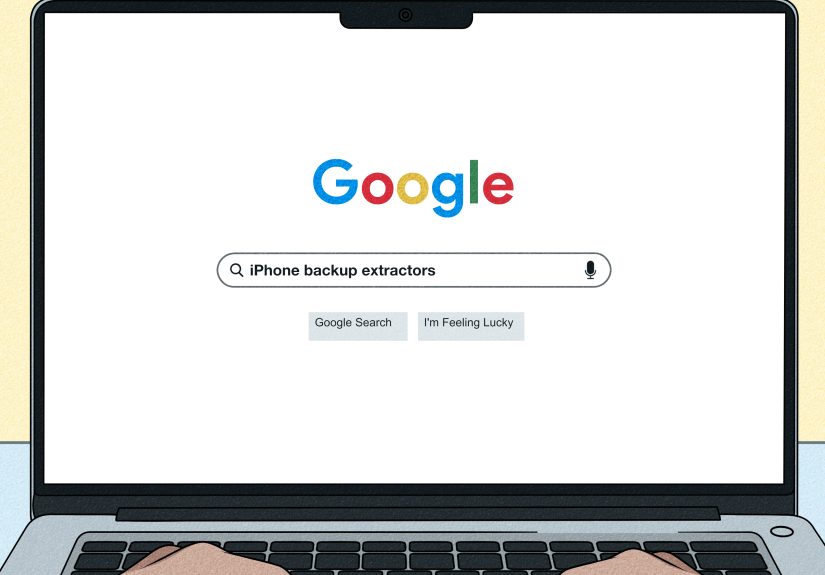
Some desktop tools can read your local iPhone backup and export contacts without doing a full device restore.
How it works
Your computer backup contains a database of contacts (and other data). Backup-extractor apps can open that backup, let you preview contacts,
and export them as a file (usually .vcf, also called a vCard) that you can import back to your iPhone.
Steps (general, tool-agnostic)
- Find your backup on your computer. If you’ve backed up before, it’s usually stored automaticallyno treasure map required.
- Open the backup with a reputable extractor tool and look for a section like Contacts/Address Book.
- Preview and export the contacts as a VCF file (or CSV, if you plan to manage them in Google/Outlook first).
- Import the VCF back to your iPhone (see Way 4 for simple importing).
Important safety notes
- If your backup was encrypted, you’ll need the backup password to read it.
(Encryption is goodit protects your data. It’s only annoying when you forget you enabled it.) - Avoid sketchy “free miracle recovery” apps that demand unnecessary permissions or push you into spammy installs.
Contacts contain personal datatreat them like keys, not confetti.
Example: You backed up your iPhone to a Windows laptop last month. Today you notice contacts are gone.
Instead of restoring and risking newer photos/messages, you extract just the contacts from the backup, export them as a VCF, and import them back to the phone.
Way 3: Resync contacts from Google, Outlook, Exchange, or another mail account
Many people don’t realize their “iPhone contacts” are actually stored in Gmail, Outlook, Microsoft Exchange, Yahoo, or another account.
In that case, recovering deleted contacts may be as simple as turning syncing back onor restoring deleted contacts inside that service.
Step 1: Turn syncing on (or refresh it)
- Go to Settings > Apps > Contacts > Contacts Accounts.
- Tap the account you use (Google, Outlook, Exchange, etc.).
- Toggle Contacts on. If it’s already on, toggle it off, wait 10 seconds, then toggle it back on.
- Open Contacts and check your lists/groups again to make sure that account is selected.
Step 2: Recover deleted contacts at the source
If you deleted contacts while syncing was active, the deletion may have happened inside the account itself. That sounds scary, but it’s also good news
because many services have a recovery window.
- Google Contacts: Check the Trash and use “Undo changes” to roll back contact edits/deletions (commonly up to 30 days).
This is especially helpful if you deleted a bunch at once. - Outlook / Microsoft: Check the People/Contacts area for a Deleted section and recovery options, especially if the contact was removed recently.
- Exchange (work/school accounts): If your organization manages contacts, you may need to re-enable sync or ask your admin if contacts were recovered server-side.
Example: You use Gmail for contacts, but after an iOS update, only a few contacts show up.
You re-enable Contacts syncing for your Google accountand suddenly everyone returns, like they were just waiting offstage.
Way 4: Import contacts from a SIM card or a vCard (VCF) file
This method won’t magically resurrect contacts that were never backed up anywhere, but it’s surprisingly effective if:
(1) your contacts were saved on a SIM from an older phone, or (2) you have a contacts export file sitting in email, Messages, or a computer folder.
Option A: Import SIM contacts
- Insert the SIM that contains the contacts (usually from an older phone or a carrier transfer).
- Go to Settings > Apps > Contacts.
- Tap Import SIM Contacts and choose where to import them (if prompted).
Reality check: iPhones don’t store contacts on the SIM the way some older phones did, so this works only if the SIM actually has contacts saved on it.
But when it works, it’s fastand weirdly satisfying.
Option B: Import a VCF file (the easiest “backup file” move)
If you have a .vcf file (from an old phone export, Google/Outlook export, or a backup extractor), you can import it directly.
The simplest method: send it to yourself via email or Messages and tap it on your iPhone.
- Attach the .vcf file to an email or message to yourself.
- Open it on your iPhone and tap the attachment.
- Select the option to add/import contacts.
Example: You exported contacts from Google Contacts months ago “just in case.”
Today becomes “in case.” You import that VCF and restore the core of your address book in minutes.
Way 5: Rebuild contacts using call history, messages, and contact suggestions
This is the practical fallback when you don’t have a usable backup but you still need numbers backfast.
It’s not a perfect “undelete,” but it can rebuild a shocking number of contacts with less effort than you’d think.
Use Phone Recents to recreate contacts
- Open the Phone app and go to Recents.
- Tap the info icon next to a number.
- Choose Create New Contact (or Add to Existing Contact).
- Add a name and any notes you remember (even “Met at Sam’s party” is better than “???”).
Use Messages and Mail as your “who is this number?” database
- In Messages, search by a phrase you remember (“homework,” “invoice,” “pick you up”) to find threads that show phone numbers.
- In Mail, search for an email signature or company name and add details back into a contact card.
- Consider checking the “suggested contact” prompts when iOS recognizes a phone number from email or calendar invites.
Example: You can’t recover a whole backup, but you can rebuild your top 30 contacts in 20 minutes:
recent callers, your last month of messages, your most frequent email threads, and a few “favorites” you remember.
That’s enough to function while you work on deeper recovery.
What if none of these work?
Here’s the tough-love truth: if contacts were deleted and you have no iCloud sync, no computer backup, no mail-account sync,
no SIM contacts, and no export file, full recovery may not be possible.
But even then, you’re not stuck. You can still:
rebuild from call logs, messages, and email;
ask close contacts to text you their info;
and export your recovered list once you’ve rebuilt it so this never happens again.
How to prevent this next time (without iCloud)
You don’t need iCloud to be “backup responsible.” You just need one habit that future-you will thank present-you for.
Low-effort prevention options
- Do a monthly computer backup (Finder/iTunes/Apple Devices). Put it on your calendar: “Backup iPhone. Be a hero.”
- Sync contacts to a mail account like Google or Microsoft and confirm Contacts syncing is enabled.
(Then you can restore via the account’s recovery tools.) - Export contacts quarterly as a VCF and store it somewhere safe (a password manager’s secure file storage, an encrypted drive, or a trusted location).
- Set a default contacts account so new contacts don’t scatter across “On My iPhone,” Gmail, and Outlook like tiny digital gremlins.
If your contacts are valuable (and they are), treat them like photos: not “I’ll back it up someday,” but “I’ll back it up before I regret it.”
Real-World Recovery Stories and Lessons Learned
Story 1: The “It’s Gone!” moment that wasn’t.
A college student noticed half their contacts vanished after adding a second email account for school. Panic mode activated: they started downloading random apps,
googling “contact recovery,” and dramatically announcing to friends that their phone “deleted everyone.” The fix turned out to be embarrassingly simple:
Contacts was only showing one account list. Once they tapped Lists/Groups and reselected “All Contacts,” everything reappeared.
The lesson: before you attempt recovery, verify whether you’re looking at a filtered view. It’s the tech equivalent of thinking you lost your keys while they’re in your hand.
Story 2: The backup restore that nearly caused a second disaster.
A small business owner deleted several vendor contacts and didn’t use iCloud. They remembered backing up to a laptop “sometimes,” so they restored an older backup.
The contacts came backvictory!but they also lost some newer photos and app settings because the restore rolled the phone back.
They were furious for five minutes, then relieved, then furious again, then finally calm enough to learn the proper strategy:
create a fresh backup first (to preserve current data), then restore the older backup, then export contacts out of it, and import them back into the newest setup.
The lesson: recovery is often possible, but the safest recovery has a “save what you have now” step before the rollback.
Story 3: The underrated heroGoogle Contacts “Undo changes.”
Someone who syncs contacts through Gmail accidentally imported a messy CSV file, which duplicated and overwrote names.
They assumed they would have to clean it up manually, one contact at a time, forever. Instead, they logged into Google Contacts and used “Undo changes”
to roll back contact edits to a point before the import. Then they re-enabled contact syncing on their iPhone.
The contacts snapped back to normalno spreadsheets, no tears, no dramatic speech about “technology ruining everything.”
The lesson: if your contacts live in a mail account, the best recovery might happen on the web dashboard, not on the phone itself.
Story 4: The “no backup” rebuild that worked better than expected.
One person had no iCloud backup and no computer backup. They thought they were completely stuck.
But they did have months of messages and call history. In one evening, they rebuilt their top 50 contacts by starting with Recents,
then going through their most frequent message threads, then scanning email signatures for business contacts.
They also added notes like “plumber,” “coach,” and “neighbor with the good Wi-Fi.”
Was it perfect? No. Was it functional? Yesand it got them through until they could do a real backup.
The lesson: “recovery” can mean “reconstruction,” and reconstruction can be surprisingly fast if you focus on the contacts you actually use.
Story 5: The prevention habit that saved someone twice.
A parent started exporting contacts as a VCF file every few months and saving it to a secure folder.
The first time they needed it, a phone upgrade went sideways and a handful of contacts didn’t transfer.
The second time, a mistaken “delete contact list” situation happened during a late-night cleanup.
In both cases, they imported the VCF and moved on with their life. The lesson: prevention doesn’t need to be fancy.
One simple export habit can turn a future disaster into a minor inconveniencelike dropping an ice cream cone, not dropping your entire phone into a lake.