Table of Contents >> Show >> Hide
- How Files Work on a Galaxy S (A Quick, Useful Reality Check)
- Step 1: Find the My Files App (Your Built-In File Manager)
- Step 2: Access Files Fast (Without “Where Is It?” Panic)
- Step 3: Organize Like You Mean It (Folders, Names, and a Little Discipline)
- Step 4: Manage Downloads, Screenshots, and Other “Digital Glitter”
- Step 5: Connect Cloud Storage (Google Drive, OneDrive, Dropbox) Without the Headache
- Step 6: Use External Storage (USB-C Drives and, Sometimes, microSD)
- Step 7: Transfer Files to a Computer (USB, Windows Phone Link, or Wireless Sharing)
- Step 8: Protect Private Files with Secure Folder (Because Some Things Are Nobody’s Business)
- Step 9: Clean Up Storage Without Deleting the Wrong Thing
- Common Problems (and Fixes That Don’t Involve Screaming at Your Phone)
- Pro Tips for Managing Files on Samsung Galaxy S (Without Becoming a Spreadsheet Person)
- Conclusion
- Extra: Real-World Experiences and Lessons (500+ Words of “This Happens to Everyone”)
- 1) The “Download Dungeon” (aka: 200 files named the same thing)
- 2) The Screenshot Avalanche (when your camera roll becomes a corkboard)
- 3) The Cable That Lied (charge-only cables are a thing, apparently)
- 4) The “Where Did My File Go?” spiral (and how Search saves your sanity)
- 5) The “Private Stuff Isn’t That Private” wake-up call (hello, Secure Folder)
- 6) The “I’m Out of Space Again” cycle (and how it actually breaks)
Your Samsung Galaxy S is basically a tiny supercomputer that lives in your pocket, takes great photos, and somehow collects more “important” downloads than a junk drawer collects batteries. If you’ve ever muttered, “Where did that PDF go?” or “Why do I have 47 copies of the same meme?”, you’re in the right place.
This guide shows you how to access, organize, move, share, protect, and clean up files on a Samsung Galaxy Swithout turning your phone into a digital hoarder’s attic. We’ll use Samsung’s built-in tools (especially the My Files app), plus smart ways to transfer and back up your stuff.
How Files Work on a Galaxy S (A Quick, Useful Reality Check)
Think of your Galaxy S storage like a house with rooms:
- Internal storage: The main “house.” This is where most apps and files live.
- Downloads: The kitchen counter. Everything lands here, whether it belongs or not.
- DCIM/Camera: Your photo vault (and also the source of 9,000 “just in case” screenshots).
- Cloud drives (Google Drive, OneDrive, Dropbox, etc.): Off-site storagelike a storage unit you can access from anywhere.
- External storage: Depending on your model, you may use a microSD card (not common on newer Galaxy S models) or a USB-C flash drive via OTG.
Your job isn’t to “become a file manager.” It’s just to know where things land, how to move them, and how to keep the chaos from reproducing.
Step 1: Find the My Files App (Your Built-In File Manager)
Samsung’s My Files app is your command center for accessing and managing files on a Galaxy S. If you can’t find it right away:
- Swipe up to open the app drawer, then search “My Files”.
- Check inside the Samsung folder (Samsung loves folders almost as much as it loves making phones).
What you’ll see inside My Files
My Files typically organizes your content into easy categories like Images, Videos, Audio, Documents, and Downloads. It also shows storage locations (like Internal storage, cloud drives, and USB storage when connected).
Step 2: Access Files Fast (Without “Where Is It?” Panic)
Use Categories for quick wins
If you just need “that photo,” “that PDF,” or “that audio clip,” start with the category view:
- Downloads for files from browsers, email attachments, and apps
- Documents for PDFs, Word files, spreadsheets, and presentations
- Images/Videos for media (including screenshots and screen recordings)
Use Search like a grown-up
Tap the search bar in My Files and type a keyword. Even partial names help. Try “invoice,” “passport,” “resume,” or the app name that created the file. If you remember nothing else, remember this: Search beats scrolling.
Check “Recent files” when you’re sure it was “just here”
Recent files is perfect when something was opened, saved, or downloaded recently. It’s also perfect for proving to yourself that, yes, you really did download that form five times.
Step 3: Organize Like You Mean It (Folders, Names, and a Little Discipline)
Create folders that match your life
A good folder system is simple and boring. Boring is good. Boring means you can find things later.
- Documents → “Work,” “School,” “Taxes,” “Receipts,” “Travel”
- Pictures → “Family,” “Projects,” “Selling Stuff,” “Screenshots to Sort”
- Downloads → “Installers,” “PDFs,” “Tickets,” “Random Internet Treasures”
Rename files so Future You doesn’t hate Present You
“IMG_8472.jpg” is not a name. It’s an emotional cry for help. Rename files with a simple pattern: YYYY-MM + topic + detail. Example: 2026-02_car-insurance_policy.pdf.
Move vs. Copy (choose wisely)
- Move when you’re organizing and want the file to live in one place.
- Copy when you want a backup (or you don’t trust yourself yet).
Pro tip: If you keep “copying” everything “just in case,” you’ll eventually manage files on Samsung Galaxy S by deleting duplicates forever. Ask me how I know. (Don’t. We’ll both get sad.)
Step 4: Manage Downloads, Screenshots, and Other “Digital Glitter”
The Downloads folder: Your phone’s junk drawer
Your Galaxy S sends lots of things to Downloads: PDFs, installers, images, exported files, and attachments. Set a habit: once a week (or once a month if you’re realistic), open Downloads and do a quick sweep:
- Move important files to a real folder (Documents → Work, Travel, etc.)
- Delete leftovers (especially duplicates with “(1)” and “final_final2” energy)
- Archive anything you only need occasionally (cloud storage works great here)
Screenshots: Useful… until they become a lifestyle
Screenshots often land in Pictures/Screenshots (or similar). If screenshots are piling up, create a folder like “To Sort,” move screenshots there, and decide later. Yes, procrastination can be a strategywhen you control it.
Step 5: Connect Cloud Storage (Google Drive, OneDrive, Dropbox) Without the Headache
Cloud storage makes your files available across devices, helps prevent data loss, and makes switching phones far less dramatic. Many Galaxy S phones let you access cloud drives right inside My Files.
Google Drive inside My Files
On many Samsung devices, you can link Google Drive in My Files so it appears as a storage location. Once connected, you can browse and upload files without bouncing between apps all day.
OneDrive and Samsung integration (photos and files)
Depending on your One UI version and region, you may be able to connect OneDrive for file access in My Files and also sync Gallery albums to OneDrive. It’s especially handy if you work across Windows and Android.
Cloud best practices (a.k.a. “don’t lose your stuff”)
- Upload documents you truly need: IDs, insurance, contracts, receipts, travel files.
- Don’t rely on one place onlycritical files should exist in two places (example: phone + cloud).
- Use Wi-Fi for big uploads (your data plan will thank you).
Step 6: Use External Storage (USB-C Drives and, Sometimes, microSD)
Some Galaxy S models don’t support microSD cards, but many still support USB-C flash drives (or a USB-A drive with a USB-C OTG adapter). When connected, My Files usually shows USB storage.
Move files to a USB drive (great for quick backups)
- Plug in the USB drive (or OTG adapter + drive).
- Open My Files → find your file(s).
- Long-press to select → tap Move or Copy.
- Navigate to USB storage → choose a folder → Move here / Copy here.
This is one of the fastest ways to clear space without deleting memoriesor that one PDF you swear you’ll read someday.
Step 7: Transfer Files to a Computer (USB, Windows Phone Link, or Wireless Sharing)
Option A: USB file transfer (the reliable classic)
For big transfers (videos, photo libraries, project folders), a USB cable is usually fastest and most stable:
- Connect phone to PC with a USB cable.
- On your phone, tap the USB notification (often “Charging this device via USB”).
- Select File Transfer (MTP).
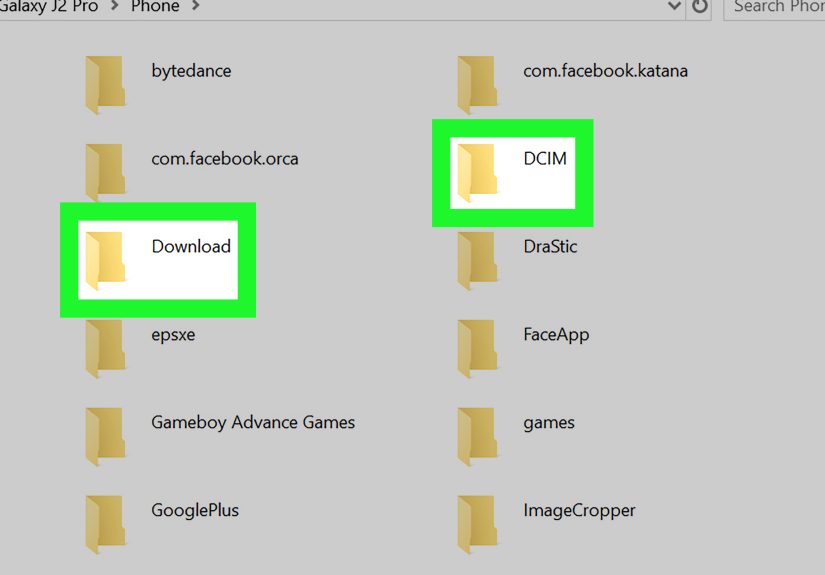
- On Windows, open File Explorer and browse your phone’s storage.
Option B: Phone Link (Windows) for easy everyday sharing
If you live on a Windows PC, Phone Link (with Samsung’s Link to Windows) can make file sharing feel less like a “process” and more like a normal Tuesday. It’s especially convenient for quickly sending documents or grabbing recent photos.
Option C: Quick Share (wireless, fast, and surprisingly painless)
Samsung’s Quick Share is great for sending files to nearby devices. Android’s broader Quick Share system also supports sharing with many Android devices, Chromebooks, and even Windows PCs (with the right companion app). For Galaxy-to-Galaxy, it’s often the easiest way to share a batch of photos without compressing them into sad, blurry versions of themselves.
Step 8: Protect Private Files with Secure Folder (Because Some Things Are Nobody’s Business)
If you want an extra layer of privacy, Samsung’s Secure Folder uses device security features to keep selected apps and files locked behind authentication. It’s great for:
- Personal documents (IDs, scans, contracts)
- Private photos and videos
- Notes or files you don’t want casually visible
Move files into Secure Folder
In supported Samsung apps (like Gallery or My Files), you can select files, tap more options, and choose Move to Secure Folder. Inside Secure Folder, there’s also an Add files option for importing content.
Smart privacy habits
- Lock Secure Folder with a strong method (PIN/password) and consider biometrics for convenience.
- Don’t store the only copy of critical files in one place. Secure doesn’t always mean “backed up.”
- Review app permissions occasionallyfile access is powerful, and not every app deserves it.
Step 9: Clean Up Storage Without Deleting the Wrong Thing
When storage gets tight, it’s tempting to delete blindly. Resist. Your Galaxy S has tools to help you clean up strategically:
Use Device Care / Storage tools
Samsung’s Device Care (or similar “Device care” menu in Settings) can help you review storage use and remove unnecessary files. Use it to spot:
- Large videos you can move to cloud/external storage
- Downloads you no longer need
- Apps you forgot existed (we all do it)
Enable a recycle/trash option (your safety net)
Some Samsung file and gallery tools include a Trash/Recycle Bin feature that keeps deleted items for a period of time (often 30 days). If you have the option, it’s worth enablingbecause “oops” happens.
Common Problems (and Fixes That Don’t Involve Screaming at Your Phone)
“My computer doesn’t see my phone”
- Unlock the phone (yes, really).
- Change USB mode to File Transfer (MTP) from the USB notification.
- Try a different cable (some cables charge but don’t transfer data).
- Try a different USB port on your computer.
“I can’t find my downloaded file”
- Check My Files → Downloads first.
- Use Search by keyword or file type (PDF, DOCX, JPG).
- Some apps save files to their own folderslook under Internal storage and search by name.
“Why can’t I access certain Android folders?”
Newer Android versions restrict access to some app-specific areas (especially inside Android system folders) to protect privacy. That’s normaland usually a sign your phone is doing its job.
Pro Tips for Managing Files on Samsung Galaxy S (Without Becoming a Spreadsheet Person)
- Pick one “home” folder for important documents (example: Documents/Important) and keep it sacred.
- Use cloud storage for “reference” files (manuals, warranties, old receipts) and keep local storage for active work.
- Name folders the way you think, not the way tech people think. “Car Stuff” is valid. “Automotive Documentation Repository” is a cry for help.
- Monthly 5-minute reset: sweep Downloads, move keepers, delete junk, breathe.
Conclusion
Once you know where to look, file management on a Samsung Galaxy S stops being mysterious and starts being… mildly satisfying. Use My Files as your hub, organize with a few simple folders, lean on cloud storage for backups, and use USB/Quick Share/Phone Link when you need to move files fast. Add Secure Folder for privacy, and Device Care for cleanup. That’s the whole system.
Your phone doesn’t need to be perfectly organized. It just needs to be organized enough that you can find what you need before the moment (or the deadline) passes.
Extra: Real-World Experiences and Lessons (500+ Words of “This Happens to Everyone”)
1) The “Download Dungeon” (aka: 200 files named the same thing)
One of the most common Galaxy S file-management “experiences” is the moment you open Downloads and realize your phone has been quietly saving every attachment you’ve ever looked atsometimes multiple times. You’ll see duplicates like form.pdf, form (1).pdf, form (2).pdf, and a few that look like the phone sneezed mid-filename. The fix is simple: pick a destination folder (Documents/Work, Documents/Travel, etc.), move only what matters, and delete the rest. If you’re nervous, copy first, delete later. Within a week, you’ll feel lighter. Not spiritually. Digitally.
2) The Screenshot Avalanche (when your camera roll becomes a corkboard)
Screenshots are helpfuluntil they become your primary memory system. Many people use screenshots to “save” recipes, addresses, order confirmations, and random inspiration. Then months later, finding one specific screenshot is like trying to locate one particular grain of rice in a sushi restaurant. A practical approach: create a folder called “Screenshots to Sort,” move batches into it once a week, and delete anything that’s no longer relevant. For screenshots you actually need, rename them (yes, even screenshots) or move them into a topic folder like “Receipts” or “Travel.” Your future self will stop sending you imaginary invoices for emotional damages.
3) The Cable That Lied (charge-only cables are a thing, apparently)
Another classic: you plug your Galaxy S into a computer and… nothing happens. Or the computer sees it, but you can’t access storage. In many cases, the issue isn’t your phone or your PCit’s the cable. Some USB cables support charging but not data transfer, which feels like selling a car with no steering wheel. Even with a good cable, the phone may default to charging mode. The “experience” here is learning to pull down notifications, tap the USB connection, and select File Transfer (MTP). Once you do it a couple times, it becomes muscle memory. You’ll still grumble, but you’ll be effective.
4) The “Where Did My File Go?” spiral (and how Search saves your sanity)
People often assume files are “lost” when they’re actually just saved somewhere unexpected. Maybe your messaging app stored it in its own folder. Maybe your browser saved it to Downloads but with a weird name. Maybe you saved it from a note app and it landed in Documents. The habit that ends this spiral is using Search inside My Files. Search by a keyword, file type (“pdf”), or even a date range if your view supports sorting. It feels almost too easylike you’re cheatingbut it works.
5) The “Private Stuff Isn’t That Private” wake-up call (hello, Secure Folder)
Lots of users discover Secure Folder after a moment of mild panichanding a phone to someone to show a photo, then realizing there are other photos they’d rather not explain. Secure Folder is a cleaner approach than playing app-hide-and-seek or relying on “please don’t scroll.” The practical lesson: put truly sensitive files (scans, IDs, confidential documents, personal photos) behind an extra lock. Then keep a second copy of critical documents somewhere safe (cloud storage or a computer backup), because security and backup solve different problems.
6) The “I’m Out of Space Again” cycle (and how it actually breaks)
Storage fills up gradually: videos get bigger, apps cache data, downloads pile up, and suddenly your phone is yelling about low storage when all you did was take a few “quick” videos at a concert. The people who escape this cycle usually do two things: (1) move large, older media off the phone (cloud or external), and (2) schedule a tiny cleanup routine. Not a big dramatic purgejust a monthly sweep of Downloads and a quick glance at storage usage in Device Care. It’s not glamorous. But neither is deleting photos while your phone refuses to install an update.