Table of Contents >> Show >> Hide
- What “Password-Protecting a RAR” Actually Does
- Before You Start
- How to Add a Password to a RAR File (15 Steps)
- Step 1: Install (or open) WinRAR
- Step 2: Put everything you want to protect in one folder
- Step 3: Select the files (or the folder)
- Step 4: Right-click and choose “Add to archive…”
- Step 5: Name your archive
- Step 6: Set the archive format to RAR (or RAR5 if available)
- Step 7: Click “Set password…”
- Step 8: Enter your password (twice) and make it strong
- Step 9: Turn on “Encrypt file names” (recommended)
- Step 10: Choose compression level (optional) and click OK
- Step 11: (If you already have a RAR) Convert it into an encrypted copy
- Step 12: Make sure the converted archive is saved as a new file
- Step 13: Test the password before you share it
- Step 14: macOS/Linux option: create an encrypted RAR using the command line
- Step 15: Store the password responsibly
- Security Tips That Actually Matter
- Troubleshooting & FAQs
- Real Experiences & Lessons Learned (Bonus: 500+ Words)
Password-protecting a RAR file is one of those “adulting” skills you don’t realize you need until you’re about to email
TaxStuff_FINAL_FINAL_REALLY.rar to someone and suddenly remember: email is basically a postcard with better marketing.
The good news: adding a password to a RAR file is fast, beginner-friendly, and (when done correctly) genuinely secure.
The slightly less fun news: you usually can’t “sprinkle” a password onto an existing archive like salt on friesyou typically
create a new encrypted RAR (or convert the old one into a newly encrypted copy). Either way, you’ll end up with a password-protected
archive that keeps nosy clicks out.
What “Password-Protecting a RAR” Actually Does
When you set a password in WinRAR (or the RAR command-line tool), you’re not just adding a “lock screen.” You’re encrypting the contents
of the archive, meaning the file data is scrambled until someone provides the correct password. If you also enable
Encrypt file names, you hide the file list tooso people can’t even see what’s inside without the password.
Translation: without the password, your archive should look like a mysterious digital burrito. With the password, it opens normally.
With a weak password like 123456, it’s more like a burrito wrapped in tissue papertechnically covered, but not fooling anyone.
Before You Start
What you’ll need
- Windows + WinRAR (most common way to create password-protected RAR files)
- Or macOS/Linux + RAR command-line tool (for true RAR creation outside Windows)
- A strong password you won’t forget (consider a password manager)
- 30 seconds of patience (or 2 minutes if your laptop is running on pure vibes)
Two quick safety rules
- Don’t send the password in the same message as the archive. Use a different channel (text, call, or separate email thread).
- Test the archive after creating it. Nothing bonds a team like a shared “why doesn’t the password work??” crisisavoid it.
How to Add a Password to a RAR File (15 Steps)
The steps below focus on the most reliable setup: WinRAR on Windows, plus options for converting an existing RAR
and using macOS/Linux command line for true RAR encryption.
Step 1: Install (or open) WinRAR
If WinRAR is already installed, you’re good. If not, install it and make sure it integrates with the right-click context menu
(that’s the easiest workflow).Picture: A WinRAR installer window or WinRAR icon in the Start menu.
Step 2: Put everything you want to protect in one folder
This isn’t required, but it makes life simpler. Toss the files into a single folder like you’re packing a suitcaseexcept your suitcase
won’t judge you for overstuffing it.Picture: A folder in File Explorer containing the files you plan to archive.
Step 3: Select the files (or the folder)
In File Explorer, highlight the folder or files you want inside the RAR. If it’s multiple items, use
Ctrl (for individual picks) or Shift (for a range).Picture: Highlighted files in File Explorer.
Step 4: Right-click and choose “Add to archive…”
This opens WinRAR’s “Archive name and parameters” dialogthe command center where you pick the archive format, compression level,
and (most importantly) the password.Picture: The WinRAR context menu showing “Add to archive…”
Step 5: Name your archive
Choose a name that makes sense, especially if you’re sharing it. Example:
Client_Files_Protected.rarbeatsstuff.rarevery time.Picture: The “Archive name” field highlighted.
Step 6: Set the archive format to RAR (or RAR5 if available)
Make sure the format is RAR (not ZIP) if you specifically want a RAR file.
Newer WinRAR versions typically use a modern RAR format by default.Picture: The “Archive format” options with “RAR” selected.
Step 7: Click “Set password…”
Look for a button labeled Set password…. Depending on your WinRAR version,
it may appear directly on the main dialog or under an Advanced tab.Picture: The “Set password…” button circled.
Step 8: Enter your password (twice) and make it strong
Type the password, then confirm it. Prefer a long passphrase (think: 12–16+ characters). Example:
BlueMango!River77(still not perfect, but far better thanpassword).Pro move: use a password manager to generate and store something strong. Your future self will thank you.
Picture: The password entry dialog with “Enter password” and “Reenter password.”
Step 9: Turn on “Encrypt file names” (recommended)
This is the privacy upgrade. Without it, someone might still see filenames inside the archive (even if they can’t open the files).
With it enabled, file names and metadata are hidden unless the correct password is provided.Picture: A checkbox labeled “Encrypt file names” checked.
Step 10: Choose compression level (optional) and click OK
Compression is about size, not security. If you’re archiving photos/videos, higher compression may not help much.
For documents, it can shrink things nicely. Pick what you want, then click OK to create the archive.Picture: The “OK” button highlighted, with compression settings visible.
Step 11: (If you already have a RAR) Convert it into an encrypted copy
If you need to add a password to an existing RAR, you’ll typically create a new encrypted version. In WinRAR, this is often done using a
Convert archives workflow (you select the existing archive, convert it, and set a password during conversion).Think of it like putting leftovers into a new container with a lid. The food is the same. The security is better.
Picture: The WinRAR “Tools” menu showing “Convert archives…”.
Step 12: Make sure the converted archive is saved as a new file
Keep the original until you verify the new one works. Rename the new encrypted archive clearly, like
Project_Backups_ENCRYPTED.rar.Picture: A save dialog showing a new archive name.
Step 13: Test the password before you share it
Double-click the archive and try extracting a small file to confirm the password works. If you enabled “Encrypt file names,”
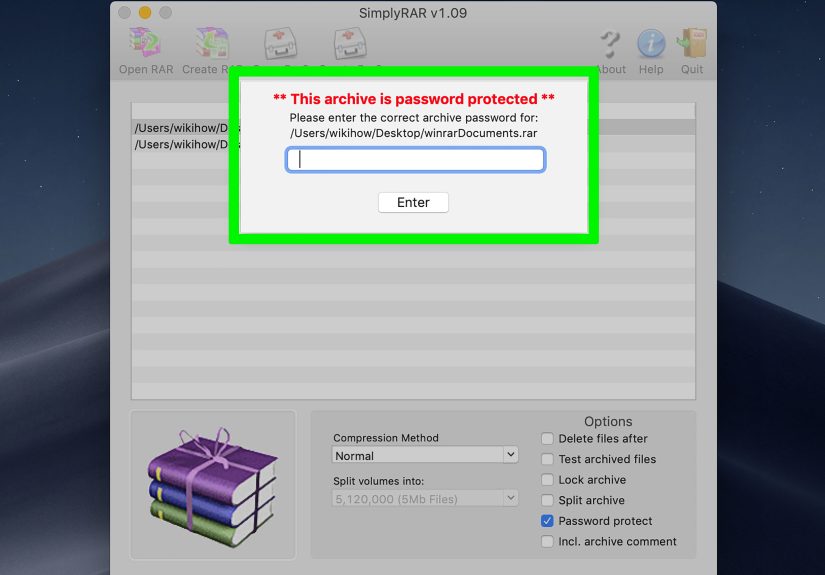
verify that the file list isn’t visible without the password.Picture: A password prompt appearing when opening the archive.
Step 14: macOS/Linux option: create an encrypted RAR using the command line
If you have the RAR command-line tool installed, you can create an encrypted archive directly.
A common pattern is:The
-hpoption encrypts both file data and headers (file names), which is the “hide everything” setting.
If you omit the password after-hp, many setups will prompt you to type it interactively (safer than leaving it in your shell history).Picture: A terminal window showing a RAR command being typed.
Step 15: Store the password responsibly
If you forget the password, you’re probably not “resetting” it. Encryption is doing its job. Save it in a reputable password manager,
or store it in a secure location you trust. And if you’re sharing with someone, send the password via a separate channel.Picture: A password manager entry labeled “RAR Archive Password.”
Security Tips That Actually Matter
Use “Encrypt file names” for privacy
If the archive name is something like Layoff_Plans_2026.rar (hypothetically!!), you probably don’t want the internal file list visible.
Encrypting file names helps keep the archive contents private even before anyone attempts extraction.
Use a long password or passphrase
Length beats cleverness. A long passphrase is harder to crack than a short “complex” password. If you’re protecting something sensitive,
treat the password like you treat your phone battery at 5%: with respect and a touch of fear.
Remember: extracting creates decrypted files
Once you extract, the decrypted files exist on the destination drive. If you extract to a shared computer or a synced folder, you may accidentally
leak the very thing you were trying to protect. Choose your extraction location carefully.
Troubleshooting & FAQs
“I set a password, but people can still see filenames.”
You likely set a password but didn’t enable Encrypt file names. Recreate (or convert) the archive with that option enabled.
“Can I add a password without re-archiving?”
In practice, you typically end up creating a new encrypted archive (even if the software calls it “convert” or “update”).
Plan for a new file, and keep the original until you confirm the new one works.
“What if I forget the password?”
If the password is truly forgotten and not stored anywhere, recovery usually means guessing (and that can range from “maybe” to “never”).
This is why password managers existand why future you deserves kindness.
“Is RAR password protection ‘real’ encryption?”
Yeswhen you set a password properly, the archive contents are encrypted. Your security depends heavily on password strength and on using
the right options (like encrypting file names for privacy).
Real Experiences & Lessons Learned (Bonus: 500+ Words)
The first time I password-protected a RAR file, I felt like I’d just installed lasers on my front door. I was so proud. I emailed the archive,
then immediately sent the password… in the same email. Congratulations to me: I had invented a very secure-looking speed bump. That’s the
first real-world lessonencryption is great, but workflow is everything. If the password travels with the archive, a snoop only needs to
find one message to get both.
Another classic: forgetting the “Encrypt file names” checkbox. I once shared an archive with a name that sounded harmlesssomething like
Documents.rarbut inside were files with very loud names like OfferLetter_Updated.pdf and BankInfo.xlsx.
The recipient didn’t open anything without the password (good), but they could still see the file list (not ideal). That moment taught me that
privacy isn’t just about stopping access; it’s about stopping clues. File names can be surprisingly revealing, especially if you’re the type of
person who names screenshots like IMG_OMG_LOOK_AT_THIS.png.
Then there’s the “password works on my computer” problem. This usually happens when someone copies a password with an extra space at the end,
or when smart quotes get involved (text editors love replacing plain quotes with curly ones like they’re doing calligraphy). My personal fix:
after creating the archive, I test extraction right away and I store the password in a password manager entry with a clear label like
“Archive Password (no trailing spaces).” If I’m sending it to someone, I’ll paste it into a plain-text note first to make sure it’s exactly what
I think it is. It’s not glamorous, but neither is explaining “it should work” for the fifteenth time.
One more real-world issue: where you extract matters. I’ve seen people password-protect an archive, then extract it into a cloud-synced folder
(like a shared team drive) because it’s convenient. Boomyour decrypted files are now synced and potentially accessible to others.
Encryption protects the archive, not your habits. If you’re working with sensitive data, pick a private local folder for extraction, and clean up
after yourself when you’re done. It’s like opening a safe: the safe is secure, but once you put the cash on the kitchen table, everyone can see it.
Finally, a lesson that sounds boring until it saves you: keep a naming system. I add suffixes like _ENCRYPTED and include the date:
Photos_2025-12-13_ENCRYPTED.rar. It prevents confusion, helps you avoid accidentally sharing the unprotected version, and makes your
future searches way easier. If you do this consistently, you’ll feel like a wizard the next time you need to find “that protected archive from
last month.”
Bottom line: password-protecting a RAR file is easy. Doing it well means using “Encrypt file names,” choosing a long passphrase, testing
extraction, and sharing the password separately. The tools are simplethe real skill is building a tiny routine you can repeat without thinking,
even when you’re tired, rushed, or one coffee away from naming something final2_REALFINAL.rar.