Table of Contents >> Show >> Hide
- Quick Snapshot: The 3 Steps
- Step 1: Set the Alarm Volume in Settings (The “Wake Up or Else” Slider)
- Step 2: Choose Whether the Side Buttons Can Change Alarm Volume
- Step 3: Test It (for Real) and Fix the Common “Quiet Alarm” Culprits
- Run a 60-second alarm test
- Culprit #1: The alarm is set to “None” (aka “Vibrate Only” mode)
- Culprit #2: Bluetooth or headphones hijacked your morning
- Culprit #3: Attention Aware features lowered alert volume
- Culprit #4: You’re using the Sleep Schedule “Wake Up” alarm (it has its own volume)
- Culprit #5: StandBy mode can affect alarm haptics
- Culprit #6: You’re caught in the “silent alarm” reliability drama
- Mini FAQ (Because Alarms Bring Big Feelings)
- Conclusion: Wake Up Like You Mean It
- Real Experiences: What iPhone Users Actually Run Into (and What Works)
If your iPhone alarm is either whispering sweet nothings or screaming like it’s auditioning for a horror movie,
you’re not alone. Alarm volume on iPhone can feel oddly “hidden” because it doesn’t always follow the same volume
you use for music, videos, or TikTok rabbit holes.
The good news: you can fix it in about a minute. The even better news: you don’t have to sacrifice your ringtone
volume just to make sure you wake up. (Okay… sometimes you do. But we’ll show you the best workarounds.)
This guide is based on Apple’s official settings and the most common real-world gotchas people run into, including
the classic “my alarm volume was fine yesterday, and today it’s… emotionally unavailable.”
Quick Snapshot: The 3 Steps
- Set your alarm’s baseline volume in Settings (this is the big one).
- Decide whether the side volume buttons can change alarm volume (and prevent accidental changes).
- Run a 60-second test + troubleshoot the usual suspects (Bluetooth, Attention settings, Sleep alarms, and more).
Step 1: Set the Alarm Volume in Settings (The “Wake Up or Else” Slider)
On iPhone, your normal Clock app alarms use the same volume channel as your ringer and many alerts. That’s why your
media can be loud, but your alarm can still be… not.
Do this
- Open Settings.
- Tap Sounds & Haptics (sometimes labeled Sounds on older iOS versions).
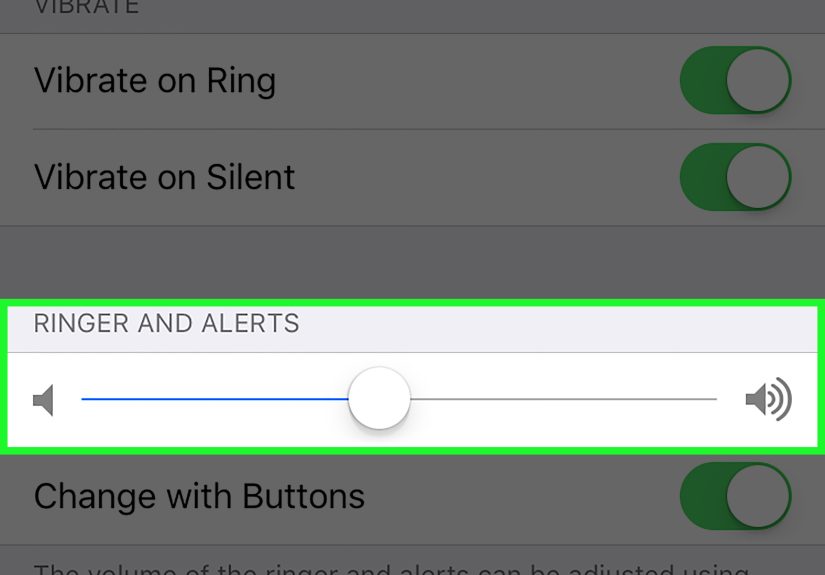
- Under Ringer and Alerts, drag the slider left or right until it’s where you want it.
As you drag, your iPhone plays a preview so you can hear the level.
How to pick the “right” volume (without regretting it)
- Light sleeper: set it to a medium level, then choose a gentler alarm sound (more on that in Step 3).
- Heavy sleeper: push it higher and pick a sharp, attention-grabbing tone.
- Shared room: consider a slightly lower volume + strong vibration, and place the phone farther away so you must stand up to stop it.
Important note: Your alarm is not impressed by “Media Volume”
The volume buttons often control media volume while you’re watching something, but your alarm volume is tied to
the ringer/alerts setting. So if you tested volume by blasting a video, you tested the wrong thing. (Happens to the best of us.)
If the slider is maxed out but alarms still aren’t loud
Check whether your iPhone is limiting the built-in speaker volume. In newer iOS versions, Apple includes a
Volume Limit setting under Sounds & Haptics that can cap loudness. If you turned it on at some point
(maybe during a “my phone is too loud in public” era), it can make alarms feel weaker than expected.
Step 2: Choose Whether the Side Buttons Can Change Alarm Volume
This step is where most “Why did my alarm get quiet?!” stories begin.
The setting is called Change with Buttons, and it decides whether your iPhone’s physical volume buttons
can change ringer/alert (and alarm) volume.
Option A: Turn ON “Change with Buttons” (Convenient, but easy to bump)
- Go to Settings → Sounds & Haptics.
- Turn Change with Buttons ON.
This is great if you want to quickly adjust alarm volume with the side buttons. The risk: it’s also very easy
to accidentally lower your alarm volume while your phone is in your pocket, in your hand, or while you’re half-asleep
trying to silence a notification.
Option B: Turn OFF “Change with Buttons” (Best for keeping alarm volume steady)
- Go to Settings → Sounds & Haptics.
- Turn Change with Buttons OFF.
This “locks” your ringer/alert volume so random button presses don’t quietly sabotage tomorrow morning.
If you’ve ever woken up late and thought, “My alarm didn’t go off,” only to discover it didsilentlythis is the setting
most people wish they’d changed sooner.
Pro tip: The safest setup for most people
Set the Ringer and Alerts slider where you want it (Step 1), then turn Change with Buttons OFF.
You’ll still be able to adjust media volume normally, and your alarm won’t get nerfed by accidental button presses.
Step 3: Test It (for Real) and Fix the Common “Quiet Alarm” Culprits
The fastest way to confirm everything is working is to set a test alarm for 2–3 minutes from now.
This isn’t paranoiait’s quality control. Think of it as a fire drill, but with less running and more relief.
Run a 60-second alarm test
- Open the Clock app → tap Alarm.
- Tap + and set an alarm for a couple minutes ahead.
- Tap Sound and pick something clearly audible.
- Tap Save, then wait for it to ring.
Culprit #1: The alarm is set to “None” (aka “Vibrate Only” mode)
If your alarm only vibrates, double-check the sound selection:
in Clock → Alarm, tap Edit, tap your alarm, then tap Sound and choose an actual tone.
“None” is not a tone. “None” is a lifestyle choice.
Culprit #2: Bluetooth or headphones hijacked your morning
If your iPhone is connected to Bluetooth audio (car, speaker, headphones), audio can route in ways you didn’t expect.
A quick fix before bed: open Control Center, tap the audio output icon, and make sure it’s set to your iPhone speaker.
Also: if you sleep with earbuds, your alarm can play through them. That’s either incredibly helpful or a great way
to wake up confused at 6:00 a.m. while your pillow looks innocent.
Culprit #3: Attention Aware features lowered alert volume
iPhones with Face ID can use Attention Aware features to lower the volume of some alerts when the phone
thinks you’re looking at it. Some users have reported this can make alarms seem quieter in certain situations.
If you suspect this is happening, try temporarily turning off Attention Aware Features:
- Settings → Face ID & Passcode (or Settings → Accessibility → Face ID & Attention)
- Toggle Attention Aware Features OFF
If your alarms become reliably loud again, you’ve found your culprit. You can leave it off, or turn it back on and
use other fixes (like locking alarm volume and choosing a louder tone).
Culprit #4: You’re using the Sleep Schedule “Wake Up” alarm (it has its own volume)
If you use the Health app’s Sleep Schedule, your “Wake Up” alarm has its own alarm optionsincluding volumeinside the Sleep schedule editor.
That means you might adjust ringer/alerts volume and still feel like nothing changed (because you changed the wrong alarm system).
Adjust the Sleep Schedule alarm volume
- Open the Health app.
- Tap Search → tap Sleep.
- Scroll to Your Schedule → tap Full Schedule & Options.
- Tap Edit on your schedule and make sure Alarm is ON.
- Choose the alarm options (sound, volume, vibration, snooze) and save.
Culprit #5: StandBy mode can affect alarm haptics
If you rely on vibration to help wake up, note that iPhone behavior can vary depending on how the phone is set up overnight.
For example, Apple notes that alarms in StandBy can disable haptics. If you’re using StandBy, make sure your alarm sound volume is strong enough on its own.
Culprit #6: You’re caught in the “silent alarm” reliability drama
Some iPhone users have reported alarms that are unexpectedly quiet or fail to sound, and Apple has acknowledged related issues in the past.
If your settings look perfect and you still get inconsistent alarms:
- Update iOS (bug fixes matter for clock reliability).
- Create a backup alarm (a second alarm 2–5 minutes later is boring but effective).
- Try a different alarm type: use Sleep Schedule Wake Up alarm, or a secondary device if you have an important morning.
- Restart your iPhone if alarms have been weird after an update.
Mini FAQ (Because Alarms Bring Big Feelings)
Does Silent Mode stop iPhone alarms?
No. Your Ring/Silent switch, Silent Mode, and Focus modes like Do Not Disturb don’t prevent alarms from sounding.
Alarm volume still matters, thoughso the fix is usually the Ringer and Alerts slider.
Why are my notifications quiet but my alarm loud (or vice versa)?
Because alarms typically share the same volume channel as ringer/alerts. If you want a loud alarm but quiet day-to-day alerts,
consider locking your ringer/alerts volume at a reasonable level and choosing an alarm sound that’s more piercing than your notification tones.
Another option: use the Sleep Schedule Wake Up alarm with its own volume setting.
Can I set a different volume for each Clock app alarm?
Not for standard Clock alarmsthose follow the system ringer/alerts volume. The Sleep Schedule Wake Up alarm is the closest thing to a separate volume control.
Conclusion: Wake Up Like You Mean It
The simplest mental model is this: Clock alarms usually follow your Ringer and Alerts volume, not your media volume.
Once you set that slider (and decide whether the side buttons can change it), you’ll eliminate the #1 reason alarms go “mysteriously quiet.”
If your alarm is still unreliable after the steps above, use the troubleshooting checklist: confirm the alarm sound isn’t “None,” check audio routing,
adjust Sleep Schedule volume if you use it, and consider turning off Attention Aware features if your alarm seems to “auto-dim” its loudness.
Real Experiences: What iPhone Users Actually Run Into (and What Works)
One of the most common experiences goes like this: someone tests their alarm by turning up a YouTube video, feels confident, goes to sleep…
and wakes up late. The “aha” moment is realizing the video volume was never the alarm volume. iPhone treats media volume and ringer/alert volume
differently, and the volume buttons can change behavior depending on what you’re doing. People often describe it as “my alarm has its own secret setting,”
which is basically truejust not in the way they expect. Once they adjust Settings → Sounds & Haptics → Ringer and Alerts,
the problem usually disappears immediately.
Another very real scenario: accidental button presses. A lot of people enable Change with Buttons because it sounds convenient
and it isuntil it isn’t. Someone might lower the ringer volume while holding the phone, tossing it in a bag, or even while half-asleep trying to silence
a random notification. The next morning, the alarm “goes off,” but it’s so quiet it may as well be performing interpretive dance. The fix that users love most
is setting the slider once and then turning Change with Buttons off. It feels like installing a tiny seatbelt for your future self.
A third experience: Bluetooth surprises. People fall asleep with AirPods in, a Bluetooth speaker connected, or the phone paired to a car system from earlier
in the day. Then the alarm routes audio in a way that doesn’t match realitylike playing through earbuds that aren’t in their ears anymore, or attempting to
send sound to a speaker that’s across the room (or not even turned on). The “fix” that most users adopt is a bedtime ritual: open Control Center, confirm the
audio output is the iPhone speaker, and (if they use Bluetooth) toggle Bluetooth off overnight. It’s not glamorous, but it beats explaining lateness to a boss
or teacher with the phrase “my phone betrayed me.”
Sleep Schedule alarms are another interesting one. Some users swear they changed alarm volume in Sounds & Haptics and nothing happenedbecause their actual
wake-up alarm was managed through the Health app’s Sleep Schedule. Once they edit the Sleep schedule and adjust the Wake Up alarm options (including volume),
it clicks. Many people end up preferring the Sleep Schedule alarm because it feels more “routine-based” and can be gentler, while still being loud enough.
Others prefer standard Clock alarms because they can pick any tone and customize multiple alarms quickly. The big lesson: know which alarm system you’re using.
Then there are the folks who’ve experienced the dreaded “silent alarm” weirdnesseven when settings look correct. The shared emotional arc is remarkably consistent:
confusion, mild rage, a frantic Settings tour, and finally the decision to set a backup alarm. People often report trying things like toggling Attention Aware
features off, restarting the phone, and updating iOS. While most users can fix volume issues with the basic slider, the backup alarm habit is what makes people
feel safe again, especially on days where oversleeping would be a disaster. It’s not dramatic; it’s just practical.
Finally, there’s the classic “I want a loud alarm but quiet everything else” struggle. Many users keep their phone on silent or low-alert volume all day so
they don’t get startled by calls, notifications, or group chats that never die. But they still need a reliable wake-up alarm. Some people solve this by keeping
ringer/alerts at a moderate level and choosing a sharper alarm sound. Others use Sleep Schedule alarms with a customized volume. And plenty of people just lean
into a two-alarm strategy: one normal volume, one louder backup. The takeaway from real-life use is simple: the best alarm setup is the one that matches your
actual morningsnot the one that seems “technically perfect” on paper.