Table of Contents >> Show >> Hide
- The Key Detail Most People Miss: You Can Only “Approve” Followers on a Private (Protected) Account
- Step 1: Make Sure Your Account Is Private (Protected) If You Want Approvals
- How to Approve Follower Requests on X (Twitter) on Mobile
- How to Approve Follower Requests on X (Twitter) on Desktop
- What Happens After You Approve Someone?
- How to Deny a Follower Request (Without Starting a Feud)
- “I Approved the Wrong Person.” How to Remove a Follower on X
- Common Problems (and Fixes) When You Can’t See Follower Requests
- Best Practices: Approving Followers Without Regretting It Later
- FAQ: Approving Follower Requests on X (Twitter)
- Wrap-Up: The “Easy Guide” Summary
- Real-World Experiences & Lessons (Extra 500+ Words)
On X (formerly Twitter), approving follower requests is one of those “tiny button, big consequences” features.
Tap the wrong checkmark and suddenly a random egg account is binge-reading your protected posts like it’s a
prestige TV drama. Tap the right one and you’ve just made someone’s day.
This guide walks you through exactly how to approve (or deny) follower requests on the X mobile app and on desktop,
plus what happens after you approve someone, how to reverse an “oops,” and how to stop spammy requests from multiplying like gremlins after midnight.
The Key Detail Most People Miss: You Can Only “Approve” Followers on a Private (Protected) Account
If your account is public, people can follow you instantlythere’s no approval step. Approval only happens when your account is set to
protected (often described as “private”), which means your posts are visible only to approved followers.
Quick check: Are you seeing “Follower requests” anywhere?
- Yes: Your account is likely protected, and you can approve/deny requests.
- No: You may be public (or you simply have zero pending requests).
Step 1: Make Sure Your Account Is Private (Protected) If You Want Approvals
If you want to approve followers manually, you’ll need to turn on the setting that protects your posts. The menu labels can vary slightly by device,
but the path is usually consistent.
On iPhone (iOS) or Android
- Open the X app and tap your profile photo (top corner) to open the side menu.
- Tap Settings and privacy.
- Tap Privacy and safety.
- Under Audience and tagging, turn on Protect your posts.
On Desktop (Web)
- Click More (the three-dot menu) in the left sidebar.
- Go to Settings and privacy → Privacy and safety.
- Under Audience and tagging, check Protect your posts.
Once your posts are protected, new people who want to follow you must send a requestwhich you can approve or deny.
How to Approve Follower Requests on X (Twitter) on Mobile
On mobile, X makes this pretty straightforward. If your account is protected, follow requests live in a dedicated “Follower requests” area.
Method A: Approve from the Side Menu (Most Reliable)
- Open X and tap your profile icon to open the side menu.
- Tap Follower requests.
- You’ll see a list of pending requests.
- Tap the checkmark to approve, or the X to deny.
Method B: Approve from a Notification (Sometimes Available)
Depending on your notification settings, you may see a follow request alert. If you tap it, X usually routes you to the same list of pending requests.
If tapping the notification doesn’t work (or you never see one), don’t panicMethod A is the “gets it done even when your phone is moody” option.
How to Approve Follower Requests on X (Twitter) on Desktop
On desktop, approvals are still easyyou just have to know where X tucked the feature this week.
Approve requests on X.com
- Log in on desktop.
- Click More in the left sidebar.
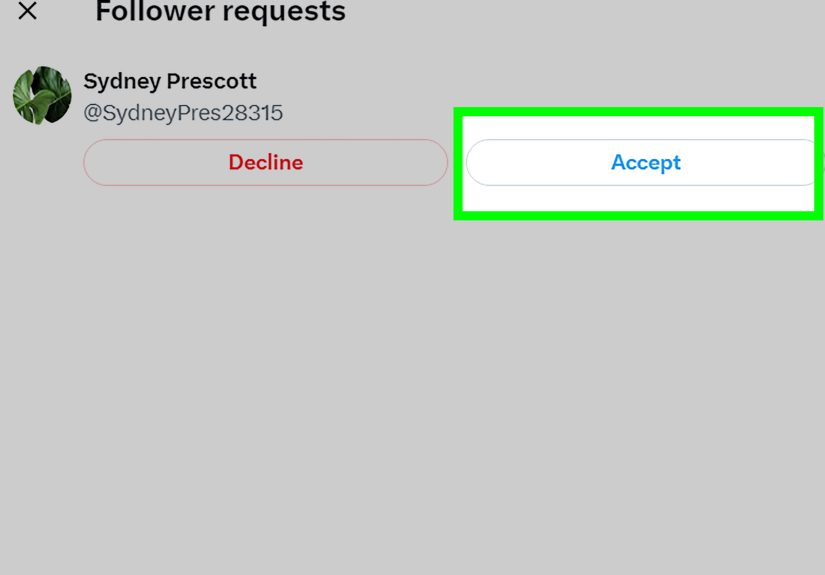
- Click Follower requests (often near the top of the menu list).
- Click Accept to approve or Decline to deny.
If you can’t find “Follower requests,” jump to the troubleshooting section belowthere are a few common reasons it disappears.
What Happens After You Approve Someone?
Approving a request means the account becomes an approved follower. On a protected account, that typically means:
- Your protected posts become visible to them.
- Your posts are no longer broadly shareable via reposting in the same way as public posts.
- Your protected content is less discoverable (for example, it shouldn’t behave like public posts in general web search).
Important reality check: privacy settings reduce exposure, but they don’t create a magical anti-screenshot force field.
Any follower can still copy, screenshot, or share what they can see. Think of approvals as a “locked front door,” not a witness protection program.
How to Deny a Follower Request (Without Starting a Feud)
Denying a request is the same workflow as approvingjust tap/click Decline (or the X icon).
You don’t need to explain yourself, and you don’t need to feel guilty. Your account is not a public park.
Pro tip: Use a “profile sniff test”
Before you approve, tap the account and look for quick signals:
- Does the bio make sense, or is it all crypto emojis and mystery links?
- Do they have a normal follower/following balance (or are they following 7,923 people with 3 followers)?
- Is the account brand new with zero posts and a default avatar?
- Does the content look like a real human… or like a robot learning comedy?
“I Approved the Wrong Person.” How to Remove a Follower on X
It happens. You meant to approve your friend Sam, but your thumb had other plans and approved “Sam_RealSupport_Account_100%.”
You have a few options:
Option 1: Remove the follower (Web, if available)
On desktop, X has offered a way to remove a follower without blocking them (availability can vary). Typically, you go to the follower’s profile,
open the menu (three dots), and choose an option like Remove this follower.
Option 2: Block (and optionally unblock)
Blocking removes the follower and prevents them from interacting or following again (unless you later unblock them and they request again).
Some people use a quick block/unblock sequence as a “soft remove,” depending on platform behavior and available features.
If you’re managing a protected account for privacy, blocking is the most decisive option. You’re not running a democracy; you’re running your timeline.
Common Problems (and Fixes) When You Can’t See Follower Requests
Problem 1: “Follower requests” doesn’t show up anywhere
- Most common cause: Your account is public. Turn on Protect your posts to require approvals.
- Also possible: You have zero pending requests, so the menu item/badge isn’t displayed prominently.
- Another possibility: Someone requested, then canceled the request before you checked.
Problem 2: You got an email about a request, but it’s not in the list
This can happen when the requester cancels the request after sending it (yes, even flaky strangers have boundaries).
Refresh, check again later, and don’t assume your app is haunted.
Problem 3: Your notifications are silent
You can still approve requests from the side menu, but if you want alerts:
- Make sure X notifications are enabled in your phone settings.
- On Android 13+ devices, apps may require explicit permission for notifications.
- Inside X, review notification preferences so follow requests aren’t filtered out.
Problem 4: “Accept”/“Decline” fails or won’t load
- Update the app (seriouslythis fixes more issues than we’d like to admit).
- Log out and back in.
- Try the desktop web version if mobile is glitching.
- Check whether X is experiencing outages.
Best Practices: Approving Followers Without Regretting It Later
1) Create a simple approval policy
You don’t need a 12-page compliance document (unless you want one). A simple rule like this works:
“I approve people I recognize, people with real-looking profiles, and people with a legit reason to follow.”
2) Separate “private life” from “public brand”
If you’re a creator, founder, or small business, you may want a public account for reach and a protected account for personal posts.
Approvals are a privacy toolbut they’re also a growth limiter because protected posts are less discoverable.
3) Watch for “polite spam” patterns
Spam accounts don’t always look spammy at first glance. Common patterns:
- Generic bios (“Entrepreneur | Mentor | DM me”) with no real posts
- Lots of reposts, no original content
- Links to off-platform “investment” or “support” pages
- Sudden waves of requests right after you post something that trends
4) Remember the third-party app caveat
If you’ve authorized third-party apps to access your account, they may be able to access content in ways you didn’t intend.
Periodically review connected apps and revoke anything you don’t trust or don’t use anymore.
FAQ: Approving Follower Requests on X (Twitter)
Can I approve follower requests if my account is public?
Not in the typical “request and approve” sense. Public accounts don’t require approvalpeople follow instantly.
If you want approval control, you’ll need to protect your posts.
Do pending requests auto-approve if I switch my account back to public?
No. Pending requests generally don’t magically convert into followers just because you go public.
If you later protect your posts again, those accounts may need to send a new request.
Is there a “mass accept” button for hundreds of requests?
X’s standard interfaces focus on individual approval/decline actions. If you’re flooded, the safest route is to approve selectively,
decline aggressively, and consider tightening your privacy posture instead of trying to accept everyone quickly.
Can I approve follower requests using an API or automation?
Historically, developers have reported limited or no official API support for approving protected-account follow requests.
For most users, manual approval inside the app/web is the expected workflow.
Wrap-Up: The “Easy Guide” Summary
Approving follower requests on X is simple once your account is set up correctly:
- To have follower approvals, your account must be protected (private).
- On mobile: Profile icon → Follower requests → Checkmark (approve) / X (deny).
- On desktop: More → Follower requests → Accept / Decline.
- If you approve the wrong person, you can remove or block them.
Most importantly: you’re allowed to curate your audience. Your posts, your rules, your sanity.
Real-World Experiences & Lessons (Extra 500+ Words)
The “approve follower requests” feature sounds boring until you use it in real lifethen it becomes a tiny control panel for your online peace.
Here are common scenarios people run into, plus what tends to work well.
Scenario 1: The teacher who wants boundaries
A high school teacher keeps a protected account to talk about books, classroom wins, and the occasional “why is the copier screaming again” moment.
The teacher’s approval rule is simple: approve colleagues, close friends, and accounts that clearly belong to parents in the school community.
Anything anonymous gets declined.
The lesson: your approval policy can be role-based. You’re not judging the worth of strangersyou’re protecting your context.
When the audience includes students and parents, clarity beats politeness. A clean decline is often safer than a messy follow-back situation later.
Scenario 2: The creator who went private after a viral post
A small creator posts a funny thread that gets shared widely. Overnight, hundreds of follow requests arrivemany from genuine fans, but also a swarm of bots.
The creator switches to protected posts for a week to cool down, then approves requests in batches: real profiles first, then “maybe” profiles after a quick scan,
and instant declines for obvious spam.
The lesson: going private can be a temporary safety valve. You can protect your posts during high-attention moments, clean up requests,
and then decide whether to go public again. It’s like closing the door when the hallway gets too loud.
Scenario 3: The small business that wants a private “backstage” account
A bakery runs a public brand account for marketing, but keeps a protected “backstage” account for staff and loyal customersposting early menu tests,
behind-the-scenes videos, and occasional discount codes. Approval is strict: they only accept people who can prove they’re real customers
(often by matching a name, mutual follows, or recognizable local profiles).
The lesson: approvals can create a community vibebut only if you enforce the boundary consistently. If the account is meant to feel
intimate, random approvals dilute the purpose. The “Follower requests” list becomes your guest list, not your marketing funnel.
Scenario 4: The “Oops, I approved a bot” recovery
Someone approves a request too fastmaybe they were multitasking, maybe the cat stepped on the screen, maybe Mercury is in retrograde.
A day later, the new follower sends a suspicious DM or starts engaging in spammy ways. The user removes the follower (or blocks them) and then reviews
their settings: protected posts still on, DMs restricted, and old third-party apps revoked.
The lesson: approving isn’t permanent. You can reverse it. The bigger win is building a quick “recovery checklist”:
remove/block the follower, tighten message settings, and clean up connected apps. One wrong approval doesn’t have to become a long-term headache.
Scenario 5: The person who just wants to feel safe online
Sometimes the goal isn’t content strategyit’s comfort. People protect posts after harassment, a breakup, a job change, or just general fatigue.
In these situations, approving followers becomes an emotional boundary, not a technical one. Many people find that a “slow approval” pace helps:
let requests sit, only approve when you’re sure, and don’t accept anyone who makes you feel uneasyeven if you can’t explain why.
The lesson: the easiest guide is also the kindest guide. Your account doesn’t owe anyone access. The approval feature exists so you can
choose your audience. Use it like a lock on your door: not because everyone outside is dangerous, but because you deserve control over who walks in.