Table of Contents >> Show >> Hide
- Quick reality check: What “blocking calls on Messenger” actually means
- Workaround #1: Block the person (Messenger-only block)
- Workaround #2: Block them on Facebook (the “full firewall” option)
- Workaround #3: Restrict the person (quiet mode for humans)
- Workaround #4: Mute Messenger notifications (and hunt for call-specific toggles)
- Workaround #5: Use Focus (iPhone) or Do Not Disturb (Android) to silence Messenger calls
- Workaround #6: Use your phone’s notification controls (the “duct tape that actually holds”)
- When nothing works: A quick troubleshooting checklist
- Smart boundaries: Limit who can reach you in the first place
- Conclusion: Pick the workaround that matches your goal
- Real-world experiences: What people actually run into (and what tends to work)
If your phone has ever started ringing with a Messenger call at the exact moment you finally got comfortableblanket burritoed,
snack in hand, life briefly under controlwelcome. Messenger calls are convenient when you want them… and aggressively energetic
when you don’t.
Here’s the tricky part: Facebook Messenger doesn’t always offer a single, universal “block all calls forever” button the way
some people imagine. But you do have multiple ways to stop (or at least silence) unwanted Messenger callswhether the goal
is “never contact me again” or “please stop calling me like this is 2006.”
Quick reality check: What “blocking calls on Messenger” actually means
On Messenger, there are a few different outcomes people want when they search “how to block calls on Messenger”:
- Block calls from one person (the most common).
- Stop getting interrupted (silence ringing, banners, and pop-ups).
- Reduce random contact (limit who can reach you in the first place).
- Keep the peace (avoid the social drama of a hard block, if possible).
The workarounds below cover all four goals. Pick the one that matches your situationor combine two for a “double lock” effect.
Workaround #1: Block the person (Messenger-only block)
If one specific person won’t stop calling, the cleanest fix is to block them in Messenger. In most versions of the app,
blocking a person stops both messages and calls from that account on Messenger.
How to do it (mobile app)
- Open Messenger and go to the chat with the person.
- Tap their name (or the info icon) at the top to open chat settings.
- Scroll to Privacy & support (wording can vary).
- Tap Block.
- Choose the option that blocks them on Messenger (often labeled something like Block on Messenger or Block messages and calls).
How to do it (Messenger on desktop/web)
- Open the conversation.
- Click the person’s name or chat details panel.
- Look for Block or Privacy options, then confirm.
Best for: persistent callers, exes, strangers, Marketplace weirdos, or anyone who treats “decline” as a personal challenge.
Heads-up: Blocking is the strongest “per-person” option. If you still want them to see your Facebook profile or remain loosely connected,
use Workaround #3 (Restrict) instead.
Workaround #2: Block them on Facebook (the “full firewall” option)
If you want a total shutdown across Facebook and Messenger, block the person on Facebook itself. This generally cuts off
messaging/calling on Messenger and stops profile interactions too.
How to do it (typical steps)
- Open the person’s Facebook profile.
- Tap the three dots (or menu button).
- Select Block and confirm.
Best for: harassment, repeated boundary-crossing, or “I do not want this person anywhere near my digital life.”
Heads-up: This can remove them as a friend and prevent them from viewing your profile. It’s powerfuland occasionally awkward at family reunions.
Use it when you truly mean it.
Workaround #3: Restrict the person (quiet mode for humans)
“Restrict” is Messenger’s low-drama boundary tool. Instead of slamming the door, it quietly moves the conversation out of your main inbox
and limits what the other person can tell about your activity (like whether you’re active or whether you’ve read their messages).
While Restrict isn’t always described as a “call blocker,” it can dramatically reduce the interruptions you feelbecause the whole point is to
make that person’s attempts to reach you less intrusive.
How to restrict someone (mobile app)
- Open Messenger and find the chat.
- Tap their name/info at the top.
- Look for Restrict under privacy/safety settings.
- Confirm.
Best for: coworkers who “quick call?” every five minutes, a friend who can’t read the room, or anyone you want to de-escalate without a dramatic block.
Pro tip: If Restrict reduces messages but calls still break through on your device, pair it with Workaround #6 (device notification controls).
Workaround #4: Mute Messenger notifications (and hunt for call-specific toggles)
Sometimes you don’t want to block the personyou just want your phone to stop sounding like a casino slot machine every time they get bored.
Muting is the “I’ll reply when I’m alive and available” setting.
Option A: Mute a single chat
- Open the conversation.
- Tap the person’s name/info.
- Select Mute notifications (or similar).
- Choose a duration (e.g., 1 hour, 8 hours, 24 hours, or “until I turn it back on”).
Option B: Turn off Messenger alerts more broadly
In many app versions, you can go to Messenger’s settings and find a section like Notifications & sounds to reduce or disable alerts.
Depending on your device and app version, you may see toggles for things like notification sounds, vibrations, previews, or call sounds.
Best for: group chats that call “for fun,” friends who call instead of texting, or anyone you’d like to keep in your life… quietly.
Reality check: Muting typically silences alertsit doesn’t always prevent calls from being attempted. If you want “no rings, no banners, no pop-ups,”
combine muting with Workaround #5 or #6.
Workaround #5: Use Focus (iPhone) or Do Not Disturb (Android) to silence Messenger calls
If you want a powerful “I am not available” switch that works across your phone (not just Messenger), Focus/Do Not Disturb is your best friend.
The magic is that you can allow only what matterslike family calls or school notificationswhile silencing everything else, including Messenger calls.
On iPhone: Set up a Focus that silences Messenger
- Go to Settings > Focus.
- Choose a Focus (like Do Not Disturb, Work, or Sleep), or create a custom one.
- Under Apps, allow only the apps you want to break through (leave Messenger out).
- Under People, allow only the contacts you want to reach you (optional).
- Turn the Focus on when you need peaceor schedule it automatically.
On Android: Turn on Do Not Disturb and limit who/what can interrupt you
- Open Settings on your phone.
- Find Notifications (or Sound) and tap Do Not Disturb.
- Choose what’s allowed through (calls from favorites, alarms, certain apps, etc.).
- Leave Messenger off the allowed list.
Best for: sleep, studying, deep work, family dinners, flights, migraines, or any moment you’d like to enjoy without surprise video calls.
Workaround #6: Use your phone’s notification controls (the “duct tape that actually holds”)
If Messenger is still sneaking calls through, go straight to the source: your phone’s notification settings. Modern iPhones and Android phones let you control
how an app can interrupt yousounds, banners, pop-ups, lock screen previews, and (on Android) specific notification categories.
On iPhone: Turn off (or tame) Messenger notifications
- Go to Settings > Notifications.
- Scroll to Messenger.
- To go nuclear: turn off Allow Notifications.
- To go gentle: keep notifications on but set Sounds to none and remove lock screen/banners.
If you want Messenger messages to stay visible but calls to stop feeling like jump scares, pair this with Focus settings so Messenger stays silent during specific times.
On Android: Disable call alerts using notification categories (channels)
Android often breaks notifications into categories (for example: Messages, Calls, Chat heads/Bubbles, Promotions, and so on).
That means you can sometimes silence call alerts without killing every Messenger notification.
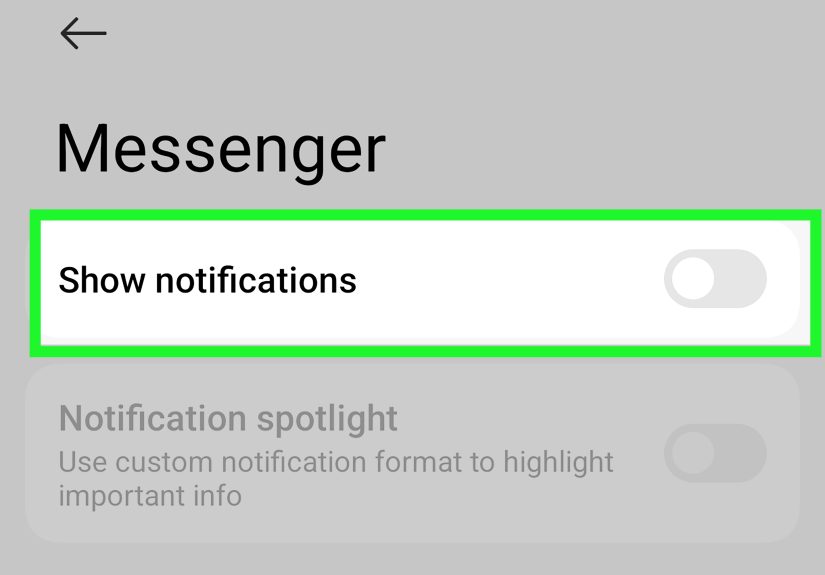
- Go to Settings > Notifications > App notifications.
- Select Messenger.
- Tap Notification categories (or Notification channels).
- Find the category related to calls or incoming calls, then turn it off or set it to Silent.
Samsung tip: Some Samsung phones hide notification-category controls by default. If you don’t see categories, look for an Advanced setting like
“Manage notification categories for each app,” then try again.
Best for: “I want my messages, not your surprise FaceTime audition.”
When nothing works: A quick troubleshooting checklist
- Update Messenger (and your phone OS). Notification behavior can change between versions.
- Check both Messenger and Facebook if you use both appssome call-related settings may live in either place depending on your setup.
- Disable overlays/bubbles (Android) if call pop-ups keep appearing on top of everything.
- Use a scheduled Focus/DND at night so calls never wake you up (even if a setting gets reset later).
- Escalate to blocking if this is harassment or repeated boundary-crossing. Your peace is not negotiable.
Smart boundaries: Limit who can reach you in the first place
If your bigger issue is random people finding you and calling, consider tightening your privacy settings:
reduce discoverability (phone/email lookups), limit message requests, and be selective about who you add or accept.
Less access up front means fewer headaches later.
Conclusion: Pick the workaround that matches your goal
If you want the quickest win: block the person (Workaround #1). If you want “they’re gone everywhere”: block on Facebook (Workaround #2).
If you want quiet without drama: Restrict and Mute (Workarounds #3 and #4). And if your main enemy is interruption:
let your phone’s Focus/DND and notification controls do the heavy lifting (Workarounds #5 and #6).
Messenger calls don’t have to run your schedule. You can turn your phone back into a tooland not a tiny, buzzing manager that schedules surprise meetings with people you didn’t invite.
Real-world experiences: What people actually run into (and what tends to work)
In the real world, unwanted Messenger calls usually don’t show up as a neat “one problem, one solution” situation. They show up messylike a call from a
“Marketplace buyer” at 11:47 p.m., a relative who believes texting is a conspiracy, or a group chat that thinks video calls are a recreational sport.
Here are a few common scenarios people describe, plus the workaround combo that typically saves the day.
Scenario 1: The “Marketplace Buyer Who Calls Like It’s Urgent Surgery.”
Someone messages about an item you listed, then immediately starts callingsometimes repeatedlybecause waiting 90 seconds apparently feels illegal.
In this case, blocking can feel extreme if the person might still buy the item, but you also don’t want your phone to ring like you’re on-call at a hospital.
A practical approach is to mute the chat (Workaround #4) and use Android notification categories or iPhone notification settings
(Workaround #6) to remove the sound/banners for Messenger calls. If the person keeps pushing, it becomes less “customer service” and more “boundary practice,”
and that’s when Workaround #1 (block on Messenger) becomes the healthy choice.
Scenario 2: The Friend Who Only CallsNever Texts.
Some people treat Messenger like a walkie-talkie: they call first, ask questions later, and then call again if you don’t pick up (because surely you just missed it, right?).
People in this situation often don’t want to block the friend; they just want control over timing.
That’s where Restrict might be too harsh, but Mute plus a scheduled Focus/DND works beautifully.
For example: set a Sleep Focus every night, or a Work Focus during school/work hours, and let calls go straight to “missed” without disturbing you.
Then you can reply when you actually have the bandwidth. It’s not coldit’s adulting.
Scenario 3: The Group Chat That Treats Video Calls Like a Party Horn.
Group calls can be the most chaotic because it’s not just one person; it’s a rotating cast of “tap-to-call” enthusiasts.
In many cases, the fastest relief is device-level control: turn off Messenger notifications (or at least sounds and banners),
then rely on messages when you choose to check in. On Android, people often have luck disabling the “calls” notification category while keeping message pings.
On iPhone, Focus can silence Messenger during certain hours without permanently disabling everything.
Scenario 4: The Awkward SituationYou Need Distance Without Drama.
Not every unwanted call is from a stranger. Sometimes it’s someone you know well, and blocking them would create a social explosion you simply don’t have time for.
This is where Restrict shines: it reduces how much access they have to your attention without an obvious confrontation.
People often describe it as the digital version of “I’m stepping back” rather than “you’re banned.”
Pair Restrict with notification silencing if calls still feel intrusive, and you get space without the fireworks.
Scenario 5: The “Why Does It Still Pop Up?” Mystery.
A common frustration is: “I turned off notifications, but the call screen still appears.” This is where notification categories matter (especially on Android).
People often have more success turning off the specific “calls/incoming calls” channel rather than flipping the master notification switch.
On iPhone, Focus tends to be the most reliable “peace switch,” because it filters interruptions at the system level.
The main takeaway from real-world use is simple: if your goal is no interruptions, the best results usually come from combining
in-app controls (Mute/Restrict/Block) with system controls (Focus/DND/notification settings).
Messenger changes, phone models vary, and settings sometimes movebut your ability to protect your time stays constant.