Table of Contents >> Show >> Hide
- Before You Start: Ringtone vs. Notification Sound (Yes, They’re Different)
- The 8 Easy Steps to Change Viber Ringtone on Android
- Step 1: Update Viber (and Android) So You’re Not Fighting Old Menus
- Step 2: Decide What You’re Changing (Calls, Messages, or Both)
- Step 3: Open Viber’s Notification Settings (The In-App Route)
- Step 4: Change the Viber Message Notification Sound (If Available)
- Step 5: Change the Viber Call Ringtone (The “Incoming Calls” Route)
- Step 6: Set Viber Sounds Using Android App Notification Settings (Works on Most Phones)
- Step 7: Add a Custom Sound So It Appears in the Picker
- Step 8: Troubleshoot “It Still Won’t Ring” Issues (The Not-Fun but Necessary Step)
- Extra Customization Ideas (Because “Default” Is a Choice)
- FAQ: Quick Answers to Common Viber Ringtone Questions
- Real-World Experiences & Tips (500+ Words of “Stuff That Actually Happens”)
- Conclusion
Your phone rings. You grab it like it’s a game-winning buzzer. Surprise: it’s a Viber call… using the same default tone you’ve heard
since forever. If your ringtone situation feels like “Groundhog Day,” let’s fix it.
The good news: changing the Viber ringtone on Android is usually quick. The slightly less good news: the exact buttons can vary depending
on your Android version and phone brand (Samsung, Pixel, Motorola, etc.). But don’t worrythis guide covers the two places Viber sounds
can live: inside Viber and inside Android notification settings.
Before You Start: Ringtone vs. Notification Sound (Yes, They’re Different)
On Android, Viber can make noise in a few different situations:
- Incoming Viber calls (the “ringtone” you hear when someone calls you on Viber)
- Message notifications (a ping when you get a new message)
- Group/Community alerts (often a separate notification category)
Depending on your Viber version, you may be able to change sounds directly in the app. In other cases, Android’s per-app notification
categories (“channels”) control the soundespecially for call alerts and different message types.
The 8 Easy Steps to Change Viber Ringtone on Android
Step 1: Update Viber (and Android) So You’re Not Fighting Old Menus
First, make sure Viber is up to date in the Google Play Store. Then check for any pending Android system updates.
App menus and notification categories can change across versions, so updating reduces “Wait, my screen doesn’t look like that”
moments.Quick win: restart your phone after updating. It’s basic, but it fixes a surprising number of notification weirdnesses.
Step 2: Decide What You’re Changing (Calls, Messages, or Both)
If your main goal is the incoming call ringtone, you’ll likely adjust a “Calls” or “Incoming calls” category in Android settings,
or a “Call ringtone” option in Viber (if you see it).If your goal is the message notification sound, you can often change it inside Viber under Notificationsor in Android under the
“Messages” notification category.Knowing which sound you want prevents you from changing the message ping when you meant to change the call ring (a classic “why is nothing fixed?” trap).
Step 3: Open Viber’s Notification Settings (The In-App Route)
Start inside Viber:
- Open Viber
- Tap More (usually bottom-right)
- Tap Settings
- Tap Notifications
Here, look for options like Notification sounds, Message notifications, or anything that clearly references sound.
If you see a toggle like Use system sounds, that means Viber may follow whatever tones Android is using globally (or per category).Tip: If your “Notification sounds” is set to None (or silent), you won’t hear anything no matter how fancy your ringtone is.
Step 4: Change the Viber Message Notification Sound (If Available)
Still in Viber > Settings > Notifications, tap the sound option (often labeled something like Notification sounds).
Choose a new tone from the list.If Viber allows it on your device, you may also see an option to add or select custom sounds. If you don’t see that option, don’t panic
Android can still handle custom tones (we’ll do that in Step 6).Quick test idea: ask a friend to send you a message after you change the setting. Testing immediately saves you from “I’ll find out later”
(and later is always the worst possible time).Step 5: Change the Viber Call Ringtone (The “Incoming Calls” Route)
Viber call ringing can be controlled in one of two ways:
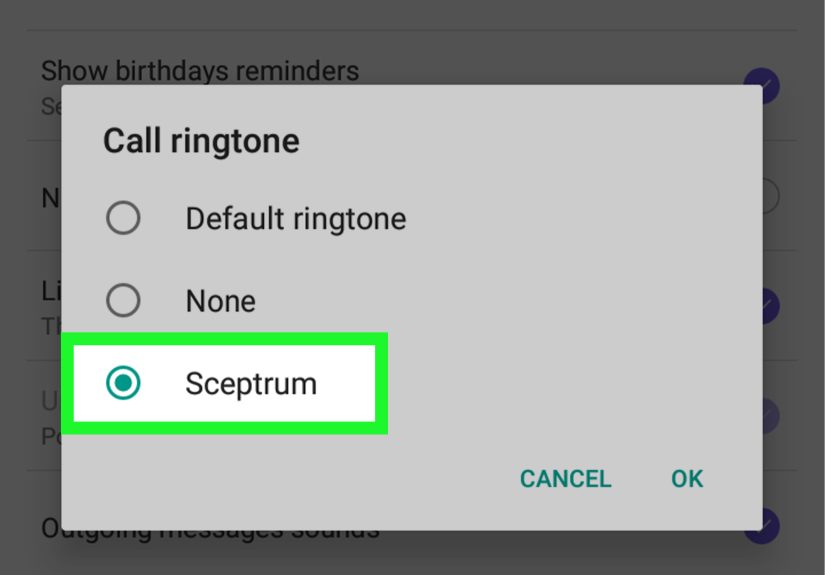
- Inside Viber: If you see a clear option like Call ringtone in Viber’s notification settings, use it and select your tone.
- Inside Android: If Viber doesn’t show a call ringtone option, Android’s notification categories usually control the call sound.
If you’re not seeing a call ringtone option inside Viber, jump to Step 6 and set the sound under Android settings for the “Incoming calls” category.
Step 6: Set Viber Sounds Using Android App Notification Settings (Works on Most Phones)
This is the “Android will do it for us” methodand it’s often the most reliable.
Go to:
Settings > Apps (or Apps & notifications) > Viber > NotificationsYou’ll usually see multiple notification categories, such as:
- Messages
- Group messages / Communities
- Calls / Incoming calls
Tap the category you want to customize, then tap Sound and pick your new tone.
If you don’t see categories, look for an option like Notification categories, Advanced, or a toggle that enables category management.Pro move: set a distinct sound for Calls vs. Messages. Your brain will learn the difference fastand you’ll stop treating every Viber ping like an emergency.
Alternate shortcut: when a Viber notification arrives, press and hold it, tap the gear (or settings icon),
then jump straight into that notification category and change its sound.Step 7: Add a Custom Sound So It Appears in the Picker
Want your own sound (a song clip, a gentle chime, or the iconic “please don’t embarrass me in public” tone)? Put the audio file where Android expects it.
Typical method:
- Download or transfer the audio file to your phone
- Open your Files app
- Move/copy it into the Notifications folder (for message sounds) or Ringtones folder (for call ringtones)
After that, go back to the sound picker (in Viber or Android settings) and look for the file by name.
If you still don’t see it, restart your phonesome devices refresh sound libraries on reboot.Keep it short: 1–3 seconds for notifications is plenty. Longer sounds feel fun until you get five messages in a row and your phone turns into a tiny concert you didn’t buy tickets for.
Step 8: Troubleshoot “It Still Won’t Ring” Issues (The Not-Fun but Necessary Step)
If your new sound isn’t playing, check these common blockers:
- Notification permission: Android Settings > Apps > Viber > Notifications > confirm Allow notifications is ON
- Do Not Disturb / Focus Mode: make sure Viber isn’t silenced or blocked
- Conversation muted: inside Viber, a specific chat/group can be muted even if global notifications are on
- Volume controls: raise ring volume for calls and notification volume for message alerts
- Battery restrictions: set Viber battery usage to unrestricted (varies by phone) so it can alert reliably
If you’re dealing with inconsistent notifications (works sometimes, then goes quiet), battery optimization and background restrictions are frequent culprits.
Give Viber permission to run normally in the background if you rely on it for calls/messages.
Extra Customization Ideas (Because “Default” Is a Choice)
Set Different Sounds for Groups vs. Direct Messages
If your Android settings show separate Viber categories for group messages, assign a softer sound to groups and a more noticeable tone to direct messages.
This keeps your phone from sounding like a pinball machine every time your group chat discovers emojis again.
Make Viber Calls Impossible to Miss (Without Being Annoying)
For the “Incoming calls” category, consider:
- Turning on vibration
- Allowing pop on screen (if available)
- Setting the notification importance to High
This is especially helpful if you use Viber for work or family calls.
FAQ: Quick Answers to Common Viber Ringtone Questions
Why don’t I see “Use system sounds” in Viber?
Viber menus can vary by version and device. If you don’t see it, use Android’s app notification settings (Step 6). That method works broadly
because Android controls notification categories at the system level.
Can I use an MP3 as a Viber ringtone?
Usually yesas long as Android recognizes it as a ringtone/notification option. Move it into the Ringtones folder (for calls)
or Notifications folder (for message sounds), then select it from the sound picker.
My ringtone resets back to default. Why?
Common causes include system cleanup apps, permission/battery restrictions, or the sound file being moved/deleted. Keep your sound file in the proper folder,
avoid “storage cleaner” apps deleting it, and double-check Viber isn’t restricted in the background.
Real-World Experiences & Tips (500+ Words of “Stuff That Actually Happens”)
Changing a ringtone sounds simpleuntil real life shows up with its messy details. Here are a few common situations people run into when customizing
Viber sounds on Android, plus practical ways to handle them without launching your phone into the couch (or worse, the street).
1) The “It Changed… but Only for Messages” surprise.
You follow the in-app steps, pick a new sound, and it works beautifully for messages. Then someone calls you on Viber and you still hear the old
ringtone (or your system default). This is usually because Android treats call alerts as a different categorysometimes an “Incoming calls” notification
channel. The fix is almost always Step 6: open Android’s Viber notification categories and set the sound specifically for calls. Once you do that,
the call ringtone stops freeloading on the default tone.
2) The “My phone is a Samsung/Pixel/Moto, so your menu is lying to me” problem.
Android is one operating system, but manufacturers love adding their own settings labels and hiding advanced toggles in places you’d never check
voluntarily. For example, some phones tuck notification category controls inside “Advanced settings,” and if categories are off, you’ll only see one
generic notification switchwhich makes it feel like per-app sound customization doesn’t exist. The workaround: look for anything that says
“notification categories” or “manage notification categories,” turn it on, and then return to Viber’s notification page. Suddenly, categories appear
like magic (or like the option was there all along and Android was just being dramatic).
3) The “Custom sound won’t show up” mystery.
You downloaded an MP3, you can play it, it’s clearly on your phone… and the ringtone picker acts like it doesn’t exist. This often happens when the
file is stored in Downloads or buried in a random folder. Android’s sound picker is picky. Moving the file into the Notifications folder
(for message pings) or Ringtones folder (for call rings) usually solves it. If it still doesn’t appear, a restart forces Android to rescan
your sound library. Also, short file names helpsome pickers are weird about special characters or extremely long names.
4) The “It works once, then goes silent” frustration.
This one is sneaky. You get a few notifications with your new sound, then later… silence. Often it’s not the sound setting at allit’s battery
optimization deciding Viber is “not important enough” to run freely in the background. If you depend on Viber for timely alerts, set Viber’s battery
usage to unrestricted (or the closest option your phone offers). It’s not about draining your battery; it’s about letting the app deliver notifications
consistently rather than whenever Android feels generous.
5) The “Group chat chaos” scenario.
If you’re in active Viber groups, notifications can pile up fast. A louder sound might seem like a good ideauntil your phone becomes a tiny air-raid
siren during dinner. A smarter setup is to assign a softer tone to group messages and a sharper, more attention-grabbing sound to direct messages or calls.
Your brain learns the difference quickly, and you’ll stop checking your phone every time your group chat posts another “good morning” sticker.
Bottom line: the best Viber sound setup is the one that matches how you actually use the app. If you mostly message, prioritize message tone clarity.
If you take Viber calls for work or family, make the call ringtone unmistakable. And if you want true peace, remember: “mute group notifications”
is not a personality flawit’s self-care.
Conclusion
Changing the Viber ringtone on Android is usually a quick win once you know where the sound is controlled: in Viber’s own notification settings,
Android’s per-app notification categories, or both. Follow the 8 steps above, test immediately, and lock things in by saving your custom sound file
in the right folder and removing battery restrictions if notifications are inconsistent.
Once you’re done, your phone won’t just “make noise.” It’ll make your noiseon purpose.