Table of Contents >> Show >> Hide
- First, a Reality Check: Your Phone Usually Isn’t the Boss
- Step 1: Identify Where the Wrong Caller ID Name Is Coming From
- Step 2: Change Your Carrier Caller ID Name (Most Common Fix)
- Step 3: If the Wrong Name Comes From Truecaller or Hiya, Update Those Too
- Step 4: Update Your Google Account Name (Helpful, But Not a Magic Wand)
- Step 5: When You Can’t “Change It” (And What Works Instead)
- Troubleshooting Checklist (When It Still Won’t Update)
- FAQ: Quick Answers People Actually Need
- Real-World Experiences: What Usually Happens When People Try This (Extra Notes)
- Experience 1: “I changed it… and nothing happened for two days.”
- Experience 2: “It’s fixed for strangers, but my mom still sees the wrong name.”
- Experience 3: “Only Samsung phones show the wrong business name.”
- Experience 4: “We’re a small business and our number shows the previous owner.”
- Experience 5: “I tried changing my Google profile name and expected caller ID to update.”
If you’ve ever called someone and watched their screen light up with a name you haven’t used since your
“emo phase” (or worseyour ex’s), welcome. The good news: you can usually fix it. The slightly annoying news:
your Android phone often isn’t the one deciding what name shows up. Your carrier and a few behind-the-scenes
databases get a vote, too. Sometimes they’re the ones holding the gavel.
This guide walks you through how caller ID names work in the U.S., how to change your caller ID name on Android
the right way (depending on who’s actually displaying it), and what to do when it refuses to update like it’s
powered by pure stubbornness.
First, a Reality Check: Your Phone Usually Isn’t the Boss
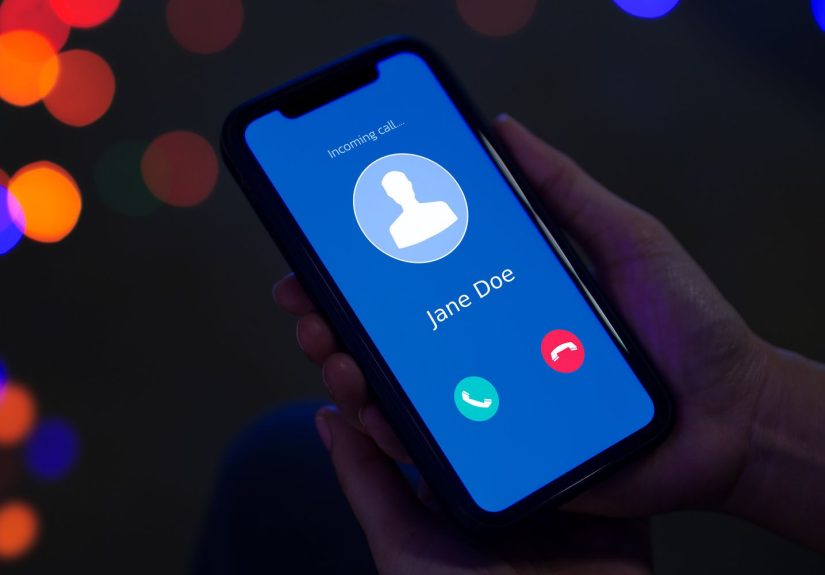
When you make a call, the recipient’s phone can show a number and sometimes a name.
The number is usually straightforward. The name… not so much. It can come from multiple places:
- The recipient’s contacts: If they saved you as “Mike (Do Not Answer),” that’s what they’ll see.
You can’t override that from your phoneshort of becoming more lovable. - Your mobile carrier’s caller ID name: Many carriers maintain a caller ID display name per line.
This is often the “official” name strangers see if they don’t have you saved. - Caller ID apps/databases: Services like Truecaller or Hiya may display their own name result,
especially on Android devices with built-in spam/caller ID features. - Business calling / branded calling systems: Businesses may show verified branding, reason-for-call,
or enterprise caller ID features that are separate from your phone’s settings.
Translation: to change your caller ID name on Android, you first need to figure out which system is showing the name.
Then you update that system.
Step 1: Identify Where the Wrong Caller ID Name Is Coming From
Before changing anything, do a quick “caller ID investigation” so you don’t waste time updating your Google profile
when the problem is actually your carrier.
Quick tests that save hours
- Call someone who does NOT have you saved.
If the name is wrong there, it’s likely your carrier or a caller ID database (Hiya/Truecaller). - Call two different people on different carriers.
If Person A sees a name and Person B sees only your number (or “Wireless Caller”), you’re likely dealing with carrier lookups
and different display rules. - Ask what app or phone they use.
Samsung Galaxy phones often use built-in caller ID/spam protection that can pull names from Hiya. Caller ID apps can also override. - Check whether they’re seeing “Spam” or a weird business name.
That’s usually not your phone’s faultit’s a reputation/caller ID database issue.
Once you know who’s “printing the label,” you’ll know where to edit it.
Step 2: Change Your Carrier Caller ID Name (Most Common Fix)
If you want your caller ID name to show correctly when calling people who don’t have you saved, your carrier is usually the place to update it.
Below are common U.S. carrier paths. Menu wording may vary slightly by plan and app version, but these are the official “north stars.”
AT&T: Edit the Caller ID display name in your account
AT&T allows many customers to change the caller ID display name per line right from account settings.
In general, you’ll sign into your AT&T profile, open settings for the specific line, and edit the Caller ID display name.
- Open the AT&T account app or sign in on the web.
- Go to your Account/Profile area.
- Open Settings for the line you want to update.
- Select Edit for Caller ID.
- Type the name you want displayed and save.
Tip: Changes may take time to propagate. If you update it today and your friend still sees the old name in five minutes,
that doesn’t mean it failedit might just be traveling slowly through telecom space.
T-Mobile: Update caller ID name in the T Life app (or account tools)
T-Mobile provides a way to update or change caller ID name using their account experience.
The exact path can differ, but one documented route is through the T Life app under line or device settings.
- Open the T Life app.
- Go to the Manage tab.
- Open Device Settings (or line settings).
- Find Caller ID Name and update it.
- Save and allow time for the update to spread.
Verizon: Edit Share Name ID (often via Call Filter/My Verizon)
On Verizon, caller ID name management is commonly tied to Share Name ID and may be handled through the
Verizon Call Filter app (or via My Verizon, depending on your setup).
- Open the Verizon Call Filter app (or My Verizon, if that’s where your plan routes this feature).
- Go to Account or Profile settings.
- Select Edit next to the name for the line.
- Enter the preferred display name (or choose not to show a name, if available).
- Save/Update.
If you can’t find Share Name ID at all, it may be a plan/feature limitationor the setting moved. In that case,
Verizon support can usually point you to the current path.
MVNOs (Mint, Visible, Cricket, etc.): It depends
If you’re on a smaller carrier or an MVNO, caller ID name controls can be limited or handled differently.
Some MVNOs don’t offer a user-editable caller ID name at all, or they inherit settings from the parent network.
If you can’t find a caller ID name option in your account, your best move is to contact support and ask specifically:
- “Can you update the outbound caller ID display name (CNAM/caller name) for my line?”
- “If not, is it supported on my plan or network?”
Step 3: If the Wrong Name Comes From Truecaller or Hiya, Update Those Too
This is the part most guides skip, and it’s why people “fix” their carrier name but still show up as
something completely different on certain Android phones.
Truecaller: Edit your profile name
If your name is incorrect in Truecaller, you can typically change it inside the app:
- Open Truecaller.
- Tap your profile icon (usually top left).
- Select Edit profile.
- Update your name and save.
If you don’t use Truecaller but your number is listed with the wrong name, Truecaller also provides support routes to request a correction.
Updates may take some time to appear.
Hiya: Request a correction (especially if you’re flagged wrong)
Hiya powers caller ID and spam protection in multiple places (including built-in services on some devices).
If your caller ID display name is wrongor you’re mislabeled as spamHiya provides a process to request changes or removal.
- Individuals can request correction/removal of inaccurate caller ID information.
- Businesses can register numbers to reduce the risk of spam labeling and improve identification.
Step 4: Update Your Google Account Name (Helpful, But Not a Magic Wand)
Many people search “change caller ID name on Android” and end up changing their Google profile name.
That’s not pointlessit affects how your name appears in Google services and sometimes how your info is shared in contact-based experiences.
But it doesn’t reliably change carrier caller ID names.
How to change your Google Account name on Android
- Open Settings on your Android phone.
- Tap Google > Manage your Google Account.
- Go to Personal info.
- Tap Name and edit it.
- Save your changes.
When does this matter? If someone uses Google Contacts syncing, Google services, or certain caller-assist features, your profile name might show up in places.
But if you’re trying to fix what strangers see on standard cellular caller ID, your carrier setting is usually the real target.
Step 5: When You Can’t “Change It” (And What Works Instead)
Sometimes you do everything right and the name still won’t behave. Here are the most common reasonsand what to do.
Reason 1: The recipient’s carrier is supplying the name (not yours)
In many calling paths, the recipient’s carrier performs the name lookup. That means even if your carrier has the correct name,
someone else’s network might still show old data until it refreshes. Some systems also display no name at all for wireless numbers.
Reason 2: Someone saved you under the wrong name
This is the classic plot twist. The caller ID name is correct everywhere else, but one person keeps seeing “Dad.”
That’s a contacts issue on their end. Ask them to edit your contact and test again.
Reason 3: Third-party caller ID databases are overriding it
If the wrong name only appears on certain Android devices or only when spam protection/caller ID features are enabled,
fix the database source (Truecaller/Hiya) in addition to your carrier.
Reason 4: You’re using Google Voice and expecting a caller ID “name” toggle
Google Voice can control which number you present, but the name shown to the recipient is generally controlled by their carrier’s lookup and databases.
If your number is showing an incorrect business name, you’re usually dealing with a CNAM/caller name listing issue rather than a phone setting.
Troubleshooting Checklist (When It Still Won’t Update)
- Wait 24–72 hours after changing carrier caller ID name. Telecom systems don’t always update instantly.
- Test with someone who doesn’t have you saved and ideally on a different carrier.
- Disable caller ID apps temporarily (on the recipient’s phone) to see if the displayed name changes.
- Confirm your line selection if you manage multiple linessome accounts store caller ID names per line.
- Escalate to support and ask specifically about “outbound caller ID name / CNAM display name.”
FAQ: Quick Answers People Actually Need
Can I change my caller ID name from the Android Phone app settings?
Usually, no. Android’s Phone app can control things like showing/hiding your number in some cases,
but the caller ID name is typically a carrier or database-level attribute.
Why do some people see my name and others don’t?
Different carriers and devices show different caller ID info. Some phones prioritize contacts, some show carrier name lookup,
and some rely on third-party caller ID services. It’s not youit’s telecom chaos with a nice ringtone.
I updated my caller ID name, but it’s still wrong. Did it fail?
Not necessarily. Propagation delays are common, and some networks cache caller ID names. Test again after a day or two,
and test across multiple recipients/carriers if possible.
Real-World Experiences: What Usually Happens When People Try This (Extra Notes)
To make this topic feel less theoretical, here are common real-world patterns people run into when trying to change their caller ID name on Android.
These are not “one weird trick” storiesjust the scenarios that show up again and again in the U.S.
Experience 1: “I changed it… and nothing happened for two days.”
This is the most normal outcome, and it’s why caller ID fixes feel broken. Carrier caller ID name updates frequently take time to propagate.
People will update the name in their account, call a friend immediately, and get the old namethen assume they used the wrong setting.
In many cases, the update shows correctly 24–72 hours later (sometimes sooner), especially when calling people outside your carrier’s network.
The lesson: don’t judge the update based on one test call made five minutes after hitting Save.
Experience 2: “It’s fixed for strangers, but my mom still sees the wrong name.”
That’s usually a contacts problem on the recipient’s side. If your mom saved your number years ago as “Emergency Plumber”
(because you once unclogged a sink and she never recovered), her phone will always display that contact name instead of your carrier name.
A surprisingly effective “fix” is simply asking the recipient to edit the contact name, delete and re-save the contact, or
remove any duplicate contacts that might be confusing the Phone app.
Experience 3: “Only Samsung phones show the wrong business name.”
Samsung devices commonly use built-in caller ID and spam protection features that can pull identification from a caller ID partner.
That means your carrier can be correct while a caller ID database still shows an outdated label or even flags your number incorrectly.
In these cases, the fastest path is updating the database source (for example, submitting a correction request to the relevant caller ID provider
or editing your profile in a caller ID app).
Experience 4: “We’re a small business and our number shows the previous owner.”
This happens a lot when numbers get reassigned. Businesses may acquire a “new” number that previously belonged to another company,
and some caller name databases lag behind reality. Typical fixes include:
(1) updating caller ID name with the carrier (if supported), (2) registering your business number with caller ID reputation/identity systems,
and (3) requesting corrections from caller ID databases that are still associating the number with the old business.
The practical takeaway: business caller ID is a multi-system problemcarrier settings alone may not fully solve it.
Experience 5: “I tried changing my Google profile name and expected caller ID to update.”
This is an understandable assumptionand it’s why the internet is full of misleading advice. Changing your Google Account name updates how you
appear inside Google services, but it does not reliably rewrite carrier caller ID name data. People often feel like they “did something”
(because they did) but still see the wrong caller ID name when calling standard phone numbers. The better approach is:
treat Google profile changes as a separate, optional cleanup stepthen focus on carrier caller ID name settings and caller ID databases.
If this section feels like a theme, it is: caller ID names are a group project, and nobody agreed on a single group chat.
Once you identify the source (carrier vs. database vs. contacts), the fix becomes straightforwardand a lot less rage-inducing.