Table of Contents >> Show >> Hide
- First, a Quick Reality Check: Which “Name” Does Fortnite Actually Show?
- What You’re Really Changing When You “Change Your Fortnite Name”
- How to Change Your Fortnite Name Online (Epic Games Display Name)
- How to Change Your Fortnite Name on PlayStation (PS5/PS4)
- How to Change Your Fortnite Name on Xbox (Xbox One / Series X|S)
- How to Change Your Fortnite Name on Nintendo Switch
- Choosing a New Name That Won’t Regret-You Later
- Troubleshooting: “I Changed My Name, But Fortnite Still Shows the Old One”
- FAQ: Quick Answers to Common Fortnite Name Questions
- Real-World Experiences: What Changing Your Fortnite Name Actually Feels Like (And What People Forget)
- SEO Tags
Your Fortnite name is basically your gaming “brand.” It’s how friends find you, how teammates yell (politely?) at you,
and how random strangers decide whether you’re a cracked builder… or someone who still thinks fall damage is optional.
The good news: changing your Fortnite name is totally doable. The slightly sneaky news: the steps depend on where you play.
This guide walks you through changing your Fortnite name online (via your Epic Games account) and on consoles
(PlayStation and Xbox). We’ll also cover Nintendo Switch, common hiccups, and what to do if your name change doesn’t show up right away.
Expect clear steps, real-world tips, and just enough humor to keep your brain from alt-tabbing.
First, a Quick Reality Check: Which “Name” Does Fortnite Actually Show?
Fortnite uses different display rules depending on your platform. In plain English:
- PC/Mac, Nintendo Switch, and Mobile: You’ll generally see your Epic Games Display Name.
- PlayStation and Xbox: In the lobby, Fortnite shows your console account name (your PSN Online ID or Xbox Gamertag), which can be different from your Epic display name.
That’s why some players change their Epic name and then panic because the lobby still shows the old console name.
Usually nothing is brokenyou’re just looking at the “other” name.
What You’re Really Changing When You “Change Your Fortnite Name”
When most people say “Fortnite name,” they mean one of two things:
- Epic Games Display Name: The name tied to your Epic account (used on PC/Mac, Switch, mobile, and across Epic services).
- Console name: Your PlayStation Network Online ID or Xbox Gamertag (used when you play Fortnite on those consoles).
So the right method depends on your situation:
- If you play on PC, Switch, or mobile → change your Epic display name.
- If you play on PlayStation → change your PSN Online ID (and optionally your Epic name too).
- If you play on Xbox → change your Gamertag (and optionally your Epic name too).
How to Change Your Fortnite Name Online (Epic Games Display Name)
Before you start: a few rules that can save you time
- You can only change your Epic display name once every two weeks. If you see a lock icon, you’re likely still in the cooldown period.
- Your email must be verified on your Epic account before you can change your display name.
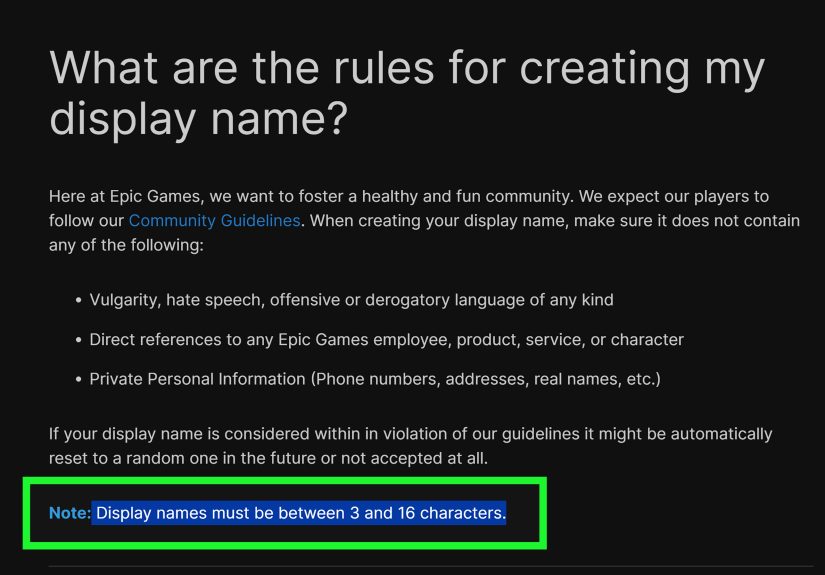
- Your display name must follow Epic’s rules: typically 3–16 characters and no hateful, offensive, or private personal info.
- If you’re younger and your account has extra restrictions (sometimes called a “cabined” account),
you may need help from a parent/guardian to finish setting up account features.
Step-by-step: Change your Epic display name on a browser
- Open a web browser on your phone, tablet, or computer.
- Sign in to your Epic Games account.
- Go to your Account Settings (often under Account or General settings).
- Find the field labeled Display Name.
- Type your new display name.
- Follow the prompts to confirm and save the change.
Pro tip: If the name won’t let you edit, look for a lock icon or an “info” icon near your current display name.
That usually means you changed it recently and the cooldown isn’t over yet. In that case, Fortnite is basically saying,
“Nice try, Agent Renaming. See you later.”
What if you’ve only ever played on console?
If you started on console and never fully created an Epic account, Epic may ask you to “finish setting up your account.”
That’s normal. You’re essentially completing the missing parts (like email and account details) so your Epic identity is fully functional.
How long does it take to update?
Usually your Epic display name updates quickly, but your game client may need a refresh:
- Close Fortnite completely and reopen it.
- Sign out and sign back in (if you can).
- Restart your device if the name still looks stuck.
How to Change Your Fortnite Name on PlayStation (PS5/PS4)
On PlayStation, Fortnite’s lobby name typically comes from your PSN Online ID, not your Epic display name.
So if you want the name you see on PlayStation to change, you’ll update your Online ID through PlayStation settings.
PS5: Change your Online ID
- Go to Settings.
- Select Users and Accounts.
- Go to Account → Profile → Online ID.
- Enter a new Online ID and check availability.
- Confirm and follow the purchase/confirmation steps.
- Optional: choose to show your old ID next to the new one for a limited time so friends recognize you.
PS4: Change your Online ID
- Go to Settings.
- Select Account Management → Account Information.
- Go to Profile → Online ID.
- Enter a new Online ID, check availability, then confirm.
- Optional: show your old ID next to the new one temporarily for easier recognition.
Important PlayStation notes (read this so Future You doesn’t sigh)
- Cost: Your first Online ID change is typically free; additional changes may cost money.
- Possible issues in some older PS4 games: PlayStation warns that changing your Online ID can sometimes cause issues
like lost progress or content in certain titles. They also note you can usually revert to your original Online ID for free if needed. - Fortnite impact: Fortnite is an online service game tied to accounts, and most players are fine
but it’s still smart to double-check your account links and restart Fortnite after the change.
How to Change Your Fortnite Name on Xbox (Xbox One / Series X|S)
On Xbox, Fortnite’s lobby name typically comes from your Xbox Gamertag.
To change what shows in Fortnite while playing on Xbox, you change your Gamertag.
Xbox console method (classic and straightforward)
- From the Home screen, press the Xbox button on your controller.
- Go to the System tab and select Settings.
- Select Personalization.
- Choose My profile → Customize profile.
- Select your Gamertag and enter (or pick) a new one.
- Check availability, then confirm to finalize the change.
Cost and timing notes
- Cost: Many Xbox users can change their Gamertag once for free; additional changes may have a fee.
- Availability: If your dream name is taken, Xbox may suggest variations (sometimes with numbers). It’s not personal. It’s math.
- Update speed: Usually fast, but you may need to restart Fortnite for it to display correctly.
How to Change Your Fortnite Name on Nintendo Switch
Here’s the key Switch detail: Fortnite on Nintendo Switch generally uses your Epic Games Display Name.
So if your goal is “change my Fortnite name,” you’ll usually do the Epic display name method (the online steps above).
But what about your Switch profile nickname?
Your Switch user profile has a nickname that friends may see in Nintendo’s ecosystem.
You can change it through Switch settings (and it’s handy if you want your console identity to match your Epic name for consistency).
- From the HOME Menu, open System Settings.
- Scroll down and select Users.
- Select the user profile you want to edit.
- Choose Profile settings and update your Nickname.
If you mainly care about what shows inside Fortnite on Switch, focus on your Epic display name first.
If you care about your broader Nintendo profile, update the nickname too.
Choosing a New Name That Won’t Regret-You Later
A good Fortnite name should be easy to type, easy to remember, and unlikely to get you roasted by your future self.
Here are practical strategies:
- Keep it readable: “xXx_Sh4d0wSn1p3r_xXx” is a classic, but also a lot.
- Avoid personal info: Don’t use your real name, phone number, address, or school.
- Think cross-platform: If you play on multiple devices, pick something that looks good everywhere.
- Use a theme: Favorite myth, food, animal, weather, or a silly combo (e.g., “TacoNimbus”).
- Say it out loud: If it sounds awkward when your friend shouts it mid-fight, reconsider.
Troubleshooting: “I Changed My Name, But Fortnite Still Shows the Old One”
This is the #1 name-change complaint, and it’s usually fixable without dramatic speeches.
Try these in order:
1) Confirm you changed the correct name for your platform
- If you’re on PlayStation or Xbox, the lobby often shows your console name, not Epic.
- If you’re on PC/Switch/Mobile, you should see the Epic display name.
2) Restart Fortnite (fully)
Close the game completely (not just “sleep mode”), then reopen it.
Consoles and PCs both love caching old info like it’s collecting it for a scrapbook.
3) Check cooldown and verification
- If Epic shows a lock icon, you’re still in the two-week cooldown.
- If your email isn’t verified, Epic may not allow the change.
4) Confirm your accounts are linked correctly
If you have multiple Epic accounts (it happensno judgment), you might be signed into the wrong one on the web.
Make sure the Epic account you edited is the same one connected to your console/platform.
FAQ: Quick Answers to Common Fortnite Name Questions
Does changing my name delete my skins or progress?
A name change is usually just a display changeit shouldn’t delete your Fortnite locker or progress.
Your items are tied to the account, not the spelling of your name.
The main risk comes from switching to a different account entirely or unlinking the wrong thing.
Can I change my Fortnite name as often as I want?
Epic display names typically have a cooldown (often two weeks). Console platforms have their own rules and fees.
In other words: you can rebrand, but you can’t do it every time you lose a match.
Why won’t Epic accept the name I want?
Common reasons include: the name is taken, it breaks naming rules, it includes restricted language,
or it’s too short/too long. Try slight variations, different spacing styles (where allowed),
or a new theme.
Can my friends still find me after I change my name?
Usually yes, but it may take a little time for everything to update across friends lists.
On some platforms (like PlayStation), you can temporarily display your old ID next to the new one so friends recognize you.
Real-World Experiences: What Changing Your Fortnite Name Actually Feels Like (And What People Forget)
Name changes sound simpletype new name, hit confirm, become legendary. In reality, it’s more like moving houses:
the new place is great, but you’ll keep finding boxes labeled “misc.” for a week. One of the most common experiences is the
two-name confusion: you change your Epic display name, hop into Fortnite on PlayStation, and the lobby still shows your
PSN ID like nothing happened. That moment of “Did it… work?” is basically a universal Fortnite rite of passage.
Once you realize each platform has its own name pipeline, it stops being scary and starts being mildly annoying (which is progress!).
Another real-life pattern: people usually change names for one of three reasons. First is the “middle school username problem”
(we’ve all seen names that should’ve stayed in 2018). Second is the “I’m starting fresh” reasonnew season, new vibe, new identity.
Third is competitive clarity: players want a name that teammates can actually read quickly in a lobby or stream overlay.
The smartest rebrands keep things short, readable, and consistent across platforms. The funniest rebrands are the ones that
go too hard (“UltraSweatDestroyer”) and then quietly get replaced a month later with something calmer (“UltraSweat… but chill”).
If you want your rename to feel smooth, do a tiny “rollout plan” like you’re launching a new product (but with less stress and more emotes).
Change the name, restart Fortnite, and then check these places: your lobby banner, your friends list, and any linked platform profile.
If you play with friends across platforms, send a quick message like “Hey, I changed my name to ____” so nobody thinks a stranger
joined the squad. On PlayStation, that option to show your old ID temporarily is incredibly useful for avoiding the “Who are you?” moment.
On Xbox, expect availability suggestions; sometimes the perfect name is taken, and you’ll have to decide whether adding a small twist
is worth it or if you want a totally new idea.
The most underrated experience is the confidence boost. A good name you actually like makes you feel more “you”
when you queue upespecially if your old name was cringe, random, or something you chose because you were hungry.
That said, don’t put pressure on finding “the perfect forever name.” Fortnite is supposed to be fun.
Pick something that won’t get you reported, won’t reveal personal details, and won’t embarrass you when your cousin reads it out loud at dinner.
If you’re stuck, test names by writing them down, saying them out loud, and imagining them on a win screen.
If you’d smile seeing it after a clutch endgame, it’s probably a keeper.
Finally, a real talk warning from people who’ve been through it: don’t try sketchy “workarounds” to bypass cooldown timers or platform rules.
The best-case scenario is wasted time; the worst-case scenario is account trouble you absolutely do not want.
If you’re locked out because of the two-week Epic cooldown, use the time to brainstorm a better name instead of speed-running regret.
Your future self will thank youand your friends will stop calling you “DefaultName_4721” like it’s your legal first name.