Table of Contents >> Show >> Hide
- Before You Plug In: What You Need (and What You Definitely Don’t)
- How to Charge an Apple Watch in 11 Steps
- Identify your charger type
- Pick a good power source
- Connect the cable to the adapter (or USB port)
- Plug it into the wall (or power on the computer/hub)
- Take your watch off your wrist
- Do a 3-second cleanliness check
- Remove bulky cases or metal accessories
- Place the back of the watch on the magnetic charger
- Confirm you’re actually charging (not just hanging out together)
- Use Nightstand Mode (optional, but kind of great)
- Let it chargeand don’t panic if it stops at 80%
- Fast Charging: When “I’m Leaving in 20 Minutes” Becomes Possible
- Battery-Friendly Habits That Don’t Feel Like “Battery Anxiety”
- Common Mistakes That Make Charging Weirdly Difficult
- Troubleshooting: Apple Watch Not Charging? Try This Checklist
- Re-seat the watch on the puck
- Clean the back of the watch and the charger
- Remove any plastic film
- Try a different outlet, adapter, or USB port
- Try a different charging cable if possible
- Give it time if the battery is fully drained
- Force restart the watch (if it’s unresponsive)
- Check temperature
- Consider the charger quality
- If nothing works, contact support
- Quick FAQ
- Conclusion
- Real-World Charging Experiences (and What They Teach You)
Charging an Apple Watch is delightfully simple: you basically introduce the back of your watch to a magnetic puck, and they fall in love instantly.
But if you’ve ever stared at a stubborn red lightning bolt at 1 a.m. like it’s a tiny judgmental emoji, you know there are a few details that matter.
Let’s charge your Apple Watch the right wayfast, safely, and with fewer “why are you like this?” moments.
Before You Plug In: What You Need (and What You Definitely Don’t)
Apple Watch charging is “wireless,” but not the same kind of wireless as your phone. It uses Apple’s magnetic charging system, so it won’t charge on a random Qi pad
meant for phones. Think of it as a very picky houseplant: it thrives with the right setup and pretends it’s dying when you freestyle.
Grab these basics
- An Apple Watch Magnetic Charging Cable (USB-A) or Apple Watch Magnetic Fast Charger to USB-C Cable (USB-C).
- A power source: a wall adapter, a Mac/PC USB port, or a reliable USB hub.
- A clean, flat surface so the watch and charger can align without doing yoga.
Avoid these “creative” options
- Phone Qi pads (they don’t match the Apple Watch charging method).
- Cheap, sketchy chargers that run hotter than your group chat.
- Charging on fabric or a pillow (heat + soft surfaces = not ideal).
How to Charge an Apple Watch in 11 Steps
These steps work for every Apple Watch model. Fast charging is a bonus feature for certain models and charger comboswe’ll cover that right after this.
-
Identify your charger type
Look at the USB end: USB-A is the classic rectangular plug; USB-C is the smaller oval one (often used for fast charging).
Either will charge your watch; USB-C just unlocks faster charging on supported models when paired with the right adapter. -
Pick a good power source
For the most consistent results, use a wall adapter. A computer USB port can work, but some hubs/ports supply limited powergreat for charging,
not always great for fast charging (or a very dead watch). -
Connect the cable to the adapter (or USB port)
Plug the USB end into your wall adapter, or directly into a computer USB port. If you’re using a multi-port charging station, use a known-good port that can
deliver steady power. -
Plug it into the wall (or power on the computer/hub)
Sounds obvious, but so does “don’t text your ex,” and yet. Make sure the outlet actually workstest it with another device if you’re unsure.
-
Take your watch off your wrist
Yes, some stands let you charge while wearing it in theory. In practice, you’ll look like you’re on a medical tether. Remove it for a better connection and less strain.
-
Do a 3-second cleanliness check
Wipe the back of the Apple Watch (especially after workouts) and the charging puck with a soft, dry, lint-free cloth.
Also remove any protective plastic film from the chargerthis is a sneaky reason watches don’t charge out of the box. -
Remove bulky cases or metal accessories
Some protective cases interfere with the magnetic connection. If your watch “sort of” chargesthen stopsremove the case and try again.
Also avoid charging on metal surfaces that could affect alignment. -
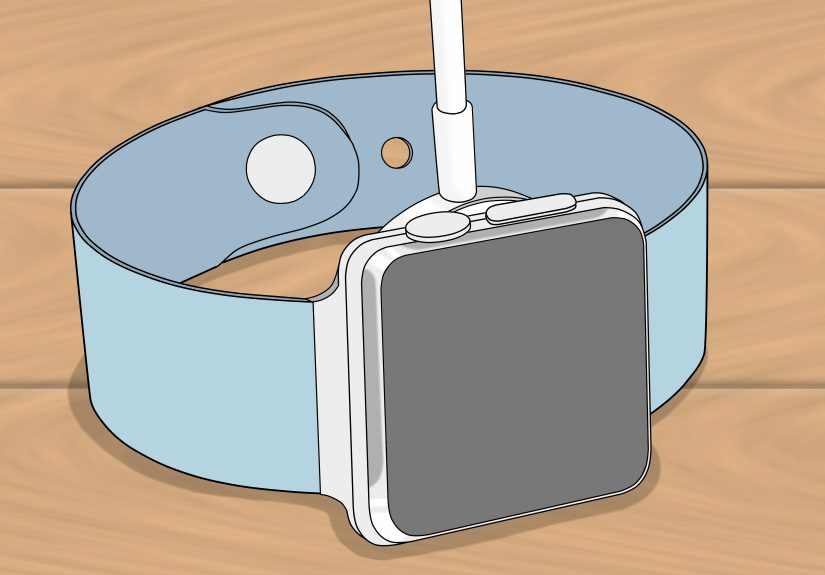
Place the back of the watch on the magnetic charger
Hold the puck near the back of the watch. The magnet should “snap” into alignment with a satisfying clicky confidence.
If it doesn’t snap, reposition the watchdon’t force it. -
Confirm you’re actually charging (not just hanging out together)
When charging starts, you should see a charging indicator (lightning bolt) on the screen.
If your battery is extremely low, the watch may need a few minutessometimes longerto show the charging screen.Quick icon decoder: a red lightning bolt usually means the watch is very low on power and needs charging; a green
lightning bolt indicates it’s actively charging. -
Use Nightstand Mode (optional, but kind of great)
If you place the Apple Watch on its side while charging (and Nightstand Mode is enabled), it becomes a bedside clock with an alarm interface.
You can toggle it in Settings > General > Nightstand Mode. Tap the display or nudge the table to wake the clock view. -
Let it chargeand don’t panic if it stops at 80%
Modern Apple Watches can use Optimized Battery Charging and Optimized Charge Limit to reduce battery wear.
That means your watch might pause at about 80% and finish later based on your routine. This is normal (and your battery will thank you quietly).When you need a full charge right now, you can usually override the optimization from the charging screen (options vary by watchOS version).
Fast Charging: When “I’m Leaving in 20 Minutes” Becomes Possible
Fast charging on Apple Watch isn’t just “use any charger and wish hard.” It depends on your watch model and your hardware.
Generally, fast charging requires a USB-C Magnetic Fast Charging Cable and a sufficiently powerful USB-C power adapter.
How to tell if you have the right cable
- USB-C connector on the end that plugs into the adapter.
- Many Apple fast-charge pucks have an aluminum ring around the magnetic charger.
- If you see a “WPT” label on the puck, it may be a WPT-compliant charger, which can limit fast charging in certain regions.
Realistic charging expectations
Charging speed varies with model, battery health, temperature, and what your watch is doing (streaming music while charging is… ambitious).
With fast charging, many people can get a big chunk of battery quicklyperfect for topping up before a workout or a night out.
Battery-Friendly Habits That Don’t Feel Like “Battery Anxiety”
Your Apple Watch battery is a tiny chemical factory. Treat it kindly, and it’ll show up for you. Treat it like a rental car, and it’ll still workjust grumpier over time.
Use charging optimization features
If your watch sometimes charges to 80% and pauses, that’s often Optimized Charge Limit learning your routine. It’s designed to reduce long periods at 100%,
which can help slow battery aging.
Keep temperatures reasonable
Apple Watches are designed to work best in typical ambient temperatures (roughly room temperature to warm outdoor conditions).
If the watch gets too hot or too cold, charging can slow down or pause. Translation: don’t bake it on a sunny windowsill while charging.
Charge little-and-often if that fits your life
You don’t have to drain it to 1% every time. Many users do best with a quick morning top-up or a short evening charge while showeringwhatever keeps you from the
dreaded “battery low” symbol during a meeting.
Common Mistakes That Make Charging Weirdly Difficult
Leaving the protective plastic on the charger
It’s clear, it’s sneaky, and it can block charging. If your charger is new (or recently replaced), check both sides for film.
Using a weak power source
Some laptop ports, old hubs, or low-power adapters may charge slowly or inconsistentlyespecially if the watch battery is extremely low.
If charging feels flaky, switch to a wall adapter.
Dirty contact surfaces
Sweat, lotion, and dust can interfere with the magnetic charging connection. A quick wipe solves a surprising number of “my watch is broken” moments.
Overheating
If your watch is warm to the touch and charging stops, move it to a cooler, well-ventilated surface and remove thick cases.
Charging may resume once the watch returns to a safe temperature.
Troubleshooting: Apple Watch Not Charging? Try This Checklist
If your Apple Watch won’t charge, don’t jump straight to “it’s dead forever.” Most charging issues are either alignment, power, or “why is there still plastic on this?”
-
Re-seat the watch on the puck
Lift it, place it again, and make sure the magnet grabs properly. Look for the lightning bolt charging indicator.
-
Clean the back of the watch and the charger
Use a soft, dry cloth. If there’s grime, remove it gentlyno harsh cleaners.
-
Remove any plastic film
Especially on new chargers or newly purchased accessories.
-
Try a different outlet, adapter, or USB port
A dead outlet is the villain in more stories than we’d like to admit.
-
Try a different charging cable if possible
Cables can fail. Borrow a known-good Apple Watch charger if you can and test.
-
Give it time if the battery is fully drained
If your battery is extremely low, it may take a while before the charging icon appears. Leave it on the charger for at least 20–30 minutes.
-
Force restart the watch (if it’s unresponsive)
Press and hold both the side button and the Digital Crown until you see the Apple logo. Then try charging again.
-
Check temperature
If the watch is very hot or very cold, charging can pause. Move it to a moderate-temperature environment and try again.
-
Consider the charger quality
If you’re using a third-party charger and charging is unreliable, test with an official Apple cable or a reputable certified accessory.
-
If nothing works, contact support
If the watch still won’t charge after trying the basics, it may need serviceespecially if there’s physical damage or battery issues.
Quick FAQ
Can I charge my Apple Watch from my iPhone?
Not wirelessly like reverse-charging on some phones. But if you have an iPhone with USB-C, you can sometimes power an Apple Watch charger from the iPhone’s USB-C port
using the right cable/adapter setup. It’s not the most efficient, but it can save your day while traveling.
Is it safe to charge my Apple Watch overnight?
Generally, yes. Apple includes battery management features designed for routine charging. The main thing to avoid is heat buildupcharge on a hard surface with airflow,
not under a blanket like it’s hibernating.
How long does it take to charge an Apple Watch?
It depends on the model, battery health, charger type, and temperature. Standard charging may take around 1–2.5 hours for a full charge.
Fast charging can shorten that significantly on supported models with the right USB-C fast charging cable and adapter.
Why does my watch stop charging at 80%?
That’s often Optimized Charge Limit or Optimized Battery Charging doing its job to reduce battery wear. If you need 100% immediately,
you can usually override it from the charging screen (exact steps vary by watchOS).
Conclusion
Charging an Apple Watch is mostly a “magnet meets watch” love story, but the small stuffclean surfaces, a solid power source, and the right cablemakes it smooth every time.
Follow the 11 steps above, use fast charging when it makes sense, and let optimized charging protect your battery when you’re not in a hurry.
Your future self (the one who forgot to charge before a long day) will be extremely grateful.
Real-World Charging Experiences (and What They Teach You)
Let’s talk about the part no one puts in the instruction manual: real life. Because in real life, you’re not charging your Apple Watch in a pristine lab.
You’re charging it while packing, working, parenting, traveling, or trying to remember where you left your dignity after a 6 a.m. workout class.
Experience #1: The “It’s On the Charger… Why Is It Still Dying?” mystery.
The most common real-world fail is alignment. You set the watch down, it looks right, you walk away… and two hours later it’s still at 9%.
Usually the puck wasn’t centered or the watch was slightly lifted by a case edge. The fix is simple: re-seat the watch until the magnet “locks” and the charging icon appears.
If you’re the type to charge while half-asleep, a stand that holds the puck steady can be a genuine quality-of-life upgrade.
Experience #2: The gym-sweat sabotage.
After a workout, the back of the watch can be a cocktail of sweat, lotion, and “I definitely should’ve wiped this.” Charging can become slow or inconsistent.
A quick wipe with a soft cloth before dropping it on the charger is the boring habit that saves you from dramatic troubleshooting later.
(Bonus: your charger puck stays cleaner too, which is oddly satisfying.)
Experience #3: The travel outlet roulette.
Hotel lamps with built-in USB ports look convenientuntil they provide weak power and your watch barely charges overnight.
When traveling, a compact wall adapter plus your known-good Apple Watch charger is the safer bet. If you must use a multi-port station,
make sure it’s reputable and not a bargain-bin “300W SUPER TURBO” brick with vibes made of chaos.
Experience #4: Fast charging is incredible… when you actually have the fast-charging setup.
People often assume “USB-C = fast.” In reality, fast charging depends on the cable, the adapter, and the watch model.
The practical lesson: if fast charging matters to you, keep a USB-C Apple Watch fast charging cable and a solid USB-C adapter in your everyday kit.
It turns “Oops, I forgot to charge” into “Give me 20 minutes and I’ll survive.”
Experience #5: The 80% panic that wasn’t a problem.
Many users see the watch pause around 80% and assume something is wrong. In most cases, it’s optimized charging doing exactly what it’s supposed to:
learning your schedule and reducing time spent at 100%. The real-world move is deciding what you value that daybattery longevity or maximum chargeand overriding when needed.
It’s not a bug; it’s your watch being quietly responsible.
Experience #6: Charging + heat = a complicated relationship.
Charging generates heat, and so does leaving electronics in warm places. People learn this the hard way by charging on a sunny windowsill or in a warm car.
If charging slows or stops, move the watch to a cooler area on a hard surface. In day-to-day use, the best “hack” is simply airflow: a nightstand, desk,
or shelf beats bedding every time.
Experience #7: The “I thought my watch was dead” comeback story.
When an Apple Watch battery is fully drained, it may look unresponsive for a while. The lesson: don’t give up after 60 seconds.
Leave it on a reliable charger, walk away, and come back in 20–30 minutes. If it still won’t respond, then you move on to the deeper troubleshooting steps
(different adapter/cable, force restart). Most of the time, patience plus a good power source fixes the drama.
The big takeaway from all of these? Charging an Apple Watch is easyuntil tiny real-life details get in the way. Build one or two “charging rituals”
(wipe after workouts, use a good adapter, confirm the charging icon), and you’ll spend less time troubleshooting and more time enjoying the watch… you know,
like it was designed for.