Table of Contents >> Show >> Hide
- First: Identify Which “Read-Only” You’re Dealing With
- How Deletion Really Works (Why Directory Permissions Matter More Than File Permissions)
- Deleting “Read-Only” Files When the Filesystem Is Actually Writable
- 1) Delete a write-protected file (the easy one)
- 2) If you “have permission” but still can’t delete: check the directory
- 3) Sticky bit: why you can’t delete other people’s files in shared folders
- 4) Ownership problems: use sudo or change ownership
- 5) Immutable or append-only attributes: when even root gets blocked
- 6) Weird filenames (leading dashes, spaces, or invisible characters)
- Now the Big One: Fixing a “Read-only file system” Error
- A Practical Troubleshooting Checklist (Copy/Paste Friendly)
- Conclusion
- Experience-Based Tips and Real-World “War Stories” (500+ Words)
Linux has a sense of humor. It’ll let you see a file, touch a file, even regret creating a file… and then, when you try to delete it, it hits you with:
Or maybe:
Those two messages look similar, but they’re totally different problems. One is “the file is protected.” The other is “the entire filesystem is currently refusing writes.” This guide shows you how to tell which one you have, delete the stubborn file safely, and fix the dreaded Read-only file system error without turning your machine into an expensive paperweight.
First: Identify Which “Read-Only” You’re Dealing With
Before you start swinging sudo rm -rf like a medieval mace, take 30 seconds to diagnose. “Read-only” usually means one of these:
- Read-only file permissions (the file is write-protected, but the filesystem is fine)
- Read-only directory permissions (you can’t delete files because the directory blocks it)
- Read-only filesystem mount (the kernel mounted the whole filesystem as
ro) - Special file attributes like immutable or append-only (even root gets told “no”)
Quick checks
1) Look at permissions:
2) Check whether the filesystem is mounted read-only:
If you see ro in the mount options for the filesystem that contains your file, you’re in “filesystem is read-only” territory. If you see rw, you’re probably dealing with permissions or attributes.
How Deletion Really Works (Why Directory Permissions Matter More Than File Permissions)
Here’s the weird-but-true Linux fact: deleting a file is mostly an operation on its parent directory. When you “delete a file,” you’re removing the directory entry (the name pointing to the inode). That means you can have full permission on a file and still be unable to delete it if the directory isn’t writable.
So if deletion fails, don’t just stare at the file. Check the directory:
You generally need:
- write (w) permission on the directory to remove entries
- execute (x) permission on the directory to access entries by name
Deleting “Read-Only” Files When the Filesystem Is Actually Writable
1) Delete a write-protected file (the easy one)
If the file itself is write-protected (no write bit), rm may prompt you for confirmation. You can either:
- confirm the prompt (type
y), or - force it with
-f, or - add write permission then delete
Tip: If you’re not the owner, chmod may fail. In that case, you’ll need sudo or ownership changes.
2) If you “have permission” but still can’t delete: check the directory
If rm says “Permission denied” or “Operation not permitted,” the parent directory might not be writable:
If it’s your directory and you meant it to be writable:
Security note: Avoid the tempting “fix” of chmod -R 777 unless this is a disposable sandbox. That’s not troubleshooting; that’s handing your filesystem a “please misbehave” badge.
3) Sticky bit: why you can’t delete other people’s files in shared folders
Ever tried cleaning up /tmp and got blocked? That’s usually the sticky bit doing its job. With sticky bit set on a shared directory, users can create files, but only the file’s owner (or root) can delete them.
To delete a file in a sticky-bit directory that you don’t own, you’ll need elevated privileges:
4) Ownership problems: use sudo or change ownership
If you don’t own the file or the directory (common after copying from another system, extracting archives as root, or restoring backups), use:
If you want to fix the underlying ownership so you can manage the files without sudo:
5) Immutable or append-only attributes: when even root gets blocked
Sometimes permissions look fine, but deletion still fails with “Operation not permitted.” On Linux filesystems that support extended attributes (like ext4), a file or directory can be marked as immutable (can’t be changed, renamed, or deleted) or append-only (can only be appended to).
Check attributes:
If you see an i (immutable) or a (append-only), remove it first:
Why this matters: Immutable flags are also used by security tooling (and sometimes by attackers) to prevent tampering. If you didn’t set it, pause and ask: “Who did?”
6) Weird filenames (leading dashes, spaces, or invisible characters)
Linux lets you create filenames that feel like practical jokes. If a filename starts with a dash, rm can interpret it as an option. Use -- to say “end of options,” and quote paths.
If you suspect hidden characters, list with escapes:
Now the Big One: Fixing a “Read-only file system” Error
When you see:
…you’re not just battling a stubborn file. You’re battling a filesystem that is currently mounted as read-only. This can happen for several reasons:
- The filesystem was mounted as
rointentionally (config, removable media, special mounts) - The device is write-protected (USB switch, storage controller, snapshot-based volume)
- The kernel remounted it read-only after detecting filesystem errors (common protection mechanism)
- Underlying storage is having I/O problems (bad sectors, flaky cables, failing SSD/HDD)
Step 1: Confirm what’s actually read-only
Find the mount options for the affected path:
Look for ro vs rw in the options.
Step 2: Try a safe remount (temporary fix)
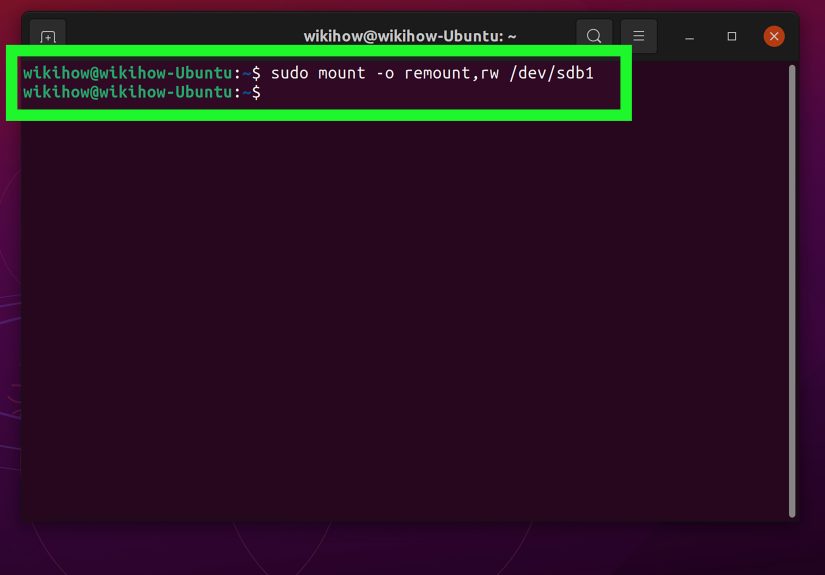
If the filesystem is mounted ro but the device is healthy, you may be able to remount it as read-write:
If this works, you can delete files normally again. But treat this as a symptom, not the cureespecially if the filesystem flipped to read-only by itself.
Step 3: If remount fails, check logs immediately
If you see messages like “write-protected” or remount attempts fail, the system may be preventing writes to avoid data loss. Check kernel and system logs:
You’re looking for clues: I/O errors, filesystem errors, or notes that the system remounted the filesystem read-only for safety.
Step 4: Protect your data first, then repair the filesystem
If the filesystem went read-only due to errors, your top priority is to copy off critical data before doing repairs. Repairs can be safe, but nothing is safer than having a backup.
General rule: Most filesystem checks require the filesystem to be unmounted (or mounted read-only) to avoid making things worse.
Typical flow (example for ext4):
For FAT/VFAT (common on USB drives), you might use:
If the affected filesystem is your root filesystem (/): you usually can’t safely unmount it while running. Use a rescue mode, live USB, or your distro’s recovery environment so you can run fsck offline.
Step 5: Check the “why” behind read-only
Some common real-world causes:
- Mount options or /etc/fstab: a partition can be configured to mount as
ro. Check/etc/fstabfor that entry. - Automatic safety remount: ext-family filesystems often use options like
errors=remount-roto minimize damage if errors occur. - Hardware write-protect: removable media sometimes has a physical lock switch, and some storage controllers/SD readers behave similarly.
- Failing disks: repeated I/O errors can cause read-only remounts. If errors keep returning, investigate drive health (SMART) and storage layers (RAID/LVM/cloud volumes).
- Network filesystems: NFS/CIFS exports can be read-only by server policy. Your client can’t “remount rw” what the server won’t allow.
- Containers and bind mounts: Docker/Kubernetes commonly mount volumes as read-only by design. The fix is in the deployment config, not in
chmod.
A Practical Troubleshooting Checklist (Copy/Paste Friendly)
- Read the exact error. “Write-protected” ≠ “Read-only file system.”
- Check mount status:
findmnt /pathand look forro. - If mounted ro: try
sudo mount -o remount,rw /mount. - If remount fails: check
dmesg/journalctl -kfor I/O and filesystem errors. - Back up important data. Seriously. Future-you will send you a thank-you card.
- Repair: unmount and run the correct
fscktool for your filesystem. - If only certain deletes fail: check directory permissions, sticky bit, ownership, and
lsattr. - Fix root cause: fstab options, failing disk, read-only export, or container mount settings.
Conclusion
Deleting a “read-only” file in Linux is usually straightforward once you know which “read-only” you’re facing:
- If it’s file permissions, use
rm -f,chmod, orsudo. - If it’s directory permissions (or sticky bit), fix the parent directory rules or delete as root.
- If it’s immutable/append-only, remove attributes with
chattrfirst. - If it’s a read-only filesystem, treat it as a system/storage issue: confirm mounts, check logs, back up data, and run filesystem repairs.
The best part? Once you learn the pattern, you’ll troubleshoot these issues in minutesleaving more time for the truly important Linux tasks, like arguing about text editors and pretending you enjoy writing systemd unit files.
Experience-Based Tips and Real-World “War Stories” (500+ Words)
Let’s talk about the stuff that doesn’t show up in neat examples: the messy, realistic scenarios where “read-only” shows up at the worst possible timeusually right before a deadline, during an incident, or five minutes after you told your team “it’s a simple change.” Here are a few common experiences and what they teach.
1) The USB drive that “randomly” became read-only
A classic: someone plugs in a flash drive, copies files, then later can’t delete anything and sees Read-only file system. The knee-jerk reaction is to spam chmod. But when FAT/VFAT media hits read errors, the system may mount it read-only to prevent further damage. The most useful lesson here is: don’t fight the symptom. Copy off what you need first, then unmount and run the appropriate fsck check. If the problem repeats, accept reality: the drive is probably failing (or the connector is).
2) The server where / turned read-only and nobody touched anything
On production systems, an unexpected read-only remount often points to filesystem errors or underlying storage trouble. Teams sometimes waste hours debating permissions, but the kernel doesn’t remount / as read-only because it’s feeling dramaticit does it to reduce further corruption. The practical move is to collect evidence fast: grab dmesg and journalctl -k output, confirm mount options, and initiate backups or snapshots. If you can remount to recover service temporarily, do it carefullybut plan an offline check as soon as possible. The “war story” takeaway: if your root filesystem flips to read-only, treat it like a smoke alarm, not a snooze button.
3) The file that wouldn’t die (immutable bit surprise)
Sometimes everything looks normal: permissions are open, you’re root, and rm still refuses. That’s when lsattr saves the day. In real environments, immutable attributes show up because someone hardened configs, a backup/restore preserved attributes, or security tooling intentionally locked critical files. Occasionally it’s less friendly: malware can set immutable flags to protect persistence artifacts. The lesson: when deletion fails as root, always check attributes. Then ask “why was it immutable?” before you simply remove the flag and move on.
4) Sticky bit confusion in shared directories
Newer admins often get tripped up by shared directories like /tmp. They can create files there, but can’t delete someone else’s. This isn’t Linux being petty; it’s a safety feature. The day-to-day tip is simple: if you’re doing cleanup automation in sticky-bit directories, build scripts that handle ownership or use privileged cleanup jobsand log what you delete. The bigger lesson: shared spaces require shared rules, and sticky bit is one of the good ones.
5) The container volume that’s read-only “for no reason”
In containerized environments, a “read-only filesystem” error often has nothing to do with the Linux host’s disk health. It’s frequently a configuration choice: a read-only root filesystem for the container, a bind mount with :ro, a Kubernetes volumeMount marked readOnly: true, or a security policy restricting writes. The best debugging habit here is to check the mount table inside the container and compare it to deployment manifests. The takeaway: the fix might live in YAML, not in chmod.
Across all these stories, the common thread is this: “read-only” is not a single problemit’s Linux telling you which layer is refusing change. Once you develop the habit of checking mount options, directory permissions, ownership, and attributes in that order, the mystery disappearsand you look like the calm wizard in the room instead of the person whispering “why won’t you delete?!” at a terminal.