Table of Contents >> Show >> Hide
- Quick safety note (because pop-ups are sneaky)
- What “disable the pop-up blocker” actually means in Safari
- How to disable the pop-up blocker in Safari on Mac
- How to disable the pop-up blocker in Safari on iPhone or iPad
- How to confirm Safari is blocking pop-ups (and not something else)
- Troubleshooting: Pop-ups still won’t work (even after you disabled the blocker)
- How to re-enable Safari’s pop-up blocker later
- Common questions (and quick, real answers)
- Experiences from the real world: what people run into (and what actually fixes it)
- Reference notes (no links, just provenance)
Pop-ups have a reputation. Most of the time, they deserve it (looking at you, “CONGRATS YOU’VE WON” windows).
But sometimes pop-ups are actually the good guys: payment verification screens, file-upload pickers,
login windows, calendar schedulers, and bank statements that open in a new window.
If Safari is blocking a pop-up you actually need, this guide walks you through disabling (or better:
selectively allowing) pop-ups on Mac, iPhone, and iPadwithout turning your browsing life into a whack-a-mole carnival.
Quick safety note (because pop-ups are sneaky)
Turning off Safari’s pop-up blocker can make it easier for sketchy sites to spam you with junk windows.
The safest approach is to allow pop-ups only for a specific trusted website (like your bank or school portal),
instead of disabling pop-up blocking everywhere. Apple also recommends avoiding interacting with persistent pop-ups and keeping your device updated.
What “disable the pop-up blocker” actually means in Safari
Safari gives you a few levels of control:
- Allow pop-ups for one website (recommended).
- Block and Notify (Safari blocks pop-ups but tells you it happened, so you can allow when needed).
- Block (quietly blocks pop-ups).
- Allow (allows pop-ups broadlyuse with care).
How to disable the pop-up blocker in Safari on Mac
Option 1 (recommended): Allow pop-ups for a specific website on Mac
- Open Safari and visit the website that needs pop-ups (for example, a payment portal or document viewer).
- In the menu bar, click Safari > Settings (older macOS may say Preferences).
- Click the Websites tab.
- In the left sidebar, scroll down and select Pop-up Windows.
-
Find the website in the list on the right (often under “Currently Open Websites”).
Change its setting to Allow.
This approach keeps pop-ups blocked everywhere elseso you can get your work done without inviting random pop-up confetti.
Option 2: Disable pop-up blocking for all websites on Mac (use carefully)
- Open Safari > Settings > Websites.
- Click Pop-up Windows in the left sidebar.
- At the bottom-right, find When visiting other websites and change it to Allow.
If you’re doing this temporarily (say, for a one-time download), consider switching it back afterward.
A safer everyday default for many people is Block and Notify, because you can still allow a pop-up when you actually want it.
If you don’t see “Pop-up Windows” on Mac
Don’t panicSafari settings have moved around slightly across versions. A few things to try:
- In the Websites tab, scroll all the way down in the left sidebar (it’s easy to miss).
-
On some older Safari versions, pop-up blocking may be shown in the Security tab as “Block pop-up windows.”
If you see that checkbox, uncheck it to allow pop-ups.
How to disable the pop-up blocker in Safari on iPhone or iPad
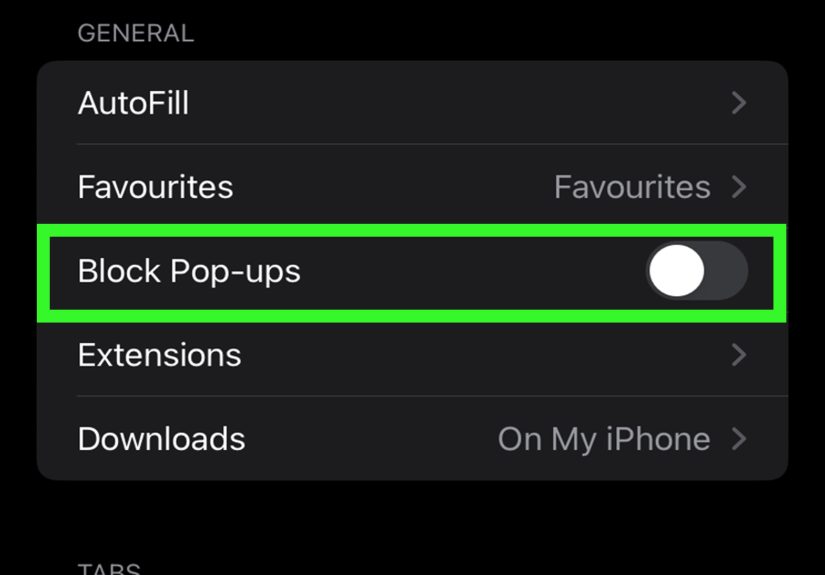
Method 1: Turn off “Block Pop-ups” in Settings (most reliable)
- Open the Settings app.
- Tap Apps, then tap Safari (on some iOS versions, it may just be Settings > Safari).
- Find Block Pop-ups and toggle it Off.
Apple documents this setting for iPhone and iPad and uses the same basic toggle: on blocks pop-ups, off allows them.
Method 2: Allow pop-ups for just one site on iPhone/iPad (when available)
On many newer iOS/iPadOS versions, Safari also offers per-website controls:
- Open Safari and go to the site.
- Tap the aA button in the address bar.
- Tap Website Settings.
- Look for Allow Pop-ups and toggle it on.
If you don’t see this option, use the Settings method above (it works across versions).
How to confirm Safari is blocking pop-ups (and not something else)
Sometimes the pop-up blocker isn’t the real culprit. Before you blame Safari (it’s innocent-ish), check these common blockers:
1) You might be running a content blocker or ad blocker
Extensions and content blockers can block pop-ups even when Safari’s setting is off. On Mac, check:
Safari > Settings > Extensions and temporarily disable suspicious or overly aggressive blockers.
On iPhone/iPad, Safari’s aA menu may show content blocker options depending on your setup.
2) The website might be set to “Block” specifically
On Mac, even if your global setting allows pop-ups, a specific website can still be set to Block in
Websites > Pop-up Windows. Review the site list and switch the site to Allow if needed.
3) The “pop-up” is actually a new tab, a redirect, or a login handoff
Many modern sites don’t open classic pop-up windows anymore. They may open a new tab, trigger a redirect,
or launch a secure login flow. If nothing appears, look for:
- A small blocked pop-up indicator near the address bar (varies by Safari version).
- A new tab created in the background.
- A download prompt that Safari is waiting for you to approve.
Troubleshooting: Pop-ups still won’t work (even after you disabled the blocker)
Try this checklist on Mac
- Refresh the page after changing Safari settings (some sites only re-check permissions on reload).
- Re-check Safari > Settings > Websites > Pop-up Windows and confirm the site is set to Allow.
- Disable extensions temporarily (especially ad blockers or “security” add-ons).
- Try a Private Window to rule out a corrupted cache/cookie state (but remember: permissions can behave differently with some site storage).
- If Safari settings seem “stuck,” fully quit Safari and reopen it, then try again (some users report settings don’t always apply until restart).
Try this checklist on iPhone/iPad
- Close Safari and re-open it after toggling Block Pop-ups.
- Make sure you changed the toggle in Settings > Apps > Safari.
- If the site still fails, try switching between Wi-Fi and cellular (some corporate networks interfere with login pop-ups).
- If available, open aA > Website Settings and check per-site permissions.
How to re-enable Safari’s pop-up blocker later
If you turned pop-up blocking off for troubleshooting, turning it back on is easy:
On Mac
- Safari > Settings > Websites > Pop-up Windows > set “When visiting other websites” to Block or Block and Notify.
On iPhone/iPad
- Settings > Apps > Safari > toggle Block Pop-ups back On.
Common questions (and quick, real answers)
Is it safe to disable pop-up blocking in Safari?
It can be, if you do it selectively for trusted sites and keep Safari’s other protections on (like fraudulent website warnings).
If you disable pop-up blocking globally, be extra cautious about unknown websites.
Why does my bank site need pop-ups?
Many banks and payment systems use pop-ups for secure authentication, statements, printable confirmations, or third-party verification screens.
Blocking those pop-ups can make buttons look “broken” when they’re actually workingjust blocked.
Can I allow pop-ups on Mac for only one website?
Yes. That’s exactly what the Websites > Pop-up Windows settings are designed for.
Experiences from the real world: what people run into (and what actually fixes it)
If you’ve ever tried to join a webinar five minutes late (with coffee in one hand and optimism in the other),
you’ve probably met Safari’s pop-up blocker at the worst possible time. The most common “experience” people describe
isn’t a dramatic pop-up warningit’s the silent failure: you click a button that should open something, and Safari responds with
the digital equivalent of a shrug.
One frequent scenario: a site uses a pop-up for single sign-on (SSO). You tap “Sign in with Company Account,”
and nothing happens. People assume the website is down, but in reality the login window tried to open and got blocked.
On Mac, allowing pop-ups only for that site usually solves it instantlyespecially for portals used by schools,
HR systems, government services, or billing dashboards.
Another classic: multiple file downloads. Some websites open each PDF in a new window or tab (one per document).
With pop-ups blocked, you might get one fileor noneand you’re left repeatedly clicking “Download All” like it’s a broken elevator button.
People report the best fix is temporary: set Safari’s “When visiting other websites” to Block and Notify,
then allow only the site you’re actively using. That way you get the downloads without turning your entire browser into an open-mic night.
On iPhone and iPad, the experience is slightly different: users often don’t realize the pop-up setting lives in
Settings, not inside Safari’s main menus. So they’ll open Safari, hunt around, get frustrated, and then
accidentally learn something about themselves (like how quickly they can lose patience with a rectangle of glass).
Toggling Block Pop-ups off in Settings is still the fastest “it just works” fixespecially for travel booking sites,
payment verification pages, or appointment schedulers.
Then there’s the curveball: users disable pop-up blocking and still don’t get pop-upsbecause an extension is blocking them.
This happens a lot with ad blockers and privacy tools, which may block pop-ups even when Safari is set to allow them.
The experience usually goes: “Safari is broken.” The solution is usually: “Nope, your extension is doing its job a little too enthusiastically.”
Temporarily disabling extensions (or turning off content blockers for one site) is often the missing step.
Finally, there’s the “pop-ups that aren’t pop-ups” problem. Many websites don’t use classic pop-up windows anymore; they open a new tab,
launch a redirect, or show an embedded modal that looks like a pop-up but technically isn’t. People try to fix it by disabling pop-up blocking,
when the real issue is a blocked redirect, a cookie problem, or a login session that needs a refresh. In those cases, reloading the page,
signing out/in, or trying a Private Window can reveal whether the browser is blocking a windowor the site is simply stuck.
The pattern across these experiences is consistent: the most reliable approach is not “turn everything off forever.”
It’s “allow what you need, where you need it.” That’s the difference between a smooth checkout flow… and a browser that suddenly thinks
you’re the star of a never-ending pop-up parade.
Reference notes (no links, just provenance)
Key UI paths and setting names were verified against Apple Support documentation and widely used Mac/iOS help resources.