Table of Contents >> Show >> Hide
- Before You Download Anything on Your iPad
- Way 1: Download New Apps and Games Directly from the App Store
- Way 2: Redownload Apps and Games You Already Had Before
- Way 3: Download Eligible Apps Through Family Sharing
- What If You Cannot Download Apps on Your iPad?
- Helpful Tips for Downloading iPad Apps and Games Smarter
- Real-World Experiences: What Downloading Apps on an iPad Actually Feels Like
- Conclusion
If you just got an iPad, there is a very good chance your first thought was not, “What a lovely slab of aluminum.” It was probably, “Cool. Now how do I get apps on this thing?” Fair question. Whether you want a note-taking app, a streaming service, a drawing tool, or a game that quietly eats your entire Saturday, downloading apps and games on an iPad is usually simple once you know where to tap.
The good news is that Apple makes this pretty painless. The even better news is that there is more than one way to do it. You can grab brand-new apps from the App Store, reinstall apps you downloaded in the past, or get eligible apps shared by family members. That means you do not have to start from scratch every time you switch iPads or realize you deleted a favorite game during one of your “I need to declutter my digital life” moods.
In this guide, you will learn how to download apps on an iPad in three easy ways, plus what to do if the App Store is acting dramatic. We will also cover helpful tips for parents, common download problems, and the real-life experience of using these methods so you can get from “Where is the app?” to “Why is this game so addictive?” without wasting time.
Before You Download Anything on Your iPad
Before we jump into the three methods, make sure your iPad is ready for action. Most download problems are caused by one of a few very boring but very fixable issues.
1. Sign in with your Apple Account
You need to be signed in to your Apple Account to download apps from the App Store. If you are not signed in, your iPad will behave like a restaurant menu with no waiter: lots to look at, nothing to actually get.
2. Check your internet connection
Apps and games will not download without Wi-Fi or cellular data support through another connected device. If pages are not loading in Safari, the App Store will not magically work better.
3. Make sure you have enough storage
Big games can take up a surprising amount of space. If your iPad is nearly full, a download may stall, fail, or sit there pretending it is “thinking.”
4. Watch for restrictions
If the App Store is missing, downloads are blocked, or you cannot install apps, Screen Time restrictions may be turned on. This is especially common on family iPads or devices used by kids.
Way 1: Download New Apps and Games Directly from the App Store
This is the most common method, and for most people it is the best one. If you want a brand-new app or game on your iPad, the App Store is home base.
How to do it
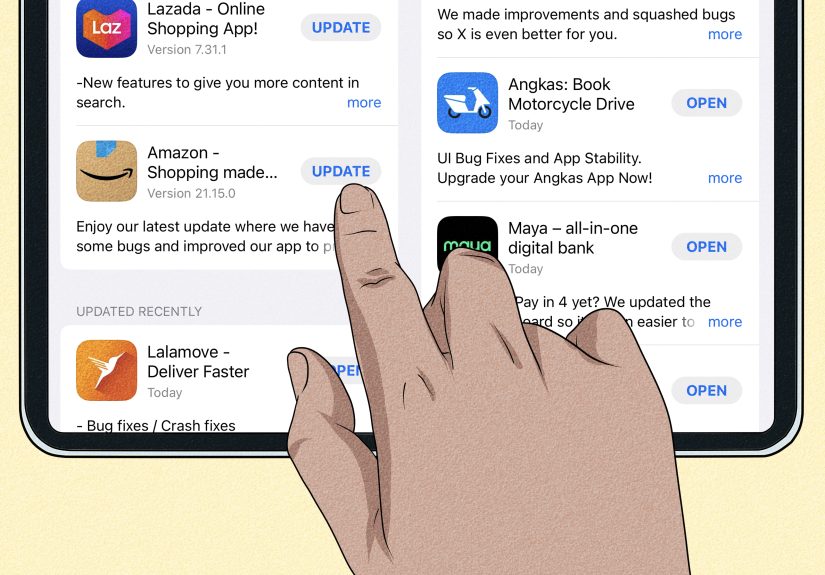
- Open the App Store on your iPad.
- Browse the Today, Games, Apps, or Arcade tabs, or tap Search to find something specific.
- Tap the app or game you want.
- Tap Get if it is free, or tap the price if it is paid.
- Confirm the download with Face ID, Touch ID, or your password if prompted.
- Wait for the app to install, then tap Open.
If you see an Open button instead of Get, that means the app is already installed. If you see a little cloud icon, that usually means you downloaded it before and can install it again without paying for it again on the same account.
Why this method works so well
The App Store is designed for discovery. You can search by name if you already know what you want, or browse categories if you are just exploring. Looking for drawing apps? Easy. Want racing games, puzzle games, language apps, or photo editors? Also easy. The store gives you reviews, ratings, screenshots, age guidance, and feature descriptions, which makes it easier to decide whether an app is worth your storage space and your attention span.
Best time to use this method
Use the App Store directly when you want something new. For example, maybe you just bought an Apple Pencil and want to download a note-taking app, or maybe you need a math practice app for school, or maybe you are one tiny tap away from installing an entire kingdom-building game and forgetting what daylight looks like. This method covers all of that.
Pro tip
Check the app page before downloading. Look at the screenshots, the age rating, the latest update notes, and the in-app purchase information. A free game is not always truly “free” if it starts trying to sell you digital carrots, gems, or spaceship hats ten minutes later.
Way 2: Redownload Apps and Games You Already Had Before
This method is perfect if you had an app on an old iPad, deleted it months ago, or are setting up a new device and want your favorites back. Instead of hunting through the store all over again, you can pull apps from your purchase history.
How to redownload previous apps on an iPad
- Open the App Store.
- Tap your profile picture or account icon at the top.
- Tap Apps or Purchased, depending on what your current iPadOS version shows.
- Look for apps linked to your account, including items not currently installed on this iPad.
- Find the app or game you want.
- Tap the cloud download icon to reinstall it.
This is one of the fastest ways to restore your setup after upgrading to a new iPad. You do not have to remember every app name, and you do not have to buy the same app twice if it was already purchased with the same Apple Account.
Why people love this method
Because memory is unreliable. You may remember that one puzzle game you loved in 2023, but the exact title? Gone. Vanished. Living in a fog somewhere between “I think the icon was blue” and “Maybe there was a llama?” Your purchase history is much more organized than your brain on a busy Tuesday.
When redownloading is especially useful
- After setting up a new iPad
- After deleting apps to save storage
- When you want to reinstall old games or productivity apps
- When you switched from iPhone and want matching apps on your iPad
A small but important warning
Some older apps may no longer be available, may have changed a lot, or may not support the latest iPadOS features the way they once did. In some cases, a game you loved years ago might still install, but it may feel like visiting your old elementary school: familiar, smaller than expected, and slightly weird.
Way 3: Download Eligible Apps Through Family Sharing
If your family uses Apple’s Family Sharing feature with Purchase Sharing turned on, you may be able to download eligible apps and games purchased by another family member. This is handy for households with multiple Apple devices, kids with supervised accounts, or parents who do not want to pay for the same app three times.
How Family Sharing app downloads work
When purchase sharing is enabled, family members can access eligible purchases from others in the group. That includes many apps and games from the App Store. So if a parent bought an educational app or a sibling downloaded a popular game, another family member may be able to install it too, depending on the app’s sharing eligibility.
How to download shared family apps on iPad
- Open the App Store.
- Tap your profile picture.
- Tap Purchased.
- Choose a family member’s name if your iPad shows that option.
- Browse their eligible app purchases.
- Tap the download icon next to the app you want.
What about kids and Ask to Buy?
For younger users, Ask to Buy adds another layer. It lets children request apps or games, and a parent or guardian can approve or decline the request. This gives kids some freedom while keeping purchases and age-appropriate downloads under adult supervision. In other words, it is a digital version of, “Can I get this?” except the parent gets the request on their device instead of hearing it shouted across the house.
Best time to use this method
Use Family Sharing when you are part of a family Apple setup and want to save money, simplify downloads, or help a child get apps safely. It is especially useful for educational apps, creative tools, and games that more than one person in the household wants to use.
What If You Cannot Download Apps on Your iPad?
Even when you know exactly how to download apps and games on an iPad, the process can still fail for reasons ranging from annoying to extremely annoying. Here are the most common fixes.
The App Store is missing
If you cannot find the App Store, check Screen Time restrictions. On some iPads, app installation may be blocked, which can make the App Store disappear or stop downloads from working normally.
Your download is stuck
Restart the iPad, reconnect to Wi-Fi, and try again. A stalled progress circle is often a temporary network issue, not a personal attack.
You are asked to verify your account
Make sure your Apple Account information is current. Depending on your region or family setup, you may be asked to confirm account details before downloading certain apps.
You do not have enough storage
Delete unused apps, old videos, or giant game files you swore you would return to someday. Storage management is not glamorous, but it works.
The app will not install or update
Check for an iPadOS update, confirm the internet connection, and try again later if Apple services are having trouble. Sometimes the simplest fix is just giving technology five minutes to calm down.
Helpful Tips for Downloading iPad Apps and Games Smarter
Use search when you know the name
If you already know what app you want, searching is faster than browsing. Type the exact app name and skip the digital window-shopping.
Browse categories when you want ideas
If you are not sure what to install, explore categories like productivity, education, creativity, strategy, or kids. This is often how one useful app turns into seven, so proceed with cheerful caution.
Check age ratings for games
Not every game in the App Store is designed for every age group. The rating can help parents and younger users choose something appropriate before tapping download.
Turn on automatic app updates
Once your apps are installed, letting them update automatically can save time and reduce bugs. That means less manual upkeep and fewer moments of “Why does this app suddenly act like it forgot how buttons work?”
Real-World Experiences: What Downloading Apps on an iPad Actually Feels Like
On paper, downloading apps on an iPad sounds almost too easy. Open the App Store, tap Get, done. In real life, it is usually that easy, but the experience depends a lot on who is holding the iPad and what they are trying to do.
For first-time iPad users, the experience often starts with excitement and a little confusion. The App Store is clean and polished, but it can also feel like walking into a giant digital mall. There are editor picks, featured games, subscription apps, educational apps, and about a million shiny icons all competing for attention. New users often begin with a few essentials like YouTube, Netflix, Zoom, Google Docs, or a favorite game. Once they realize how fast downloads happen, confidence goes up fast. That is usually the moment the iPad starts to feel personal instead of just new.
Students and working adults often have a more practical experience. They are usually downloading with a goal: a PDF editor for class, a planner app, a drawing app, a keyboard extension, or a cloud storage tool. For them, the easiest path is search. They know the app name, tap it, install it, and move on. The only hiccups tend to be account password prompts, storage warnings, or the occasional “This app requires a newer version of iPadOS” message, which is never anyone’s favorite surprise.
Parents tend to have a completely different relationship with app downloads. For them, the process is not just about getting an app. It is about deciding whether the app is worth downloading at all. They look at age ratings, privacy information, in-app purchases, and whether the game seems educational or just extremely loud. Family Sharing and Ask to Buy make a huge difference here because they turn the download process into something more controlled. A child can request a game, the parent can review it, and everyone avoids the classic situation where a “free” app turns into a mysterious charge later.
People setting up a new iPad often say the redownload method is the real hero. That is because it cuts through the clutter. Instead of trying to remember every app they used before, they can revisit their purchase history and rebuild their setup quickly. It feels less like shopping and more like moving back into a familiar house. Your note app comes back. Your calendar app comes back. Your favorite game comes back. Suddenly the new iPad feels like your iPad.
Then there are the little frustrations almost everyone runs into at least once. A game refuses to download over a weak connection. An app hangs halfway through installation. The App Store asks for a password you are sure you typed correctly. None of these problems are unusual, and that is actually reassuring. Most iPad download issues are fixable with a quick restart, a network check, a storage cleanup, or a quick look at settings.
Overall, the real experience of downloading apps and games on an iPad is less about technical difficulty and more about knowing which path fits your situation. New app? Use the App Store. Old favorite? Redownload it. Family purchase? Check shared apps. Once you know those three routes, the whole process feels easy, fast, and much less mysterious.
Conclusion
If you have been wondering how to download apps and games on an iPad, the answer is refreshingly simple. The easiest method is to use the App Store to search or browse for something new. If you already had the app before, your purchase history makes redownloading quick and painless. And if your household uses Family Sharing, shared purchases can save time and money while making app access easier for everyone.
The best method depends on your situation, but together these three options cover just about every normal iPad download scenario. Learn them once, and you will spend a lot less time poking random icons and a lot more time actually using your iPad for school, work, creativity, or a completely unnecessary but delightful amount of gaming.