Table of Contents >> Show >> Hide
- Why Your LinkedIn Education Section Matters More Than You Think
- Before You Edit: A Quick Prep Checklist (So You Don’t Guess Mid-Click)
- How to Edit Your Education on LinkedIn: 8 Steps
- Step 1: Log in and open your profile
- Step 2: Scroll to the Education section (or add it if it’s missing)
- Step 3: Choose what you want to do: add, edit, or delete
- Step 4: Update the core details (the “don’t-make-me-guess” fields)
- Step 5: Add smart details that support your goals (without writing a novel)
- Step 6: Attach proofmedia and skills (when it actually helps)
- Step 7: Decide whether to notify your network
- Step 8: Save, review, and sanity-check how it looks
- What to Include in Your LinkedIn Education (Without Overdoing It)
- Pro Tips for Different Situations
- Common Mistakes (and the Quick Fix)
- Mini FAQ: Editing Education on LinkedIn
- Conclusion: Keep Education Accurate, Relevant, and Recruiter-Friendly
- Bonus: Real-World Experiences When Editing Your LinkedIn Education (Extra ~)
Your LinkedIn profile is basically your professional “open tab.” People peek, judge (politely), and decide whether
to message you about an opportunityor quietly back away into the digital bushes.
One of the easiest sections to keep fresh (and one of the fastest ways to look accidentally “outdated”) is your
LinkedIn education section. Maybe you transferred schools. Maybe your degree name is slightly wrong.
Maybe your graduation date is showing as “someday-ish.” Or maybe you just realized you listed “Business Admin.”
when you meant “Business Analytics,” and now every recruiter thinks you’re a totally different flavor of spreadsheet.
The good news: updating your education on LinkedIn is quick once you know where the buttons are hiding.
This guide walks you through how to edit your education on LinkedIn in 8 simple steps,
plus pro tips, common mistakes to avoid, and real-life “yep, that happened” experiences at the end.
Why Your LinkedIn Education Section Matters More Than You Think
For students and recent grads, education is often a big part of your credibilitysometimes the biggest part.
For mid-career pros, it still matters because it supports your story: where you built your foundation, what you studied,
and which alumni networks you belong to. LinkedIn also uses profile information to help match you to jobs, searches, and
“People who studied at…” filtersmeaning your education details can affect whether you show up in results at all.
In other words: editing your education isn’t just “cosmetic.” It’s discoverability, trust, and context. And it’s way
easier than learning you’ve been tagged as “Class of 2008” when you graduated in 2018.
Before You Edit: A Quick Prep Checklist (So You Don’t Guess Mid-Click)
- School name: Use the official spelling your school uses.
- Degree + field of study: Match the credential you earned (or are earning).
- Dates: Month/year is usually enough; expected dates are totally normal if you’re still enrolled.
- Highlights: 2–6 items max (honors, leadership, relevant coursework, projects).
- Decide: Do you want your network notified when you update this section?
One more practical note: LinkedIn’s features can differ slightly depending on whether you’re on desktop, the mobile app,
or a mobile browser. Most people will have the smoothest editing experience on desktop or the LinkedIn app.
How to Edit Your Education on LinkedIn: 8 Steps
Step 1: Log in and open your profile
Sign in to LinkedIn. Then go to your profile page:
on desktop, click your profile icon (often labeled “Me”), then choose View Profile.
On mobile, tap your profile picture to access your profile.Think of this as walking into your own house through the front door instead of climbing in through a window.
Possible either way, but one is clearly better for your dignity.Step 2: Scroll to the Education section (or add it if it’s missing)
Scroll down your profile until you see Education.
If you don’t see it, you may not have added any education entries yet, or the section may not be displayed.To add it, look for an option like Add profile section and choose Education.
Once you add your first entry, the Education section should appear on your profile automatically.Step 3: Choose what you want to do: add, edit, or delete
In the Education section, you’ll usually see:
- Add (a plus icon) to create a new education entry
- Edit (a pencil icon) to update an existing entry
If you’re cleaning up old information, use the edit view to find the option to delete
the education entry. Deleting can be useful if you accidentally duplicated a school or added the wrong institution.Step 4: Update the core details (the “don’t-make-me-guess” fields)
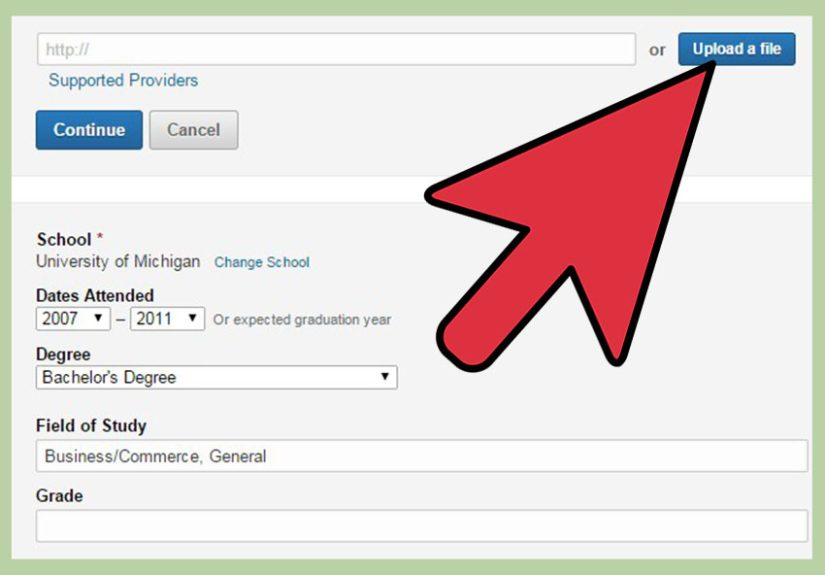
Focus on accuracy first. The core fields typically include:
- School
- Degree (e.g., BA, BS, MBA, MS)
- Field of study (e.g., Marketing, Computer Science)
- Start date / end date (or expected graduation)
- Grade/GPA (optional)
Example: Instead of “Business,” try “B.S. in Business Administration, Concentration in Business Analytics.”
Specific beats vagueevery timeespecially when recruiters skim.Step 5: Add smart details that support your goals (without writing a novel)
Many people treat the education description area like a storage unit: “I’ll just toss everything in there.”
Recruiters treat that like a garage sale: they’ll scan for something valuable and move on fast.Keep it tight and relevant. Good options include:
- Honors: Dean’s List, academic scholarships, honor societies
- Leadership: club officer roles, team captain, student government
- Relevant coursework: only the classes that match your career direction
- Projects: capstone, research, competitions, portfolio-worthy work
Mini example (clean and skimmable):
“Honors: Dean’s List (3 semesters). Activities: Data Science Club (VP). Projects: Customer churn analysis capstone using Python and SQL.”Step 6: Attach proofmedia and skills (when it actually helps)
If your program produced work you can show (a presentation, portfolio PDF, published research, a linkable project),
consider adding media. If your education entry supports specific capabilities, you may also have the option
to connect skills to that educational experience.Rule of thumb: attach only what you’d feel comfortable discussing in an interview the very next day.
If it’s not interview-ready, it’s not “Featured-ready.”Step 7: Decide whether to notify your network
When you update profile sections, LinkedIn may offer a Notify network toggle.
This can broadcast your change to connections.When to turn it on: you completed a new degree, a notable certification program, or a major milestone.
When to turn it off: you’re fixing a typo, adjusting dates, or quietly removing “Intro to Basket Weaving”
because you realized it doesn’t scream “Senior Financial Analyst.”Step 8: Save, review, and sanity-check how it looks
Click Save, then review your profile like a recruiter would: fast, skeptical, and mildly caffeinated.
- Is your degree name correct and consistent with your resume?
- Are dates accurate (or clearly “expected” if still in progress)?
- Are your highlights relevant to the roles you want next?
- Do you have duplicate schools or mismatched entries?
If something looks off (like the wrong school page showing up), try editing the school field and selecting the correct
official school listing. Sometimes multiple listings exist for similar names, and choosing the right one helps your profile
show up in alumni searches.
What to Include in Your LinkedIn Education (Without Overdoing It)
The “right” education entry depends on where you are in your career. But in general, clarity wins:
list the basics, then add a few proof points that connect school to your target work.
The essentials (almost always worth including)
- School name
- Degree (or program type)
- Field of study/major (and minor if relevant)
- Dates attended or graduation/expected graduation date
The optional boosters (use only if they add value)
- GPA: if it’s strong and relevant for early-career roles
- Honors/awards: scholarships, Dean’s List, honor societies
- Activities: clubs, athletics, leadership roles
- Relevant coursework: a short list tailored to your career direction
- Projects: capstones, research, case competitions, portfolios
- Study abroad: especially if it supports language/cultural skills
Pro Tips for Different Situations
If you’re a student or recent graduate
Lean into educationbecause it’s one of your strongest credibility signals right now.
Add 1–2 standout projects, a leadership role, and a few relevant courses. Keep it scannable.
Your goal is to make someone say, “Oh, they’ve actually done real things,” even if your work experience is still growing.
If you didn’t finish a degree (or you changed programs)
You can still list education in progress or coursework completedjust be clear about what you completed
and avoid implying you earned a degree you didn’t. Transparency beats confusion, and confusion beats interviews.
Consider focusing the description on skills or relevant coursework, not the storyline of every twist and turn.
If you’re mid-career (and your education is older)
Keep it simple. List your highest degree (and any advanced or highly relevant training). Skip long coursework lists.
If you want to add something, add a single line that connects education to your current worklike a specialization,
thesis topic, or capstone that still matters.
If your school isn’t showing up properly
If LinkedIn suggests multiple school pages with similar names, pick the one that matches your institution’s official listing.
This can help with alumni networking and keeps your profile from looking like you attended “University of Somewhere-ish.”
Common Mistakes (and the Quick Fix)
- Mistake: Listing every course you’ve ever taken.
Fix: Keep only coursework that supports your target job (2–6 items max). - Mistake: Degree and dates don’t match your resume.
Fix: Align your LinkedIn education details with your resumeconsistency builds trust. - Mistake: Using vague labels (“College,” “Business”).
Fix: Use specific degree + field names that match how employers search. - Mistake: Announcing tiny edits to your whole network.
Fix: Turn off “Notify network” for minor cleanups. - Mistake: Forgetting that certifications have their own place.
Fix: Keep academic degrees in Education; use Licenses & Certifications for non-degree credentials.
Mini FAQ: Editing Education on LinkedIn
Should I include high school on LinkedIn?
Usually, once you have college, training, or work experience to lean on, high school becomes less important.
But if you’re early in your journey (or a high school program is genuinely relevantlike a specialized academy),
you can include it temporarily. As you gain more experience, you can remove it to keep your profile focused.
Should I include my GPA?
If you’re a student or recent grad and it’s strong, it can help. If you’re several years into your career,
most recruiters care more about outcomes and skills than a number from a different chapter of life.
Can I delete an education entry?
Yes. Use the edit view for that education entry and choose the delete option. Deleting is helpful for duplicates,
incorrect schools, or entries that no longer serve your goals.
Can I add expected graduation dates?
Absolutely. If your degree is in progress, adding an expected graduation date helps recruiters understand your timeline
without guessing.
Conclusion: Keep Education Accurate, Relevant, and Recruiter-Friendly
Editing your education on LinkedIn isn’t complicatedit’s just hidden behind a couple of small icons and the assumption
that you enjoy scavenger hunts. Once you know where to click, you can update your school, degree, dates, and highlights
in minutes.
The real win is what happens afterward: a cleaner profile, stronger search visibility, better alignment with your resume,
and fewer “Wait… did they actually graduate?” moments from the people you want to impress.
Bonus: Real-World Experiences When Editing Your LinkedIn Education (Extra ~)
Let’s talk about what actually happens when people edit their education on LinkedInbecause in the wild, it’s rarely
a simple “update degree, save, done” situation. More often, it’s a small identity crisis followed by three tabs of
Googling and one dramatic sigh.
Experience #1: The “My school has 12 versions” problem.
Someone starts editing, types their university name, and LinkedIn suggests multiple options: the official page,
a similarly named campus, an old listing, and something that looks like it was created by a student in 2012.
After choosing the wrong one, they realize alumni networking isn’t working the way it should. The fix is usually simple:
edit the school field and pick the official listing. It’s a small detail, but it can affect who finds you in alumni searches.
Experience #2: The “I put every class I ever took” era.
Early-career professionals sometimes paste an entire transcript into the description areacourse numbers and all.
It feels productive… until you look at your profile and realize it reads like a course catalog. Recruiters don’t need
“HIST 101” unless your dream job is “Professional Historian of Intro Classes.” The winning move is trimming coursework
down to the handful that proves relevant skills: analytics courses for analytics roles, lab/research courses for scientific
paths, writing-intensive courses for communications work, and so on.
Experience #3: The “Dates are weird and now I look 900 years old” moment.
Education dates can be touchy. Sometimes people accidentally select the wrong year from a dropdown and suddenly their
graduation looks like it happened before Wi-Fi. Or they leave dates blank and worry it looks incomplete. The practical
solution is accuracy and clarity: add the correct month/year (or expected date if you’re still studying). If you took a
non-linear pathpart-time, transfers, a breakyour timeline is still valid. Just make the entry understandable at a glance.
Experience #4: The “I changed majors and forgot LinkedIn” cleanup.
This is common: someone changed majors, added a concentration, finished a certificate program, or completed a capstone
that’s genuinely impressivethen LinkedIn still says the old field of study. Updating the field and adding one strong
project bullet can instantly align your profile with the roles you want. Bonus points if the project mirrors real job tasks
(analysis, research, presentations, teamwork). That’s the kind of detail that turns “student” into “hireable.”
Experience #5: The “Notify network” dilemma.
People often hesitate: “If I update this, will everyone see it?” The sweet spot is to share real milestones (new degree,
completed program) and quietly fix everything else. Nobody needs a feed update about you correcting “Bachelors” to “Bachelor’s.”
Your connections will survive. Promise.
The overall takeaway from these real-world edits is simple: treat your education section like a highlight reel, not a storage unit.
Accurate basics + a few relevant proof points beats a wall of text every time. And yesyour profile will feel cleaner the moment
you hit Save. Like making your bed, but for your career.