Table of Contents >> Show >> Hide
- Step 1: Identify how you actually sign in (email vs. “I tapped the PlayStation button once in 2019”)
- Step 2: Use Epic’s self-service tools to reveal the account (even if you forgot the email)
- Step 3: If self-service fails, use Epic’s recovery process (and lock your account down afterward)
- Common “Wait, but what about…” scenarios
- Extra: Real experiences from people finding their Epic account (and what they learned)
- Wrap-up
You’d think “finding your Epic Games account” would be as easy as opening Fortnite and yelling
“It’s me, the one with the sick locker!”but accounts don’t work on vibes.
Whether you can’t remember which email you used, you signed up on a console years ago, or you’re stuck in a
sign-in loop that feels like a boss fight, this guide will help you locate your Epic Games account
quickly and safely.
Before we start: this article is for recovering or locating your own account (or an account you manage
with permission). If you’re trying to access someone else’s account, don’tEpic’s tools and support are built to
protect players from that exact thing.
Step 1: Identify how you actually sign in (email vs. “I tapped the PlayStation button once in 2019”)
Epic lets you sign in different ways: an email/password you created with Epic, or a linked sign-in from a platform
like PlayStation Network, Xbox network, Nintendo Account, Steam, Google, Apple, and sometimes social options.
The fastest way to “find” your Epic account is to figure out which door you used to enter the house.
Do this 60-second reality check
- PC player? You probably used an Epic email + password, or “Sign in with Google/Apple/Steam.”
- Console-only player? You may have created (or auto-created) an Epic account through your console sign-in.
- Multiple devices? You almost certainly have a linked account setup somewhereand that’s good news.
Three easy places to look for clues
- Your email inbox (yes, all of them).
Search for terms like: Epic Games, Epic receipt, verification, password reset,
two-factor, purchase, or specific game names like Fortnite or Rocket League.
If you ever bought something or verified your email, your inbox is basically your account’s diary. - Your Epic Games Launcher (PC/Mac).
If you’re already signed in, you’re doneyour account is right there. If not, the launcher can still help you
recognize the sign-in method you used (especially if you remember clicking “Sign in with Google” or “Sign in with Steam”). - Your console profile.
On PlayStation/Xbox/Nintendo, the profile you launch the game with matters. If you used a different user profile
(a sibling’s, a parent’s, an “I only use this for Fortnite” profile), that’s the account you need to sign in with again.
Pro tip: If you’ve ever said “I think I have two Epic accounts,” you’re probably right.
Many people accidentally create a second account by choosing a different sign-in button on the login screen.
In Step 2, we’ll force the truth to come outpolitely.
Step 2: Use Epic’s self-service tools to reveal the account (even if you forgot the email)
Epic provides official self-service flows for the two most common problems:
(1) forgot password and (2) forgot which email you used.
The goal here is not to guess wildlyit’s to use the same systems Epic uses to confirm identity and surface your account info.
Option A: You remember the email (or you’re 80% sure)
- Go to the Epic sign-in page and choose the method you think you used (email login or a platform icon).
If you choose email and it doesn’t work, don’t panictry the platform icons you actually play on. - If the email is correct but the password isn’t, use “Forgot password” and complete the password reset.
Check spam/junk folders for the security code email. - Once you’re in, open your Account Settings. Epic typically shows your email in a partially hidden format
(masked) to protect youannoying when you’re confused, helpful when someone else is snooping.
Option B: You do NOT remember the email (the classic “Which email did Past Me use?” situation)
If you can’t remember the email, don’t guess until you lock yourself out. Epic offers a self-service “search for your account email”
flow designed for exactly this scenario. The flow asks you to provide information so Epic can help locate the account email safely.
- First, make sure you’re signed out of any Epic account (incognito/private browsing helps).
- Use Epic’s account email search wizard and follow the prompts carefully.
The wizard is built to help you find the email tied to your Epic account when you can’t sign in. - When you identify the correct email, return to the sign-in page and use password reset if needed.
Option C: You can sign in… but you’re not sure it’s the right account
This happens all the time. You sign in successfully, but your locker looks like a fresh account and your stomach
drops through the floor. Usually it’s one of these:
- Wrong sign-in button: You used “Sign in with Google” today, but originally used an Epic email login (or vice versa).
- Wrong platform profile: You played on a different console profile than the one you’re using now.
- Unlinked account: Your platform account isn’t linked the way you think it is.
The fix is methodical: sign out, then sign back in using each sign-in method you might have used (email, PlayStation, Xbox, Nintendo,
Steam, Google, Apple). One of them will eventually land you on the account with your correct display name, friends list, and linked accounts.
How to confirm you found the correct Epic account
- Check your Display Name in Account Settings. This is the name you see in many Epic games and on certain platforms.
- Check Linked Accounts in your account connections. If you see your PlayStation/Xbox/Nintendo/Steam/Google/Apple linked,
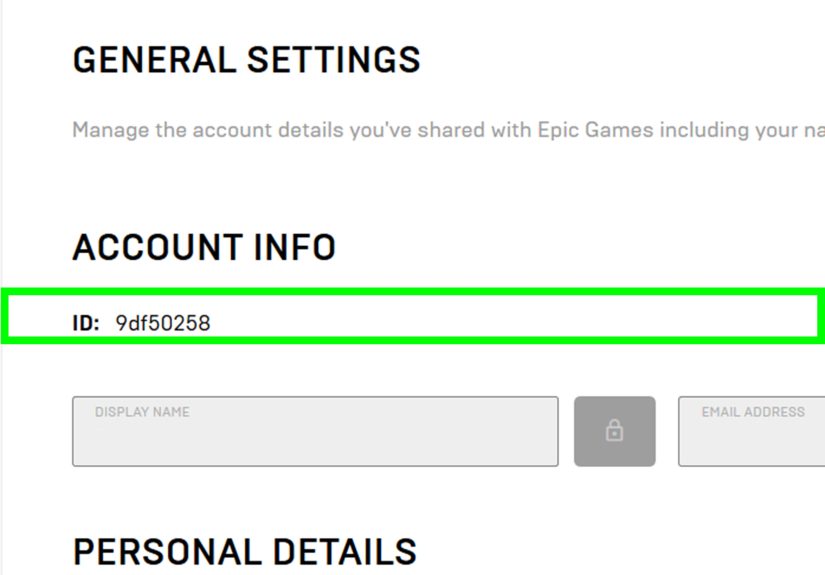
that’s a strong signal you’re in the right place. - Find your Epic Account ID if you need a precise identifier for support or troubleshooting. Epic explains where to locate it
(including a method via launcher data files on some systems).
If you’re thinking, “Why is this so complicated?”it’s because accounts are valuable. Complicated is the security feature.
The trick is making the complexity work for you.
Step 3: If self-service fails, use Epic’s recovery process (and lock your account down afterward)
If you can’t sign in after Step 2, it’s time to switch from “search mode” to “recovery mode.”
Epic provides a guided recovery process for accounts you can’t access. This is especially important if you suspect
your account was compromised (for example: progress disappeared, email changed, or linked accounts look wrong).
When you should use account recovery immediately
- You’re not receiving password reset emails for the address you believe is correct.
- Your email account was hacked or you lost access to that inbox entirely.
- Your Epic progress/purchases disappeared suddenly after being fine for years.
- You can sign in, but your linked accounts or email look unfamiliar.
What to prepare before you start (so you don’t time out mid-quest)
- Any receipts or transaction confirmations from Epic (email is ideal).
- Your display name history (even a past display name can help you recognize the right account).
- Platform accounts you used (PSN, Xbox, Nintendo, Steam, etc.).
- Rough timeline: When you created the account and when you last had access.
Epic’s recovery instructions may ask you to use a device and location you normally sign in from (like your home network),
because that can help verify you’re the legitimate owner. Follow the recovery prompts carefully and avoid submitting multiple
conflicting requestsconsistency helps support help you.
If you suspect your account was compromised
Treat this like a house key went missing: change locks, then check every window.
- Secure your email first. If someone controls your email inbox, they control every password reset you try.
- Reset your Epic password once email security is restored.
- Review linked accounts and disconnect anything you don’t recognize.
- Turn on 2FA inside Epic’s Password & Security settings.
Enabling two-factor authentication (2FA) adds a second step when signing in, which makes it dramatically harder for someone
to hijack your account even if they guess (or steal) your password. Use an authenticator app or other supported method when available.
Make your future self proud: a quick “never again” checklist
- Use a long passphrase you can remember (think: a short sentence) instead of a short “complex” password.
- Keep recovery options current (recovery email/phone on your email provider, and updated access to your platform accounts).
- Store your sign-in method in a password manager note: “Epic = Sign in with Google” (or whichever is true).
- Don’t create accidental extra accounts by clicking a different sign-in icon every time you forget your password.
Common “Wait, but what about…” scenarios
“I only ever played on console. Do I even have an Epic account?”
If you played Epic-published games that use Epic accounts for cross-progression, linking, or online services, you likely have an Epic account
relationship in some form. The best move is to sign in on Epic’s website using the console icon (PlayStation/Xbox/Nintendo) and then check
your account settings and linked accounts from there.
“I’m stuck in a login loop that keeps asking me to create an account.”
Login loops usually mean one of two things: browser cookies/session confusion, or you’re signing in with a method that isn’t linked to the account
you actually want. Try private browsing, sign out everywhere, then deliberately choose the platform icon you originally used (not the one that feels
convenient today). If you used Google/Apple/Steam, choose that exact button again.
“I found the account… but the email is hidden and I need the exact address.”
Epic masks the email in settings for safety. If you truly don’t know the email, use the official “search for your email” flow.
It’s designed to reveal the correct account email through a controlled verification process rather than exposing it openly.
“I can’t access my old email account anymore.”
If you can still sign in to Epic, you may be able to change the email using Epic’s verification steps. If you can’t sign in,
you’ll need to use Epic’s recovery process. Separately, consider recovering access to the email provider account (Google/Apple/Microsoft/etc.)
because that’s often the key that unlocks everything else.
Extra: Real experiences from people finding their Epic account (and what they learned)
Here’s the part nobody puts on the official help pages: finding an Epic Games account is often less about “technical skill”
and more about remembering how you behaved as a human when you first signed up. People don’t create accounts
in a calm, well-lit room with a labeling machine. They create accounts at 11:47 p.m., on a couch, during an update, while someone
yells, “Hurry up, the squad is waiting!”
One common experience: someone swears they used Email A, but password resets never arrive. After 20 minutes of refreshing the inbox
like it’s a stock ticker, they search the whole mailbox for “Epic Games” and discover the receipts were always going to Email B.
The lesson: your inbox history is more reliable than your memory, especially if you’ve had multiple emails over the years.
People who succeed fastest usually stop guessing and start searchingsubject lines, old verification messages, and purchase confirmations
are the breadcrumbs.
Another classic: the “wrong button” problem. A player originally created an Epic account with a regular email and password.
Ensure: years later, they click “Sign in with Google” because it’s right there and feels modern. The login works… but it lands
them in a brand-new account with zero cosmetics. Panic follows. Then they sign out, try the email login instead, and suddenly
their real display name appears like a cinematic reveal. The lesson: a successful login isn’t proof you’re in the right account
it’s proof you’re in an account. The correct account is the one with the right linked accounts, display name history,
and progress.
Console-only players often experience a different kind of confusion: they’ve been playing under a console profile for ages, so the idea
of an “Epic account email” feels foreign. The breakthrough usually happens when they sign in on Epic’s site using the console icon.
Suddenly the account page shows linked accounts and settings they didn’t know existed. The lesson: if you started on console, treat your
console login as your “master key” first, then connect the dots from inside the Epic account settings.
The most stressful stories usually involve suspected compromise: progress gone, linked accounts changed, or password resets that never arrive.
People who recover successfully tend to do two things quickly: they secure their email account first, and they gather proof like receipts or
platform linkage details before contacting support. The lesson: email security is the root of account security. If your email is unsecured, every
recovery attempt is built on sand.
The happiest ending stories share one habit: after they finally get back in, they create a tiny “recovery kit” note. It’s not fancyjust a private
note in a password manager that says: “Epic login method = Apple,” or “Epic email = [email protected],” plus a reminder that 2FA is enabled.
The lesson: the best time to prevent the next lockout is right after you escape this one.
Wrap-up
Finding your Epic Games account is a three-step process: identify your sign-in method, use Epic’s self-service tools to locate the correct account
(even if you forgot the email), and use the official recovery process if you’re locked out. Once you’re back in, take two minutes to enable 2FA and
write down which sign-in method you usedbecause Future You deserves fewer headaches and more game time.