Table of Contents >> Show >> Hide
- What Does the Hollow Arrow on iPhone Mean?
- Way 1: Turn Off the Status Bar Icon
- Way 2: Change Location Access for Individual Apps
- Way 3: Turn Off the Location Features You Do Not Use
- Which Method Should You Use?
- What Not to Do
- Quick Troubleshooting Tips If the Hollow Arrow Keeps Coming Back
- Real-World Experiences With the Hollow Arrow on iPhone
- Final Thoughts
You glance at the top of your iPhone screen and there it is again: the hollow arrow. Tiny, smug, and somehow capable of making you wonder whether your phone is tracking your every move like a suspicious detective in a trench coat. The good news? In most cases, the hollow arrow on iPhone is not a sign of disaster. It usually means a built-in service or app may use your location under certain conditions.
The annoying part is not what it means. The annoying part is that it keeps showing up when you would rather not see it at all. If you want to get rid of the hollow arrow on iPhone without wrecking Maps, Find My, weather alerts, or every other useful feature Apple tucked into iOS, you have options.
In this guide, you will learn what the hollow arrow means, why it appears, and the three easiest ways to make it disappear. Some methods simply hide the icon. Others stop the setting or service that keeps triggering it. That distinction matters, because there is a big difference between “I do not want to see the arrow” and “I do not want my iPhone using location for this feature anymore.”
What Does the Hollow Arrow on iPhone Mean?
Before you go full digital lumberjack and start chopping down every privacy setting in sight, it helps to know what you are looking at.
The hollow arrow is tied to Location Services on iPhone. Generally speaking, it means an app or system service is allowed to receive your location under certain conditions. In plain English, your iPhone is saying, “Something here has permission to check your location when needed.” It does not always mean that something is actively using your location every second.
That is why the icon can feel so weird. It may show up even when you are not actively using Maps, ordering rides, or hunting down the nearest coffee shop. Background features such as Find My, location-based reminders, suggestions, significant locations, or certain system services can keep the hollow arrow in play.
So if your first thought was, “Who invited this little arrow to live in my status bar rent-free?” you are not alone. But the fix depends on what you actually want:
- If you only want to stop seeing the icon, Method 1 is your best bet.
- If you want to stop a particular app from causing it, go to Method 2.
- If you want to reduce the background features that make the arrow stick around, Method 3 is the move.
Way 1: Turn Off the Status Bar Icon
This is the fastest and easiest method, and for many people, it is all they need.
How to do it
- Open Settings.
- Tap Privacy & Security.
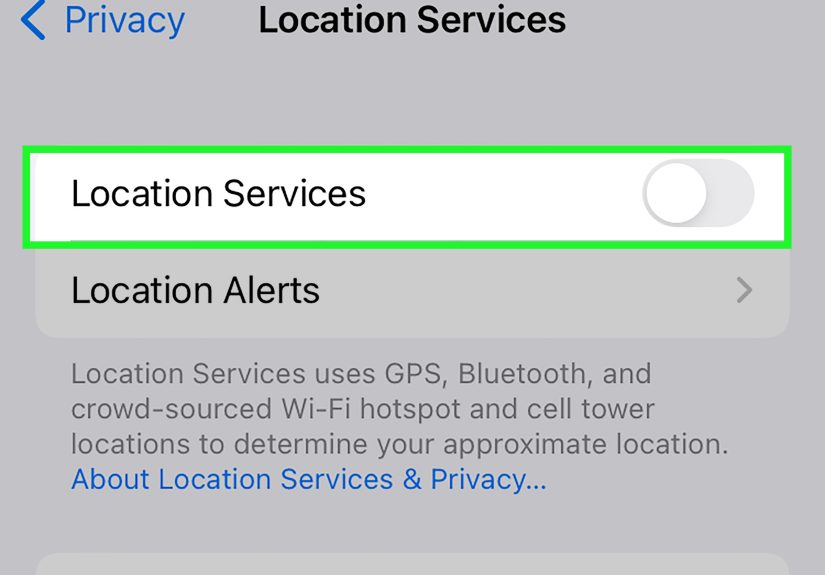
- Tap Location Services.
- Scroll to the bottom and tap System Services.
- Turn Status Bar Icon off.
That setting tells your iPhone whether to show the location icon in the status bar when enabled system services use your location. In other words, this method hides the visual indicator for certain system-level location activity.
Why this works
If the hollow arrow is driving you nuts but you still want your iPhone features to work normally, this is the least disruptive fix. You keep the benefits of location-based functions while removing the icon that keeps grabbing your attention.
What this method does not do
This is important: turning off the status bar icon does not necessarily stop your iPhone from using location. It mostly stops the icon from appearing for supported system services. If an app is actively using your location, you may still see a location symbol in some situations.
Think of this as putting tape over the check-engine light. The car may still be the same car. You are just no longer staring at the light.
Best for
Anyone who wants a cleaner status bar and does not mind leaving location features on in the background.
Way 2: Change Location Access for Individual Apps
If the hollow arrow keeps showing up because a particular app has too much freedom, the better fix is to trim that app’s location access.
How to do it
- Open Settings.
- Tap Privacy & Security.
- Tap Location Services.
- Scroll through the list of apps.
- Tap any app you do not fully trust or no longer need location access for.
- Choose Never, Ask Next Time Or When I Share, or While Using the App, depending on your needs.
If you want the most aggressive fix, choose Never. If you still want the app to work normally while open, choose While Using the App. That setting is often the sweet spot.
Apps most likely to trigger the icon
Not every app with location access is a problem. Navigation apps obviously need it. But plenty of apps collect location data because it is convenient, not because it is essential.
Common suspects include:
- Weather apps that want your current city all the time
- Social apps that tag your location or suggest local content
- Retail or food delivery apps that want to speed up recommendations
- Fitness apps that track routes or background activity
- Camera or travel apps that geotag photos
If you have ever downloaded an app that asked for location and you tapped “Allow” just to make the pop-up go away, congratulations: you are a normal human. But now is a good time to clean house.
A smart middle ground
You do not always have to set an app to Never. Often, switching from Always to While Using the App is enough to reduce background activity and cut down on the hollow arrow.
You can also review whether Precise Location is necessary for each app. Some apps work perfectly fine with approximate location, which is less invasive. It may not erase the hollow arrow by itself, but it can help you tighten privacy without breaking functionality.
Best for
People who want to solve the actual cause instead of just hiding the symptom.
Way 3: Turn Off the Location Features You Do Not Use
Sometimes the hollow arrow is not about a random app at all. It is caused by an iPhone feature that quietly depends on location in the background. These features are useful, but not everyone needs all of them all the time.
If you want to get rid of the hollow arrow on iPhone more thoroughly, review the built-in services that may be keeping it alive.
1. Stop sharing your location in Find My
If you share your location with family, friends, or a partner through Find My, your iPhone may continue using location-related services.
- Open the Find My app.
- Tap Me.
- Turn off Share My Location.
This is helpful if you no longer need live location sharing and want one less reason for your iPhone to keep location permissions active.
2. Review System Services
Go to:
Settings > Privacy & Security > Location Services > System Services
Here you will find a stack of iPhone features that use location behind the scenes. The names can vary slightly by iOS version, but common ones include:
- Significant Locations or Significant Locations & Routes
- Suggestions & Search or other location-based suggestion features
- Find My iPhone
- Location-Based Alerts or alert/automation-related settings
You do not need to turn off everything like you are cutting wires in an action movie. Start with the features you do not actively use.
3. Disable location-based alerts you do not care about
Some alerts and reminders use your location to tell you when to leave, when you arrive, or when you are near a place. This can be genuinely helpful. It can also be wildly unnecessary if your idea of planning ahead is “I will just panic later.”
If you do not use location-based alerts, turn them off in the relevant settings and app permissions. For many users, this reduces those “why is the hollow arrow still here?” moments.
Best for
Anyone who wants to reduce background location behavior, not just hide the icon.
Which Method Should You Use?
If you are deciding between the three fixes, here is the practical breakdown:
- Use Way 1 if you mainly hate seeing the hollow arrow but still want location features.
- Use Way 2 if one or two apps are the likely culprits and you want more privacy.
- Use Way 3 if you want to cut down on the background services that make the icon keep reappearing.
For many users, the best solution is actually a combination: hide the status bar icon and trim the worst app permissions. That gives you a cleaner screen and better privacy without turning your iPhone into a very expensive pocket calculator.
What Not to Do
When people get fed up with the hollow arrow, they often make one of three mistakes.
Turning off all Location Services immediately
Yes, this can remove the problem fast. It can also break features you probably still want, such as Maps, weather by location, Find My, emergency features, and other system tools. Use this only if you truly want location completely off.
Assuming the arrow always means spying
It is easy to see a location icon and imagine the worst. But in many cases, the hollow arrow simply reflects permissions or geofenced features waiting for a trigger. It is more often about settings than about something shady.
Ignoring System Services
People often review app permissions and forget the iPhone itself has its own location-based features. If the arrow remains after you tame your apps, System Services is the next place to check.
Quick Troubleshooting Tips If the Hollow Arrow Keeps Coming Back
If you changed your settings and the hollow arrow still reappears, try these quick steps:
- Close and reopen the app you changed.
- Restart your iPhone.
- Make sure iOS is updated.
- Check both apps and System Services.
- Review whether you are still sharing your location in Find My.
Also remember that some location-dependent actions are normal. If you open Maps, request directions, share your location, or use a location-based reminder, the icon may come back. That does not mean your earlier settings failed. It may just mean your iPhone is doing what you told it to do.
Real-World Experiences With the Hollow Arrow on iPhone
One reason this topic gets so much attention is that the hollow arrow is tiny but emotionally powerful. It is the kind of icon that makes people spiral in under ten seconds. You notice it during a quiet moment, then suddenly you are three settings menus deep wondering whether your phone knows more about your routine than your best friend does.
A common experience goes like this: someone updates their iPhone, spots the hollow arrow, and assumes a new bug showed up overnight. Then they open Location Services and see a jungle of apps, toggles, and system options. At that point, the icon is no longer just an icon. It becomes a mystery novel with a stressful soundtrack.
Another very normal experience happens with Find My. A person shares their location with family for a trip, for safety, or just because someone always wants to know who is still “five minutes away” when they are obviously twenty-three minutes away. The trip ends, life moves on, but the sharing setting stays on. Days later, the hollow arrow is still hanging around, and the user wonders why the phone seems obsessed with geography.
Then there is the weather-app situation. Plenty of people love getting local forecasts automatically, and that is fair. Nobody wants to manually tell their phone, “Yes, Susan, I am still in Chicago.” But when multiple weather, shopping, social, and travel apps all have generous location access, the hollow arrow starts popping up so often that it feels like a needy roommate.
Some users discover the cause only after a full cleanup session. They switch several apps from Always to While Using, turn off one or two system services they never use, and suddenly the status bar looks peaceful again. That experience is oddly satisfying. It is like cleaning out a junk drawer and finding both your favorite charger and your sanity.
Others realize they do not actually want to disable anything important. They just want the symbol gone. For them, turning off the Status Bar Icon is the perfect compromise. The iPhone keeps doing its helpful background work, but the little hollow arrow stops acting like a permanent decoration choice Apple made on their behalf.
There is also a broader privacy lesson here. The hollow arrow tends to push people into reviewing settings they have ignored for years. That is not a bad thing. Even if the icon turns out to be harmless, it often leads to smarter choices about which apps deserve location access and which ones absolutely do not need to know where you buy groceries.
So yes, the hollow arrow can be annoying. But it also serves as a useful nudge. It reminds you that location permissions are worth checking once in a while. And once you know the three easy ways to deal with it, the whole thing becomes much less mysterious and much less dramatic.
Final Thoughts
If you want to get rid of the hollow arrow on iPhone, start by deciding whether you want to hide the icon or stop the location behavior behind it. That one decision makes the whole process much easier.
For the fastest fix, turn off the Status Bar Icon in System Services. For a better privacy cleanup, review individual app permissions and change anything overly generous. And if you want a deeper reset, turn off location-based features you genuinely do not use, such as unnecessary sharing, suggestion tools, or background alerts.
The hollow arrow may be small, but it does not have to run your emotional calendar. With the right settings, you can keep the iPhone features you like, ditch the ones you do not need, and take back your status bar from that nosy little symbol.