Table of Contents >> Show >> Hide
- What “invite someone to chat in Gmail” really means
- What you need before you start
- How to invite someone to chat in Gmail on desktop
- How to invite someone to chat in the Gmail app
- What happens after you send the invite
- How to invite multiple people at once
- Can you invite someone outside your organization?
- Common reasons your invite is not working
- Best practices when inviting someone to chat in Gmail
- When Gmail chat is better than email
- Simple example scenarios
- Experiences and lessons from using Gmail chat invitations in real life
- Conclusion
Note: In modern Gmail, “inviting someone to chat” usually means starting a Google Chat conversation inside Gmail. It sounds fancy, but it is basically the digital version of tapping someone on the shoulder and saying, “Hey, got a minute?” The good news is that Gmail makes this pretty simple once you know where Google hid the buttons.
If you have ever stared at Gmail and thought, “I can send a 900-word email about lunch, but where is the button for a quick chat?” you are not alone. Gmail now folds Google Chat right into the inbox, which means you can send email, start a direct message, create a team space, and even jump into meetings without playing app hopscotch. That makes it useful for coworkers, clients, classmates, family members, and just about anyone who prefers a fast back-and-forth instead of another long email chain.
This guide explains exactly how to invite someone to chat in Gmail, what happens when you send that first message, how the process looks on desktop and mobile, and what to do when Gmail acts like it has never heard of chatting before. We will also cover real-life situations, common mistakes, and a few tips that make you look like the organized person everyone assumes you already are.
What “invite someone to chat in Gmail” really means
Before getting into the steps, it helps to clear up one small but important detail. Gmail itself is not a separate chat service. The chat feature you see inside Gmail is powered by Google Chat. So when you invite someone to chat in Gmail, you are really starting a Google Chat direct message or adding them to a space from inside the Gmail interface.
That matters because the experience can vary a little depending on whether you use a personal Gmail account or a work or school Google Workspace account. A personal account is usually straightforward. A Workspace account may have extra controls set by an administrator, especially when you try to message people outside your organization. In plain English: your company’s IT department may have opinions.
What you need before you start
1. Make sure Chat is turned on in Gmail
If you do not see a Chat section in Gmail, the feature may be turned off. On desktop, you can enable it in Gmail settings under Chat and Meet. On Android and iPhone, the setting lives inside the Gmail app. Once it is enabled, the chat tab or chat panel will appear.
2. Have the person’s Google-connected email address
Usually, the easiest way to invite someone is by typing their name or email address. If they use Google Chat through a Google Account or through work, Gmail will often suggest them as you type. If not, double-check the spelling. One missing dot or extra letter can turn your friendly hello into a mystery novel.
3. Know what kind of conversation you want
You have two main options:
- Direct message: Best for one person or a small group that just needs a quick conversation.
- Space: Better for a team, project, or topic that will keep going over time.
If your goal is simply to invite one person to talk, start with a direct message. If your goal is “let’s keep everyone in one place and stop losing updates,” create a space instead.
How to invite someone to chat in Gmail on desktop
If you are on a computer, this is the easiest way to do it:
- Open Gmail in your browser and sign in.
- Look at the left sidebar and click Chat.
- Click New chat.
- Type the person’s name or email address.
- Select the correct contact from the suggestions.
- Click Start chat.
- Type your first message and send it.
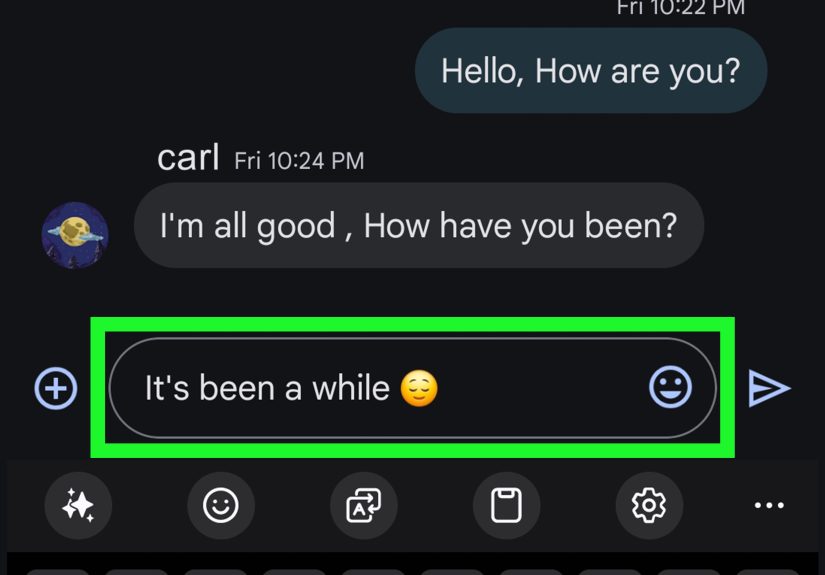
That first message is effectively the invitation. In many cases, especially if you have never messaged that person before, they will receive a message request. Once they accept it, the chat becomes a normal conversation.
A good first message is short, friendly, and specific. For example:
- “Hi Maya, I wanted to ask you a quick question about tomorrow’s meeting.”
- “Hey Chris, can we use this chat for the website updates?”
- “Hi Jordan, I’m reaching out through Gmail chat because it is faster than email for this one.”
That is enough. You do not need to write a grand opening speech. This is chat, not the preface to a Victorian novel.
How to invite someone to chat in the Gmail app
On Android
If Chat is not visible yet, open the Gmail app, go to Menu > Settings, choose your account, and turn on the option to show the chat and spaces tab. After that:
- Open the Gmail app.
- Tap Chat at the bottom.
- Tap New chat.
- Enter the person’s name or email address.
- Select the contact.
- Type your message and send it.
On iPhone
On iPhone or iPad, the setup is slightly different. Open the Gmail app, tap Menu > Settings, then under Apps in Gmail, tap Chat and turn it on. Then:
- Open the Gmail app.
- Tap Chat at the bottom.
- Tap New chat.
- Enter a name or email address.
- Tap Done.
- Type your message and tap Send.
Mobile is especially handy when you want to move a slow email thread into a faster conversation. Instead of typing, “Please see my attached follow-up to the earlier follow-up regarding the previous follow-up,” you can just send a chat that says, “Can you confirm this in two minutes?” Civilization advances.
What happens after you send the invite
Here is the part many people miss: the invitation is not always a separate pop-up or formal request that says, “Would you like to chat with this person forever and ever?” Often, the invite happens when you send the first direct message. If it is your first time messaging someone, they may need to accept your message request before you can chat normally.
So if you send a message and do not get an instant reply, do not assume they ignored you, moved to the mountains, or joined a monastery. They may simply have a request waiting in their chat list.
Once they accept, both of you can message back and forth, share files, and continue the conversation like any other Google Chat thread.
How to invite multiple people at once
If you want to chat with more than one person, you have two options.
Start a group direct message
When you click or tap New chat, add multiple names or email addresses before starting the conversation. This works well for quick coordination, like planning a meeting time or asking a small team one fast question.
Create a space
If the discussion will continue over time, a space is the better choice. Spaces are more like organized collaboration rooms. They are better for project updates, department discussions, client workflows, or recurring group conversations.
To create a space in Gmail on desktop:
- Click New chat.
- Choose Create a space.
- Name the space.
- Add the people you want.
- Set any restrictions if needed.
- Create the space and start posting messages.
If you already have a space, you can invite more people later by opening the space, using the header menu, and selecting Manage members or Add.
Can you invite someone outside your organization?
Yes, sometimes. This is where things get a little more interesting. If you use a Google Workspace account for work or school, your administrator can control whether you are allowed to chat with people outside your organization or add external people to spaces. In some organizations, it works normally. In others, the setting is locked down tighter than the office snack cabinet.
If external chat is allowed, you may be able to invite outside users into a direct message or space. In some cases, Google can create a guest account for an external, non-Workspace user when they are invited. If external access is blocked, you may see errors or simply be unable to add that person.
For personal Gmail users, chatting with another Google user is usually much simpler, as long as both people have access to Google Chat.
Common reasons your invite is not working
Chat is turned off
This is the classic problem. If there is no Chat section in Gmail, enable it in settings first.
The person has not accepted the request
Your first message may be sitting in their Message requests area. Until they accept, the conversation may feel like it is stuck in digital limbo.
You are using a work account with restrictions
Some companies do not allow external chats or external spaces. If you can message coworkers but not clients or vendors, that is usually an admin setting, not a personal failure.
You entered the wrong email address
It happens more often than people admit. Double-check the contact details before assuming Gmail is broken.
The other person does not really use Google Chat
They may have a Gmail address but rarely open Chat. In that case, send a quick email letting them know you started a chat thread. Sometimes the best invitation is, “Check your chat requests, please.”
Best practices when inviting someone to chat in Gmail
- Be clear in your first message. Tell them why you are reaching out.
- Use chat for speed, not for essays. If your message has chapters, send an email instead.
- Create a space for ongoing work. It keeps files, messages, and updates in one place.
- Respect availability. Just because chat is instant does not mean people are.
- Use a friendly tone. A direct message can feel abrupt if it opens with nothing but “Need this now.”
A smart first message often includes three things: who you are, why you are messaging, and what you need. Example: “Hi Elena, this is Sam from the design team. I started this Gmail chat so we can finalize the homepage copy today.” Clean, simple, and not weird.
When Gmail chat is better than email
Gmail chat shines when you need a fast answer, a quick decision, or lightweight collaboration. It is often better than email for:
- Confirming meeting times
- Asking short follow-up questions
- Sharing quick links or files
- Coordinating with a small team in real time
- Moving a cluttered email thread into a cleaner live conversation
Email is still better for formal communication, detailed instructions, official documentation, or anything that needs a polished subject line and a paper trail. Chat is the quick hallway conversation. Email is the memo that wears a tie.
Simple example scenarios
Example 1: Inviting a coworker
You are waiting on a file update. Instead of sending another email, open Gmail, click New chat, type your coworker’s name, and send: “Hi, can you drop the revised file here when you have it?” Faster, cleaner, and less inbox clutter.
Example 2: Inviting a client
If your company allows external chat, start a direct message with the client’s email. Keep the first message polite and contextual: “Hi Alex, I’m reaching out in Gmail chat so we can handle quick revisions faster than email.”
Example 3: Inviting a project team
Create a space called “Spring Launch Updates,” add your team members, and use it for discussions, files, and ongoing notes. This is usually better than starting ten separate chats and losing half the answers by Thursday.
Experiences and lessons from using Gmail chat invitations in real life
One of the most common experiences people have with Gmail chat is realizing that the feature is much more useful than they expected once they actually start using it. At first, many users ignore the Chat tab because Gmail already feels busy enough. There is email, labels, filters, calendars, meetings, and somewhere in the middle of all that chaos sits Chat, looking like the quiet cousin at a family reunion. But once people begin inviting coworkers or friends into quick conversations, the value becomes obvious.
A typical experience goes like this: someone starts with email because that feels official, then gets frustrated by the slow back-and-forth, and finally tries Gmail chat for one small question. Suddenly, a task that would have taken six emails gets solved in three messages. That is the moment Gmail chat usually wins people over. It reduces friction. It feels lighter. And it keeps the conversation tied to the same Google account they already use every day.
Another common lesson is that the first message matters more than people think. When users send an empty “Hi” and wait, the conversation often goes nowhere. But when they send a clear, specific opener such as, “Hi, I’m starting this Gmail chat so we can review the final draft quickly,” the other person understands the purpose right away. That makes the invite feel helpful instead of random.
People also learn that spaces are better than group emails for ongoing teamwork. A group email chain can turn into a spaghetti bowl of replies, forwards, attachments, and accidental “reply all” disasters. A space, on the other hand, gives everyone one place to talk, share files, and stay updated. Teams that switch to spaces for project work often discover that they spend less time hunting for the latest version of a document and more time actually finishing the work.
Of course, there are a few bumps. Some users invite external people and then discover their company blocks outside chat. Others send a first message and assume it failed because the recipient never answered, when the real issue is that the message is waiting in requests. These moments can be mildly annoying, but they also teach a useful habit: check settings, confirm permissions, and understand that chat etiquette is different from email etiquette.
Overall, the experience of inviting someone to chat in Gmail is usually positive once the first conversation gets rolling. It is quick, practical, and surprisingly good at cutting through inbox clutter. For many users, Gmail chat becomes the tool they did not know they needed until the day they got tired of writing another “Just following up on my previous email” message.
Conclusion
If you want to invite someone to chat in Gmail, the process is simple once you know that Gmail uses Google Chat behind the scenes. Turn on Chat if needed, click or tap New chat, enter the person’s name or email address, and send your first message. That message acts as the invitation. If it is your first conversation, the other person may need to accept the request before the chat becomes active.
For one-on-one communication, direct messages are perfect. For ongoing teamwork, spaces are the better long-term option. And if you use a work account, remember that external messaging may depend on your organization’s settings. Once you know those basics, Gmail becomes much more than an inbox. It becomes a communication hub that lets you move faster without drowning in email threads.