Table of Contents >> Show >> Hide
- Table of Contents
- Before You Print: 60-Second Checklist
- How to Print Web Pages From Chrome on a Computer
- How to Print Web Pages From Chrome on Android
- How to Print Web Pages From Chrome on iPhone
- Print Better: Clean Pages, Less Ink, Less Rage
- Troubleshooting: When Printing Goes Sideways
- Quick FAQ
- Real-World Printing Experiences (So You Don’t Repeat Them)
- Conclusion
- SEO Tags (JSON)
Printing a web page should be a peaceful, two-click experience. Yet somehow it often becomes a full-on
drama: half the article disappears, your printer “can’t be found” (while sitting three feet away), and the
page insists on printing the cookie banner like it’s the headline.
The good news: Chrome can print web pages cleanly from a computer, Android phone, or iPhoneonce you know
where the buttons are hiding and which settings actually matter. This guide walks you through the fastest
methods, the “make it look decent” tweaks, and the most common fixes when Chrome decides to be… Chrome.
Table of Contents
- Before You Print: 60-Second Checklist
- Print From Chrome on a Computer (Windows, Mac, Chromebook)
- Print From Chrome on Android
- Print From Chrome on iPhone
- Print Better: Clean Pages, Less Ink, Less Rage
- Troubleshooting: When Printing Goes Sideways
- Quick FAQ
- Real-World Printing Experiences (So You Don’t Repeat Them)
- SEO Tags (JSON)
Before You Print: 60-Second Checklist
If printing is failing, the issue is usually not “Chrome forgot how to print.” It’s one of these basics:
- Same network: For most wireless printers, your device and printer should be on the same Wi-Fi.
- Printer added: Make sure the printer is installed/added in your system (Windows/macOS) or available in mobile print options.
- Try “Save as PDF” first: If a page prints weirdly, save to PDF, then print the PDF. This isolates layout problems from printer issues.
- Don’t rely on Google Cloud Print: It’s discontinued. Modern printing uses your OS, AirPrint, or Android’s print services instead.
Once those are good, you’re ready to print from Chrome on whatever device is closest to your coffee.
How to Print Web Pages From Chrome on a Computer
On a computer, Chrome printing is built around the Print dialog (aka Print Preview). You can print directly
to a physical printer, or you can “print” to a PDF file to save and share.
Method 1: The Fast Shortcut (Windows/Mac)
- Open the web page in Chrome.
- Press Ctrl + P (Windows/Linux) or Command + P (Mac).
- Choose your printer (or choose Save as PDF).
- Adjust settings as needed, then click Print (or Save for PDF).
Prefer menus? Use File > Print (or the three-dot menu in Chrome, then Print).
Method 2: Use Print Preview Like a Pro (The Settings That Actually Matter)
Chrome’s Print Preview looks simple, but the real power is under More settings.
Here are the options that most often rescue a messy printout:
Pick the right destination
- Destination: Select a printer, or choose Save as PDF if you want a file instead of paper.
Control what prints
- Pages: Print all pages or a custom range (handy when recipes come with a 4-page life story).
- Layout: Portrait vs. landscape can instantly fix cut-off columns or wide pages.
Make it fit (without turning your article into ant-sized text)
- Scale: If the right side is getting chopped off, reduce scale a bit (like 90–95%).
- Margins: Narrow margins can help fit more content, but “None” may push text too close to the edge on some printers.
Decide whether Chrome adds “extra stuff”
- Headers and footers: Adds page title, URL, and page numbers. Great for citations, annoying for framing.
- Background graphics: Off by default. Turn it on if the page looks “missing” (like buttons, color blocks, or charts disappearing).
Printing Only Part of a Web Page (Selection-Only Printing)
Sometimes you only need one paragraph, not the entire internet. On many systems, you can select text on the page,
open print, and look for an option like Selection only in print settings.
If you don’t see a selection option, try one of these practical workarounds:
- Copy and paste the section into Google Docs, Word, or a note app, then print from there.
- Save as PDF, open the PDF, and print only the page(s) that contain your section.
- Use the system print dialog from Chrome (often available as a link/button in Print Preview), which may expose more options depending on your OS and printer driver.
Bonus: Save a Web Page as a PDF from Chrome (Computer)
- Press Ctrl + P (or Command + P on Mac).
- Set Destination to Save as PDF.
- Adjust layout/scale if needed, then click Save.
Saving to PDF is the “print now, argue later” approach: you lock the layout, then print the PDF when your printer is ready to cooperate.
How to Print Web Pages From Chrome on Android
Android printing in Chrome typically runs through the Share menu and Android’s built-in printing framework.
Translation: the Print button exists… it just likes to move around.
Print a Web Page From Chrome on Android
- Open Chrome on your Android phone or tablet.
- Go to the web page (or image/file) you want to print.
- Tap the three dots (top right), then tap Share.
- Select Print.
- Choose a printer at the top.
- Tap the down arrow to change print settings (copies, paper size, orientation, etc.).
- Tap Print.
Save the Web Page as a PDF on Android (No Printer Needed)
In the printer picker, you’ll often see an option like Save as PDF. Choose it, then save the file.
It’s perfect for boarding passes, receipts, and “I swear I’ll read this later” articles.
If Your Printer Doesn’t Show Up on Android
Here’s what usually fixes it:
- Confirm Wi-Fi: Make sure your phone and printer are on the same network (not Wi-Fi vs. cellular).
- Enable a print service: Android uses print services (often the default service, Mopria, or a manufacturer service).
- Try Mopria or a manufacturer plugin: Many printers work smoothly once the right print service is enabled.
How to Print Web Pages From Chrome on iPhone
On iPhone, Chrome doesn’t “invent” its own printing system. It hands off to iOS printing, which typically uses
AirPrint. That’s good news: the steps are consistent and the menu is familiar.
Print a Web Page From Chrome on iPhone
- Open Chrome on your iPhone.
- Load the web page, image, or file you want to print.
- Tap the Share icon in Chrome.
- Select Print.
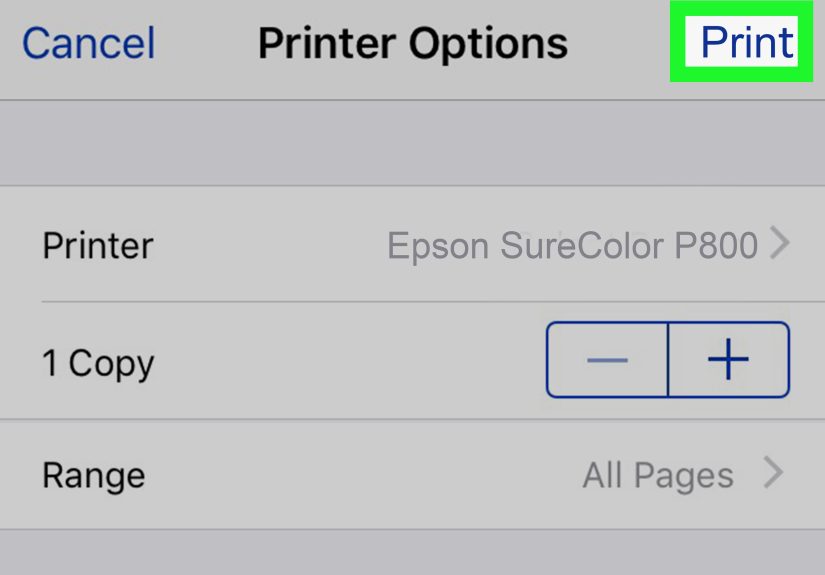
- Choose a printer, set options (copies, pages), then tap Print.
iPhone Printing Tips That Save Your Sanity
- Same Wi-Fi matters: AirPrint usually requires your iPhone and printer on the same Wi-Fi network.
- Pages option: If the print preview shows 12 pages and you only need page 2, don’t be a heroprint page 2.
- No AirPrint printer? Consider saving the page as a PDF on your computer or using your printer manufacturer’s iOS app.
Print Better: Clean Pages, Less Ink, Less Rage
The biggest problem with printing web pages is that websites are designed for scrolling, not for paper. Here’s how to
make Chrome printouts look like something you’d hand to another human without apologizing.
1) Use a reading view (or a clutter-free method)
If the page is full of ads, sidebars, and “subscribe to our newsletter” popups, printing it as-is can waste
ink and paper. If your browser offers a reading mode/reader view, switch to it before printing so you get
mostly text and images that matter.
Another option is a print-cleaning extension that strips clutter and formats the page more like an article.
(If you print web pages a lot, this pays for itself in saved toner.)
2) Print background graphics only when you truly need them
Background graphics are often disabled to save ink. If a page’s design is essential (charts, form fields, color-coded tables),
enable Background graphics in Chrome’s More settings. Otherwise, keep it off and save your cartridge from an early retirement.
3) Fix cut-off content with layout + scale
- Try Landscape for wide pages (tables, schedules, spreadsheets).
- Lower Scale slightly (e.g., 95%).
- Use Margins: Default or Minimum before going full “None.”
4) When in doubt, “Print” to PDF first
PDF is the universal peace treaty between browsers and printers. Save as PDF from Chrome, open the PDF,
and print it. You’ll often get a cleaner, more predictable resultespecially for long articles and pages with lots of embedded content.
Troubleshooting: When Printing Goes Sideways
If Chrome printing fails, don’t start by blaming the printer (even if it deserves it). Start with these fixes.
Problem: Printer not found / Printer offline
- Power cycle: Turn the printer off, wait a moment, and turn it back on.
- Check the connection: USB seated? Wi-Fi connected? Same network?
- Re-add the printer: On Windows, remove and reinstall the printer if it’s acting haunted.
Problem: Chrome prints blank pages (or Print Preview is blank)
- Try “Save as PDF”: If the PDF looks normal, the issue is more printer/driver than webpage rendering.
- Disable hardware acceleration: Sometimes it interferes with Print Preview rendering.
- Reset Chrome settings: If it started suddenly, a setting or extension may be the culprit.
Problem: Images or colors missing
- Enable Background graphics: Especially if buttons, color blocks, or charts disappear.
- Wait for the page to fully load: Some images appear late; printing too quickly can skip them.
- Try another browser for one-off jobs: If it’s urgent, print the PDF or use a different browser while you troubleshoot.
Problem: The printout looks weird (giant fonts, chopped columns, awkward page breaks)
- Adjust scale: Set a custom scale like 90–95%.
- Switch layout: Portrait vs. landscape can make a dramatic difference.
- Use margins strategically: “Minimum” often fixes cut-offs without looking cramped.
- Consider reader view: Strip clutter, then print.
Quick FAQ
Can I print a web page from Chrome without a printer?
Yes. On a computer, choose Save as PDF in the destination list. On Android, choose Save as PDF in the printer picker.
On iPhone, you can typically save or share a PDF using iOS sharing workflows (or use your computer for the most straightforward PDF save).
Why does Chrome add the URL and page title at the bottom?
That’s Headers and footers. Turn it off in Chrome’s print settings when you want a cleaner page.
How do I print double-sided?
If your printer supports duplex printing, you’ll see a two-sided option either in Chrome’s print settings or in the system print dialog
(especially on Windows/macOS printer drivers).
What’s the easiest way to print a recipe or article cleanly?
Use a reading view (or a clutter-removing print method), then print. If it still looks odd, save as PDF first and print the PDF.
Is Google Cloud Print still a thing?
NoGoogle Cloud Print is discontinued. Use your operating system’s printer setup, Android print services, AirPrint, or manufacturer apps instead.
Real-World Printing Experiences (So You Don’t Repeat Them)
Let’s talk about what happens outside the perfect world where every website is print-friendly and every printer is emotionally stable.
If you’ve ever said, “Why is this twelve pages?” out loud to an inanimate object, welcome. You’re among friends.
The “I Only Needed One Paragraph” Moment
You’re reading an article and want to print a tiny section for a meeting. You highlight the text, hit print, and Chrome
responds by offering you the entire siteheaders, footers, navigation, and a banner ad for something you whispered near your phone once.
In real life, the fastest move is often not “fight the print dialog,” but “copy the paragraph into a document and print that.”
It’s not glamorous, but it works, and it keeps your printer from producing a novel you didn’t approve.
The “Mobile Printing Should Be Easy” Plot Twist
Printing from Android feels magical when it works: Share > Print > Done. But the moment you’re on cellular data and your printer is on Wi-Fi,
your phone might act like printers were never invented. The fix is usually unsexy: connect to the same Wi-Fi,
enable the right print service, and try again. Once you’ve done it once, it’s smoothuntil you switch routers, move apartments,
or the printer decides it wants a firmware update at the exact moment you’re late.
The iPhone AirPrint Treasure Hunt
iPhone printing is clean and consistentright up until it can’t find a printer. Then you discover the three classic culprits:
(1) the printer is asleep, (2) the printer is on a different Wi-Fi network, or (3) someone renamed the network from “HomeWiFi”
to “HomeWiFi_5G_DO_NOT_USE” and nobody remembers why. When AirPrint can’t see the printer, it’s rarely a Chrome problem.
It’s almost always a network or printer state issue. Waking the printer up (yes, like a small cranky animal) solves more than you’d think.
The “Why Is This Printing Blank?” Panic
Few things are as confidence-inspiring as clicking Print and watching blank pages emerge like cursed confetti.
When this happens, saving as PDF is the calm, rational step. If the PDF preview looks correct, the webpage content is fine,
and the issue is more likely the printer driver, print pipeline, or a quirky setting. If the PDF is blank too, then it’s rendering:
try disabling hardware acceleration, turning on background graphics, or printing after the page fully loads.
Also: extensions that block scripts or content can sometimes block the parts that printing needs, so testing in an incognito window
(with extensions disabled) can be surprisingly effective.
The “Twelve Pages of Cookie Banner” Comedy
Websites love sticky headers, popups, and infinite scroll. Printers love none of those things. A clean printout usually comes from
one of three strategies: (1) reader view/reading mode, (2) a print-friendly cleanup tool, or (3) save as PDF and print the PDF.
The goal isn’t to prove you can print the page “as-is.” The goal is to get a readable result without donating your entire toner budget
to sidebar widgets and newsletter forms.
The “I Just Need This to Look Normal” Victory Lap
The most satisfying printing wins are small: switching to landscape so the table fits, reducing scale to 95% so nothing is cut off,
disabling headers and footers so your handout doesn’t look like a legal exhibit, and turning on background graphics only when the page truly needs it.
Once you know these levers, printing from Chrome stops being a gamble and becomes a repeatable process. Not glamorous, but reliablelike a stapler that
doesn’t jam. Which, honestly, is the dream.
Conclusion
Printing a web page from Chrome doesn’t have to feel like negotiating with a mischievous robot. On a computer, it’s
Ctrl/Cmd + P and a few smart settings (scale, margins, headers/footers, background graphics). On Android, it’s usually
More > Share > Print. On iPhone, it’s Share > Print through AirPrint.
When the output looks messy, go “print-smart”: use a reading view, adjust layout/scale, and don’t hesitate to save as PDF first.
You’ll get cleaner pages, fewer surprises, and a printer that’s slightly less likely to hold a grudge.