Table of Contents >> Show >> Hide
- Quick Answer: How Do You Send a Message from a Facebook Page?
- Before You Start: 4 Things to Check
- Step-by-Step: Send a Message from a Facebook Page on Desktop
- How to Send a Message from a Facebook Page on Mobile
- Can a Facebook Page Message Someone First?
- Easy Setup That Makes Messaging 10x Better
- Troubleshooting: Why You Still Can’t Send Messages
- Best Practices for Faster Replies and Better Customer Experience
- 500-Word Experience Section: What Running Page Messaging Actually Feels Like
- Conclusion
If you’ve ever stared at your Facebook Page wondering, “Why can’t I just DM this person already?” welcome to the club.
Sending a message from a Facebook Page is easy once your settings, permissions, and inbox flow are set up correctly. The tricky part is that
Facebook gives you multiple places to manage conversations (your Page view, Messenger, and Meta Business Suite), and each one looks slightly
different depending on your Page experience and role.
This guide walks you through the exact steps to send and reply to messages from your Facebook Page, both on desktop and mobile, without getting
lost in menu mazes. We’ll also cover the most common “Why is this broken?” scenarios, plus practical tips to help you respond faster, look more
professional, and avoid the classic mistake of replying from your personal profile when you meant to reply as your business.
Whether you run a local bakery, a content brand, or a growing ecommerce team, this is your no-fluff, easy-steps playbook for Facebook Page
messaging in 2026.
Quick Answer: How Do You Send a Message from a Facebook Page?
- Make sure messaging is turned on for your Page.
- Confirm you have the right Page access (full control or the message-related task access).
- Open Meta Business Suite Inbox (or your Page inbox).
- Switch into your Page identity.
- Open an existing conversation and hit Reply.
- Use saved replies or automations for speed if needed.
Important: In most cases, a Page can’t cold-message random users first. You generally reply after a user has interacted with your Page
(message, comment, follow, or similar action).
Before You Start: 4 Things to Check
1) Messaging is actually enabled
Start with the basics. If your Page has messaging turned off, people can’t message you and you can’t continue conversations from inbox views
the way you expect. Go to Page settings and confirm that messaging is allowed.
2) You’re using the correct identity
Facebook lets admins move between personal profile mode and Page mode. If you reply while in profile mode, you may post as yourself. If you reply
in Page mode, you respond as the brand. Always verify the avatar/identity before pressing send.
3) Your role includes messaging permissions
In modern Page access settings, permissions can be split. Someone might be able to post content but not handle messages. If the message box is
grayed out or missing, ask an admin to review your Page access in Meta Business settings.
4) Your inbox tool isn’t hijacked by another integration
If your messages “disappear,” there may be another connected app acting as the primary receiver (for example, a CRM/chat tool). This can route
incoming conversations away from where your team expects to find them.
Step-by-Step: Send a Message from a Facebook Page on Desktop
Step 1: Open your Page or Meta Business Suite
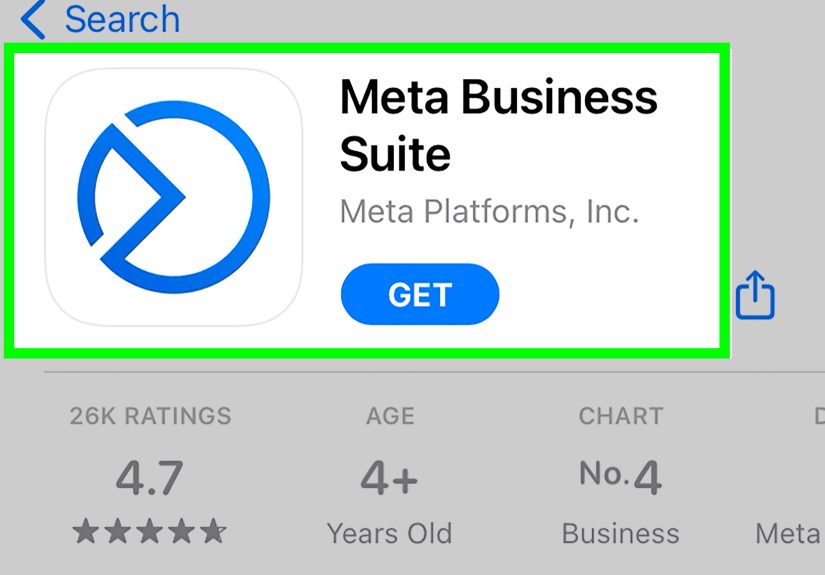
You can manage messages directly from your Page experience or through Meta Business Suite Inbox. For most businesses, Business Suite is cleaner
because it centralizes messages from connected channels and gives better team workflow controls.
Step 2: Go to Inbox
In Business Suite, open Inbox. You’ll typically see conversations from Messenger and (if connected) other channels in one place.
Filter by unread, assigned, or channel if your queue is busy.
Step 3: Switch into your Page account
If you use Messenger app on desktop/mobile, switch to your Page identity before replying. If you skip this step, you may respond from the wrong
account and spend the next five minutes whisper-screaming into a throw pillow.
Step 4: Open the conversation
Click the thread, review customer context, and check whether this is:
- A first-time inquiry (needs greeting + routing)
- A support follow-up (needs status update)
- A sales question (needs quick product or booking answer)
Step 5: Type your reply and send
Keep replies clear and short. Good structure:
- Acknowledge: “Thanks for reaching out!”
- Answer: one direct sentence
- Next step: “Can you share your order number?”
Step 6: Use saved replies for repeated questions
If you answer “What are your opening hours?” fifty times a week, make a template. Save responses for FAQs, shipping windows, return policy, and
appointment links. Your team gains speed and consistency.
Step 7: Assign, tag, or close the thread
After replying, assign the conversation to a teammate, mark it complete, or tag it for reporting (Sales Lead, Refund, Tech Support, etc.).
This keeps your inbox from becoming a digital junk drawer.
How to Send a Message from a Facebook Page on Mobile
- Open the Facebook or Messenger app.
- Switch to your Page profile/account.
- Go to your Page Inbox or Business Suite Inbox in app.
- Tap a conversation thread.
- Type and send your reply as the Page.
Mobile is perfect for quick response-time wins, but for complex conversations (multiple team handoffs, automation edits, routing rules), desktop
is usually easier.
Can a Facebook Page Message Someone First?
Usually, no at least not like personal DMs. In general, Page messaging is interaction-based: your Page responds after a person initiates
contact or otherwise interacts with your business context. That’s why many admins think messaging is “broken” when they try to start a fresh
private chat from the Page.
The practical takeaway: focus on generating inbound conversation triggers:
- Add a Send Message call-to-action button on your Page.
- Invite questions via posts, Reels captions, and Stories.
- Use comment-to-message workflows for campaigns.
- Encourage event guests or ad viewers to start the conversation.
Easy Setup That Makes Messaging 10x Better
1) Add a “Send Message” CTA button
Put messaging where people can’t miss it. Your CTA button is the front door to private conversations. If your business handles bookings,
consultations, product questions, or local service requests, this one change can increase qualified leads quickly.
2) Turn on Instant Reply
Instant replies reassure people they’ve reached a real business. Even a short auto-reply like “Thanks! We usually respond within 30 minutes”
boosts trust and reduces duplicate follow-ups.
3) Create an Away Message
If your team is offline evenings or weekends, schedule away responses. This avoids customer confusion and sets expectations clearly.
4) Add FAQ automation
Use FAQs for repetitive questions (hours, price ranges, delivery zones, booking link). Keep answers short and human-sounding. Nobody wants a robot
paragraph when they just asked, “Are you open Sunday?”
Troubleshooting: Why You Still Can’t Send Messages
Problem: “Message” button missing on Page
Check whether messaging is enabled. Also verify region restrictions, Page status, and whether your CTA button was changed to something else (like
“Call Now” or “Learn More”).
Problem: You can read messages but can’t reply
This usually points to permissions. You may have partial access without message rights, or a teammate with full control must reassign task access.
Problem: Messages appear in another tool, not in Meta inbox
If you connected CRM/chat apps, one integration may be set as the primary receiver. Update handover/receiver settings so your intended tool gets
incoming messages.
Problem: You’re replying as yourself, not as the Page
Switch identity before sending. Train the team to check the active avatar every time especially on mobile, where context switches happen fast.
Problem: Automation sends weird or outdated replies
Audit all automation rules in one session: Instant Reply, Away, FAQ, keyword/comment triggers, and third-party bot flows. Conflicting automations
are a top cause of confusing customer experiences.
Best Practices for Faster Replies and Better Customer Experience
- Set a response-time goal: e.g., under 1 hour during business time.
- Use macros/snippets: consistent tone, less typing.
- Move sensitive details to private chat: order numbers, personal info, billing.
- Tag conversation intent: lead, complaint, support, partnership.
- Close loops: always end with a clear next step or confirmation.
- Review weekly: top FAQ themes often reveal product or policy fixes.
Pro tip: The best Facebook Page messaging strategy is not “reply faster at all costs.” It’s “reply clearly, consistently, and with ownership.”
Speed is helpful. Clarity closes conversations.
500-Word Experience Section: What Running Page Messaging Actually Feels Like
In real operations, Facebook Page messaging is less about one perfect button and more about building a reliable rhythm. The first lesson most teams
learn is that inbox success comes from process, not heroics. Early on, we treated every message like a mini emergency: everyone jumped in, replies
overlapped, and customers got contradictory answers. It felt “fast,” but the experience was messy. Once we created a simple playbook first reply
acknowledgment, ownership tag, expected resolution time, and a single thread owner quality improved overnight.
The second lesson was identity discipline. Accidentally replying from the wrong profile is more common than teams admit. One time, a teammate replied
from a personal account to a pricing inquiry. Nothing catastrophic happened, but it looked unprofessional and made the customer wonder whether they
were talking to an official representative. We fixed it with a tiny habit: before every send, check avatar, name, and active account mode. That
two-second check saved us from repeat mistakes.
Third, automation helped only after we edited it like copywriting, not like software setup. Our first instant reply sounded stiff: “Your message is
important to us.” Customers ignored it and resent their question. We rewrote it in plain English: “Thanks for messaging us we’re here and usually
reply within 30–60 minutes.” Repeat messages dropped, and sentiment improved. Same feature, better words.
Fourth, message volume spikes follow content spikes. Whenever a post performed well, inbox traffic jumped with it. If the post invited action
(“Comment ‘guide’ and we’ll message details”), we were suddenly handling waves of similar requests. That taught us to plan campaigns with support in
mind: prebuilt FAQ snippets, temporary assignment rules, and one person watching only first-response SLAs. Marketing and support became one system,
not separate planets.
Fifth, integrations are great until they quietly steal your messages. We once connected a third-party inbox tool for routing experiments. A week
later, half the team thought messages had vanished because they no longer appeared in the native queue. Nothing was lost the “primary receiver”
just changed. Since then, every new integration requires a same-day routing test: send message, verify destination, verify assignee, verify reply.
No test, no launch.
Finally, the most practical mindset shift: every message is a micro-relationship, not a ticket number. People remember tone more than templates.
A short, warm, accountable response wins more trust than a long policy dump. When teams write like humans, customers stay patient during delays,
share better context, and come back. In other words, messaging is not just customer service it’s brand voice in real time, one bubble at a time.
Conclusion
Sending a message from a Facebook Page is straightforward when your foundation is right: messaging enabled, correct access, clear identity, and a
structured inbox workflow. From there, the wins come from consistency better CTA placement, cleaner templates, practical automations, and fast
ownership handoff.
If you remember one thing, make it this: don’t optimize for “more messages.” Optimize for “better conversations.” Better conversations convert
better, resolve faster, and build trust that lasts beyond a single thread.