Table of Contents >> Show >> Hide
- Before You Start: A 60-Second Checklist
- Why Android Sometimes “Can’t See” Your MP3
- 6 Steps to Set an MP3 as Your Ringtone on Android
- Step 1: Get the MP3 onto your phone (locally)
- Step 2: Put the MP3 where Android can find it (Ringtones folder = best)
- Step 3: Set the MP3 as your default ringtone in Settings
- Step 4: Set a custom ringtone for one person (a.k.a. “VIP caller mode”)
- Step 5: Trim and polish the MP3 (because nobody needs the entire 7-minute live version)
- Step 6: Troubleshoot the most common problems
- Brand Notes: Pixel vs Samsung vs Everyone Else
- FAQ
- Conclusion
- Real-Life Experiences & Tips (Extra 500+ Words)
- SEO Tags
Your Android phone came with ringtones that sound like they were composed by a committee of polite robots.
If you’d rather have an actual MP3like your favorite chorus, a meme sound, or that one dramatic “DUUUN-DUN”
you’re in the right place.
The good news: Android makes custom ringtones pretty easy now. The slightly-annoying news: each brand sprinkles
its own seasoning on the menus, and some phones hide the “Add ringtone” button like it owes them money.
This guide cuts through that and gets your MP3 ringing in 6 straightforward steps.
Before You Start: A 60-Second Checklist
- Make sure it’s a real MP3 file stored on your phone (not a streaming track).
- Know where it is: Downloads, Music, or a folder you created.
- Keep it ringtone-friendly: ideally 20–30 seconds, loud enough, and not starting with 10 seconds of silence.
- Have a file manager ready (Files by Google works great on most Android phones).
Why Android Sometimes “Can’t See” Your MP3
Android doesn’t hate your music. It’s just picky about where it looks.
Many phones automatically recognize audio as a ringtone when it’s placed in a
Ringtones folder (internal storage). Other phones let you pick the MP3 from Downloads and then
“import” it into your ringtone list.
Also: streaming services (Spotify, YouTube Music, etc.) usually don’t let you use their songs as ringtoneseven if
you can listen offlinebecause those files are protected. You need an MP3 you actually have stored locally.
6 Steps to Set an MP3 as Your Ringtone on Android
Step 1: Get the MP3 onto your phone (locally)
First, your MP3 needs to live on your phone’s storagenot in the cloud only, not trapped inside a streaming app.
Any of these work:- Download it directly from a website (it’ll usually land in Downloads).
- Transfer from a computer via USB cable (copy it into Downloads or Music).
- Move from cloud storage (Drive/Dropbox/etc.) by downloading the file to your device.
Quick sanity check: open the file and make sure it plays in a regular audio player. If it won’t play, it won’t ring.
Step 2: Put the MP3 where Android can find it (Ringtones folder = best)
This step prevents the classic headache: “My file exists, but it’s not showing up in the ringtone list.”
The easiest fix is to place your MP3 in your phone’s Ringtones folder.Option A: Use a file manager (recommended)
- Open your file manager (Files by Google or your phone’s built-in “My Files”).
- Find the MP3 (often in Downloads).
- Create a folder called Ringtones in Internal storage if it doesn’t already exist.
- Move or copy the MP3 into Internal storage/Ringtones.
Option B: Don’t move anythinguse “Add ringtone” later
Many phones let you add the file from Downloads during the ringtone selection process.
This can work fine, but if your phone refuses to cooperate, Option A is the “works on almost everything” route.Step 3: Set the MP3 as your default ringtone in Settings
Now for the satisfying partmaking your phone actually use the MP3 when someone calls.
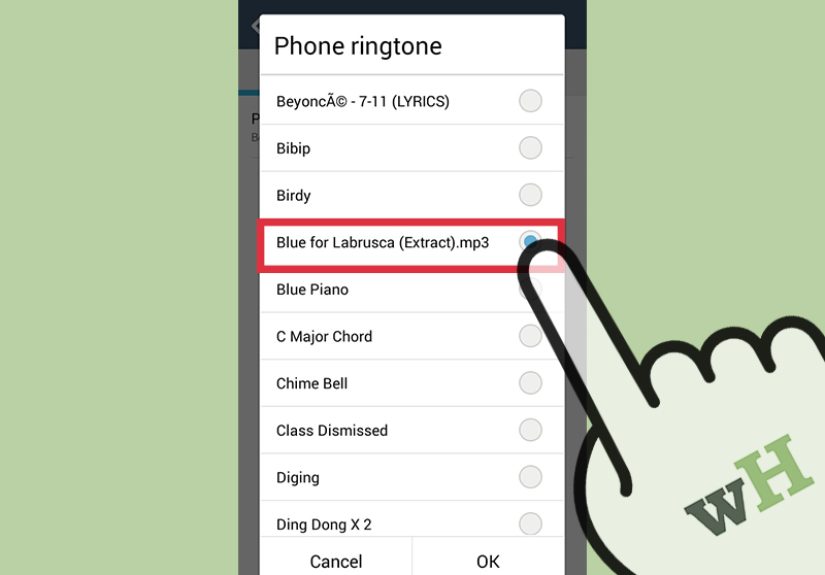
The menu wording varies, but the path usually looks like this:Settings → Sound & vibration (or “Sounds”) → Phone ringtone (or “Ringtone”).
What you’ll typically see next
- A list of built-in ringtones, plus a section like My Sounds, On-device ringtones, or Custom.
- A + button or Add ringtone option to import your MP3.
- A Save button (some phones save automatically when you back outbecause chaos).
If you moved the MP3 to the Ringtones folder, it should show up like it belongs therebecause it does.
Select it, then tap Save (or hit back if your phone is the “I saved it, trust me” type).Shortcut method (on many phones): set it directly from Files
On some Android devices, you can open the MP3 in Files by Google, tap the three-dot menu, and choose
Set as ringtone. If prompted, allow permission to modify system settings.
This is the “I don’t want to spelunk through Settings menus” method.Step 4: Set a custom ringtone for one person (a.k.a. “VIP caller mode”)
Default ringtone is greatuntil you want your best friend, your boss, or your mom to have their own sound.
Setting per-contact ringtones is also how you can tell who’s calling without staring at your screen like a confused meerkat.- Open the Contacts app.
- Select the contact.
- Tap Edit or the three-dot menu.
- Choose Set ringtone / Ringtone / Change ringtone.
- Select your MP3 and save.
Tip: If your phone says you can’t set a custom ringtone for a certain contact, the contact might be stored only on the SIM card.
Save/sync that contact to your Google account or phone storage, then try again.Step 5: Trim and polish the MP3 (because nobody needs the entire 7-minute live version)
You can use a full song as a ringtone. You can also eat spaghetti with your hands. Both are technically possible.
A trimmed ringtone is usually better:- Shorter: You’ll recognize it faster.
- Louder and cleaner: Calls are not the time for whisper-intros.
- Less awkward: Nobody wants their phone blasting the entire emotional bridge in a quiet room.
Easy trimming options
- On a computer: Use a free editor like Audacity to select a clip, add a quick fade-in/fade-out, then export as MP3.
- On your phone: Use a reputable “ringtone maker” or audio cutter app to trim the section you want and save it.
- Built-in tools (some brands): Certain phones or music apps offer “Set as ringtone” with a trim feature.
Pro tip: normalize or slightly boost volume when you trim. A ringtone that’s too quiet is just a fancy silent mode.
Step 6: Troubleshoot the most common problems
Problem: “My MP3 doesn’t show up in the ringtone list.”
- Move it to Internal storage/Ringtones and try again.
- Restart your phone (yes, really).
- Check the file extension: make sure it’s actually .mp3 (not mislabeled).
Problem: “The file is grayed out / I can’t select it.”
- Try a different format: MP3 is common, but some phones also accept M4A, WAV, or OGG.
- Re-export the file (sometimes odd encoding settings make it unreadable as a ringtone).
- Move it out of a protected folder and into Ringtones.
Problem: “Files by Google says I need permission.”
- Grant the requested permission to modify system settings when prompted.
- If you denied it earlier, go to Settings → Apps → Files (or Files by Google) and allow the needed permission.
Problem: “My ringtone keeps resetting.”
- Make sure the MP3 stays in placedon’t delete it, move it, or let a “cleaner” app remove it.
- Avoid setting ringtones from temporary locations (like a messaging app’s cache).
- If you use a Work Profile, confirm you’re changing the ringtone for the right profile.
Problem: “It works… but only sometimes.”
- Check Do Not Disturb settings and allowed exceptions.
- Verify your phone isn’t in Vibrate or Silent mode when testing.
- If you have Bluetooth connected, make sure it’s not routing ringtone audio in a weird way.
Brand Notes: Pixel vs Samsung vs Everyone Else
Google Pixel
Pixels often guide you through Sound & vibration → Phone ringtone → My Sounds, where you can tap a
+ button and browse Downloads (or wherever your MP3 lives). It’s fairly painless once you know the “My Sounds” door exists.
Samsung Galaxy
Samsung typically uses Settings → Sounds and vibration → Ringtone, then a + (Add) option to pick a song file stored on the device.
Some Galaxy phones also offer a “highlights only” style toggle so your ringtone plays the good part instead of the full intro.
And yesSamsung is very clear that streaming tracks aren’t eligible as ringtones. You need an actual downloaded audio file.
Motorola / OnePlus / Other Android Phones
The menu names change, but the logic is the same:
get an MP3 file onto the phone, place it in a ringtone-friendly folder if needed, then select it under the ringtone settings.
If your phone’s Settings app feels like a maze, use the Ringtones folder methodit’s the closest thing Android has to a universal cheat code.
FAQ
Can I set a Spotify (or streaming) song as my ringtone?
Usually no. Streaming apps typically protect their audio and don’t let Android treat it like a ringtone file.
You need a locally stored MP3 (or supported audio file) that your phone can access directly.
What file formats work besides MP3?
MP3 is the most common, but many Android devices also support formats like M4A, WAV, and OGG for ringtones.
If your MP3 is acting weird, converting or re-exporting can solve a surprising number of problems.
Is it legal to use part of a song as a ringtone?
Generally, personal use is treated differently than distributing or selling ringtones.
The safest move: use audio you own or have permission to use, and don’t share your custom ringtone files publicly.
(This is practical guidance, not legal advice.)
Conclusion
Setting an MP3 as a ringtone on Android boils down to three truths:
have the file locally, put it somewhere Android recognizes, and select it in Sound settings.
Once you’ve done it once, you’ll start assigning custom ringtones like a DJ with a phone plan.
And remember: a good ringtone is like a good headlineshort, recognizable, and impossible to ignore. Unlike that “default beep” your phone shipped with.
Real-Life Experiences & Tips (Extra 500+ Words)
The first time I ever set an MP3 ringtone on Android, I thought I was done… and then my phone rang with the default tone anyway.
Classic. What happened? I had picked the MP3 from a temporary locationsomething like a “recent files” shortcut inside a messaging app.
When the app cleared its cache (or I cleaned storage), the ringtone vanished. The lesson: if you love a ringtone, set it up like a long-term relationship.
Put it somewhere stable, like Internal storage/Ringtones. Your future self will thank you.
Another surprisingly common “why is this so quiet?” moment: MP3s downloaded from random corners of the internet often have inconsistent volume.
A ringtone isn’t played the same way as music through headphones; it needs to cut through pockets, purses, car noise, and the chaos of life.
I’ve found it helps to do two quick edits: trim the clip and raise the volume slightly.
Even a small boost (and adding a one-second fade-in so it doesn’t pop) can make it sound cleaner and more confident.
If your ringtone starts with a gentle acoustic intro, that’s adorableuntil you miss every call because the intro is basically a lullaby.
There’s also the “funny until it isn’t” ringtone category. Meme sounds are amazingright up to the moment your phone rings in a serious setting.
If you want humor without regret, pick something playful but not… socially explosive.
One trick: use a funny ringtone for specific contacts only. Your best friend can get the goofy sound.
Everyone else gets a sane default. That way you still enjoy the joke, but you don’t accidentally become “the person whose phone screams goat noises during meetings.”
If you’re using a Samsung phone, you may notice it offers options that feel extra considerate, like playing only “highlights.”
That’s genuinely useful in the real world: it helps you skip the slow parts and jump straight into the recognizable hook.
On the Pixel side, the “My Sounds” section is the make-or-break discovery. Once you know where it is, adding new ringtones becomes addicting:
you’ll start thinking, “What if every family member had their own theme music?” (It’s a slippery slope, but a joyful one.)
Finally, here’s the most boring tip that saves the most time: name your ringtone files clearly.
After a few months, “audio_final_final2.mp3” is not helpful. Rename your clip to something you’ll recognize instantly,
like “Ring – Favorite Chorus” or “Mom VIP Tone.” It turns ringtone selection from scavenger hunt into a two-second decision.
And if you like rotating ringtones, keep a neat little folder with your top picks. It’s the small organizational habit that makes your phone feel customized
instead of chaotic.