Table of Contents >> Show >> Hide
- First, a quick reality check: Gmail isn’t the “contacts app”
- Before you sync: 3 common things that break it (and make you think it’s broken)
- Method 1: Turn on Contacts sync in Android Settings (works on most phones)
- Method 2: Use the Google Contacts Sync controls (and back up SIM/device contacts)
- Method 3 (Samsung Galaxy): Sync directly from the Contacts app
- Method 4: Move contacts that are stuck on your phone or SIM into Google
- How to confirm your Android contacts are syncing with Gmail
- Clean-up time: duplicates, missing names, and “why is Mom listed 7 times?”
- Troubleshooting: Android contacts not syncing with Google (the fix-it checklist)
- 1) Make sure auto-sync is enabled
- 2) Check your connection and background data rules
- 3) Run a manual sync
- 4) Update the usual suspects
- 5) Check battery optimization
- 6) Clear cache for Contacts (safe) and re-try
- 7) Re-add your Google account (last resort, but effective)
- 8) If your contacts “disappear” after turning off sync
- Best practices: make contact sync boring (the highest compliment)
- FAQ: Quick answers to common “please don’t make me Google this” questions
- Conclusion: Your contacts should travel with you, not trap you
- Extra: Real-world experiences people have when syncing Android contacts with Gmail (and what they learn)
- Experience #1: “I signed into Gmail on my new phone… and only 20 contacts showed up.”
- Experience #2: “My work Gmail and personal Gmail are fighting over my contacts.”
- Experience #3: “After I turned off contacts sync, my contact list looked emptypanic!”
- Experience #4: “I synced, and now I have duplicates for everyoneespecially family.”
- Experience #5: “Sync only works when I open the Contacts app. Otherwise it’s stuck.”
Your phone knows everyone. Your Gmail account (kind of) knows everyone. And yet somehow, your dentist’s number still vanishes the second you get a new phone.
Let’s fix thatproperlyby syncing your Android contacts with Gmail so your address book follows you everywhere, like a loyal golden retriever (but with fewer drool stains).
In this guide, you’ll learn the most reliable ways to sync Android contacts to your Google account (the same account you use for Gmail), how to move contacts
that are stuck on your phone or SIM, how to confirm everything actually synced, and how to troubleshoot the classic “why is my contact list haunted?” moments.
First, a quick reality check: Gmail isn’t the “contacts app”
When people say “sync contacts with Gmail,” what they really mean is:
sync your contacts with your Google account. Gmail is just one of the services on that account.
Your contacts live in Google Contacts (the cloud address book). Once your Android phone syncs with Google Contacts, your contacts show up across
Google servicesGmail, Google Meet, Google Calendar invite suggestions, and on any device where you sign in.
Before you sync: 3 common things that break it (and make you think it’s broken)
1) You have more than one Google account on your phone
Personal Gmail, school Gmail, work Gmail… and suddenly your phone is hosting a tiny office drama. Contacts can be saved to different accounts, and you may
be syncing the “wrong” one. You’ll want to pick your primary Google account and consistently save contacts there.
2) Your contacts might be stored locally (Device), on SIM, or in another cloud
Many phones let you save new contacts in places like Device, SIM, Samsung account, or Google.
Only contacts saved to Google (or moved into Google) will reliably show up in Google Contacts on the web.
3) Sync is “on”… but Android is quietly blocking it
Battery optimization, background data restrictions, Data Saver, or disabled auto-sync can stop syncing without much dramameaning you don’t get an obvious error,
you just get missing contacts.
Method 1: Turn on Contacts sync in Android Settings (works on most phones)
Android menus vary a little by brand and version, but the idea is the same: make sure your Google account is allowed to sync Contacts.
Step-by-step (generic Android path)
- Open Settings.
- Tap Passwords & accounts or Accounts (sometimes Users & accounts).
- Select your Google account (the Gmail address you want to use).
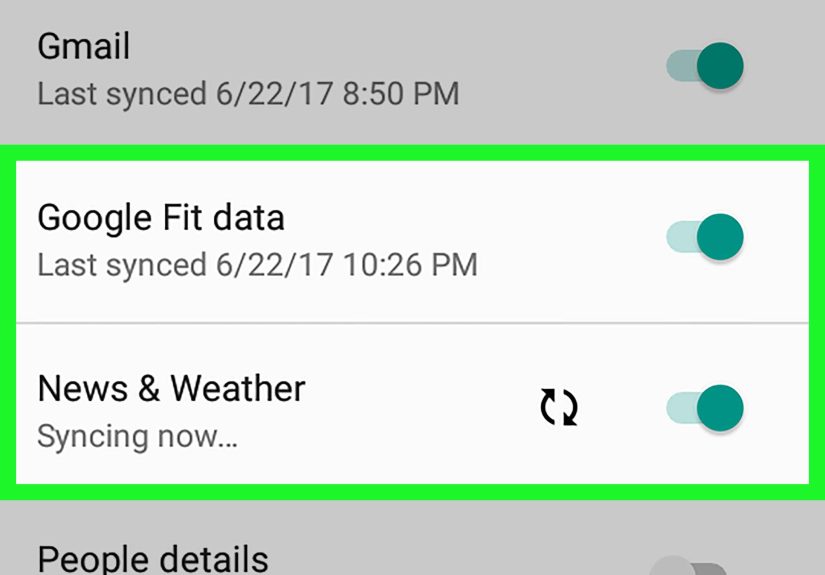
- Tap Account sync (or Sync account).
- Turn on the toggle for Contacts.
Force a manual sync (if you’re impatient or troubleshooting)
- Stay in the same Account sync screen.
- Tap Sync now (often in a three-dot menu) if available.
- Wait a minute or two, then check Google Contacts (we’ll show how below).
Pro tip: If you don’t see “Account sync,” search inside Settings for sync or accounts. Manufacturers love renaming menus like it’s a sport.
Method 2: Use the Google Contacts Sync controls (and back up SIM/device contacts)
Google also offers a dedicated “Google Contacts sync” control on many Android devices. This can be useful if you want to see sync status or manually refresh.
Check Google Contacts sync status
- Open Settings.
- Tap Google.
- Tap All services (or similar).
- Tap Google Contacts sync.
- Review Status and turn sync on if it’s off.
- Use Refresh (if shown) to manually update.
Also sync Device & SIM contacts into Google (if you want them backed up)
Some phones can automatically copy contacts stored on your device or SIM into Google Contacts. This is helpful if your contacts are “local-only” right now.
Look for an option like:
Also sync device and SIM contacts or Sync device and SIM contacts automatically.
Important: turning on SIM/device syncing can sometimes create duplicates if you already have the same people saved in Google. If your contact list is large,
consider doing a one-time move/import (Method 4) instead of automatic syncing.
Method 3 (Samsung Galaxy): Sync directly from the Contacts app
Samsung’s Contacts app often includes a simple “Sync contacts” switch for your Google accountno scavenger hunt in Settings required.
Samsung Contacts app sync steps (common One UI flow)
- Open the Contacts app.
- Tap the Menu (three lines).
- Tap Manage contacts.
- Tap Sync contacts.
- Turn on sync for your Google account (your Gmail address).
Set your default save location (so new contacts go to Google automatically)
This is the difference between “my contacts always sync” and “why does my phone keep saving everyone to Device like it’s hiding them from me?”
- Open Contacts.
- Go to Settings (inside the Contacts app).
- Find Default storage location or Save contacts to.
- Select your Google account.
Method 4: Move contacts that are stuck on your phone or SIM into Google
If your contacts are stored as Device contacts or SIM contacts, they won’t reliably appear in Google Contacts until you move or import them.
The exact wording varies, but you’re looking for Move, Copy, Import, or Export.
Option A: “Move” contacts to your Google account (best when available)
- Open the Contacts app.
- Open Manage contacts (or the menu/settings).
- Choose Move contacts (or Copy contacts).
- Select From: Device or SIM.
- Select To: your Google account (Gmail).
- Confirm and wait for the move to finish.
Option B: Export to a VCF file, then import to Google (universal, great for backups)
VCF (vCard) is the “contact suitcase” format. It’s old-school in the best way: almost every contacts system understands it.
- Open Contacts.
- Go to Settings > Import/Export (or Manage contacts).
- Choose Export and save a .vcf file.
- Open Google Contacts on the web (on a computer is easiest).
- Use the Import option and upload the VCF file.
Bonus: Keeping a recent VCF export in a safe place is the adult version of “I swear I’ll remember that number.” You won’t. The file will.
How to confirm your Android contacts are syncing with Gmail
Don’t rely on “it looks right on my phone.” The cleanest confirmation is checking Google Contacts directly.
Confirm on the web (recommended)
- On a browser, sign into your Google account.
- Open Google Contacts.
- Search for a contact you recently added or edited on your phone.
- If it appears (with the latest info), sync is working.
Confirm inside Gmail (why people call it “Gmail contacts”)
In many Gmail interfaces, you can access contacts from Google apps menus. Even when Gmail doesn’t show a “Contacts” button front-and-center, Gmail uses Google Contacts
behind the scenes (for address auto-complete, saving recipients, etc.). If the contact is in Google Contacts, it’s effectively “in your Gmail ecosystem.”
Clean-up time: duplicates, missing names, and “why is Mom listed 7 times?”
Syncing is easy. Syncing cleanly is where the grown-up pants come in.
Merge duplicates
Google Contacts often detects duplicates and suggests merges. This is especially useful if you imported SIM contacts, then later synced Google contacts, and now you have:
“Dad,” “Dad (Mobile),” “DADDDD,” and “Steve, probably.”
Check which account you’re viewing on your phone
Some Contacts apps let you filter by account. If you think contacts disappeared, you may simply be viewing “Device only” or a different Google account.
Look for a “Contacts to display” or “Manage contacts” setting and make sure your Google account is included.
Normalize contact info (small fixes, huge payoff)
- Use consistent phone formats (include country code if you travel or message internationally).
- Save emails when you canGmail auto-complete gets smarter.
- Add labels/groups in Google Contacts (Family, Work, Clients, etc.).
Troubleshooting: Android contacts not syncing with Google (the fix-it checklist)
If syncing doesn’t work, don’t panic. Most issues come down to a setting, a connection, or an app that needs a gentle shove back into cooperation.
1) Make sure auto-sync is enabled
- Search Settings for Auto-sync or Sync.
- Turn on Auto-sync data if it’s off.
2) Check your connection and background data rules
- Turn off Data Saver temporarily.
- Allow background data for Google/Contacts related apps if restricted.
- Try Wi-Fi if mobile data is spotty (or blocked for background sync).
3) Run a manual sync
Go to Settings > Accounts > Google > Account sync, then tap Sync now.
If manual sync works, your problem is usually auto-sync, battery optimization, or background restrictionsnot the contacts themselves.
4) Update the usual suspects
- Update the Contacts app (or Google Contacts app, if you use it).
- Update Google Play services and system components when prompted.
- Restart your phone (yes, it’s cliché; yes, it helps).
5) Check battery optimization
Some phones aggressively limit background activity. If sync only works when you open the Contacts app, this is a strong clue.
- Settings > Battery > Battery optimization (wording varies)
- Find Contacts / Google apps and allow normal background activity
6) Clear cache for Contacts (safe) and re-try
Clearing cache is like letting an app take a quick nap and wake up refreshed.
- Settings > Apps > Contacts
- Storage & cache > Clear cache
- Try syncing again
7) Re-add your Google account (last resort, but effective)
If sync is consistently broken, removing and re-adding the Google account can reset the relationship.
Before doing this, make sure your contacts are actually in Google Contacts on the web so you don’t accidentally rely on “device-only” contacts.
- Settings > Accounts > Google > Remove account
- Restart your phone
- Add the Google account back
- Enable Contacts sync
8) If your contacts “disappear” after turning off sync
This can happen when you disable Google Contacts sync: your phone may remove synced contacts from the device view.
Usually, the contacts still exist in your Google accountre-enable sync and allow time for them to repopulate.
Best practices: make contact sync boring (the highest compliment)
- Save new contacts to your Google account by default so sync is automatic.
- Keep one primary Google account for contacts to avoid “which Gmail was that saved under?” confusion.
- Export a VCF backup occasionally before big changes (new phone, factory reset, switching accounts).
- Use labels/groups so your list stays manageable as it grows.
- Check sync after major updatesrare, but sometimes settings change or permissions get reset.
FAQ: Quick answers to common “please don’t make me Google this” questions
Do I need the Gmail app for contacts to sync?
No. Contacts sync is tied to your Google account on Android. The Gmail app can be installed or not; your contacts can still sync through Google Contacts.
Why do my contacts show on my phone but not on Google Contacts?
They may be saved to Device, SIM, or another account (like Samsung). Move or export/import them into your Google account.
Will syncing delete my contacts?
Syncing usually doesn’t delete contacts by itself, but toggling sync settings or importing multiple sources can create duplicates or make contacts disappear from one view.
That’s why checking Google Contacts on the web (and exporting a VCF backup) is smart before major changes.
How long does contact sync take?
Small lists sync quickly (seconds to a few minutes). Large address books or slow connections may take longerespecially after first-time setup or re-enabling sync.
Can I sync only some contacts?
On Android, contact sync is typically account-wide. If you need selective syncing, you can manage what’s stored in Google Contacts (labels, cleanup) rather than
expecting Android to sync “only these 12 people.”
Conclusion: Your contacts should travel with you, not trap you
Syncing Android contacts with Gmail is really about syncing with Google Contacts. Once it’s set up, you get reliable backup, easy device upgrades,
and far fewer “who is this number?” moments. Turn on Contacts sync in your Google account settings, move device/SIM contacts into Google if needed, confirm on the web,
and use a quick troubleshooting checklist if sync gets moody.
Do it once, do it right, and your future self will thank youprobably while setting up a new phone in five minutes instead of five hours.
Extra: Real-world experiences people have when syncing Android contacts with Gmail (and what they learn)
The “how” is straightforward. The “what actually happens in real life” is where things get interesting. Here are common experiences people run intoespecially when
switching phones, juggling multiple accounts, or discovering that half their contacts are living on a SIM card like it’s a tiny retirement community.
Experience #1: “I signed into Gmail on my new phone… and only 20 contacts showed up.”
This usually happens when most contacts were never saved to Google in the first place. Many people unknowingly saved contacts to Device storage on the old
phone. Those contacts can look perfectly normal until you switch devicesthen they vanish, because they were never in the cloud. The fix is almost always a one-time
Move/Copy to Google in the Contacts app or exporting a VCF file and importing it to Google Contacts. After that, setting the default save location to the
Google account prevents the problem from repeating.
Experience #2: “My work Gmail and personal Gmail are fighting over my contacts.”
People often add a work account for email and calendar, then accidentally save contacts there. Later, they sign out of the work account (or IT enforces policies), and
suddenly contacts are missing. A good habit is choosing one “home base” Google account for personal contacts and keeping work contacts either labeled clearly or stored in
the work account intentionally. If you must keep both, double-check which account is selected every time you create a new contactmany Contact apps let you pick the
destination account right before saving.
Experience #3: “After I turned off contacts sync, my contact list looked emptypanic!”
This is more common than you’d think. Some Android versions treat “sync off” as “don’t keep these contacts on the device,” so the phone hides or removes the synced list
from local view. The good news: in most cases, contacts are still safely stored in Google Contacts on the web. Re-enabling sync (and giving it a bit of time) usually
brings everything back. The lesson people learn: if you’re experimenting with sync toggles, confirm your contacts exist in Google Contacts on the web first, and consider
exporting a VCF backup before you flip switches.
Experience #4: “I synced, and now I have duplicates for everyoneespecially family.”
Duplicates often appear when contacts come from multiple sources: SIM contacts + Google contacts + a manufacturer cloud (like Samsung) + messaging apps that “helpfully”
create entries. People usually fix this by using Google Contacts’ merge/cleanup features and then deciding on one source of truth going forward (typically Google). The
practical tip: do one major import/move once, clean up duplicates once, then keep new contacts saving to Google so you’re not merging the same mess every few months.
Experience #5: “Sync only works when I open the Contacts app. Otherwise it’s stuck.”
This is classic battery optimization and background data restriction behavior. Phones that aggressively manage battery life may pause background syncing unless the app is
actively used. People notice it when new contacts don’t appear in Gmail until they open Contacts or toggle sync. The fix is usually allowing background activity for the
Contacts app and Google services, disabling overly strict battery optimization for those apps, and ensuring auto-sync is enabled. Once adjusted, syncing becomes the
invisible helper it’s supposed to be, instead of that unreliable friend who only shows up when you text them three times.
The big takeaway from these experiences is simple: syncing isn’t hard, but consistency matters. Pick your primary Google account, save contacts there by default, and
treat SIM/device storage as temporarynot permanent. Do that, and “How do I sync Android phone contacts with Gmail?” becomes a question you never have to ask again.