Table of Contents >> Show >> Hide
That rapid tap-tap-tap your phone or laptop makes with every keystroke might be satisfying to you,
but in a quiet meeting room, a late-night bedroom, or a packed train, it can feel as loud as a drum solo.
The good news: those typing sounds are just software settings, and you can turn them off in a few taps or clicks.
In this guide, we’ll walk through exactly how to turn off keyboard sounds on Android phones
(including Gboard and Samsung keyboard), iPhones, and Windows laptops and PCs.
We’ll also cover a few troubleshooting tips and share some real-life experiences with going “silent mode”
on your typing so you can work, chat, and doomscroll in peace.
Why Your Devices Make Typing Sounds
Typing sounds are mostly a comfort and feedback feature:
- On phones and tablets, the click sound reassures you that your tap registered and can make typing feel more “physical.”
- On Windows, sounds can accompany the on-screen keyboard, touch keyboard, or accessibility features like Sticky Keys, Toggle Keys, and Filter Keys.
None of these are essential for your device to work. They’re optional effects you can enable or disable.
So if your keyboard is noisier than you are before coffee, let’s turn those sounds off.
How to Turn Off Typing Sounds on Android
Android is a little like a buffet: different phones (Samsung, Google Pixel, Xiaomi, etc.) arrange the same basic settings in slightly different places.
But all of them give you a way to turn off keyboard sound effects.
Option 1: Turn Off Keyboard Sounds in the System Sound Settings
Most Android phones let you silence keyboard sounds from the main sound menu:
- Open the Settings app on your phone.
- Tap Sound or Sounds & vibration (names can vary slightly by brand).
- Look for an option like System sounds, Other sounds, or System sound/vibration control.
- Find Keyboard sound or Samsung keyboard (on Galaxy phones) and toggle it off.
On many Samsung Galaxy devices, the exact path is:
Settings > Sounds and vibration > System sound/vibration control > Samsung Keyboard – then turn the sound off.
This approach is helpful if you use the stock keyboard from your phone’s manufacturer (like Samsung Keyboard).
Option 2: Turn Off Typing Sounds in Gboard (Google Keyboard)
If you’re using Gboard (the Google keyboard that comes stock on Pixel phones and is popular on many others), you’ll change the setting inside the keyboard preferences:
- Open Settings on your phone.
- Go to System > Languages & input > Virtual keyboard, then tap Gboard.
- Tap Preferences.
- Scroll down to the Key press section.
- Toggle Sound on keypress to off. You can also adjust the keypress volume slider if you just want it quieter, not completely silent.
While you’re here, you can also turn off Haptic feedback on keypress if the tiny vibrations annoy you too.
Option 3: Other Popular Android Keyboards (Samsung, SwiftKey, etc.)
Many people install third-party keyboards like Microsoft SwiftKey. These keyboards generally follow the same pattern:
- Open the app’s settings (often from the keyboard’s own gear icon).
- Look for Sound & vibration or Keypress settings.
- Turn off Keypress sound, or set its volume to 0.
If you still hear clicks after changing these options, double-check that your phone’s main System sounds section doesn’t have a separate “touch sounds” option turned on.
How to Turn Off Typing Sounds on iPhone
On iPhone, keyboard clicks are controlled from one central place in Settings.
Apple’s own support documentation confirms that you can change keyboard sound behavior right from the Sounds & Haptics menu.
Turn Off Keyboard Clicks (Standard iPhone Keyboard)
- Open the Settings app.
- Tap Sounds & Haptics.
- Scroll down and tap Keyboard Feedback.
- Toggle Sound to off.
That’s it the iOS keyboard will now type silently. This applies across Messages, Mail, Notes, Safari, and any other app using the default keyboard.
Turn Off Haptics While You’re There (Optional)
If you also want to stop the subtle vibrations while typing:
- Stay in Settings > Sounds & Haptics > Keyboard Feedback.
- Toggle Haptic to off.
Apple notes that keyboard haptics can have a small impact on battery life, so turning them off may slightly extend your battery, too.
What About Phone Keypad Sounds for Calls?
You might also notice sounds when tapping numbers on the Phone app keypad.
These are tied to the overall device sound mode:
- If your iPhone is in Ring mode, dialing sounds play.
- If you set it to Silent or use Mute (or Focus modes), keypad sounds are typically muted with other system sounds.
So if you want to be completely silent during a call, flip your phone’s Ring/Silent switch to Silent or activate a quiet Focus mode.
How to Turn Off Typing Sounds on Windows (Laptops & PCs)
On Windows, typing sounds usually come from one of three sources:
- The touch keyboard on a touchscreen device.
- The on-screen keyboard (OSK).
- Accessibility features like Sticky Keys, Toggle Keys, and Filter Keys that beep when you press certain keys.
Windows 11: Turn Off Touch Keyboard Sounds
If you have a Windows 11 tablet, 2-in-1, or you use the touch keyboard a lot, follow these steps:
- Press Win + I to open Settings.
- In the left sidebar, click Time & language.
- Click Typing.
- Scroll down to the Touch keyboard section.
- Toggle off Play key sounds as I type.
This silences the clicks from the pop-up keyboard you see when you tap in a text field on a touchscreen device.
Windows 10: Turn Off Touch Keyboard and On-Screen Keyboard Sounds
Windows 10 splits these options into a couple of places:
For the touch keyboard
- Open Settings (Win + I).
- Go to Devices > Typing.
- Find the option Play key sounds as I type and turn it off.
For the on-screen keyboard
- Open Settings > Ease of Access > Keyboard (or Accessibility > Keyboard in newer builds).
- Toggle on Use the On-Screen Keyboard if it’s not already visible.
- In the on-screen keyboard window, click Options.
- Uncheck Use click sound and select OK.
This controls the audible click specifically from the OSK window.
Disable Beeps from Sticky Keys, Toggle Keys, and Filter Keys
If you hear beeps when pressing Caps Lock, Num Lock, or when holding keys down, those noises are typically from Windows accessibility features:
- Open Settings.
- Go to Ease of Access (or Accessibility) and select Keyboard.
- Turn Off any features you don’t need, especially:
- Use Sticky Keys
- Use Toggle Keys (which plays a sound when you press Caps, Num, or Scroll Lock)
- Use Filter Keys
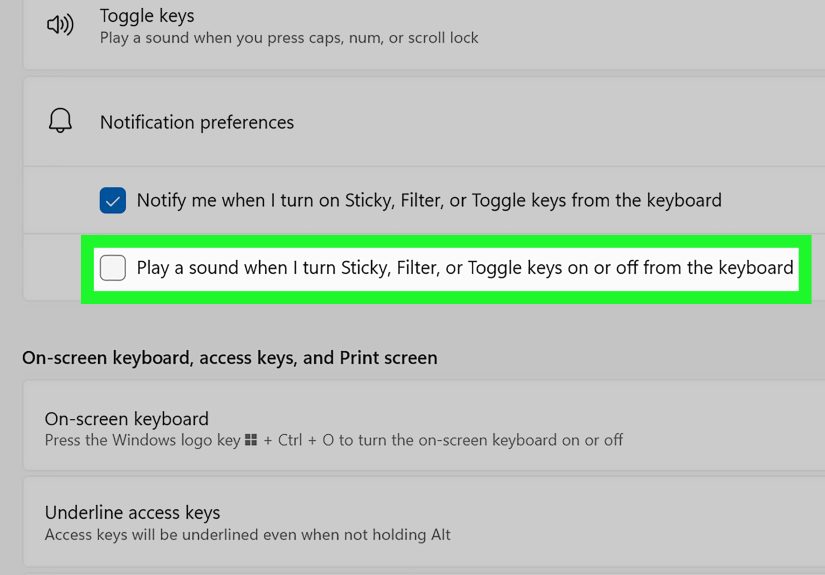
On some systems, you can also uncheck “Play a sound when I turn Sticky, Toggle, or Filter keys on or off” in the Notification preferences for the keyboard.
If you’re using a manufacturer-specific tool (like some Lenovo utilities), you may also find a checkbox for “Play a sound” under the keyboard accessibility or notification settings.
Quick Troubleshooting If Typing Sounds Won’t Go Away
Still hearing clicks or beeps after changing settings? Try these checks:
-
Check for multiple keyboards.
On Android, if you switch between Gboard, Samsung Keyboard, and SwiftKey, each one has its own sound settings.
Make sure you disable sound in the keyboard you’re currently using. -
Restart your device.
A quick reboot makes sure your new settings actually take effect and clears any temporary glitches. -
Mute or lower system volume.
If you only need silence temporarily (like in a meeting), muting the device’s volume or using a Focus/Do Not Disturb mode can quickly suppress sounds without hunting through menus. -
Check app-specific settings.
Some apps (especially games or custom dialer apps) have their own sound effects that ignore system keyboard sound settings. Look for an in-app Settings > Sound menu. -
Update your OS and keyboard apps.
Occasionally, strange keyboard behavior (including sounds or lack of sounds) is due to bugs in iOS, Android, or Windows updates. Install the latest updates and see if that resolves it.
Real-Life Experiences: What It’s Like to Type in Silence
Turning off typing sounds sounds like a tiny tweak (pun fully intended), but in real life it can change how
you use your devices more than you’d expect. Here are a few everyday scenarios that show why people end up searching for
“how to turn off typing sounds on Android, iPhone, and Windows” in the first place and what happens once they flip that switch.
The 2 a.m. “Why Is My Phone So Loud?” Moment
Picture this: it’s 2 a.m., you can’t sleep, and you’re quietly replying to texts or scrolling social media in bed.
The room is silent, the lights are off, and suddenly your keyboard starts firing off sharp little clicks that sound
about ten times louder than they did during the day. If you live with a partner, roommate, or light-sleeping baby,
that keyboard click can feel like a fire alarm.
Many people only discover keyboard sound settings after one of these “oh no, that was loud” moments.
Once they turn off typing sounds, night use becomes dramatically more relaxed. There’s no tension around “Will I wake someone up?”
and no weird acrobatics like typing with a pillow over the phone to muffle the noise.
Quiet Offices, Coffee Shops, and Classrooms
If you’ve ever been in a quiet lecture hall or a library and heard someone’s phone click loudly with every typed character,
you already know why silent typing is a social courtesy. In open-plan offices, the same logic applies especially in hybrid
meetings where several people are on video calls.
Turning off typing sounds on Windows laptops and tablets can make a big difference during calls.
That extra “click” with every touch keyboard press might not seem like much, but microphones often pick it up more clearly than you’d think,
sending the sound directly into everyone’s earbuds. Muting keyboard sounds helps your coworkers focus on what you’re saying,
not what you’re typing.
Reducing Sensory Overload
For some people, the constant clicking or beeping is more than just mildly annoying it can be genuinely overstimulating.
If you’re already dealing with lots of notifications, background noise, or multiple screens, your brain doesn’t need another repetitive sound cue.
Turning off keyboard feedback (sound and sometimes haptics) gives you a calmer, more minimal experience.
You still see what you’re typing on screen, but you’re not constantly reminded of each keystroke with sound effects.
That can make long texting sessions, note-taking, or coding feel less exhausting.
Typing Accuracy Without the Noise
Some people worry that if they disable keyboard clicks, they’ll make more typos. In reality, your brain relies more on what you see
and feel than on those tiny sound effects. On phones, visual feedback (like highlighted keys, cursor movement, and autocorrect suggestions)
does most of the heavy lifting.
On Android and iPhone, you can also keep haptic feedback turned on while disabling sound.
That way you still get a confirmation “feel” with each tap, but no one around you hears anything.
Many users end up preferring this setup because it keeps the responsive feel of the keyboard without the noise.
Travel, Commuting, and Public Spaces
On a train, bus, or airplane, noisy keyboards can become surprisingly embarrassing, especially when you’re packed in close to strangers.
Turning off typing sounds means you can fire off emails, journal entries, or long chat messages without feeling like you’re
disturbing the entire row.
If you travel frequently, it’s worth getting into the habit of:
- Keeping typing sounds disabled on your phone and tablet by default.
- Checking touch keyboard sound settings on a new Windows device right away, especially if it’s a 2-in-1 or tablet.
- Using a Focus or Do Not Disturb mode to silence surprise noises when you’re in transit or waiting rooms.
Once You Go Silent, You Rarely Go Back
The funny thing about turning off typing sounds is that most people don’t miss them after a day or two.
At first, it might feel a little strange you tap, and nothing “clicks” but your eyes and fingers adapt quickly.
Instead of relying on sound, you naturally watch the screen, notice autocorrect changes, and feel the rhythm of your typing.
And if you ever do miss the old-school typewriter vibe, the settings are always waiting for you.
You can experiment with low-volume keypress sounds, enable only haptic feedback, or try different keyboards that offer more subtle sound profiles.
The key is that you’re in control your phone or laptop doesn’t get to decide how noisy your typing should be.
In short: once you learn how to turn off typing sounds on Android, iPhone, and Windows, you unlock a quieter,
more considerate, and often more comfortable digital life. Your ears (and everyone around you) will thank you.
Conclusion
Whether you’re trying not to wake a sleeping baby, avoid distracting coworkers, or just prefer a cleaner, quieter experience,
turning off typing sounds is a simple but powerful tweak. On Android, you can silence taps from system sound menus or inside keyboard apps like Gboard.
On iPhone, a quick trip into Settings > Sounds & Haptics > Keyboard Feedback stops keyboard clicks in seconds.
On Windows, adjusting touch keyboard, on-screen keyboard, and accessibility options removes extra beeps and clicks.
Take a minute to tailor these sound settings on every device you use. After that, you’ll be able to text, type, and multitask in blissful, click-free silence
no eye rolls from the next desk over and no late-night “sorry I woke you” messages required.