Table of Contents >> Show >> Hide
- Quick Reality Check: What “Update Requested” Actually Means
- Before You Fix Anything: 60-Second Checklist
- Fix #1: Wait a Bit, Then Check Apple’s System Status (Yes, Really)
- Fix #2: Restart (or Force Restart) to Unstick the Update Queue
- Fix #3: Delete the Update File, Free Up Space, and Try Again
- Fix #4: Update Using a Computer (Finder on Mac, iTunes/Devices App on Windows)
- How to Prevent “Update Requested” From Coming Back Next Time
- Conclusion: Your iPhone Isn’t Judging YouIt’s Just Stalling
- Real-World Experiences: What This Problem Feels Like (and How People Get Past It)
You finally tap Download and Install, feel that tiny burst of “I am a responsible adult who updates software,”
and thenbamyour iPhone just sits there on “Update Requested” like it’s waiting for permission from a committee.
Annoying? Absolutely. Usually fixable? Also yes.
“Update Requested” is basically iOS saying: “Cool, I heard you. I’m lining things up.” It can get stuck there when your phone is
waiting on Apple’s servers, trying to verify the update, battling a shaky Wi-Fi connection, running low on storage, or simply getting
confused (it happens to the best of us… and to phones).
Below are 4 simple fixes that solve the vast majority of casesstarting with the least dramatic and moving up to the
“bring in the laptop” option. No sketchy apps, no mysterious button combos you found in a comment section from 2013, and no sacrificing
your charger to the tech gods.
Quick Reality Check: What “Update Requested” Actually Means
When you start an over-the-air (OTA) update, your iPhone has to do a few things before it can actually download and install:
- Check Apple’s update servers (and sometimes wait if servers are busy).
- Confirm network conditions (Wi-Fi stability matters; some updates won’t download over cellular).
- Verify storage (iOS needs extra breathing room to unpack and stage the update).
- Queue the download (especially when a new release drops and everyone updates at once).
The good news: “Update Requested” usually doesn’t mean your iPhone is broken. It usually means the update process hasn’t successfully
moved from “planning” to “doing.”
Before You Fix Anything: 60-Second Checklist
- Plug in your iPhone (updates prefer power like cats prefer ignoring you).
- Connect to strong Wi-Fi (not “Wi-Fi from the other side of the house through three walls”).
- Make sure you have storage (aim for several gigabytes free, especially for major updates).
- Disable VPN temporarily if you use one (some VPN setups interfere with verification/download).
If everything looks good and you’ve waited a few minutes, jump into the fixes below.
Fix #1: Wait a Bit, Then Check Apple’s System Status (Yes, Really)
This is the least exciting fix, but it’s also the most common culpritespecially on release day or during peak hours.
If Apple’s update services are having a moment, your phone can sit on “Update Requested” until the service catches up.
What to do
- Give it 10–20 minutes (especially if it’s a big update).
- Check Apple System Status and look for anything related to iOS Software Update, Apple ID, iCloud, or related services.
If something is down or degraded, the best fix is often… patience. - If Apple services are normal, continue to Fix #2.
Why this works
If your iPhone can’t reach or verify with Apple’s servers, it may not proceed past the request stage. Waiting (or trying later)
avoids wasting your time fighting a problem you can’t control.
Fix #2: Restart (or Force Restart) to Unstick the Update Queue
If “Update Requested” is just sitting there like it pays rent, a restart often kicks the update process back into motion.
Think of it as telling your iPhone: “Close the tab. Reopen the tab. We’re adults.”
Option A: Normal restart (easy mode)
- Hold the Side button and a Volume button until the power slider appears.
- Slide to power off, wait about 30 seconds, then turn it back on.
- Go to Settings → General → Software Update and try again.
Option B: Force restart (when the update screen won’t cooperate)
The button sequence depends on your iPhone model, but for many newer iPhones it looks like this:
- Press and quickly release Volume Up.
- Press and quickly release Volume Down.
- Press and hold the Side button until you see the Apple logo.
After the phone boots, try the update again.
Why this works
Updates can get stuck in a “queued but not moving” state due to a temporary software hiccup, background networking confusion,
or a half-finished verification step. Restarting refreshes network connections and system processes without deleting your data.
Fix #3: Delete the Update File, Free Up Space, and Try Again
If your iPhone downloaded part (or all) of the update and got stuck, deleting that update file and re-downloading it often solves the problem.
This is especially effective when the download is corrupted, your storage is tight, or the update got “almost ready” and then decided not to be.
Step 1: Delete the downloaded update
- Open Settings.
- Tap General.
- Tap iPhone Storage.
- Scroll to find the iOS update file (it may be labeled with the iOS version).
- Tap it, then choose Delete Update.
Step 2: Make some storage space (if needed)
Even if you technically have “enough,” iOS updates often need extra room to unpack and stage files. If you’re low on storage,
clearing space can be the difference between “Update Requested” forever and “Downloading…” like it’s supposed to.
- Delete or offload unused apps you don’t need right now.
- Remove large videos (especially 4K ones you filmed “for memories” but never watch).
- Clear message attachments in big group chats (yes, the 47 memes count).
Step 3: Reset the connection (optional, but effective)
If your Wi-Fi is flaky or your phone is struggling to talk to Apple’s servers, try one of these:
- Toggle Airplane Mode on for 10–15 seconds, then off.
- Switch to a different Wi-Fi network (even a hotspot test can be useful).
- Reset Network Settings (last resort for this step): Settings → General → Transfer or Reset iPhone → Reset → Reset Network Settings.
You’ll need to re-enter Wi-Fi passwords afterward.
Step 4: Re-download the update
- Go back to Settings → General → Software Update.
- Tap Download and Install again.
- Stay on strong Wi-Fi and keep your phone plugged in.
Why this works
Deleting the update removes any corrupted or half-staged files. Freeing storage gives iOS room to unpack the update cleanly.
And resetting the network connection removes “invisible” connectivity problems that can block the download/verification step.
Fix #4: Update Using a Computer (Finder on Mac, iTunes/Devices App on Windows)
If the OTA update keeps stalling on “Update Requested,” updating through a computer is often the cleanest workaround.
It bypasses some of the device-side download weirdness and can be more reliable on stubborn updates.
What you’ll need
- A Mac or Windows PC
- A reliable cable (this is not the time for the “sometimes it charges” one)
- Enough time to let the download complete
Steps (general approach)
- Back up your iPhone (optional, but smart).
- Connect your iPhone to your computer with a cable.
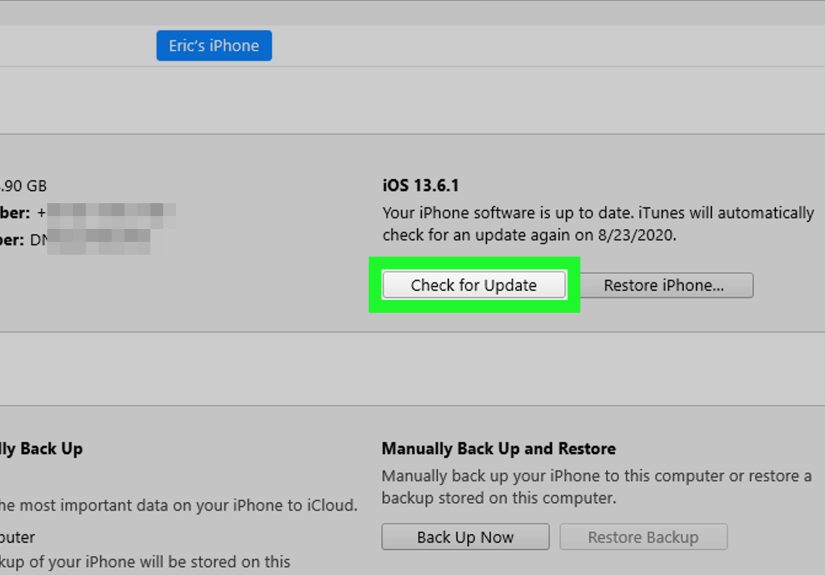
- On a Mac, open Finder. On Windows, open iTunes or the current Apple device management app (depending on your setup).
- Select your iPhone.
- Click Check for Update, then choose Download and Update.
- Keep the iPhone connected until the update finishes.
If the iPhone won’t update normally: Recovery Mode (still doable, but read carefully)
If your iPhone is really stuck (Apple logo loops, update fails repeatedly, computer can’t complete the update), Apple’s standard next step is
to use Recovery Mode and choose Update first (not Restore) so you can try reinstalling iOS without erasing data.
Recovery Mode isn’t the first choice for “Update Requested,” but it’s a solid Plan B when nothing else works.
If you see prompts offering Update vs Restore, try Update first.
Why this works
A computer-based update can handle a full, clean iOS package download and installation path that avoids some OTA bottlenecks.
It’s also the route Apple recommends when your device can’t update wirelessly.
How to Prevent “Update Requested” From Coming Back Next Time
You shouldn’t have to live in fear of a two-word status message, but a few habits make updates smoother:
- Update overnight while charging and on Wi-Fi (less server load, less interruption).
- Keep storage from hitting zero (updates love breathing room).
- Use stable Wi-Fi (if your router is ancient, consider rebooting it before major updates).
- Skip day-one chaos unless you really need the update immediately.
- Back up first before major updatesespecially if you rely on your phone for work or school.
Conclusion: Your iPhone Isn’t Judging YouIt’s Just Stalling
“Update Requested” is frustrating because it feels like nothing is happening. But usually something is happeningit’s just stuck
at the “trying to get started” stage. In most cases, one of these four fixes will get you moving again:
- Wait a bit and check Apple’s service status.
- Restart (or force restart) to clear the update queue.
- Delete the update, free space, and re-download.
- Update with a computer when OTA won’t cooperate.
If you try them in order, you’ll usually solve the issue without drama, data loss, or a late-night “why is my phone doing this” spiral.
And if you do end up needing a computer update, congratulationsyou’ve officially unlocked the “I fix my own tech problems” achievement.
Real-World Experiences: What This Problem Feels Like (and How People Get Past It)
If you’ve ever watched your iPhone sit on “Update Requested” long enough to reconsider every decision you’ve ever made, you’re not alone.
This particular hiccup has a way of showing up at the most inconvenient timeslike when you’re heading to bed, about to leave the house,
or trying to fix something quickly before work. And the weird part? The phone looks calm. No alarms. No warning sirens. Just two words
that quietly say, “Not yet.”
One of the most common stories goes like this: you tap the update button right after Apple releases a big new iOS version. The download
should start… but it doesn’t. You try again. Still “Update Requested.” You switch apps, come back, and the message is still therelike a
sitcom character who refuses to exit the scene. In reality, this is often a server traffic problem. Millions of people are doing the same
thing at the same time, and your iPhone is basically standing in a crowded line holding a ticket number. The fix that feels too simple
to be truewaitingoften ends up being the fix. People report that trying again later in the evening or the next morning suddenly works,
with no other changes. The update didn’t hate them; it was just busy.
Another classic experience: the “I swear I have enough storage” moment. Your iPhone might show a few gigabytes free, and you’re thinking,
“That’s plenty. I’m not trying to download a feature-length movie in IMAX.” But iOS updates don’t just download; they unpack, verify,
and stage files. When storage is tight, the update can stall at the “requested” phase or fail silently and re-queue itself like it’s
hoping you’ll eventually make room. People usually crack this one by deleting the partial update file, offloading a couple of apps,
and clearing a chunk of photos or videos. The funniest part is how often the solution is something like: deleting three 9-minute
slow-motion clips of a dog sneezing.
Wi-Fi is the sneaky villain in a lot of these stories. Not because Wi-Fi is “down,” but because it’s technically connected while
being practically useless. Maybe the router is older. Maybe the signal is weak in that one corner of the house where you always sit.
Maybe the network requires a login portal (hotels, dorms, some workplaces), which can confuse background downloads. In these cases, you’ll
see “Update Requested” because the phone can’t smoothly complete the behind-the-scenes handshake it needs. People often fix this by
switching Wi-Fi networks, rebooting the router, or toggling Airplane Mode to force a clean reconnection. It’s not glamorous, but it’s
effectiveand it’s a lot cheaper than buying a new phone out of frustration.
Then there’s the “surprise settings” scenario. Some folks use VPNs for privacy or work, and they forget the VPN is always on.
Others have security apps or network filters installed. Occasionally, those tools interfere with connecting to Apple’s update services.
The result is an update that never gets past “requested.” The fix is often as straightforward as turning off the VPN temporarily,
retrying the update, and turning it back on afterward. People describe this as the tech equivalent of realizing your car won’t start
because it’s still in park. Embarrassing? A little. But also a huge relief.
Finally, there’s the “computer saves the day” storyline. This is the one where someone has tried everythingrestart, delete the update,
different Wi-Fiand the phone still refuses. The moment they plug the iPhone into a Mac or PC and run an update through Finder or iTunes,
it works. It feels almost unfair. Like the iPhone was waiting to see a laptop before taking the situation seriously. But computer-based
updates can be more stable, especially when OTA updates get stuck in a weird state. People who go this route often say two things:
(1) it was easier than they expected, and (2) they wish they’d done it sooner instead of repeatedly tapping the same button like it
owed them a different result.
The big takeaway from all these real-world patterns is that “Update Requested” is usually not a disaster. It’s a bottleneck. And bottlenecks
respond well to calm, boring troubleshooting: wait, restart, refresh the download, stabilize the network, or use a computer. In other words,
you don’t need magicyou just need a plan.