Table of Contents >> Show >> Hide
- Before We Start: What “Free Music” Really Means
- Way 1: Use Free, Ad-Supported Streaming Apps (Fastest Option)
- Way 2: Get Free Music Through Your Public Library (Most Underrated Hack)
- Way 3: Download Free Music Legally (Artists, Archives, and “Name Your Price” Finds)
- Way 4: Transfer Your Own Music to Android (USB, Cloud, or Upload-to-Stream)
- Quick Comparison: Which Method Should You Use?
- of Real-World “Experience” Scenarios (So You Can Pick What Actually Works)
- Conclusion
Your Android phone is basically a tiny supercomputer that can stream, store, and shuffle a universe of music…
and yet somehow it still ends up playing the same three songs on repeat. Let’s fix thatwithout paying a monthly
fee (or committing any “definitely-not-legal” shenanigans).
Below are four legit, practical ways to add free music to Android, whether you want to
stream endlessly, download tracks for offline listening, or build a personal library of MP3s you actually own.
I’ll also call out the common “gotchas” (ads, shuffle limits, storage space, and the mysterious case of the missing
Music folder).
Before We Start: What “Free Music” Really Means
“Free” typically falls into three buckets:
- Ad-supported streaming (free to use, paid with your patience)
- Library-sponsored access (free with a library cardyour taxes already did the heavy lifting)
- Legal downloads (artists/archives offering free tracks or “name your price” options)
If a site promises “every new album, totally free, no ads, no account,” that’s not a dealit’s a trap with a
side of malware. The methods below focus on real, legal ways to get music on your Android phone.
Way 1: Use Free, Ad-Supported Streaming Apps (Fastest Option)
If your goal is “I want music right now,” streaming is the quickest win. Most major services offer a free tier
supported by ads, and Android makes it easy to bounce between apps until you find your vibe.
How it works
- Install a streaming app from the Google Play Store.
- Create an account (or sign in).
- Choose the free plan if prompted.
- Start listeningusually with some limitations (ads, skips, shuffle, and offline restrictions).
Good free streaming picks for Android
- Spotify (Free): Huge catalog, solid discovery, and easy playlist sharing. Expect ads, limited skips,
and typically no offline music downloads on the free plan. - YouTube Music (Free): Great for music videos, live versions, and deep cuts. Free listening usually
comes with ads and feature limits. - Pandora (Free): More “radio-style” discoverygreat if you want a station based on an artist or mood.
- iHeartRadio (Free): A mix of radio stations and playlistshandy if you want “press play and go”
without building your own library.
Example: Build a “free music” routine that doesn’t drive you nuts
Here’s a realistic workflow that keeps the free tier enjoyable:
- Commute: Use Pandora or iHeartRadio for hands-off listening (ads are less annoying when you’re driving).
- Work/Study: Use Spotify Free playlists (lo-fi, focus, instrumental) where shuffle isn’t a dealbreaker.
- Gym: Use YouTube Music for high-energy mixes and live sets.
Important limitations to plan around
Free streaming is awesomeuntil you’re on a plane, in a dead zone, or trying to save data. Many free tiers don’t
include offline music downloads, and some limit skips or force shuffle in certain contexts. That’s why the next
three methods matter: they help you add music to Android in ways that still work when Wi-Fi disappears.
Way 2: Get Free Music Through Your Public Library (Most Underrated Hack)
If you have a library card, you may already have access to music streaming and even downloadsno subscription required.
Library-supported services are one of the best “free music on Android” options because they’re designed to be legal,
safe, and user-friendly.
Two common library options: Freegal and hoopla
- Freegal Music: Often provides streaming plus a certain number of music downloads (depends on your library).
- hoopla: Offers music (and also audiobooks, movies, etc.) through participating libraries; many titles can be
downloaded in-app for offline use.
Step-by-step: Add free library music to Android
- Check participation: Search your library’s website for “Freegal” or “hoopla,” or ask at the desk.
- Install the app: Download the Freegal Music app or the hoopla app from Google Play.
- Sign in: Select your library and log in with your library card credentials.
- Find music: Browse by genre, artist, mood playlists, or search for a specific album.
- Stream or download: Use streaming when you’re on Wi-Fi, and download in-app when you want offline listening.
Why the library method is a big deal
Besides being legal and free, libraries reduce the “app roulette” problem. Instead of juggling four streaming apps
with four different free-tier restrictions, you can use one library app as your reliable offline backup.
Pro tip: Some libraries limit monthly borrows or downloads. If you hit a cap, treat it like a “music budget”:
grab albums you’ll replay a lot (work playlists, road trip staples, kids’ favorites) and stream everything else.
Way 3: Download Free Music Legally (Artists, Archives, and “Name Your Price” Finds)
If you want actual music files on your AndroidMP3s you can keep, organize, and play offlinelegal downloads are the move.
The secret is choosing sources that clearly allow downloads.
Best places to find legal free downloads
- Bandcamp: Many artists offer “name your price,” which sometimes includes entering $0 for a free download.
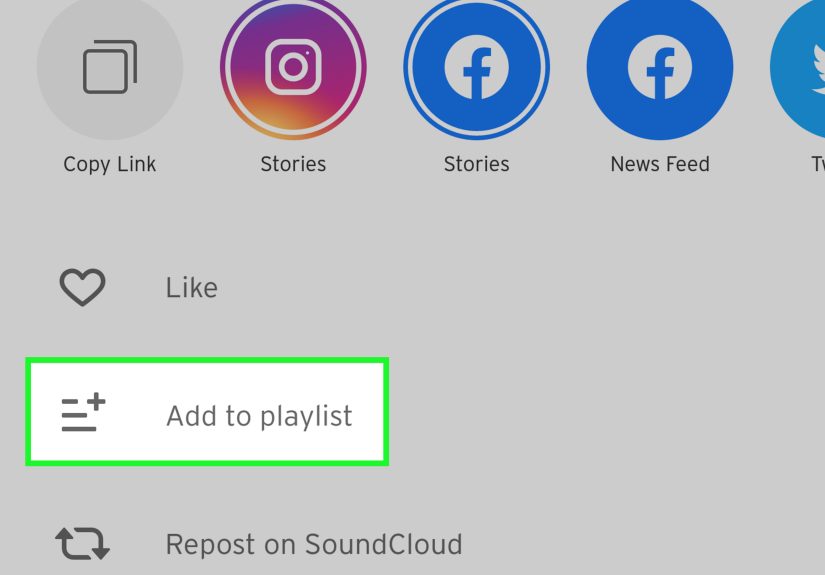
(Artists may also offer free tracks as promos.) - SoundCloud: Some tracks include an official download button when creators enable downloads.
- Internet Archive: A massive archive with collections that include downloadable audio (often live recordings,
public domain, or permissive sharing contexts). - Free Music Archive: A library of music promoted as free to play and download (often with licensing notes).
Step-by-step: Download and save music to Android (without chaos)
- Download the file (MP3 or ZIP) using your browser or the platform’s app when supported.
- If it’s a ZIP: Extract it using your phone’s file manager (many Android file managers can unzip files).
- Move the audio files into a clear folder path like Internal storage/Music/Downloads or
Internal storage/Music/Bandcamp. - Play it with a reliable local player app (see below).
Choose a local music player (so your files actually play)
Android can play MP3s in lots of ways, but for a no-fuss experience, use a player that handles common audio formats and
reads local folders well. A popular option is VLC for Android, which plays most local audio files and formats.
Example: A “free downloads” mini-playlist in 10 minutes
- Find a “name your price” release on Bandcamp and download it.
- Grab one downloadable track on SoundCloud (look for the official download option).
- Add one album from a curated archive collection.
- Save them all into one folder: Music/Free Finds.
- Open VLC, scan your library, and hit shufflethis time it’s your shuffle.
Safety and sanity tips (because your phone deserves peace)
- Look for clear download permission. If it’s not offered by the artist/platform, skip it.
- Mind storage space. High-quality formats can be big. MP3 is often the most storage-friendly choice.
- Name folders consistently. Your future self will thank you when you’re hunting for that one song you swear exists.
Way 4: Transfer Your Own Music to Android (USB, Cloud, or Upload-to-Stream)
This is the best method if you already have music filesripped CDs, purchased MP3s, audio you recorded yourself, or a
carefully curated collection living on your computer. You’re not “finding free music” here, but you are adding
music to Android without paying a streaming subscription.
Option A: Transfer music via USB cable (classic drag-and-drop)
- Connect your Android phone to your computer with a USB cable.
- On your phone, tap the USB notification and choose File transfer (sometimes labeled MTP).
- On your computer, open your phone’s storage and find (or create) the Music folder.
- Drag your MP3s (or other supported audio files) into the Music folder.
- Disconnect safely, then open your music player and refresh/scan your library.
Option B: Transfer music using cloud storage (easy if you hate cables)
If you live in the “my USB cables vanish like socks” reality, use cloud storage:
- Upload music files to a cloud service on your computer.
- Open the same cloud app on Android.
- Download files to your device for offline playback (if supported by that app).
- Move files into your Music folder if you want them visible in your local player.
Option C: Upload your personal library to YouTube Music (stream your own songs)
Want your personal collection accessible from your phone without manually transferring files? YouTube Music supports
uploading your own music from a computer (supported formats commonly include MP3 and other standard audio types).
After uploading, you can listen to your uploaded tracks in the YouTube Music app.
- On a computer, open YouTube Music in a browser.
- Use the upload feature to add your music files.
- On Android, open YouTube Music and look for your uploads in your library.
Troubleshooting: When your music “disappears”
If you transferred files but they don’t show up:
- Give it a minute: Android may need time to index media files.
- Check permissions: Your player app may need storage/media permission to scan files.
- Avoid hidden folders: Some folders can be ignored if a hidden-media setting or a “.nomedia” file is present.
- Try a different player: VLC is a good test because it’s built for local files and broad format support.
Quick Comparison: Which Method Should You Use?
- Want music instantly? Use free streaming (Way 1).
- Want free + offline options legally? Use your library (Way 2).
- Want MP3s you keep and organize? Use legal downloads (Way 3).
- Already have a collection? Use USB/cloud transfer or upload-to-stream (Way 4).
of Real-World “Experience” Scenarios (So You Can Pick What Actually Works)
A funny thing happens when people search for “how to add free music to Android”: they’re usually not looking for
more optionsthey’re looking for fewer headaches. In the real world, the “best” method depends on
where you listen and what you expect your phone to do when the internet goes on vacation.
Take the commuter scenario. Many Android users start with a free streaming app because it’s immediate gratification:
install, tap play, done. The first week feels magical. The second week, you realize your “favorite playlist” becomes
“favorite playlist… in a shuffled order you did not choose,” and that one ad for the same product follows you like a
persistent raccoon. For commuting, radio-style apps can actually feel smoother because you’re not trying to micromanage
every trackyou just want momentum. You trade control for convenience, and on a crowded bus, that can be a good deal.
Now consider the “I travel a lot” scenario. The free streaming plan is great until you hit spotty service, a long flight,
or a hotel Wi-Fi network powered entirely by vibes. This is where library apps shine. People who try hoopla or Freegal for
the first time often have the same reaction: “Wait… I can download this legally?” Yes. The catch is that your library’s
participation and limits can vary, but as a backup plan, it’s strong. A common approach is to stream freely most days,
and use library downloads as the offline safety netlike packing an umbrella even when the forecast says “sun.”
Then there’s the “I miss owning my music” crowd. If you’ve ever spent 12 minutes hunting for a song that used to be on
a streaming service and is suddenly gone, you understand the appeal of local MP3s. People often rediscover Bandcamp
because it feels like a direct line to artists, and the “name your price” option can be a budget-friendly way to build
a collection. The biggest learning curve here isn’t downloadingit’s organization. Once you start saving files,
you’ll quickly appreciate consistent folders (Artist/Album), clean filenames, and a player that doesn’t panic when it
sees a FLAC file. A solid local player turns your Android into a true music library again.
Finally, the “I already have a music hoard on my laptop” scenario is surprisingly common. People have old MP3 collections,
DJ mixes, recorded rehearsals, language-learning audiostuff that doesn’t belong in a standard streaming catalog.
USB transfer feels old-school, but it’s fast, reliable, and doesn’t care about internet speed. And uploading your personal
library to a service like YouTube Music can be a practical middle ground: you keep your collection, but you don’t have to
physically move files every time you switch phones. In practice, most Android users end up mixing two methodsone for
everyday streaming, one for offline reliabilitybecause real life is messy and Wi-Fi is not your soulmate.
Conclusion
Adding free music to Android doesn’t have to mean sketchy downloads or endless app frustration. Start with free streaming
for instant listening, use your public library for surprisingly powerful (and legal) downloads, grab free tracks from
artist-friendly platforms when you want MP3s you can keep, and transfer or upload your own collection when you want total
control. Mix and match until your phone finally becomes what it was meant to be: a music machine that works wherever you do.