Table of Contents >> Show >> Hide
- Before You Start: A Quick Internet Explorer Reality Check
- Method 1: Click the Star Icon to Add a Page to Favorites
- Method 2: Use the Keyboard Shortcut Ctrl + D
- Method 3: Use the Favorites Menu from the Menu Bar
- Method 4: Add the Page to the Favorites Bar for One-Click Access
- How to Keep Your Internet Explorer Favorites Organized
- Common Problems When Bookmarking in Internet Explorer
- Should You Still Use Internet Explorer?
- Final Thoughts
- Real-World Experiences With Bookmarking Pages in Internet Explorer
If you have found yourself staring at Internet Explorer in the year 2026, first of all: respect. Second of all: yes, you can still bookmark pages in it. Internet Explorer may be the browser equivalent of a flip phone that refuses to die, but plenty of people still run into it on old office computers, legacy business systems, school lab machines, and that one family laptop that somehow survived three operating systems and a coffee spill.
In Internet Explorer, bookmarks are called Favorites. Same idea, slightly fancier name. A Favorite saves a web page so you can get back to it quickly without retyping the address or digging through your browsing history like an archaeologist. If you regularly visit a work portal, a recipe page, a bank dashboard, or that niche forum where people still argue about printer drivers, saving it as a Favorite can save time and sanity.
This guide walks through four easy ways to bookmark a web page on Internet Explorer, plus a few tips for organizing your saved pages so your Favorites list does not become a digital junk drawer. Whether you prefer clicking buttons, using keyboard shortcuts, or living dangerously with old-school menu bars, there is a method here for you.
Before You Start: A Quick Internet Explorer Reality Check
Before jumping into the steps, it helps to know one simple thing: Internet Explorer uses the word Favorites instead of Bookmarks. So if you are hunting for a “Bookmark” button and finding nothing, you are not lost. You are just dealing with classic Microsoft naming.
Also, depending on the version of Internet Explorer and your computer setup, you may not see every toolbar or menu at first. That is normal. IE loved hiding useful controls like it was playing hard to get. In some cases, you may need to press the Alt key to show the Menu Bar, or right-click near the top of the browser window to enable the Favorites Bar.
Now let’s get to the good part: actually saving the page.
Method 1: Click the Star Icon to Add a Page to Favorites
This is the most common and beginner-friendly way to bookmark a page in Internet Explorer. If you like obvious buttons and minimal drama, start here.
How to do it
- Open Internet Explorer and go to the web page you want to save.
- Look for the star icon near the top-right area of the browser window.
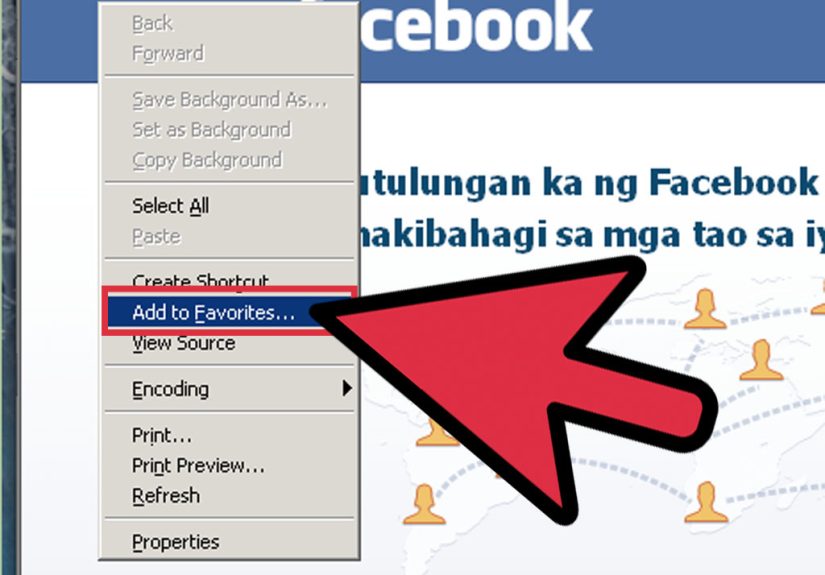
- Click the star, then choose Add to Favorites.
- A small dialog box will appear.
- Edit the page name if you want.
- Choose where to save it, such as the main Favorites folder or a subfolder.
- Click Add.
That is it. Your page is now safely tucked into your Favorites list, waiting for your triumphant return.
Why this method works well
The star icon method is simple because it gives you a quick visual path. It also lets you rename the page before saving it. That matters more than people think. If you save every page with whatever random title the site uses, your Favorites list can turn into a mess of vague labels like “Home,” “Dashboard,” or “Welcome.” Very helpful. Much clarity.
A better move is to rename the page into something recognizable, such as Company Payroll Portal, Weekly Recipe Ideas, or Electric Bill Login.
Method 2: Use the Keyboard Shortcut Ctrl + D
If you love keyboard shortcuts, Internet Explorer has a fast one for adding Favorites. Pressing Ctrl + D saves the current page without forcing you to click around the browser like you are solving a puzzle.
How to do it
- Open the web page you want to bookmark.
- Press Ctrl + D on your keyboard.
- The Add a Favorite window will appear.
- Rename the page if needed.
- Select the folder where you want to save it.
- Click Add.
Why this method is great
This is the fastest way to bookmark a page if you are working through lots of sites in a row. For example, if you are doing research, building a reading list, or collecting reference pages for work, using Ctrl + D can feel much quicker than mousing back and forth to the toolbar every single time.
It is also handy when the browser window is cluttered or resized and the toolbar buttons are harder to spot. Keyboard shortcuts cut through the chaos. They are the quiet overachievers of the browser world.
Best use case
Use Ctrl + D when you want speed and you already know where the page should go. Power users, repetitive task warriors, and anyone trying to avoid extra clicks will probably like this option best.
Method 3: Use the Favorites Menu from the Menu Bar
If you prefer classic browser menus, Internet Explorer still lets you add a page through the Favorites menu. This feels a bit old-school, but that is kind of the point with Internet Explorer anyway.
How to do it
- Go to the page you want to save.
- If the Menu Bar is hidden, press Alt to make it appear.
- Click Favorites on the Menu Bar.
- Select Add to Favorites.
- Rename the page if you want.
- Choose a folder.
- Click Add.
Why some people still prefer this
This method is useful when you are working on a machine where the toolbar icons are hidden, small, or inconsistent. It is also familiar to people who learned the internet when menus ruled the earth and every program had a proper File, Edit, and View row at the top.
If you are helping a parent, grandparent, coworker, or anyone who likes visible text labels more than symbols, the Menu Bar method may actually be the easiest to explain. “Click Favorites, then Add to Favorites” is wonderfully literal. No star-hunting required.
Method 4: Add the Page to the Favorites Bar for One-Click Access
Sometimes you do not just want to bookmark a page. You want it parked front and center where you can open it with one click, like a VIP parking spot for the websites you use all the time. That is where the Favorites Bar comes in.
Option A: Add directly through the Add to Favorites menu
- Open the page you want to save.
- Click the star icon or use the Favorites menu.
- Choose Add to Favorites.
- In the save location box, choose Favorites Bar if it appears.
- Click Add.
Option B: Drag the page icon to the bar
- Make sure the Favorites Bar is visible.
- Go to the page you want to save.
- Grab the page icon near the address bar.
- Drag it to the Favorites Bar.
- Drop it where you want it to appear.
If you do not see the Favorites Bar
Right-click near the top of the Internet Explorer window and enable Favorites Bar. On some systems, pressing Alt first can also help reveal menu and toolbar controls.
Why this method is useful
This is the best option for sites you open constantly, such as email, your company intranet, online banking, news sites, or web apps you use every day. Instead of opening the Favorites list and digging through folders, the site sits visibly on the bar for instant access.
Think of it as turning your favorite website into a shortcut button. It is not subtle, but it is efficient.
How to Keep Your Internet Explorer Favorites Organized
Saving a page is easy. Finding it later is where people get humbled.
If you bookmark everything into one giant pile, your Favorites list becomes a digital attic: full of potentially useful things, but impossible to navigate without a flashlight and emotional support. A little organization goes a long way.
Create folders by category
Try using folders such as:
- Work
- Shopping
- Banking
- News
- Recipes
- Research
Rename vague titles
If a page title is generic, rename it before saving. “Login” is not nearly as helpful as “Health Insurance Login” or “School Parent Portal.”
Use the Favorites Bar sparingly
Keep only your most-used sites on the Favorites Bar. If you add thirty links to it, you have created a problem disguised as a solution.
Clean up old links once in a while
Sites change, accounts close, and sometimes you save pages you never visit again. Deleting outdated Favorites every so often keeps the list useful.
Common Problems When Bookmarking in Internet Explorer
You cannot see the Menu Bar
Press Alt. In many versions of Internet Explorer, that temporarily shows the Menu Bar. You can also right-click near the top of the browser and turn on the Menu Bar permanently.
You cannot see the Favorites Bar
Right-click in the toolbar area and enable Favorites Bar. If you are on an older or locked-down machine, some settings may be controlled by an administrator.
The page saves, but you cannot find it later
This usually means it went into a folder you did not notice. Open the Favorites list and look through the folders, especially the main Favorites folder and the Favorites Bar folder.
The browser feels outdated or limited
That is because it is. Internet Explorer was built for a different era of the web. If you are only using it because a legacy site requires it, bookmark what you need and consider using a newer browser for everything else.
Should You Still Use Internet Explorer?
For everyday browsing, no. For certain old internal business tools or compatibility-heavy websites, you may still encounter it or use a modern browser’s compatibility mode to mimic it. Either way, the bookmarking habits are still worth understanding because many organizations kept IE-based workflows alive long after the browser stopped being cool. Or safe. Or invited to the party.
If you are dealing with Internet Explorer for work, the smartest approach is simple: save the pages you need, name them clearly, keep them organized, and do not pretend you will remember every obscure internal URL later. Future you deserves better.
Final Thoughts
If you need to bookmark a web page on Internet Explorer, the process is still straightforward once you know where to look. You can use the star icon, the Ctrl + D shortcut, the Favorites menu, or the Favorites Bar for fast access. All four methods work well; the best one simply depends on whether you prefer buttons, menus, shortcuts, or visible one-click links.
The real trick is not just adding a page. It is saving it in a way that makes sense later. Rename the Favorite, choose the right folder, and keep the list tidy. That way, Internet Explorer may still be old, but at least it will not be chaotic.
Real-World Experiences With Bookmarking Pages in Internet Explorer
There is a very specific kind of nostalgia that comes with bookmarking a page in Internet Explorer. It is the same flavor of nostalgia as hearing a dial-up tone, seeing a beige desktop tower, or remembering when a family computer sat in the living room like a piece of shared furniture. Back then, saving a Favorite felt surprisingly important. You did not assume a site would magically follow you across devices or sync itself through the cloud. If you wanted to find it again, you bookmarked it. End of story.
For office workers, Internet Explorer Favorites often became survival tools. People saved payroll pages, HR portals, vendor dashboards, timesheets, and internal company links that were far too long to type without making a mistake. In plenty of workplaces, the person with the cleanest Favorites Bar was basically the unofficial tech genius. Not because they knew coding, but because they knew where the stuff was.
At home, Favorites were often a little more chaotic and a lot more personal. One computer, multiple users, one browser, dozens of saved pages. News sites for Dad, coupon pages for Mom, games for the kids, and maybe a suspiciously large number of recipe sites nobody ever cooked from. Open the Favorites menu and you got a weird little family portrait told entirely through web links.
Students used Favorites in a practical way too. School portals, library databases, email logins, assignment pages, research sources, and the occasional completely unrelated distraction all ended up in the same list. The smartest move was always organizing them into folders, but let’s be honest: many people just kept stacking links into one gigantic pile and hoping for the best.
One especially memorable thing about Internet Explorer was how often people rediscovered the same feature with genuine delight. Someone would accidentally press Ctrl + D, watch the Add to Favorites window appear, and feel like they had unlocked a secret level. Another person would finally enable the Favorites Bar and act like they had invented modern productivity. The bar for excitement was different then, and honestly, kind of charming.
Even today, when someone has to use Internet Explorer for an old web app or a legacy company system, bookmarking still feels useful in a very grounded way. It is not glamorous. It is not cutting-edge. But it works. And sometimes that is enough. Bookmark the page, name it properly, put it where you can find it, and move on with your day like the efficient internet archaeologist you were born to be.
So yes, Internet Explorer may belong to another era, but the experience of saving a useful page is still familiar. It is a small act of digital self-defense: a way of telling your browser, “I will need this later, and I refuse to go hunting for it again.” That instinct has aged beautifully, even if the browser has not.