Table of Contents >> Show >> Hide
- First: What Incognito/Private Browsing Actually Does (and Doesn’t)
- When Disabling Incognito Makes Sense
- Chrome: Disable Incognito Mode (Windows, macOS, Linux, Managed Devices)
- Firefox: Disable Private Browsing (Enterprise Policies)
- Safari: Disabling Private Browsing (iPhone/iPad and Mac)
- Troubleshooting: “I Disabled It… Why Is It Still There?”
- Quick Decision Guide: What Should You Use?
- Ethics & Transparency (a.k.a. The “Don’t Be Weird” Clause)
- Real-World Experiences: What It’s Like Disabling Incognito in the Wild (Extra Section)
- Conclusion
Incognito. Private Browsing. “InPrivate.” Different brand names, same vibe: “I would like this tab to leave no fingerprints on this device.”
Whether you’re a parent trying to keep a shared family laptop from turning into the Wild West, an IT admin responsible for compliance, or the designated “tech person” who gets voluntold to fix everything, you’ve probably asked: Can I disable Incognito Mode?
Yesmostly through device-level controls (policies, management profiles, Screen Time restrictions). And that “mostly” matters: some browsers and platforms make this simple, others treat it like you’re trying to delete gravity.
First: What Incognito/Private Browsing Actually Does (and Doesn’t)
Incognito/Private Browsing is often misunderstood. Turning it off (or leaving it on) should be based on what it truly changes:
What it does
- Doesn’t save browsing history on that device after the private window is closed.
- Usually clears cookies/site data from that session when you close the private window.
- Helps when multiple people share one device and you don’t want accounts cross-contaminating each other.
What it doesn’t do
- It doesn’t make you invisible to websites, your internet provider, your school/work network, or many forms of monitoring.
- It doesn’t stop downloads from existing (your downloaded file still downloads).
- It doesn’t automatically prevent tracking in every formsome tracking methods are not cookie-based.
Bottom line: disabling Incognito is usually about auditability, content safety, or reducing “oops” behavior on shared devicesnot about creating a perfect surveillance machine.
When Disabling Incognito Makes Sense
- Shared family devices: You want consistency in safe browsing rules and fewer “How did that get there?” surprises.
- Schools and classrooms: You need web filtering and logging to function predictably.
- Workplaces: Compliance, incident response, and records retention policies may require browsing activity to be attributable.
- Kiosks and public Macs/PCs: You may want the opposite (ephemeral sessions). In that case, forcing private mode can be a featurejust not today’s mission.
Chrome: Disable Incognito Mode (Windows, macOS, Linux, Managed Devices)
Chrome is the most straightforward because it supports a formal policy called IncognitoModeAvailability. It typically supports these values:
- 0 = Incognito available
- 1 = Incognito disabled
- 2 = Incognito forced (only Incognito allowed)
To disable Incognito, you’re aiming for IncognitoModeAvailability = 1. (If you’re managing an organization, you’ll often deploy this via policy tools rather than manual tweaks.)
Chrome on Windows (Registry / Group Policy approach)
- Close Chrome.
- Open the Registry Editor (
regedit). - Navigate to:
If
GoogleorChromekeys don’t exist, create them. - Create a new DWORD (32-bit) value named:
- Set its value to:
- Reopen Chrome and try: Menu → New Incognito Window. It should be unavailable/disabled.
Pro tip: If you’re supporting a non-technical household, it’s often easier to do this on a dedicated Windows account used by kids/guests, rather than on your own daily-driver admin account.
Chrome on macOS (Managed preferences / configuration profile style)
On Macsespecially in schools or businessesthis is typically done with a configuration profile (MDM) or managed preferences. The concept is the same: set IncognitoModeAvailability to 1 for Chrome.
If you’re in a managed environment, use your MDM solution to deploy a Chrome policy payload/profile. (That’s the cleanest, most supportable method.)
Chrome on Linux (JSON policy)
Linux-managed Chrome commonly uses a JSON policy file. A typical location is:
Create or edit a policy JSON file (example name: policy.json) and include:
Restart Chrome after applying the policy.
ChromeOS / Chrome Browser Cloud Management
If you administer Chromebooks or managed Chrome browsers, apply the Incognito policy through your admin console or cloud management portal, where you can set Incognito availability for users or devices.
How to verify Chrome policies worked
- Open
chrome://policyand confirmIncognitoModeAvailabilityshows the intended value. - If it doesn’t show up, you likely applied it to the wrong scope (user vs device), wrong location, or Chrome needs a full restart.
Firefox: Disable Private Browsing (Enterprise Policies)
Firefox can disable Private Browsing through Enterprise Policies. The clean, supported method is using a policies.json file (or platform policy templates) with the policy:
Step-by-step: policies.json method
- Create a file named policies.json.
- Put this content inside (minimum example):
Where to place policies.json
The location depends on your OS and install method. Common official locations include:
- Windows: create a folder named
distributionin the Firefox install directory (near the Firefox executable), then placepolicies.jsoninside it. - macOS: inside the app bundle at
Firefox.app/Contents/Resources/distribution. - Linux: either in the install directory’s
distributionfolder or system-wide at/etc/firefox/policies(depending on distro and packaging).
Restart Firefox after placing the file.
Verify Firefox policy status
- Type
about:policiesin the address bar. - Check the Active tab to see if
DisablePrivateBrowsingis applied.
What users will see
When the policy is active, Firefox removes or disables entry points to Private Browsing (menu items and shortcuts typically won’t launch a private window).
Note: Firefox also supports policy deployment via templates (common in enterprise Windows environments). If you’re already using centralized management, that’s usually preferable to hand-placing JSON files on many machines.
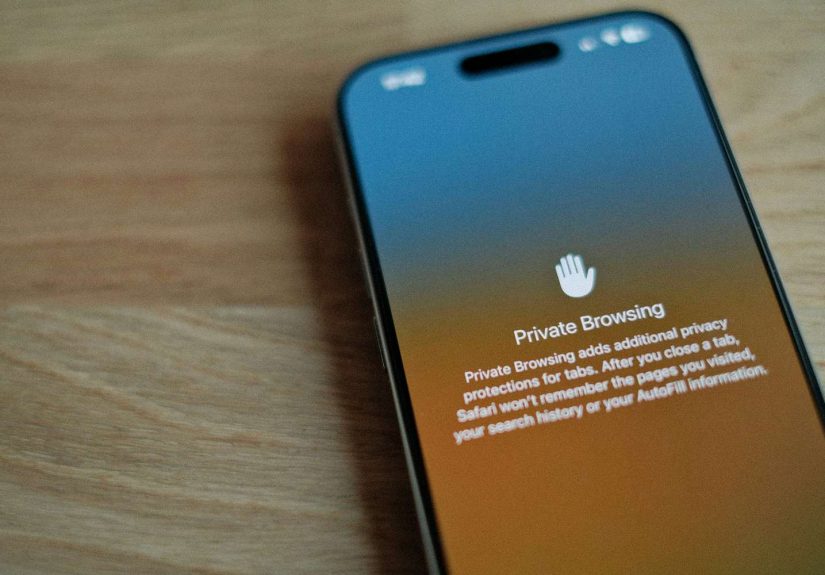
Safari: Disabling Private Browsing (iPhone/iPad and Mac)
Safari is the trickiest because Safari doesn’t offer a simple “Turn off Private Browsing forever” toggle in the same way Chrome does. The most reliable approach is usually via Screen Time content restrictions.
Safari on iPhone & iPad: Use Screen Time to remove Private Browsing
On iOS/iPadOS, a common method is enabling Screen Time restrictions that limit web content. In many cases, setting Web Content to Limit Adult Websites can remove the Private Browsing option from Safari.
- Open Settings → Screen Time.
- Set a Screen Time Passcode (importantwithout it, restrictions can be changed easily, and in some cases may not enforce as expected).
- Go to Content & Privacy Restrictions → turn it On.
- Go to Content Restrictions (or App Store, Media, Web, & Games, depending on iOS version).
- Tap Web Content → choose Limit Adult Websites (or, for strict setups, Allowed Websites Only).
- Open Safari and check the tab switcher. In many setups, Private no longer appears as an option.
If you still see Private Browsing: make sure a Screen Time passcode is set, restart the device, and confirm restrictions are truly enabled (not just configured).
Safari on iPhone & iPad: “Locked Private Browsing” is not the same thing
Apple also offers a feature that can lock Private Browsing behind Face ID/Touch ID/passcode. That helps prevent casual switching into Private tabs, but it doesn’t remove the feature entirely. It’s more like putting Private Browsing behind a bouncer with a clipboard.
Safari on Mac: Use Screen Time Web Content settings
On macOS, Screen Time also includes Web Content settings. Using Limit Adult Websites can reduce the ability to use certain privacy features and can be used as a practical way to curb Private Browsing behavior on managed/shared Macs.
- Open System Settings (or System Preferences) → Screen Time.
- Turn on Screen Time and set a passcode for Screen Time settings.
- Go to Content & Privacy → enable it.
- Find the section for Web Content and select Limit Adult Websites (or configure an allowed-only list for tighter control).
Heads up: The labels and exact navigation can vary slightly by macOS version, but the concept is consistent: enable Screen Time content restrictions, then configure Web Content filtering.
Troubleshooting: “I Disabled It… Why Is It Still There?”
Chrome troubleshooting
- Check policy visibility:
chrome://policyshould showIncognitoModeAvailability. - Wrong registry location: make sure you used
HKLM(all users) if that’s your intent, and that the key path is correct. - Chrome needs a full restart: quit Chrome completely (including background processes) or reboot.
- Managed devices: if a school/work account manages the device, your local changes may be overwritten by enforced policies.
Firefox troubleshooting
- Open
about:policiesand confirm the policy is listed under Active. - Confirm the JSON is valid (missing commas and braces are classic “why does nothing work” moments).
- Ensure the file is placed in the correct
distributiondirectory for your OS/install method.
Safari troubleshooting
- Set a Screen Time passcode: without it, restrictions are easy to change, and some users report enforcement issues if it’s not configured.
- Restart after changes: especially after OS updates.
- Know the goal: “Lock Private Browsing” is different from “remove Private Browsing.”
- OS version differences: menus and behavior can change between iOS/macOS releases; always re-check after updates.
Quick Decision Guide: What Should You Use?
- If you manage Chrome: Use
IncognitoModeAvailability = 1via policy for a clean, supported solution. - If you manage Firefox: Use
policies.jsonwithDisablePrivateBrowsing. - If you manage Safari on Apple devices: Use Screen Time Web Content restrictions and consider Locked Private Browsing as a “speed bump” option.
Ethics & Transparency (a.k.a. The “Don’t Be Weird” Clause)
Disabling private browsing can be reasonable for shared devices, classrooms, and workplacesbut it’s best paired with clarity. If people use a device, they should know what’s monitored or restricted. It avoids surprises and builds trust. Also, it reduces the number of dramatic conversations that start with, “So… why can’t I open this window anymore?”
Real-World Experiences: What It’s Like Disabling Incognito in the Wild (Extra Section)
Here’s the part no one puts in official documentation: disabling Incognito is rarely a purely technical decision. It’s a human decision that comes with human behaviorcreative, chaotic, and sometimes hilariously predictable.
1) The “Shared Laptop” Effect
In many households, a laptop starts as “the family computer,” then quietly becomes “whoever got to it first.” Incognito gets used for everything from surprise gift shopping to avoiding account mix-ups. The moment you disable it, you’ll learn quickly who relied on it for convenience rather than secrecybecause they’ll suddenly start asking things like, “Why am I logged into Uncle Dave’s email again?”
Lesson: if your goal is cleaner browsing on a shared device, pair “disable Incognito” with better account separation (separate user profiles) so you’re not solving one problem by creating three more.
2) The Classroom Chromebook Story
In schools, Incognito can create a weird split reality: the filter works great in normal mode, then suddenly “mysteriously” stops working when Private mode is used (depending on setup). Teachers and admins don’t disable Incognito because they dislike privacy; they do it because they need consistent enforcement and fewer student-led experiments in “what happens if I click this.”
Lesson: Chrome policy is your friend here. When Incognito is disabled via policy, it becomes one less loophole to chase, and you spend more time teaching and less time playing whack-a-tab.
3) The Workplace Compliance Moment
In some organizations, disabling private browsing is less about “watching employees” and more about incident response. When something goes wrongphishing clicks, data leaks, policy violationsteams need consistent logs and repeatable behavior. Private browsing can complicate that story because it reduces local traces, which can slow investigations or create uncertainty.
Lesson: if you disable private browsing for compliance reasons, document it. Make it official, explain why, and you’ll get fewer tickets that basically read: “My browser is broken, please fix.”
4) The iPhone Screen Time Surprise
On iPhones and iPads, many people expect a simple toggle: “Private Browsing: Off.” Instead, Safari often ties the effective removal of Private Browsing to Screen Time restrictions like Limit Adult Websites. That can be surprisingbecause you’re not just disabling private tabs; you’re also turning on content controls. In real life, people discover this when a parent says, “I blocked private browsing,” and a teen replies, “Why can’t I open a totally normal website now?”
Lesson: test the browsing experience after you apply restrictions. If the goal is “no private tabs,” you might need to customize allowed/restricted sites so normal browsing stays normal.
5) The “What Are You Actually Trying to Fix?” Question
Sometimes the most useful experience is realizing that “disable Incognito” is a stand-in for a different goal: reducing explicit content exposure, preventing history deletion, keeping a child in age-appropriate spaces, or ensuring a kiosk resets after each user. The right solution changes depending on that goal. For example, forcing a clean user profile each time (kiosk mode) can be more effective than fighting private tabs. Or separate OS user accounts can solve the “shared device” mess without needing to remove private browsing at all.
Lesson: Before you lock down a feature, name the outcome you want. Then choose the lightest tool that achieves it. Your future self (and everyone else who touches the device) will thank you.
Conclusion
Disabling Incognito/Private Browsing is doableespecially in Chrome and Firefoxwhen you use policies designed for exactly this purpose. Safari is more “Apple-ish”: you’ll typically rely on Screen Time restrictions (and optionally Locked Private Browsing) rather than a direct off switch.
If you take one practical takeaway, let it be this: use supported management controls (policies, profiles, Screen Time passcodes), then verify the setting actually applied. Half of all “it didn’t work” cases are just a policy that never truly took effector got overwritten by a stronger policy somewhere else.