Table of Contents >> Show >> Hide
- Introduction: Yes, You Can Install Some Software Without Admin Rights
- Why Windows Asks for Admin Privileges
- Before You Begin: Stay Legal, Safe, and Not Fired
- Method 1: Use the Microsoft Store
- Method 2: Choose a Per-User Installer
- Method 3: Use Portable Apps
- Method 4: Install With WinGet Using User Scope
- Method 5: Install PowerShell Modules for Current User
- Method 6: Use Python, Node, and Developer Tools in User Mode
- Method 7: Use ZIP Versions Instead of EXE or MSI Installers
- How to Know Whether an App Can Be Installed Without Admin Rights
- What You Should Not Do
- Practical Examples
- Troubleshooting: Why the Install Still Fails
- Security Tips for Installing Software Without Admin Rights
- When You Really Need an Administrator
- 500-Word Experience Section: What It Is Like Installing Software Without Admin Privileges on Windows
- Conclusion
Note: This guide focuses on legitimate, safe, and policy-friendly ways to install or run software on Windows without administrator privileges. It does not cover bypassing UAC, cracking permissions, disabling security controls, or sneaking around school/workplace IT policies. That path is where computers go to catch digital raccoons.
Introduction: Yes, You Can Install Some Software Without Admin Rights
Trying to install software on Windows without admin privileges can feel like asking a locked vending machine for snacks with emotional support alone. You double-click the installer, Windows shows a User Account Control prompt, and suddenly the computer wants a password you do not have. The good news is that not every app needs administrator permission. Many modern Windows apps can be installed for only your user account, downloaded from the Microsoft Store, run as portable software, or added through developer tools that support user-level installation.
The key is understanding the difference between installing software for the whole computer and installing software for your account only. When an app needs to write files into protected folders like C:Program Files, modify system-wide registry keys, install drivers, add services, or change security settings, Windows usually requires admin approval. That is not Windows being dramatic; it is Windows trying to stop random programs from redecorating the operating system like a toddler with a permanent marker.
However, if an app can live inside your user profile, such as %LocalAppData%, %AppData%, Documents, or a portable folder, it may not need elevated permission. This article explains how to install software without admin privileges on Windows the right way, including Microsoft Store apps, per-user installers, portable apps, WinGet user-scope installs, PowerShell modules, Python packages, and practical examples for everyday users.
Why Windows Asks for Admin Privileges
Windows separates standard user accounts from administrator accounts for security. A standard account can usually run apps, create files, browse the web, and customize personal settings. An administrator account can make changes that affect the entire device, including installing system-wide software, managing other users, changing firewall rules, installing drivers, and modifying protected Windows folders.
User Account Control, often called UAC, is the feature that displays the familiar “Do you want to allow this app to make changes to your device?” prompt. If you are using a standard account, the prompt may ask for an administrator username and password. If you do not have those credentials, the installation stops there. No secret handshake. No “pretty please.” Just a locked gate.
Common reasons an installer requires admin rights
An installer will usually require administrator privileges when it tries to install files into C:Program Files or C:Windows, add Windows services, install hardware drivers, change system environment variables, register system-wide components, write to protected registry locations, or make the application available to all users on the PC.
That is why some apps install easily without admin rights while others refuse to move an inch. A simple text editor may run from your Downloads folder. A VPN client, antivirus tool, printer driver, disk utility, or system cleaner probably needs admin approval because it interacts with deeper parts of Windows.
Before You Begin: Stay Legal, Safe, and Not Fired
Before trying any no-admin installation method, ask one important question: Am I allowed to install this software on this device? If the computer belongs to your employer, school, library, parent, or organization, the answer may be “only with approval.” Respect that. Managed devices often have rules for security, licensing, privacy, and support. Installing unauthorized apps can break policy even when the app itself is harmless.
Also, avoid online guides that promise to “bypass admin password,” “disable UAC without admin,” or “force install any software.” These methods are often unsafe, outdated, blocked by modern Windows, or suspicious enough to make your antivirus raise an eyebrow. Some tricks simply fail. Others can damage your profile, expose your data, or violate acceptable-use policies.
The smart approach is simple: use apps that officially support per-user installation, choose trusted sources, avoid pirated software, and ask IT or the device owner when the software needs system-level access.
Method 1: Use the Microsoft Store
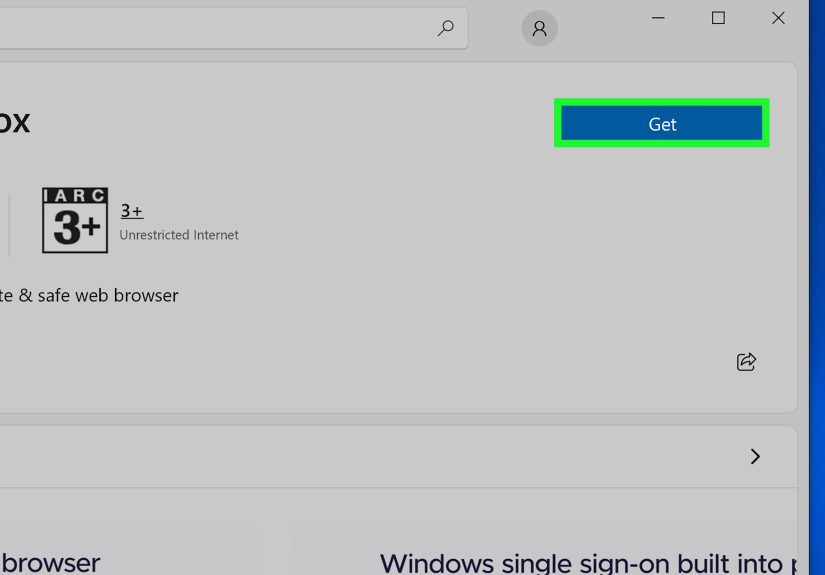
The Microsoft Store is one of the easiest ways to install apps without admin privileges on many Windows devices. Store apps are packaged and installed in a controlled way, and many of them can be added from a standard user account. This depends on the device settings, Windows edition, and whether the organization has blocked Store access through policy.
For personal computers, this is often the cleanest route. Search for the app in the Store, select it, and click Get or Install. Windows handles the installation without asking you to hunt through folders like a digital archaeologist.
Best use cases for Microsoft Store installs
The Microsoft Store is useful for apps like productivity tools, media players, note-taking apps, communication apps, lightweight developer tools, and utilities that do not need deep system access. Apps such as Microsoft To Do, Spotify, WhatsApp, Slack, Python distributions, and many creative tools may be available through the Store depending on your region and device policy.
Limitations
The Store is not magic. Some organizations disable it. Some apps are not listed there. Some apps still require special permissions after installation. And if your device is in Windows S mode, the Microsoft Store may be the only approved source for apps unless the device owner switches out of S mode.
Method 2: Choose a Per-User Installer
A per-user installer installs software only for the current Windows account instead of the whole computer. This is one of the safest and most practical ways to install software without admin privileges on Windows.
Per-user apps typically install into folders such as C:UsersYourNameAppDataLocalPrograms or C:UsersYourNameAppDataRoaming. Because these folders belong to your user account, Windows may allow the installation without elevation.
Example: Visual Studio Code
Visual Studio Code is a great example. It offers a user installer for Windows that is designed for installation without administrator permissions. This version installs into your user profile and supports background updates without needing full system access.
To use this method, download the official user installer from the software publisher, run it normally, and choose options such as Install for me only, Current user, or User setup when available.
Look for these phrases
When downloading software, scan the download page for phrases like “User Installer,” “Current User,” “Install just for me,” “Portable,” “ZIP archive,” “No admin required,” or “Per-user installation.” These labels are your green lights. They mean the app developer understands that not everyone using Windows is the Supreme Administrator of the Laptop Kingdom.
Method 3: Use Portable Apps
Portable apps are programs that run from a folder without a traditional system installation. You can place them in your Documents folder, Downloads folder, desktop, external drive, or a dedicated tools folder such as C:UsersYourNameApps.
Portable software is especially useful when you need simple tools like text editors, file compression utilities, image viewers, code editors, password managers, markdown editors, or lightweight productivity apps. Many portable apps store their settings inside their own folder, which makes them easier to move or remove.
How to run a portable app safely
Download the portable version only from the official publisher or a reputable portable software platform. Extract the ZIP file into a folder you control. Open the folder and run the main .exe file. If the app works, you can right-click the executable and choose Pin to Start or create a desktop shortcut.
Portable apps are not always the answer
Some software cannot be portable because it needs drivers, services, shell integration, browser-level hooks, or system-wide background components. For example, VPN software, antivirus programs, advanced backup tools, printer software, and disk management utilities usually need administrator privileges. If a portable version of a deeply system-level tool appears on a random website, treat it like sushi from a gas station: technically possible, emotionally concerning.
Method 4: Install With WinGet Using User Scope
WinGet, also known as Windows Package Manager, is Microsoft’s command-line tool for finding, installing, upgrading, and managing software. On supported Windows versions, WinGet can install many apps from trusted repositories. Some packages support user-scope installation, meaning the app installs only for your account.
Open Command Prompt or PowerShell without choosing “Run as administrator,” then search for an app:
If the package supports user-scope installation, you can try:
The exact package ID varies by app. You can inspect package details with:
Important WinGet warning
WinGet is not a guaranteed no-admin button. Some packages only support machine-wide installation. Some installers will still trigger UAC. If Windows asks for admin credentials and you do not have permission, stop there and choose another method or request approval.
Method 5: Install PowerShell Modules for Current User
If the “software” you need is a PowerShell module, you may be able to install it for your account only. PowerShell supports a CurrentUser scope, which installs modules into your user profile instead of a protected system location.
For example:
This is useful for scripting tools, developer utilities, cloud modules, and automation libraries. It keeps the installation inside your account and avoids changing system-wide PowerShell folders.
When this works best
This method works best when PowerShell is allowed on the device, the module source is trusted, and the organization has not blocked script execution or gallery access. On managed computers, security teams may restrict PowerShell for good reasons. In that case, do not try to sneak around the restriction. Ask for the module through the proper software request process.
Method 6: Use Python, Node, and Developer Tools in User Mode
Developers often need packages, libraries, and command-line utilities. Luckily, many development ecosystems support user-level installs.
Python packages
If Python is already installed, you can install packages for your user account with:
This places packages in a user-specific Python directory instead of the system Python folder. It is helpful for libraries, command-line tools, and learning projects.
Python installed just for you
The official Python installer for Windows can install into your user profile when you choose a “just for me” or current-user style setup. You may also find Python in the Microsoft Store, which is convenient for beginners who want to start coding without wrestling with system folders.
Node.js and JavaScript tools
Node.js itself may require admin rights depending on the installer, but JavaScript packages can often be installed locally inside a project folder. Instead of installing global packages, create a project directory and run:
This adds dependencies to the project rather than the entire computer. For many front-end projects, that is the better habit anyway. Global installs are convenient, but local installs are cleaner, easier to reproduce, and less likely to turn your PATH variable into spaghetti.
Method 7: Use ZIP Versions Instead of EXE or MSI Installers
Some software publishers provide ZIP archives alongside traditional installers. A ZIP version often contains the app files directly. You extract the folder and run the program from there, similar to a portable app.
This is common with developer tools, command-line utilities, open-source software, and some productivity programs. For example, an app may offer both an installer and a ZIP archive. If the installer requires admin rights, the ZIP archive may still work from a user folder.
Simple ZIP installation example
Create a folder such as:
Download the ZIP file from the official website. Right-click it, choose Extract All, and place it inside your Apps folder. Open the extracted folder and run the main executable. If needed, create a shortcut on your desktop.
This method is clean, reversible, and wonderfully boring. In software installation, boring is often excellent.
How to Know Whether an App Can Be Installed Without Admin Rights
Before downloading anything, check the publisher’s installation notes. A legitimate software page will usually explain whether the app has a user installer, system installer, MSI package, Store version, portable edition, or ZIP archive.
Good signs
The app is available in the Microsoft Store. The download page offers a user installer. The documentation says it does not require administrator permissions. The app can run from a ZIP folder. The installer asks whether to install for “all users” or “just me.” The app does not need drivers, services, or low-level Windows access.
Bad signs
The installer immediately asks for admin credentials. The app says it installs drivers. The app modifies networking, storage, security, or antivirus settings. The software comes from a random download mirror. The site tells you to disable antivirus. The guide suggests bypassing UAC. The download page looks like it was designed during a thunderstorm by twelve pop-up ads wearing a trench coat.
What You Should Not Do
Do not download “admin bypass” tools. Do not run unknown scripts from forums. Do not disable antivirus. Do not rename installers to trick Windows. Do not try to modify protected registry keys. Do not use someone else’s admin password. Do not install software on a school or work computer if the policy says no.
These shortcuts can create security problems, break software updates, corrupt your Windows profile, or trigger alerts on managed devices. Even worse, they often do not work on modern Windows systems. If an app truly requires admin rights, the right answer is to request approval, use an approved alternative, or run the app on a personal device where you are allowed to manage software.
Practical Examples
Example 1: Installing a code editor without admin rights
You need a code editor for class or a personal project. Instead of downloading a system installer, choose the Visual Studio Code User Installer. Run it normally. It installs inside your profile, adds shortcuts for your account, and updates without needing full device control.
Example 2: Running Git without a full installation
If you cannot install Git system-wide, look for a portable Git package or ZIP-based developer environment from a trusted source. Extract it into your user folder and run Git Bash from there. This may not integrate with every app automatically, but it can work well for basic repositories and learning projects.
Example 3: Installing a Python library
If Python is already available, open Command Prompt and install a package for your account:
This keeps the package in your user environment. If the command is not recognized, Python may not be installed or may not be on your PATH.
Example 4: Using a portable note-taking app
Download the portable ZIP version from the official website, extract it to your Documents folder, and run the executable. Create a shortcut if you use it often. No system-wide installation required.
Troubleshooting: Why the Install Still Fails
If a no-admin install fails, do not assume you did something wrong. Sometimes the app simply does not support user-level installation. Other times, the device is managed by organization policy.
The installer still asks for admin credentials
That usually means the installer is trying to make system-wide changes. Look for a user installer, portable version, ZIP archive, or Microsoft Store version. If none exists, you need administrator approval.
The app installs but will not update
This can happen when the app was installed in a protected location or when updates need elevated rights. Reinstalling with the user installer may help, but only if the software officially supports it.
The app runs but features are missing
Some features require system integration. For example, file explorer extensions, drivers, VPN adapters, background services, and browser-level security tools may not work from a user-only install.
The app is blocked by your organization
If Windows says the app is blocked by your system administrator, the device likely has application control, Microsoft Defender policies, Intune rules, Group Policy, or another management tool in place. The correct solution is to request approval or use an allowed alternative.
Security Tips for Installing Software Without Admin Rights
Installing without admin rights is safer than giving every app full control, but it is not risk-free. Malware can still run inside your user account, steal browser data, encrypt personal files, or spy on activity. Standard user mode limits damage, but it does not turn bad software into a teddy bear.
Download only from official websites, Microsoft Store, GitHub pages controlled by the real project, or well-known package sources. Check the publisher name. Avoid cracked apps, fake installers, and “download manager” wrappers. Keep Windows and apps updated. Remove apps you no longer use. If a download seems suspicious, do not run it just because a tutorial told you to.
For work or school computers, use the approved software portal if one exists. Many organizations provide Company Portal, Software Center, self-service app catalogs, or request forms. These tools are designed to give users software without handing out full administrator rights.
When You Really Need an Administrator
Some software cannot and should not be installed without admin privileges. This includes antivirus programs, VPN clients, printer drivers, device drivers, virtualization platforms, disk encryption tools, endpoint security tools, network monitors, backup utilities, and software that must be available to every user on the machine.
If you need one of these, ask the device owner or IT administrator. A clear request works better than a vague complaint. Include the app name, official download page, why you need it, whether there is a Store or user installer version, and whether a portable alternative would be acceptable.
For example: “I need Visual Studio Code for my programming course. Microsoft provides a user installer that does not require admin rights. May I install that version, or is there an approved editor you prefer?” That sounds much better than “Let me install this mystery EXE I found behind the internet couch.”
500-Word Experience Section: What It Is Like Installing Software Without Admin Privileges on Windows
In real-world Windows use, installing software without admin privileges is less about finding a clever trick and more about choosing the right kind of software from the beginning. The biggest mistake people make is downloading the first giant installer button they see. Many websites push the system installer by default because it works for most home users who are administrators on their own PCs. But on a standard account, that installer may immediately run into a UAC wall. The better habit is to slow down and look for download options. “User installer,” “portable,” and “ZIP” are small words that can save a large headache.
One common experience is with coding tools. A student or beginner developer may not have admin rights on a family, school, or shared computer, but still needs a code editor, Python packages, Git tools, or a terminal utility. In that situation, user-level tools are a lifesaver. Visual Studio Code’s user setup, Python’s per-user installation options, and pip install --user can create a functional development environment without touching protected system folders. It may not be perfect, but it is often good enough to learn, build projects, edit files, and run scripts.
Portable apps also feel surprisingly refreshing. There is something satisfying about extracting a folder, opening an app, and knowing that uninstalling it may be as simple as deleting that folder. No dramatic uninstaller. No “please wait while Windows configures something from 2009.” Portable apps are especially helpful for lightweight utilities: markdown editors, image tools, file viewers, simple IDEs, and text editors. They are not ideal for everything, but when they work, they work beautifully.
The frustrating part is inconsistency. One app installs without complaint. Another app from the same category demands admin rights like it is guarding a castle. This usually comes down to how the developer designed the installer. Apps that add services, shell extensions, drivers, or machine-wide auto-updaters need deeper access. Apps that live inside your user profile do not. Once you understand that pattern, the mystery fades. You stop asking, “Why does Windows hate me?” and start asking, “Does this app offer a current-user option?” Much healthier. Fewer emotional support snacks required.
On managed devices, the best experience usually comes from working with IT rather than fighting the machine. Many companies and schools already have approved app catalogs. When they do not, a polite request with a clear reason often works. IT teams are not always trying to ruin your day; they are trying to prevent malware, license problems, and support nightmares. If you show that you understand security and are asking for a legitimate tool, your chances improve.
The main lesson is this: installing software without admin privileges is possible, but it has boundaries. Use official sources. Prefer user installers. Try the Microsoft Store. Consider portable apps. Use developer package managers in user mode. When Windows asks for admin credentials, treat that as a stop sign, not a puzzle challenge. Safe installation is not about beating Windows; it is about working with its permission model so your computer stays useful, stable, and pleasantly un-haunted.
Conclusion
Installing software without admin privileges on Windows is completely possible when the software supports user-level installation. The safest options are Microsoft Store apps, per-user installers, portable versions, ZIP archives, WinGet user-scope packages, PowerShell modules installed with CurrentUser, and developer packages installed inside your profile or project folder.
The trick is not to bypass Windows security. The trick is to choose software designed to work within standard user permissions. If the app needs drivers, services, protected folders, system-wide settings, or access for every user, you will need administrator approval. That is normal, and it is part of Windows security doing its job.
For personal PCs, these methods can help you stay productive without turning every app into a system-level guest. For school or work computers, always follow policy and ask for approval when needed. A good no-admin install should be boring, official, reversible, and safe. If a method feels shady, it probably belongs in the same drawer as expired coupons and USB drives labeled “definitely not malware.”