Table of Contents >> Show >> Hide
- What “Paying With Your Phone” Actually Means
- Why Phone Payments Can Be Safer Than Swiping a Card
- What You Need Before You Can Pay by Phone
- Method #1: Tap to Pay With a Digital Wallet (The Fastest Option)
- Method #2: Pay Online or in Apps (Yes, Even on a Laptop)
- Method #3: QR Code Payments (Scan to Pay Without NFC)
- Sending Money With Your Phone (P2P Transfers Without the Awkward “I’ll Pay You Back”)
- Everyday Examples: What to Use, When
- Security Checklist: Keep Your Phone (and Money) From Doing Something Weird
- Troubleshooting: When Tap-to-Pay or Scan-to-Pay Fails
- Smart Defaults: The “Set It Once” Optimization
- Conclusion + Real-World Experiences
Your phone already unlocks your life: your messages, your photos, your group chat drama. So it makes sense it can unlock your wallet, too.
Mobile payments are fast, widely accepted in the U.S., andwhen set up correctlyoften safer than handing over a plastic card that broadcasts the same number every time.
The trick is knowing which kind of phone payment you’re making (tap, scan, or pay-in-app), and how to do it without accidentally donating money to a scammer with a printer and a QR-code sticker.
What “Paying With Your Phone” Actually Means
Paying with your mobile phone usually falls into three buckets:
- Tap to pay (NFC/contactless): You hold your phone near a contactless card reader. This is what people mean when they say “Apple Pay” or “Google Pay” at checkout.
- Scan to pay (QR codes): You scan a merchant’s QR code, or the merchant scans yours, using an app like PayPal, Venmo, or Cash App Pay at participating stores.
- Pay in-app or online: You choose a wallet or app at checkout (on your phone or sometimes on a computer) and confirm with Face ID, fingerprint, or a passcode.
Each method has different “gotchas” (and different ways it can fail at the worst possible momentlike when there’s a line behind you and someone is sighing loudly).
Why Phone Payments Can Be Safer Than Swiping a Card
Most major mobile wallets use tokenization, which is a fancy word for “your real card number stays hidden.” Instead of sending your actual card number to the store,
your phone sends a token (a stand-in number) and a transaction-specific cryptographic value. That means the merchant typically doesn’t receive your real card number during the purchase,
and stolen payment data is harder to reuse.
Add device securityFace ID, fingerprint, passcodesand you’ve got a payment method that’s difficult to use if your phone is stolen (especially if you lock it down properly).
In other words: it’s harder to “borrow” your wallet when your wallet insists on recognizing your face first.
What You Need Before You Can Pay by Phone
1) A compatible phone (and the right settings)
- For tap to pay: Your phone needs NFC (Near Field Communication). Most modern smartphones have it.
- For QR payments: You need the payment app and camera permission enabled.
- For any method: Your phone should have a screen lock (PIN/password + biometrics if available).
2) A supported payment method
Typically this is a credit card or debit card added to a mobile wallet. Some apps also let you pay from a stored balance or linked bank account.
If your card won’t add, it’s usually because your bank requires extra verificationor the card isn’t eligible for that wallet yet.
3) A merchant that accepts that method
Tap to pay requires a contactless reader (look for the “wifi-looking” contactless symbol).
QR payments require a store that specifically supports that app’s QR checkout.
Online/in-app payments require the checkout page to offer that wallet or app.
Method #1: Tap to Pay With a Digital Wallet (The Fastest Option)
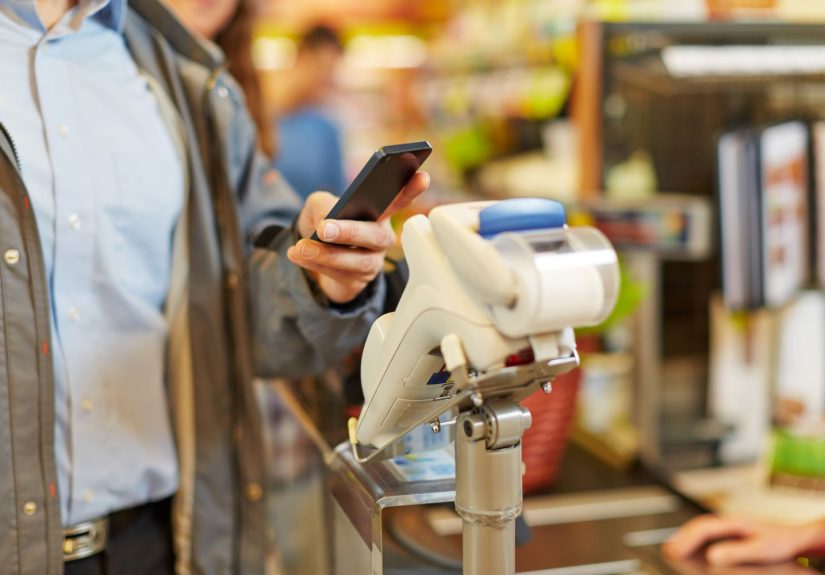
Tap to pay is the closest thing to payment magic: hold phone near reader, authenticate, done.
In the U.S., the big players are Apple Pay (Apple Wallet), Google Wallet (Google Pay for contactless payments), and Samsung Wallet.
How to set up Apple Pay on iPhone
- Open the Wallet app and add a credit/debit card (follow the prompts to verify with your bank).
- Make sure your phone has Face ID or Touch ID (or a passcode) enabled.
- Optionally set a default card so checkout is one step faster.
How to set up Google Wallet on Android
- Install/open Google Wallet and add a payment card.
- Turn on NFC in your phone settings.
- Set Google Wallet/Google Pay as the default contactless payment app (varies by Android version).
How to set up Samsung Wallet (Samsung Pay) on Samsung phones
- Open Samsung Wallet and follow setup (Samsung account, terms, security method, and a wallet PIN if prompted).
- Add your payment card(s) and complete any identity verification steps.
- Use Quick Access (often a swipe/gesture) to pull up cards faster at checkout.
How to tap to pay in a store (step-by-step)
- Wake and unlock your phone (some wallets require it; many terminals won’t read a sleeping phone).
- Choose the right card if you’re not using the default (especially if you’re separating “work card” and “fun card”).
- Authenticate (Face ID/fingerprint/passcode).
- Hold the top/back of your phone close to the contactless reader for a second or two.
- Wait for a confirmation on the terminal and/or your phone.
Pro tip: If the reader is being finicky, move your phone slightly. NFC is short-range and surprisingly picky about positioning.
Also, some thick cases, metal accessories, or pop-sockets can interfereyour phone might be fashionable, but the terminal is not impressed.
Method #2: Pay Online or in Apps (Yes, Even on a Laptop)
A lot of mobile payments happen without a physical checkout lane at all:
buying takeout, paying for a ride, ordering groceries, or subscribing to yet another streaming service you’ll “totally cancel later.”
Paying in-app on your phone
If an app supports a digital wallet, you’ll usually see an Apple Pay or Google Pay button at checkout.
Tap it, confirm your shipping/billing details if needed, and authenticate with biometrics or passcode.
Paying on the web (mobile browser or desktop)
On your phone’s browser, wallet payments work similarly to in-app payments: choose the wallet button and confirm.
On a computer, some sites can display a code you scan with your phone to confirm a wallet paymenthandy when you’re shopping on a big screen but want the security of phone authentication.
Method #3: QR Code Payments (Scan to Pay Without NFC)
QR code payments are common for peer-to-peer (splitting dinner) and are also used for in-store checkout at certain merchants.
The flow is simple: scan a code, confirm the amount, approve in the app.
PayPal QR payments
- Open the PayPal app and tap the QR code icon.
- To pay: scan the merchant’s QR code and confirm the payment.
- To get paid: show your QR code for someone else to scan.
Venmo in-store QR payments (at participating merchants)
- Open Venmo and locate the in-store QR option (often “Show to Pay” or a QR scanner).
- Either: scan the merchant’s QR code or have the merchant scan yours (depends on the checkout setup).
- Confirm the purchase in the app to finish.
Cash App Pay (select merchants)
- Open Cash App and use the QR scanner.
- Scan the merchant’s Cash App Pay QR code.
- Follow prompts to confirm the purchase.
Important: QR payments are convenient, but they can also be easier to spoof in the real world.
A tap-to-pay terminal is harder to “fake” than a sticker someone can slap on top of a legitimate QR sign.
Sending Money With Your Phone (P2P Transfers Without the Awkward “I’ll Pay You Back”)
Paying a friend back is one of the most common phone-payment use cases in Americarent splits, dinner bills, concert tickets, group gifts.
Apps like Venmo, PayPal, Cash App, and bank-backed services make it quick.
But there’s a catch: many P2P payments are like cash. If you send money to the wrong personor to a scammergetting it back can be difficult.
That’s why the best security feature is still your eyeballs: double-check the recipient before you hit “send.”
P2P safety habits that actually matter
- Turn on multi-factor authentication (MFA) and biometric login where available.
- Use transaction alerts (email/text/push) so you notice suspicious activity fast.
- Send only to people you know (or only after verifying identity through another channel).
- Move extra money out of app balances if you don’t need it sitting there.
Everyday Examples: What to Use, When
Coffee shop, grocery store, pharmacy
Use tap to pay if the reader supports contactless. It’s fast, and you keep your card details more private.
Farmers market, pop-up, food truck
Use QR code payments if the vendor displays a PayPal/Venmo/Cash App Pay code.
If they only accept tap, you’ll need NFC and a wallet.
Online shopping and subscriptions
Use wallet checkout for speed and fewer keystrokes. It reduces the number of places your card number could be stored.
Splitting dinner with friends
Use a P2P transfer, but verify the recipient. Autocomplete is not your accountant.
Security Checklist: Keep Your Phone (and Money) From Doing Something Weird
Lock down the device
- Use a strong passcode (not “0000” or your birthdayscammers guess birthdays like it’s their hobby).
- Enable Face ID/fingerprint and require it for wallet/app access.
- Keep your operating system and payment apps updated.
Be suspicious of “urgent” payment requests
Scammers love creating pressure: “I need it right now,” “I’m locked out,” “Don’t tell anyone,” “This is the IRS,” and other nonsense.
If it feels off, pause. Verify the request using a trusted phone number or in-person confirmation.
Watch out for QR-code traps
Before scanning a QR code at a public place (parking lots, street kiosks, random signs), check for signs of tampering:
stickers placed over existing labels, sloppy printing, or URLs that look “almost right.”
When possible, pay through official apps you already trust or through the merchant’s confirmed checkout flow.
If your phone is lost or stolen
- Lock the device remotely (Find My / device manager features).
- Contact your bank/card issuer if you see suspicious transactions.
- Change passwords for key accounts (email firstbecause password resets often go there).
Troubleshooting: When Tap-to-Pay or Scan-to-Pay Fails
Tap-to-pay won’t work
- NFC is off: Turn it on in settings.
- Wrong default wallet: Set your wallet as the default contactless payment app (Android).
- Phone not unlocked: Wake and unlock, then try again.
- Terminal doesn’t support contactless: Some older readers still require chip or swipe.
- Case/accessory interference: Remove thick cases or metal attachments and re-try.
QR scan won’t work
- Camera permission: Enable camera access for the app.
- Connectivity: Some QR checkouts require internet to confirm.
- Wrong code type: Some apps have separate “personal” vs “in-store” QR codesuse the one the merchant expects.
Smart Defaults: The “Set It Once” Optimization
If you want phone payments to feel effortless, the goal is fewer taps at the moment you’re trying to leave the store.
These small setup choices pay off:
- Pick one default card for everyday purchases, and keep the others for intentional use.
- Turn on notifications for every transaction (fast fraud detection beats arguing with receipts later).
- Use biometrics instead of weak PINs whenever possible.
- Keep a backup (a physical card or a second payment method) for the “reader is down” days.
Conclusion + Real-World Experiences
Paying with your mobile phone isn’t just a tech trickit’s a practical way to speed up checkout, reduce card exposure, and keep your spending tools in one place.
The safest and smoothest experience usually comes from a digital wallet with tap to pay, backed by a strong device lock and sensible habits.
QR payments and P2P apps are incredibly useful too, as long as you treat them with a little extra caution.
What it feels like in real life (the 500-word part)
The first time you pay with your phone, it’s oddly satisfyinglike you’ve joined a tiny, secret club where the password is “hold still for one second.”
Most people start with the simplest win: the coffee run. You’re juggling a bag, your keys, and a questionable life choice called “double espresso,” and then you realize:
you don’t have to dig for your wallet. You double-click, glance at the screen, and tap. The barista doesn’t even blink. That’s when it clicks that this isn’t futuristic anymoreit’s just normal.
Then comes the grocery store test, where the stakes are higher because the line is longer and your phone suddenly feels the need to update fourteen apps at once.
If you’ve set a default card and your phone unlock is fast, it’s smooth. If not, you’ll learn the two most common lessons the hard way:
(1) thick cases can make NFC a little moody, and (2) having NFC turned off is the modern version of showing up with an expired coupon.
Once you fix those, it becomes second nature. You start choosing tap-to-pay without thinking, like selecting “medium” when the cashier asks what size drink you want.
The most useful “experience upgrade” tends to happen at restaurants and quick-service spots. Paying by phone often means you keep your card in your pocket, which reduces those little moments
where a card gets handed back to the wrong person or left on the counter. And tipping? If the terminal prompts you, it works the same as a card payment.
The difference is psychological: you feel a bit more in control because the payment action begins on your deviceauthenticate, then taprather than handing over something with your name on it.
QR payments have their own personality. They’re amazing when splitting a bill with friends because nobody wants to do mental math while fries are getting cold.
You scan, confirm, and the awkward “I’ll get you later” evaporates. But QR can also feel like the Wild West in public places.
If you’ve ever stared at a random QR code on a sign and thought, “Should I trust this?”congratulations, your instincts are working.
In practice, people develop a routine: QR codes from a friend’s phone or a familiar checkout screen feel fine; random QR codes on a pole in a parking lot deserve skepticism.
Over time, paying with your phone stops feeling like “technology” and starts feeling like “efficiency.”
You’ll still carry a backup card for emergencies (because batteries are dramatic), but you’ll reach for your phone first.
And when it works welland it usually doesit’s one of those small daily upgrades that saves seconds, reduces friction, and makes checkout feel less like a chore and more like a quick tap and a victory lap.