Table of Contents >> Show >> Hide
- Quick decision guide: Which transfer method should you use?
- Before you transfer: 10 minutes of prep that saves hours later
- Method A (with iCloud): Quick Start + iCloud download
- Method B (with iCloud): Restore from an iCloud Backup
- Method C (without iCloud): Quick Start iPhone-to-iPhone transfer (wireless)
- Method D (without iCloud): Quick Start transfer using a wired connection
- Method E (without iCloud): Transfer using a Mac or PC backup
- Selective transfers (when you don’t want a full migration)
- After the transfer: a smart checklist to confirm everything came over
- Troubleshooting: common transfer problems and how to fix them
- Bottom line: the best way to transfer data between iPhones
- Real-world experiences & lessons (the “stuff people wish they knew” section)
New iPhone day is supposed to feel like a victory lap. But if you’ve ever stared at the “Transfer in Progress” screen
like it’s a dramatic season finale, you know the truth: moving your stuff can be the most stressful part of the upgrade.
The good news? Apple has made iPhone-to-iPhone transfers genuinely solidwhether you love iCloud, avoid iCloud, or only
tolerate iCloud when it buys you dinner.
This guide walks you through the best ways to transfer data between iPhones with iCloud and
without iCloud, plus real-world tips to avoid common facepalm moments (like forgetting your Apple ID
password five minutes before setup). You’ll get clear steps, what each method actually moves, what it doesn’t, and which
option fits your situation.
Quick decision guide: Which transfer method should you use?
| Method | Needs iCloud? | Internet required? | Speed | Best for |
|---|---|---|---|---|
| Quick Start (Device-to-device) | No | No (mostly local) | Fast (especially wired) | Most people; “I want everything exactly the same” |
| Quick Start + Download from iCloud | Yes | Yes | Depends on Wi-Fi | Want to use the new phone right away while apps download |
| Restore from iCloud Backup | Yes | Yes | Depends on Wi-Fi | Old iPhone not available, lost, or already wiped |
| Restore from Mac/PC backup (Finder/Apple Devices/iTunes) | No | No (after app downloads) | Fast + reliable | Low iCloud storage, slow internet, or you want encrypted backups |
| Selective transfer (AirDrop, iCloud Drive, Messages, Photos sync) | Optional | Sometimes | Varies | Only moving some files, not doing a full “clone” |
Before you transfer: 10 minutes of prep that saves hours later
Think of this as packing for a trip. You can skip it… but you’ll regret it when you arrive without chargers.
Do these basics first:
- Update iOS on your old iPhone (and the new one if it prompts you). Setup issues are often fixed by updates.
- Charge both iPhones (or plug them in). Transfers can take a while and both devices need to stay on.
- Use stable Wi-Fi if you’re using iCloud. If your router is moody, today is not the day to test its personality.
- Confirm your Apple Account login (email/password) and make sure you can receive two-factor codes.
- Clean up storage if needed: delete giant videos you don’t need and offload unused apps.
- If you’re using iCloud Backup, check iCloud storage and consider Apple’s temporary extra iCloud storage during migration if offered.
- Don’t erase the old iPhone until the new one is fully set up and you’ve verified everything.
(This is how adults avoid crying over missing photos.)
Method A (with iCloud): Quick Start + iCloud download
This is the “smoothest-feeling” option for many people because you can start using the new iPhone sooner.
Your new iPhone begins setup using your old iPhone nearby, then pulls apps and data from iCloud in the background.
Steps
- Turn on the new iPhone and place it near your old iPhone.
- On the old iPhone, follow the Quick Start prompt to set up the new device.
- Connect the new iPhone to Wi-Fi (or cellular if needed) and complete Face ID/Touch ID setup.
- When asked how to transfer, choose Download from iCloud (wording can vary slightly by iOS version).
- Stay connected to Wi-Fi and power. Apps/data will continue downloading in the background.
Why people like it: You don’t have to wait for every app to finish before using the phone.
You’ll see icons appear and gradually “fill in” as downloads completelike your iPhone is unboxing itself.
Method B (with iCloud): Restore from an iCloud Backup
This is the classic cloud approach: back up the old iPhone to iCloud, then restore that backup during new iPhone setup.
It’s also the go-to solution if you don’t have the old iPhone in hand (lost, broken, traded in, etc.).
Step 1: Make an iCloud backup on the old iPhone
- Open Settings → tap your name → iCloud → iCloud Backup.
- Turn on Back Up This iPhone (if it’s off) and tap Back Up Now.
- Wait for the backup to finish (stay on Wi-Fi and power).
Step 2: Restore that backup on the new iPhone
- Turn on the new iPhone and go through setup until you reach Apps & Data.
- Choose Restore from iCloud Backup.
- Sign in with your Apple Account and pick the most recent backup.
- Keep the device connected to Wi-Fi and power until the restore completes.
Temporary iCloud storage tip (when you’re short on space)
If your iCloud storage is full, Apple may offer temporary extra iCloud storage specifically to back up and move to a new iPhone.
You typically have a limited time window to restore before the temporary backup expires, so don’t start this process
right before leaving for the airport. (Your future self would like to not do emergency iPhone setup in a rideshare.)
What iCloud backup does (and doesn’t) include
iCloud Backup generally captures the information on your iPhone that isn’t already syncing through iCloud (because syncing
datalike iCloud Photos or Messages in iClouddoesn’t need to be “backed up” the same way).
- Often included: device settings, Home Screen layout, app data (for many apps), photos/messages if you’re not using iCloud sync for those categories.
- Often not included: Face ID/Touch ID settings and Apple Pay details. Some categories (like certain secure data)
may require an encrypted computer backup for the most complete transfer.
Method C (without iCloud): Quick Start iPhone-to-iPhone transfer (wireless)
Want to move data between iPhones without relying on iCloud storage or your internet speed?
Use Quick Start and choose direct transfer. This moves your apps and data from the old phone to the new phone locally.
It’s the closest thing to a “clone” for normal usersno lab coat required.
Steps
- Turn on the new iPhone and place it near your old iPhone.
- Confirm Bluetooth is on and both devices are connected to Wi-Fi.
- Follow the Quick Start prompts on the old iPhone.
- When asked how to transfer data, choose Transfer from iPhone (or similar wording).
- Keep both phones near each other, on power, until the transfer finishes.
Speed notes: Wireless transfers can be fast or painfully slow depending on network conditions and how much data you have.
If you’re moving hundreds of gigabytes (you, the proud owner of 9,000 screenshots), consider the wired option below.
Method D (without iCloud): Quick Start transfer using a wired connection
If you want the most consistent performance without iCloud, wired device-to-device transfer can be the MVP.
Apple supports different cable setups depending on iPhone models (USB-C vs Lightning).
Common wired setups
- iPhone 15 or later → iPhone 15 or later: USB-C charge cable between both phones.
- iPhone 14 or earlier → iPhone 15 or later: USB-C to Lightning cable.
- Older Lightning → Lightning: typically requires an adapter setup (and power) depending on model and accessories.
Once connected, you still follow Quick Start like normaljust faster and with fewer “Why is this taking so long?” moments.
Pro tip: wired transfer is also great if your Wi-Fi is crowded (apartment buildings, dorms, or homes where everything is smart except the router).
Method E (without iCloud): Transfer using a Mac or PC backup
This is the “old-school but incredibly effective” method. You back up your old iPhone to a computer, then restore that backup to the new iPhone.
It’s especially useful when you have limited iCloud storage or want an encrypted backup to capture more sensitive items.
Step 1: Back up the old iPhone to a computer
- Connect the old iPhone to your Mac or PC with a cable.
- On a Mac (modern macOS), open Finder. On Windows, use the Apple Devices app (or iTunes if required).
- Select your iPhone and choose Back Up Now.
- If you want the most complete backup, enable Encrypt local backup and set a password you will remember.
(Not “Password123,” and not the Wi-Fi password from your freshman dorm.)
Step 2: Restore the backup to the new iPhone
- Turn on the new iPhone and reach the Apps & Data screen.
- Choose Restore from Mac or PC.
- Connect the new iPhone to the same computer and select the backup to restore.
- Wait for the restore to complete; keep the phone connected until it finishes.
Why encrypted backups matter: If you rely heavily on passwords, health data, and other secure information,
encrypted backups can preserve more than a standard local backup. It’s also a solid option if you’re migrating from a phone
with lots of local data and slow internet.
Selective transfers (when you don’t want a full migration)
Sometimes you don’t want to move everything. Maybe you’re starting fresh (emotionally and digitally),
or you only need specific files on the new phone. Here are practical options:
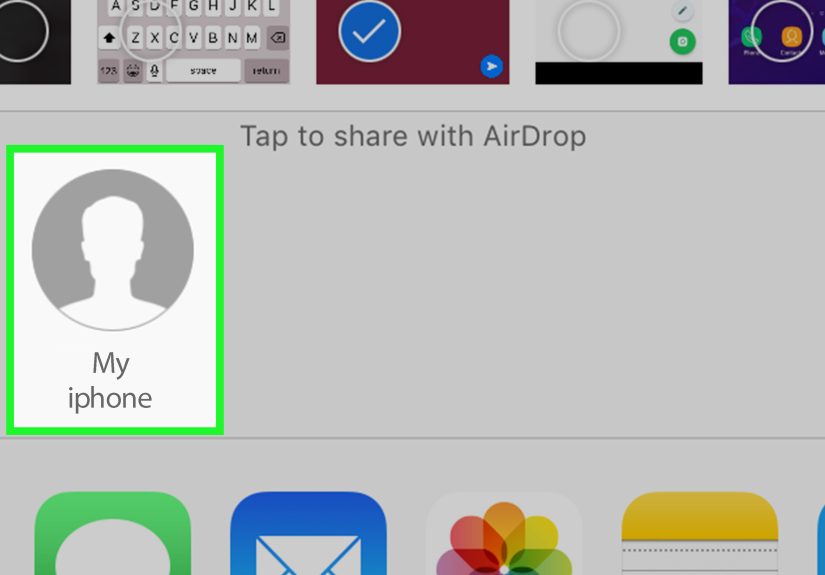
AirDrop (quick, local, and satisfying)
- Great for: photos, videos, documents, contacts, notes exports, and random files.
- Not great for: full device setups, app data, and system settings.
iCloud sync (not iCloud “backup”)
Even if you don’t want to restore from an iCloud backup, you can still use iCloud syncing for key categories:
Photos, Contacts, Notes, Reminders, Messages, and iCloud Drive. When you sign in on the new iPhone and enable those toggles,
your content can repopulate automatically.
App-by-app sign-in (the “fresh start” method)
If you set up as new and reinstall apps manually, many apps restore data once you sign in (banking apps, streaming services,
productivity tools). This can be cleaner, but it’s more hands-on.
After the transfer: a smart checklist to confirm everything came over
- Messages and Photos: confirm recent content is present (and still downloading if using iCloud Photos).
- Authenticator apps: verify codes work (some apps require a special migration step).
- Banking + payment apps: expect re-logins and extra verification.
- Apple Pay: you may need to re-add cards.
- Bluetooth devices: AirPods usually behave, but some accessories need re-pairing.
- Apple Watch: confirm it reconnects and restores properly if you use one.
- Storage: give it time. Downloads and indexing can make the new iPhone feel “busy” for a few hours.
Troubleshooting: common transfer problems and how to fix them
“My transfer is taking forever.”
- Move closer to the Wi-Fi router (or switch to a less congested network).
- Plug both phones into power.
- If using Quick Start wireless, consider switching to wired transfer.
- Restart both devices if the process clearly stalls.
“I don’t have enough iCloud storage.”
- Trim the backup size by turning off backup for apps you don’t need.
- Use Apple’s temporary migration storage if offered during “Prepare for New iPhone.”
- Skip iCloud and use a computer backup + restore.
“Some data is missing after restore.”
- Check if the data is still downloading in the background (apps, photos, messages).
- Confirm iCloud sync toggles for the categories you care about (Photos, Messages, Contacts, Notes).
- For secure data, use an encrypted computer backup if you need the most complete transfer.
Bottom line: the best way to transfer data between iPhones
If you want the simplest path: Quick Start device-to-device transfer is hard to beat.
If you prefer cloud convenience or don’t have the old phone: iCloud backup restore works welljust give it good Wi-Fi.
And if you want maximum control (and often the most complete results): a computer backup with encryption is a powerhouse.
Whatever method you choose, the golden rule is the same: don’t erase your old iPhone until you’ve verified the new one.
Your data deserves a safe landing.
Real-world experiences & lessons (the “stuff people wish they knew” section)
Here’s what tends to happen in the wildbased on common scenarios from everyday upgrades, family tech support calls,
and the universal truth that iPhone setup always happens when you’re already tired.
1) The “I have 12,000 photos” surprise.
Many people start a transfer expecting it to be instant, then realize their Photo Library is basically a feature-length documentary.
If you use iCloud Photos, your pictures may not “arrive” all at oncethumbnails show up first, full-resolution downloads happen later,
and it can look like your memories are missing when they’re actually just in transit. The fix is patience plus Wi-Fi plus power.
If you need everything immediately (like you’re traveling tomorrow), device-to-device or a computer restore often feels more predictable.
2) The “my apps are here, but I’m logged out of everything” moment.
This is normalespecially for banking, payment, and security-focused apps. Even when apps transfer perfectly,
many services force a fresh login on a new device. It’s not Apple being difficult; it’s the app protecting your account.
The workaround is simple but annoying: plan for extra time, keep your passwords handy (or use iCloud Keychain),
and make sure you can receive verification codes by text, email, or authenticator.
3) The “iCloud storage is full and I’m not paying for more” dilemma.
This is where people discover they have three perfectly good options that don’t involve upgrading storage.
First, Quick Start direct transfer avoids iCloud backup entirely. Second, a Mac/PC backup can move everything without cloud space.
Third, if Apple offers temporary migration storage, it can be the bridge you needespecially when you’re transferring a large device
and don’t want to delete half your phone just to make room for a backup.
4) The “why did this take two hours yesterday but 20 minutes today?” mystery.
Transfer time depends on a mix of data size, Wi-Fi conditions, and what’s already in iCloud vs stored locally.
Two people can follow the same steps and get wildly different results. When speed matters, wired transfer and computer restores
tend to reduce randomness. Wireless is convenient, but it’s at the mercy of your environmentneighbors streaming 4K, a router tucked in a closet,
or a network that’s one bad day away from becoming interpretive art.
5) The “I forgot the old phone at home” rescue plan.
If you already have an iCloud backup, you can restore to the new device without the old phone nearby.
That’s a lifesaver for people upgrading at the store or switching while traveling. The key is making sure you have a recent backup
before you’re separated from your old iPhoneotherwise you’re restoring last month’s version of your digital life and pretending it’s fine.
6) The “I want a clean start, but not a painful start” compromise.
Some folks prefer setting up the new iPhone as new, then using iCloud sync for core data (Contacts, Notes, Photos) while reinstalling apps selectively.
It’s a good way to ditch clutter without losing essentialsbut you should expect extra logins and some manual steps.
The win is psychological: fewer junk apps, fewer old settings, and a Home Screen that doesn’t look like a garage sale.
In short: the best transfer method is the one that matches your realityyour internet speed, your storage situation, and how urgently you need the phone usable.
Pick the approach that reduces stress, not the one that sounds coolest on paper. Your future self will thank you.