Table of Contents >> Show >> Hide
- Step 1: Identify What Kind of Parental Control You’re Dealing With
- Before You Turn Anything Off: A 60-Second Safety Checklist
- iPhone & iPad: Turn Off Apple Screen Time Parental Controls
- Mac: Disable Screen Time on macOS
- Android Phones & Tablets: Family Link, Digital Wellbeing, and Google Play
- Windows PCs & Microsoft Family Safety: Remove Limits the Official Way
- Game Consoles: PlayStation, Xbox, and Nintendo Switch
- Amazon Devices: Fire Tablets, Amazon Kids, and Alexa
- Home Internet & Wi-Fi Parental Controls: Router and ISP Apps
- Streaming Apps & Smart TVs: Netflix, Disney+, Roku, and YouTube
- When You Can’t Turn It Off (And What to Do Instead)
- Troubleshooting: The Most Common “Why Is This Still On?” Problems
- Real-World Experiences: What Families Actually Run Into (And How They Solve It)
- 1) The “My kid turned 13 and now there are new options” surprise
- 2) The “Blended family / two guardians / one lost password” problem
- 3) The “Used iPad from a friend still has Screen Time” headache
- 4) The “The internet’s broken!” moment that’s actually Wi-Fi downtime
- 5) The “Streaming PIN confusion” spiral
- 6) The “We turned it off… and now the kid’s screen time doubled” wake-up call
- Conclusion
- SEO Tags
Parental controls are like seatbelts: super helpful when you need them, mildly annoying when you’re trying to grab a snack from the back seat. Maybe your kid is older now, you’re selling a device, you accidentally locked yourself out (it happens), or you just want to reset everything and start fresh. Whatever your reason, this guide walks you through how to turn off parental controls the right wayusing official settings and the proper accounts.
Quick reality check: Disabling parental controls generally requires the parent/guardian/admin password, PIN, or organizer account. If you’re trying to bypass rules you didn’t set, this isn’t the cheat-code menu. This is the “grown-up paperwork” menu.
Step 1: Identify What Kind of Parental Control You’re Dealing With
“Parental controls” isn’t one switchit’s usually a stack of switches hiding in different places. Before you start flipping things off, figure out where the control lives:
- Device-level controls (OS): iPhone/iPad Screen Time, Android Digital Wellbeing, Windows restrictions.
- Account-level supervision: Google Family Link, Microsoft Family group, PlayStation family manager settings.
- App-level controls: Netflix profile PINs, Disney+ Junior Mode, YouTube restrictions.
- Network-level controls: Router controls (NETGEAR), ISP apps (Xfinity xFi), carrier services (Verizon Family).
- Management profiles: School/work devices using MDM. These often can’t be removed without the organization.
Before You Turn Anything Off: A 60-Second Safety Checklist
- Confirm you’re authorized: You’re the parent/guardian, device owner, or account organizer.
- Get the credentials: Screen Time passcode, Family Link parent access, console restriction PIN, streaming account password.
- Expect sync: If the restriction is tied to a family account, it may come back until you remove it from the organizer account.
- Plan for “oops” moments: Some changes log kids out, lock devices temporarily, or require verification codes.
iPhone & iPad: Turn Off Apple Screen Time Parental Controls
On Apple devices, parental controls are primarily managed through Screen Time. You can disable specific restrictions or turn Screen Time off entirely.
Option A: Turn off Content & Privacy Restrictions (keep Screen Time)
- Open Settings > Screen Time.
- Tap Content & Privacy Restrictions.
- Toggle Content & Privacy Restrictions off (enter Screen Time passcode if prompted).
Option B: Turn off Screen Time completely
- Go to Settings > Screen Time.
- Scroll down and tap Turn Off App & Website Activity (wording can vary by iOS version).
- Enter your Screen Time passcode to confirm.
Forgot the Screen Time passcode?
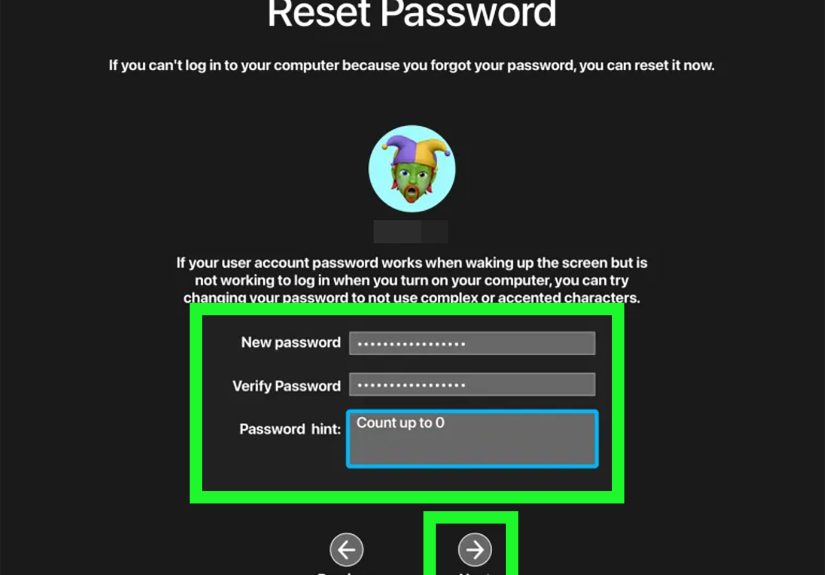
Apple provides an official recovery path using the Apple Account that set up Screen Time. In family setups, the organizer (parent) device is typically required. If you’re the organizer, you can reset or remove the passcode from your device and then manage the child’s settings.
Family Sharing (child device controlled by a parent)
If your child’s iPhone/iPad is under Family Sharing, you’ll usually need to manage or remove restrictions from the family organizer’s device. Look under Settings > Screen Time and select the child’s name under the family list.
Mac: Disable Screen Time on macOS
macOS uses Screen Time too. If restrictions are locked, you’ll need the Screen Time passcode or the organizer credentials.
- Open System Settings (or System Preferences on older macOS).
- Go to Screen Time.
- Turn off Screen Time or disable specific categories (Content & Privacy, App Limits, etc.).
Android Phones & Tablets: Family Link, Digital Wellbeing, and Google Play
Android parental controls often come from Google Family Link (account supervision) plus device settings like Digital Wellbeing or Google Play parental controls. You may need to remove restrictions in more than one place.
A. Stop Google Family Link supervision (authorized parent/guardian)
Family Link supervision typically must be stopped by a parent/manager accountespecially for younger kids. For teens, Google allows stopping supervision, but it can trigger a temporary lock requiring parent approval.
- Open the Family Link app on the parent/guardian device.
- Select the child profile.
- Go to Controls > Account settings > About supervision.
- Follow prompts to Stop supervision.
Tip: If “Stop supervision” isn’t available, check the child’s age category and whether the account is a supervised child account. Some accounts require different steps (for example, removing or transferring supervision).
B. Turn off Android’s built-in Parental controls entry point
- On the child device, open Settings.
- Tap Digital Wellbeing & parental controls (wording varies).
- Look for family controls/supervision settings and follow prompts (this usually routes back to Family Link).
C. Google Play Store parental controls (apps, games, movies)
If downloads and purchases are restricted, you may need to disable the Play Store’s parental controls with the parental PIN.
- Open the Google Play Store.
- Go to Settings > Family > Parental controls.
- Toggle Parental controls off and enter the PIN.
Windows PCs & Microsoft Family Safety: Remove Limits the Official Way
Microsoft’s family controls are typically managed through Microsoft Family Safety and the family group at the account level. To turn things off, you generally must be an organizer.
A. Turn off screen time limits
- Open the Microsoft Family Safety app (mobile) or go to the Family website.
- Select the family member.
- Go to Screen time.
- Choose a device/platform and select Turn limits off.
B. Remove app/game blocks
- In Family Safety, open the family member profile.
- Go to Apps and games controls.
- Disable limits or unblock apps as needed.
C. Adult account stuck in a family group?
If you’re an adult in a Microsoft family group and controls are applying to you, you may need to leave the family group (or have an organizer remove you). This is an account-level fix, not a “click harder” fix.
Game Consoles: PlayStation, Xbox, and Nintendo Switch
PlayStation (PS5/PS4): Turn off parental controls via Family Management
On PlayStation, parental controls are managed by the family manager (organizer). You can adjust restrictions or remove them by editing the child account settings.
- On PS5: Settings > Family and Parental Controls > Family Management > select child > edit parental controls.
- On web/app: Sign in to Account Management > Family Management > select child > Edit.
If you set a console restriction passcode, you’ll need it to change console-level restrictions.
Xbox: Turn off screen time and content filters using Family Settings
Xbox family limits are usually managed from the Xbox Family Settings app or weboften not directly on the console itself.
- Open the Xbox Family Settings app (or Microsoft Family Safety).
- Select the family member.
- Go to Screen time and choose Turn limits off for the relevant device.
Nintendo Switch: Disable restrictions with the Parental Controls PIN or app
Nintendo Switch parental controls are commonly managed through the Nintendo Switch Parental Controls smartphone app and a PIN. To change or remove restrictions, you’ll typically enter the PIN in the console’s parental controls settings and/or adjust them from the linked app.
If you don’t have the PIN or the linked parent account access, use Nintendo’s official support paths for recovery.
Amazon Devices: Fire Tablets, Amazon Kids, and Alexa
Fire Tablet / Amazon Kids: Remove or delete a child profile
Amazon Kids features are managed through the Parent Dashboard and child profiles. Turning off restrictions often means editing or deleting the child profile (again: parent account required).
- Open the Amazon Parent Dashboard (or device settings for profiles).
- Select the child profile you want to change.
- Adjust restrictions, or choose to delete/remove the child profile if you no longer need it.
Alexa: Turn Amazon Kids on/off
If Amazon Kids is enabled on an Echo device, you can manage it in the Alexa app. Turning it off generally requires the account owner’s consent and credentials.
Home Internet & Wi-Fi Parental Controls: Router and ISP Apps
Sometimes the “parental controls” aren’t on the phone at allthey’re on the Wi-Fi. That means even if you disable controls on the device, the internet may still be paused at the network level.
Xfinity xFi: Remove pauses, downtime schedules, and profiles
Xfinity xFi controls are managed in the Xfinity app by users with the right role (typically Primary or Manager). You can pause/unpause devices or people, and remove schedules like Downtime.
- Open the Xfinity app > go to WiFi/People > select the person or device > remove pauses or schedules.
- If the issue is tied to a person profile, check assigned devices and downtime rules.
NETGEAR Smart Parental Controls: Turn off filters and schedules
NETGEAR’s controls are usually managed from the router’s companion app (for example, Orbi/NETGEAR apps) and require the router admin login. Look for schedules (bedtime/downtime), filters, and per-device profiles, then disable or delete as needed.
Streaming Apps & Smart TVs: Netflix, Disney+, Roku, and YouTube
Streaming “parental controls” are often just profile settings plus a PIN. They can feel sneaky because everything looks normaluntil your show disappears.
Netflix: Remove a profile lock PIN or adjust maturity restrictions
- Open Netflix and go to Manage Profiles.
- Select the profile > Profile Lock.
- Add/edit/remove the PIN (requires account password/verification).
For content restrictions, Netflix also lets you adjust maturity ratings and block specific titles at the profile levelagain, requiring verification.
Disney+: Remove Profile PIN or turn off Junior Mode
- Go to Edit Profiles > select the profile.
- Under Parental Controls, manage Profile PIN or Junior Mode.
- Enter your Disney+ account password to save changes.
Roku: Change or remove your Roku PIN (purchases) and adjust TV parental controls
Roku has two common control types: (1) your Roku account PIN for purchases/subscriptions, and (2) device/TV parental controls for certain content (like Live TV input). The account PIN can be changed from your Roku account online; TV parental controls are set on the device.
YouTube: Restricted Mode vs supervised experiences
YouTube restrictions show up in different ways:
- Restricted Mode can be turned on/off in app settings (but may be locked by a parent, network, or organization).
- Supervised experiences are linked to parent/teen accounts and managed in Family Center settings.
When You Can’t Turn It Off (And What to Do Instead)
1) You don’t have the passcode or organizer account
If you’re the legitimate owner but forgot credentials, use the platform’s account recovery: Apple Account recovery for Screen Time, Microsoft account recovery for Family Safety, and Google account recovery for Family Link. Avoid “random fixes” that could lock you out further.
2) It’s a school/work-managed device
If the device is managed by an organization (MDM), parental controls may actually be policy controls. You’ll need the organization’s IT/admin to remove management profiles. That’s not a you-problem; it’s a permissions-problem.
3) You bought a used device with someone else’s controls
Ask the previous owner to remove the device/account from their family system and sign out fully. If they can’t, return the device if possiblebecause “permanent mystery restrictions” is a terrible feature.
Troubleshooting: The Most Common “Why Is This Still On?” Problems
Layering: You turned off one control but another is still active
Example: you disable Screen Time on the iPhone, but the kid still can’t access TikTok because the Wi-Fi app is pausing their device at night. Fix: check device + account + network + app.
Sync: It keeps coming back
In family ecosystems, restrictions can reapply from the organizer account after a sync. Make changes from the organizer/parent account where possible, then confirm on the child device.
Verification: Services now require codes
Streaming apps and account platforms may require email/SMS verification before letting you remove PINs or change maturity settings. Keep access to the primary email/phone handy.
Real-World Experiences: What Families Actually Run Into (And How They Solve It)
Tech guides love perfect scenarios: one device, one parent, one passcode, and everyone agrees politely like characters in a wholesome sitcom. Real life is more like: “Why is the Wi-Fi off?” “Because it’s bedtime.” “But I’m 17.” “Exactly.” Here are common situations families face when turning off parental controlsand the practical lessons that come with them.
1) The “My kid turned 13 and now there are new options” surprise
Many parents set up supervision when kids are young, then forget the rules change when kids become teens. Suddenly the system offers teen-friendly options (like requesting changes or stopping supervision with approvals). The best outcomes happen when parents treat the settings like a growth milestone: review restrictions together, explain what’s changing, and agree on what stays. The tech part is easy; the “we’re renegotiating trust” part is the real work.
2) The “Blended family / two guardians / one lost password” problem
In shared custody or blended households, the person who set up parental controls may not be the one troubleshooting them. It’s common to see a child’s iPad controlled by an organizer account the other parent no longer usesor worse, a long-forgotten email. The clean solution is boring but effective: identify who the organizer/admin is, use official account recovery if needed, and consolidate control to one current, reachable account. Anything else turns into a monthly scavenger hunt for verification codes.
3) The “Used iPad from a friend still has Screen Time” headache
People buy or inherit devices and discover restrictions that won’t budge. They toggle settings, restart the device, and bargain with it emotionally (“Please?”). But if Screen Time is tied to the previous owner’s family setup, the device is basically still wearing someone else’s house rules. The fix is administrative: have the previous owner remove it from Family Sharing/Screen Time supervision and sign out properly. If that’s not possible, return/exchange the device. It’s not about skill; it’s about who has the keys.
4) The “The internet’s broken!” moment that’s actually Wi-Fi downtime
Network controls are the sneakiest because every device will show full Wi-Fi bars while the router quietly says, “Nope.” Families commonly mistake this for an outageuntil they open the ISP/router app and see a schedule named “BEDTIME (DO NOT TOUCH).” If you want fewer late-night troubleshooting sessions, rename schedules clearly (“School Night Downtime”) and document who can change them (Primary/Manager accounts). You’ll save your future self from doing detective work at 11:58 p.m.
5) The “Streaming PIN confusion” spiral
Netflix, Disney+, and Roku each handle PINs differently. Parents often think they removed “the PIN,” but removed the purchase PIN instead of the profile lock, or changed one profile while another stays restricted. A simple habit helps: keep a short list of which services use which kind of lock (profile PIN vs account PIN vs TV parental controls), and review them once a year. You update smoke-detector batteries; you can update streaming settings too.
6) The “We turned it off… and now the kid’s screen time doubled” wake-up call
Turning off restrictions can be the right move, but it can also expose a gap: the controls were doing the parenting heavy lifting. Many families find a middle ground that works better than “everything locked” or “total freedom”: keep purchase approvals on, keep explicit content filters on, but relax time limits and let the teen manage their own schedule with check-ins. The best tech setting is the one that matches your family’s realitynot your fantasy.
Conclusion
Turning off parental controls isn’t about finding a secret buttonit’s about using the correct admin account, removing restrictions at the right layer (device, account, app, network), and making sure settings don’t reapply through syncing. If you’re authorized and have the credentials, you can usually disable controls in minutes. If you’re missing the credentials, official recovery routes and support are the safest path.