Table of Contents >> Show >> Hide
- Why Voice Dialing on Android Is Still So Useful
- Before You Start
- How to Voice Dial on an Android: 7 Steps
- Step 1: Make Sure Your Phone Has a Voice Assistant Ready to Go
- Step 2: Turn On “Hey Google” or Voice Activation
- Step 3: Give the Assistant Access to Your Contacts and Microphone
- Step 4: Save Contacts Clearly and Check for Duplicate Names
- Step 5: Wake the Assistant With Your Voice or a Button
- Step 6: Say the Voice Dial Command Clearly
- Step 7: Fine-Tune the Experience if It Misses Calls or Mishears You
- Common Voice Commands That Help With Calling
- Google Assistant vs. Gemini vs. Bixby vs. Voice Access
- How to Troubleshoot Voice Dialing on Android
- Best Practices for Easier Voice Calling
- Real-World Experiences With Voice Dialing on Android
- Final Thoughts
- SEO Tags
Voice dialing on Android is one of those features that feels a little magical when it works well and a little dramatic when it does not. One moment you say, “Hey Google, call Mom,” and your phone becomes a loyal digital butler. The next moment it hears, “Call bomb,” and suddenly you are questioning your relationship with technology. The good news is that voice dialing on Android is easier than ever once you know where the right settings live.
If you want to make calls without tapping through your Contacts app, squinting at the screen, or poking the wrong number with a stressed-out thumb, this guide walks you through exactly how to voice dial on an Android in 7 simple steps. You will also learn how to fix common problems, understand whether your phone uses Google Assistant, Gemini, Bixby, or Voice Access, and make voice calling work more smoothly with Bluetooth, driving mode, and accessibility settings.
Why Voice Dialing on Android Is Still So Useful
Plenty of smartphone features come and go, but voice dialing sticks around because it solves a very real problem: sometimes your hands are busy, your eyes are tired, or you simply do not feel like tapping through menus like you are defusing a bomb in a spy movie. Voice dialing is handy when you are cooking, walking, driving with hands-free gear, carrying groceries, or helping someone who finds touchscreens frustrating.
On most modern Android phones, voice dialing works through Google Assistant or Gemini, while some Samsung phones also support Bixby voice commands. Android’s Voice Access can also place calls using spoken commands, especially for users who want broader hands-free control of the phone. In plain English, Android gives you more than one road to the same destination: making a call with your voice.
Before You Start
Before you jump into the steps, make sure you have the basics covered. Your Android phone should have a working microphone, a mobile or Wi-Fi connection if your assistant relies on online speech recognition, and permission to access your contacts if you want to say names instead of full phone numbers. It also helps to have your favorite contacts saved clearly. “Mom Mobile” is much easier for your phone to understand than “Mooooom maybe landline maybe cell.”
You should also know that Android menus can vary by brand and version. A Pixel phone may point you toward Gemini or Google Assistant settings, while a Samsung Galaxy might also offer Bixby options. The overall process is still basically the same: enable the voice assistant, train Voice Match if available, then speak a calling command.
How to Voice Dial on an Android: 7 Steps
Step 1: Make Sure Your Phone Has a Voice Assistant Ready to Go
Start by checking whether your Android phone already responds to a voice assistant. On many phones, you can press and hold the power button or home gesture area to launch the assistant. If your phone opens Gemini, Google Assistant, or Bixby, you are already halfway there.
If nothing happens, open your phone’s settings and search for terms like Assistant, Gemini, Google Assistant, or Bixby. The exact name depends on your device, but the goal is the same: confirm that a voice assistant is active and allowed to respond.
Step 2: Turn On “Hey Google” or Voice Activation
To voice dial hands-free, you usually need wake-word detection turned on. On many Android devices, this means enabling Hey Google and setting up Voice Match. Once enabled, your phone can listen for your voice and open the assistant when you speak the trigger phrase.
Depending on your device, you may find this inside the Google Home app, Google settings, Assistant settings, or Gemini settings. Samsung users may see a similar option for Bixby, such as a voice wake-up feature. If your phone supports it, enabling voice activation is what transforms it from a regular smartphone into your mildly overconfident calling sidekick.
Step 3: Give the Assistant Access to Your Contacts and Microphone
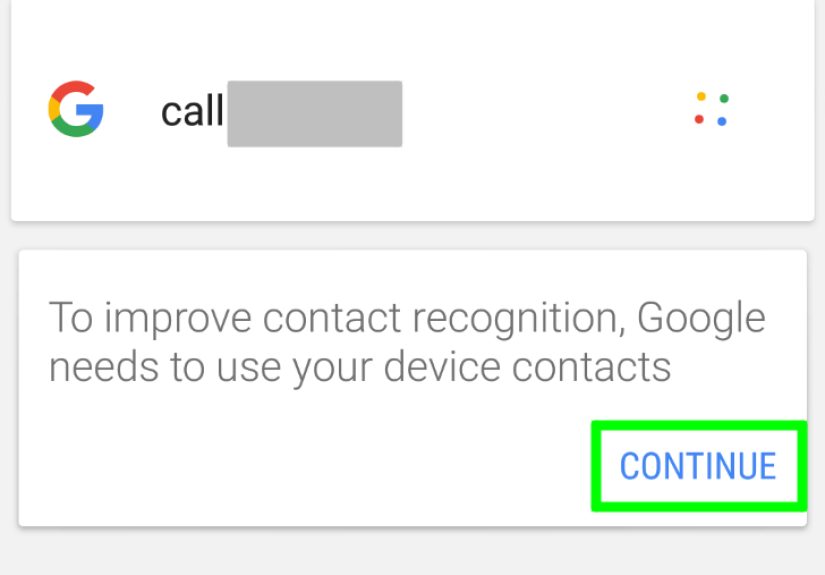
This step matters more than people think. If your assistant cannot access your contacts, it may not recognize “Call Dad” and may ask for a number instead. Go to Settings > Apps > Permissions and make sure the relevant assistant app has access to your microphone and contacts.
If you mainly want to voice dial by speaking a number out loud, contact access is less important. But for everyday use, contact permission makes everything faster and more natural. It also reduces the chance that your phone mishears a name and decides your dentist is more important than your sister.
Step 4: Save Contacts Clearly and Check for Duplicate Names
Now clean up your contacts list a little. Voice dialing works best when names are distinct and simple. If you have three entries called “John,” your phone may ask, “Which John?” and you will be stuck in a tiny identity crisis. Rename contacts with useful labels such as John Work, John Smith Mobile, or Aunt Lisa Home.
This is also the time to confirm that your frequently called people actually have phone numbers saved in the contact card. It sounds obvious, but voice dialing cannot call a name that exists only as a ghostly email address from 2019.
Step 5: Wake the Assistant With Your Voice or a Button
Once setup is done, wake your assistant in one of two ways. The first is with your voice: say “Hey Google” or the device’s supported wake phrase. The second is manually: press and hold the assistant button, side key, or on-screen microphone icon. Either method opens the listening mode.
This is useful because hands-free wake-up is convenient, but button activation can be more reliable in noisy places. If you are standing in a windy parking lot shouting at your phone like it owes you money, tapping the assistant button may work better.
Step 6: Say the Voice Dial Command Clearly
Here is the fun part. Speak a direct command such as:
- Call Mom
- Call John Smith mobile
- Call 555-123-4567
- Call the nearest pizza place
On supported phones, the assistant should confirm the contact or number and place the call. If a contact has more than one number, Android may ask whether you want mobile, home, or work. Just answer naturally. Modern Android assistants are usually smart enough to handle follow-up choices without making you start over.
Step 7: Fine-Tune the Experience if It Misses Calls or Mishears You
If voice dialing does not work on the first try, do not assume your phone has turned against you personally. Open assistant settings and check whether Voice Match is still enabled, the correct assistant is selected, and your microphone permissions are intact. You can also retrain your voice model if the phone regularly misunderstands you.
Move to a quieter room, speak at a normal pace, and use precise names. If you use a headset or earbuds, test whether the built-in microphone or the headset mic is doing the listening. Sometimes the issue is not Android at all. Sometimes it is your car stereo, your Bluetooth routing, or your contact list being organized like a haunted junk drawer.
Common Voice Commands That Help With Calling
Once you know the basic command, you can do more than just call one saved contact. Many Android phones also support commands such as:
- Call back my last missed call
- Call the nearest pharmacy
- Answer or Decline on some supported devices
- Call Mom on speakerphone
- Call Sarah on WhatsApp on supported app integrations
Exact command support depends on your device, Android version, and whether you are using Gemini, Google Assistant, Bixby, or another tool. Still, the best strategy is to speak naturally and simply. Android has gotten much better at understanding plain English. You no longer have to talk like a robot from a 1998 sci-fi movie.
Google Assistant vs. Gemini vs. Bixby vs. Voice Access
This is where many people get confused, so let’s clear the air. Google Assistant has long handled voice calling on Android. Gemini is now replacing Google Assistant on many Android phones, but it can still place calls through the Phone app on supported devices. Bixby is Samsung’s assistant and can also manage calls and device controls on Galaxy phones. Voice Access is an accessibility feature that lets you control much of the device, including making calls, with spoken commands.
If your goal is simple everyday voice dialing, Gemini or Google Assistant is usually the easiest route. If you want deep hands-free phone control, especially for accessibility, Voice Access is a strong option. If you have a Samsung device and already use Bixby, it can handle calling too. In other words, Android offers choices. This is great for flexibility and mildly terrible for anyone who just wanted one button that said “talk now.”
How to Troubleshoot Voice Dialing on Android
Your phone does not respond to “Hey Google”
Check that your assistant is enabled, Voice Match is turned on, and your microphone permission is allowed. Also make sure battery saver or app restrictions are not preventing the assistant from listening properly.
Your assistant opens but does not place the call
Make sure the Phone app integration is enabled for Gemini or Google Assistant. Also verify that the contact has a valid number saved and that your phone app is set as the default calling app.
Your phone says the wrong name or asks too many questions
Edit duplicate contacts and speak more specific names, such as “Call Alex Chen mobile.” This is especially important if you have family members with similar names or multiple numbers stored.
Voice dialing fails while driving or using Bluetooth
Check your car’s Bluetooth connection, headset microphone, and Android Auto settings if applicable. Some hands-free calling issues are caused by the accessory, not the phone itself.
Voice commands work everywhere except during a call
If you rely on Voice Access, you may need to enable the setting that keeps it active during phone calls. Otherwise, Android may stop listening once the call begins.
Best Practices for Easier Voice Calling
To make voice dialing feel effortless, keep a few habits in mind. First, organize favorite contacts with clear names. Second, use a quiet environment when setting up Voice Match. Third, test voice dialing before you actually need it in a rushed situation. And fourth, do not wait until you are merging into traffic to discover that your assistant thinks “Call Ben” means “play jazz.”
It also helps to practice the exact phrasing your phone understands best. For example, “Call Megan mobile” may work better than “Could you maybe call Megan on her cell, thanks.” Polite? Yes. Efficient? Not always.
Real-World Experiences With Voice Dialing on Android
In real life, voice dialing on Android is one of those features that quietly becomes part of your routine once you trust it. People often start using it for one obvious reason, such as calling someone while driving with a Bluetooth setup, but then they realize it is useful in a dozen smaller moments too. Imagine carrying grocery bags into the house, trying not to drop the eggs, and needing to call someone quickly. Voice dialing suddenly feels less like a tech trick and more like basic survival.
Many Android users say their first successful hands-free call feels oddly satisfying. You say, “Hey Google, call Dad,” and the phone responds immediately. No scrolling. No unlocking. No opening the Phone app and accidentally tapping your bank instead of your brother. That kind of convenience can make the entire phone feel smarter. It is especially helpful for older adults, people with limited dexterity, or anyone who gets overwhelmed by tiny on-screen buttons.
There is also a learning curve, and that part is very human. At first, users tend to over-explain commands. They will say something like, “Hey Google, can you please call Jennifer because I am in the kitchen and my hands are messy?” The assistant, doing its robotic best, hears “call Jennifer” and ignores the rest. After a few tries, people usually learn to keep the command short and direct. That is when voice dialing starts feeling reliable.
Another common experience is discovering that contact names matter a lot. If your phonebook has entries like “Mike,” “Mike work,” “Mike maybe new number,” and “Mike do not answer,” voice dialing becomes a comedy sketch. But after a little cleanup, the feature improves dramatically. Users often report that once they rename contacts clearly, Android becomes much better at getting calls right the first time.
Bluetooth also changes the experience. With wireless earbuds or a car connection, voice dialing can feel almost seamless. You tap an earbud, say the command, and the call starts without ever touching the phone. That is the ideal version. The less ideal version is when the headset mic picks up road noise, your phone misunderstands you, and you wind up calling a furniture store instead of your cousin. Even then, the solution is usually simple: speak more clearly, reduce background noise, or use the manual assistant button.
For accessibility users, voice dialing can be far more than a convenience feature. It can be a core way of using the phone independently. Tools like Voice Access can make the whole device easier to control, including placing calls by voice. In that context, voice dialing is not just cool. It is empowering.
Overall, the real-world experience of voice dialing on Android is this: once it is set up properly, it saves time, reduces friction, and makes your phone feel more helpful. It is not perfect every single time, because no voice assistant has fully graduated from the School of Misheard Names. But when the settings are right and your contacts are tidy, it becomes one of the most practical features on the device.
Final Thoughts
Learning how to voice dial on an Android is not complicated, but it does require a few setup steps that many people skip. Once your assistant is enabled, Voice Match is on, permissions are granted, and your contacts are organized, making calls by voice becomes fast and natural. Whether you use Google Assistant, Gemini, Bixby, or Voice Access, the basic idea is the same: wake the assistant, say the contact or number, and let Android do the heavy lifting.
If you have never used voice dialing before, try it with a favorite contact today. Start simple. Use a quiet room. Speak clearly. And enjoy the weirdly satisfying feeling of making your phone work without touching it. It is one of those small Android tricks that can make everyday life noticeably easier.