Table of Contents >> Show >> Hide
- What “keyboard history” really means on Android
- Way 1: Delete learned words inside your keyboard app
- Way 2: Delete specific words or clipboard items instead of wiping everything
- Way 3: Clear the keyboard app’s storage for a full reset
- What to do if the keyboard history comes back
- Common mistakes people make when trying to delete keyboard history
- Which method should you use?
- Real-world experiences with deleting keyboard history on Android
- Final thoughts
- SEO Tags
If your Android keyboard has started suggesting weird typos, old slang, an ex’s name, or that one embarrassing word you accidentally typed once at 2 a.m., welcome to the club. Keyboard history on Android is helpful right up until it becomes a tiny digital gossip machine. The good news? You can absolutely wipe it.
Whether you use Gboard, Samsung Keyboard, or Microsoft SwiftKey, deleting keyboard history usually means clearing learned words, personalized predictions, and sometimes clipboard items. The exact steps depend on which keyboard app is running the show, but the fix is usually quick and far less dramatic than factory-resetting your whole phone like it’s in witness protection.
In this guide, you’ll learn 3 ways to delete the keyboard history on Android, when to use each one, and what actually disappears after you tap that ominous-looking reset button.
What “keyboard history” really means on Android
Before you start deleting things with the confidence of a movie hacker, it helps to know what keyboard history actually is. On Android, it usually refers to the data your keyboard app learns over time, such as:
- Frequently used words and phrases
- Autocorrect patterns
- Personalized predictions
- Saved custom words or shortcuts
- Sometimes clipboard history
That’s different from your browser history, search history, or chat history. Deleting keyboard history won’t erase what you searched in Chrome, what you typed in Google, or what you sent in Messages. It mainly resets the keyboard’s memory so it stops acting like your typo-loving sidekick.
Way 1: Delete learned words inside your keyboard app
This is the easiest and cleanest method. If you want to remove the keyboard’s memory without disturbing the rest of your phone, start here.
How to delete keyboard history in Gboard
Gboard is the default keyboard on many Android phones, especially Pixel devices and many non-Samsung models. It learns from what you type and can store on-device typing and dictation data for better predictions.
- Open any app where you can type.
- Bring up the keyboard.
- Tap the gear icon to open keyboard settings.
- Look for Dictionary or Privacy.
- Tap Delete learned words or Delete learned words & data.
- Enter the confirmation code if prompted.
- Tap OK.
That clears the learned words Gboard has picked up from your typing. In plain English, the keyboard stops remembering that nonsense spelling you accidentally taught it last month.
How to delete keyboard history in Samsung Keyboard
If you’re on a Galaxy phone, you may be using Samsung Keyboard instead of Gboard. Samsung gives this feature a different name, because of course it does.
- Open Settings.
- Search for Samsung Keyboard or go to General management.
- Tap Samsung Keyboard settings.
- Scroll down to Reset to default settings.
- Tap Erase personalized predictions.
- Confirm the action.
This removes the data Samsung Keyboard uses for word prediction. So if your phone insists on suggesting a misspelled version of your own last name, this is where you shut that down.
How to delete keyboard history in Microsoft SwiftKey
SwiftKey works a little differently. It can learn your writing style and may also sync your personalized dictionary if you use backup features.
- Open the Microsoft SwiftKey app.
- Go to Account.
- If needed, tap the option to Delete personalized dictionary backup.
- If you only want to remove one annoying suggestion, type until it appears in the prediction bar, then press and hold the word to remove it.
SwiftKey is handy, but it can become extremely confident about words you never want to see again. Think of this step as taking away the keyboard’s megaphone.
Way 2: Delete specific words or clipboard items instead of wiping everything
Sometimes you don’t need a full keyboard reset. Sometimes you just need to remove that one cursed suggestion that keeps popping up in the prediction bar like an uninvited party guest.
Delete individual learned words
If you only want to remove one bad suggestion, this method is less destructive than clearing all keyboard data.
- Gboard: Type until the unwanted suggestion appears, then tap and hold it and drag it to the trash.
- Samsung Keyboard: On many Galaxy devices, you can press and hold an unwanted suggested word and confirm its removal.
- SwiftKey: Press and hold the unwanted prediction in the suggestion bar to delete it.
This is a great option if your keyboard is mostly fine, but one strange word keeps resurfacing like it pays rent.
Delete clipboard history on Android keyboards
Some people say “keyboard history” when they actually mean clipboard history. That’s the stuff you copied recently, like email addresses, promo codes, or a message you were definitely going to paste somewhere and not lose forever.
On keyboards that support clipboard history, you can usually:
- Open any typing field.
- Tap the keyboard’s Clipboard icon.
- Delete individual saved clips, or clear multiple items if the app allows it.
This is especially useful if you copied something private and don’t want it hanging around in your keyboard’s clipboard panel. Because yes, your phone really doesn’t need to preserve that Wi-Fi password forever like a treasured family heirloom.
Why this method is worth trying first
If you use predictive text a lot, a total reset can be annoying. Your keyboard may temporarily become less accurate, less personalized, and a little dumb again. Charming, but dumb. Removing only the bad words gives you a cleaner keyboard without forcing you to retrain everything from scratch.
Way 3: Clear the keyboard app’s storage for a full reset
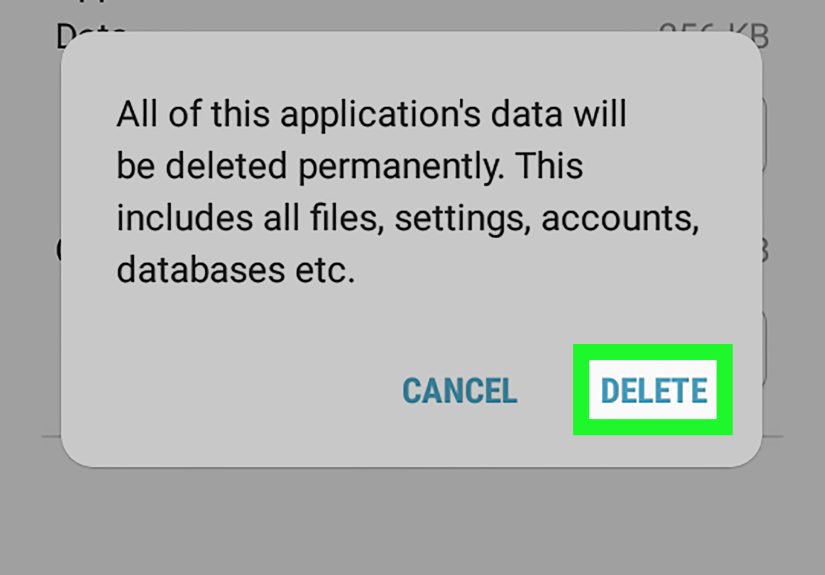
If your keyboard history won’t go away, keeps coming back, or the app is acting glitchy, clearing the app’s storage is the nuclear option. Not full phone-reset nuclear. More like “start over, keyboard” nuclear.
How to clear keyboard app data on Android
- Open Settings.
- Tap Apps or Apps & notifications.
- Find your keyboard app, such as Gboard, Samsung Keyboard, or Microsoft SwiftKey Keyboard.
- Tap Storage, Storage & cache, or a similar menu.
- Tap Clear data, Clear storage, or both.
This usually wipes the app’s stored data, which can include:
- Learned words
- Personalized predictions
- Saved keyboard settings
- Clipboard items
- Custom tweaks or themes, depending on the app
If you use Samsung Keyboard, clearing app data can also erase saved words and settings. If you use SwiftKey, it may clear local data like clipboard items and settings, though account-based features can behave differently if sync is enabled.
When to use this method
Use this option when:
- The keyboard keeps showing old suggestions after a reset
- The app feels buggy or stuck
- You want a near-complete keyboard fresh start
- You’re giving your phone to someone else and want to remove personalization data
One caution before you tap “Clear data”
This method is effective, but it’s also the most aggressive. You may need to re-enable settings, download language packs again, or sign back into the keyboard app. So yes, it works. But it may also temporarily make your keyboard feel like it just woke up from a nap and has no idea who you are.
What to do if the keyboard history comes back
If you cleared everything and the keyboard still starts suggesting old patterns later, that usually means one of three things:
- You only cleared cache, not data. Cache removes temporary files, but it often won’t erase learned words.
- The keyboard is relearning from your new typing. This is normal. If you keep typing the same abbreviations, slang, or names, the keyboard will learn them again.
- You use an account or sync feature. Some keyboards, especially third-party ones, may restore certain preferences or backup data if syncing is enabled.
If privacy is your top concern, check your keyboard app’s settings for options related to personalization, prediction, sync, or backup. Turning those off can help keep the keyboard from rebuilding a history you just deleted.
Common mistakes people make when trying to delete keyboard history
- Deleting browser history instead: Helpful for Chrome, useless for keyboard predictions.
- Clearing only cache: Good for minor app issues, not always enough for learned words.
- Forgetting which keyboard is active: Your phone may use Gboard, Samsung Keyboard, or SwiftKey. Make sure you reset the one you actually use.
- Assuming all Android phones work the same way: Android loves variety. Your menus may be in a slightly different place depending on brand and software version.
Which method should you use?
Here’s the easy rule:
- Use Way 1 if you want a normal reset of learned words and predictions.
- Use Way 2 if only one or two words or copied items are bothering you.
- Use Way 3 if the keyboard is stubborn, buggy, or you want the deepest possible cleanup without resetting your whole phone.
For most people, Way 1 is the sweet spot. It’s fast, clean, and doesn’t bulldoze every keyboard preference you’ve set up over the years.
Real-world experiences with deleting keyboard history on Android
One of the funniest things about Android keyboards is how quickly they pick up your habits and how dramatically they refuse to let them go. Plenty of people only realize their keyboard has a memory when it starts suggesting a typo more often than the actual word. Suddenly, every message looks like it was proofread by a sleepy raccoon.
A common experience happens at work. You misspell a coworker’s name once, maybe twice, and then the keyboard decides that wrong version is now the official spelling forever. Every email becomes a trust fall. Deleting learned words is a huge relief in that moment because it stops the keyboard from confidently sabotaging your professionalism.
Then there’s the family-phone situation. Maybe you let your kid borrow your phone for a game, or your partner uses it to send a quick text, and now your keyboard suggestions are a chaotic mix of cartoon names, snack requests, and random all-caps excitement. Clearing keyboard history can make your phone feel like your phone again instead of a shared community bulletin board.
Another real-life headache shows up after installing a new keyboard app. At first, everything feels sleek and smart. Then the predictions start getting a little too personal. The keyboard learns your abbreviations, your weird shorthand, your inside jokes, and those one-off mistakes you wish had never happened. For some people, that personalization feels convenient. For others, it feels like the keyboard has become an overfriendly coworker who remembers way too much. Resetting that learned data can be surprisingly satisfying.
Privacy concerns also play a big role. If you’re selling your phone, handing it down, or even just letting someone borrow it for a while, wiping keyboard history is one of those small steps that makes a big difference. It’s easy to remember to delete photos or sign out of apps, but people often forget the keyboard has been quietly learning names, addresses, slang, and repeated phrases in the background.
And then there’s clipboard history, the sneaky side character in this story. Many users copy passwords, tracking numbers, apartment codes, and personal details without realizing their keyboard may keep some of that in a clipboard panel for later. Once people discover that, they usually become very interested in the delete button. Very interested.
The biggest takeaway from real-world use is simple: deleting keyboard history isn’t just about fixing autocorrect. It’s about accuracy, privacy, and getting rid of suggestions that no longer reflect how you actually type. When your keyboard starts acting like it knows you better than you know yourself, a reset can be a wonderfully humbling reminder that, no, tiny rectangle, you work for me.
Final thoughts
If you’ve been wondering how to delete keyboard history on Android, the solution depends on how deep a cleanup you want. You can remove learned words directly in the keyboard app, delete specific suggestions or clipboard items, or clear the keyboard app’s data for a full reset. None of these methods are especially hard, and all of them are easier than living with autocorrect that keeps trying to rewrite your life.
Start with the lightest option, move to the full reset only if needed, and remember: your Android keyboard is smart, but it doesn’t need to remember every typo you’ve ever made. Some memories are better left in the past.