Table of Contents >> Show >> Hide
- What Does It Mean to Hide a Drive?
- Why You Might Want to Hide a Drive
- Before You Hide a Drive: Back Up First
- Method 1: Hide a Drive by Removing Its Drive Letter
- Method 2: Hide Drives with Group Policy
- Method 3: Hide a Drive with the Windows Registry
- Method 4: Use BitLocker for Real Drive Protection
- Method 5: Create an Encrypted Container
- Method 6: Use OneDrive Personal Vault or Secure Cloud Storage
- Method 7: Use File and Folder Permissions
- Best Practices for Keeping Files Private
- Common Mistakes to Avoid
- Which Method Should You Choose?
- Real-World Experience: What Hiding a Drive Actually Feels Like
- Conclusion
Everyone has files they would rather not leave sitting in plain sight. Maybe it is tax paperwork, client documents, family photos, a folder of scanned IDs, or that “novel draft” you have been bravely ignoring since 2019. Whatever the case, learning how to hide a drive can help reduce casual snooping and keep your desktop life a little less chaotic.
But let’s clear up one important thing right away: hiding a drive is not the same as securing a drive. Hiding is like putting a folder in a drawer. Encryption is like putting that folder in a locked safe, chaining the safe to a wall, and giving the key to someone who actually remembers where they put things. If you want real privacy, you should combine hiding methods with encryption, strong passwords, smart permissions, and safe backups.
This guide explains how to hide a drive on Windows, how to protect files with encryption, when to use cloud vaults or external drives, and which common mistakes can accidentally expose your private data. The goal is simple: keep your files private without turning your computer into a puzzle box that even you cannot solve.
What Does It Mean to Hide a Drive?
To hide a drive means to remove it from ordinary view in places like File Explorer, “This PC,” or the desktop. The drive may still exist, the data may still be there, and Windows may still recognize it. You are simply making it less visible to casual users.
There are several ways to do this. You can remove the drive letter, use Disk Management, change local policy settings, use the Registry, create an encrypted container, or store sensitive files in a protected cloud vault. Each method has a different level of difficulty and security.
Hiding vs. Encrypting: The Big Difference
Hiding a drive keeps it out of sight. Encrypting a drive protects the data itself. If someone removes your hard drive and plugs it into another computer, a merely hidden drive may still be readable. An encrypted drive, on the other hand, requires the correct recovery key, password, PIN, or authentication method before the contents can be accessed.
Think of hiding as privacy from nosy roommates and encryption as protection from actual data theft. Both are useful, but they are not interchangeable.
Why You Might Want to Hide a Drive
There are many normal, legitimate reasons to hide a drive. You may want to reduce clutter in File Explorer, keep kids from opening work folders, prevent accidental deletion of backup files, or separate private documents from everyday files. In offices, administrators sometimes hide specific drives so users do not wander into system areas and accidentally break something important. Computers are already dramatic enough without someone deleting a recovery partition named “Do Not Touch.”
Hiding a drive can also help with organization. If you use a second partition for backups, archives, or software installers, keeping it out of sight can make your daily workspace cleaner. Fewer visible drives mean fewer accidental clicks, and fewer accidental clicks mean fewer “why is my spreadsheet now gone?” moments.
Before You Hide a Drive: Back Up First
Before changing drive letters, permissions, partitions, or encryption settings, make a backup. This is not optional advice from a nervous IT person. It is the difference between “oops” and “I have made a terrible life choice.”
Back up important files to a reliable location such as an external drive, encrypted cloud storage, or a second secure computer. For sensitive information, use encrypted backups. A backup that exposes all your private files is not a privacy plan; it is a duplicate problem with a progress bar.
Also make sure you understand which drive you are hiding. Do not remove or modify the system drive unless you know exactly what you are doing. The C: drive is usually where Windows lives, and Windows does not enjoy being made invisible in its own house.
Method 1: Hide a Drive by Removing Its Drive Letter
One of the most practical ways to hide a drive in Windows is to remove its drive letter. Windows uses drive letters such as C:, D:, and E: to show volumes in File Explorer. If a non-system drive has no letter, it usually disappears from “This PC,” even though the data remains on the disk.
How to Remove a Drive Letter in Windows
- Right-click the Start button.
- Select Disk Management.
- Find the drive or partition you want to hide.
- Right-click the volume and choose Change Drive Letter and Paths.
- Select the current drive letter.
- Click Remove.
- Confirm the warning if you are sure this is the correct drive.
After that, the drive should no longer appear in File Explorer. To show it again, return to Disk Management, choose Change Drive Letter and Paths, click Add, and assign a drive letter.
When This Method Works Best
This method is great for secondary partitions, archive drives, recovery volumes, and backup partitions that you do not need to access every day. It is simple, reversible, and does not require third-party software.
What This Method Does Not Do
Removing a drive letter does not encrypt your files. A knowledgeable user can open Disk Management and assign a new letter. For stronger privacy, pair this method with BitLocker, VeraCrypt, or another encryption tool.
Method 2: Hide Drives with Group Policy
Windows Pro, Enterprise, and Education editions include the Local Group Policy Editor, which can hide specified drives from File Explorer. This is especially useful on shared computers or managed workstations.
How to Use Group Policy to Hide Drives
- Press Windows + R.
- Type gpedit.msc and press Enter.
- Go to User Configuration.
- Open Administrative Templates.
- Select Windows Components, then File Explorer.
- Open Hide these specified drives in My Computer.
- Choose Enabled.
- Select the drive combination you want to hide.
- Click Apply, then OK.
This setting hides selected drives from normal File Explorer view. However, depending on configuration, it may not fully block access through direct paths, command line tools, or other programs. For better control, combine it with access restrictions and encryption.
Method 3: Hide a Drive with the Windows Registry
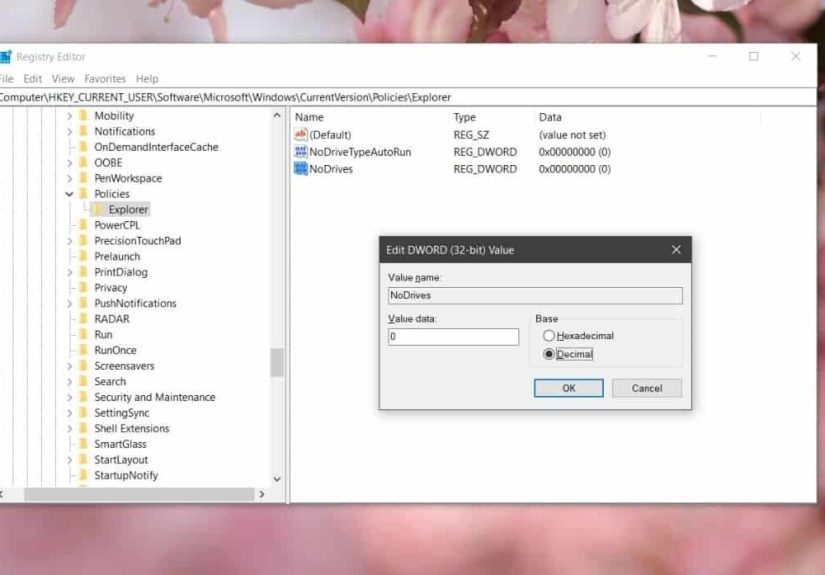
The Windows Registry can also hide drives by using a value commonly known as NoDrives. This method is more advanced and should be used carefully. The Registry is powerful, but it is not forgiving. It is less “friendly assistant” and more “ancient spellbook with consequences.”
Before editing the Registry, create a restore point and back up the Registry. If you are not comfortable with advanced system settings, use Disk Management or Group Policy instead.
Who Should Use the Registry Method?
The Registry method is best for advanced users, IT administrators, or people following a carefully tested guide. It can be useful when Group Policy is unavailable, but it is not the best first choice for most home users.
Again, hiding through the Registry does not encrypt files. It mainly changes visibility in Windows Explorer. Anyone with enough technical knowledge may still locate the data.
Method 4: Use BitLocker for Real Drive Protection
If your goal is to keep files private, BitLocker is one of the strongest built-in options on supported Windows editions. BitLocker encrypts entire drives, which helps protect data if a laptop is lost, stolen, or accessed outside your normal Windows sign-in session.
BitLocker is commonly available on Windows Pro, Enterprise, and Education. Some Windows Home devices may support device encryption depending on hardware and account setup. Once enabled, BitLocker protects the drive by encrypting its contents. Without the proper recovery key or authentication, the data is much harder to access.
How to Use BitLocker Safely
Before enabling BitLocker, make sure you save your recovery key somewhere safe. Do not store the only copy on the same computer. If Windows asks for the recovery key later and you do not have it, your private files may become private from everyone, including you. Congratulations, you have achieved maximum secrecy and minimum usefulness.
A smart setup includes a strong Windows sign-in password, a saved recovery key, secure account recovery options, and a reliable backup. If you use a Microsoft account, check where your recovery key is stored and decide whether that setup matches your privacy needs.
Method 5: Create an Encrypted Container
An encrypted container is like a private digital vault stored as a file. When locked, it looks like an ordinary container file. When unlocked with the correct password, it opens like a drive where you can store documents, photos, spreadsheets, and other sensitive files.
Tools such as VeraCrypt are popular for this purpose because they can create encrypted volumes and work across multiple operating systems. This can be useful if you want a portable private storage area on a USB drive or external disk.
Why Encrypted Containers Are Useful
Encrypted containers are flexible. You can create one for tax files, one for business documents, one for travel scans, and one for family records. You can move them between drives, back them up, and keep them locked when not in use.
The downside is that you must remember the password. There is no magical “forgot password” button for serious encryption. That is the point. Choose a long, unique passphrase you can remember, and store recovery information securely if the tool provides it.
Method 6: Use OneDrive Personal Vault or Secure Cloud Storage
If you store files in the cloud, consider using a protected area such as OneDrive Personal Vault. Personal Vault adds an extra identity verification step before opening sensitive files. It can be useful for passports, insurance documents, financial records, and emergency paperwork you may need to access from more than one device.
Cloud vaults are convenient, but they are not the same as privately controlled offline encryption. You should still use strong passwords, two-factor authentication, updated recovery information, and careful sharing settings. Also check whether files are synced to your local device. A file protected in the cloud may still appear on a computer if sync settings allow it.
Method 7: Use File and Folder Permissions
Windows permissions can restrict which user accounts can open specific files or folders. This works best on shared computers where each person has a separate account. If everyone uses the same account, permissions will not help much. That is like putting different name tags on the same house key.
To adjust permissions, right-click a folder, open Properties, choose the Security tab, and review which users or groups have access. Be careful when changing permissions on system folders. Locking yourself out of your own files is surprisingly easy and deeply annoying.
Best Practices for Keeping Files Private
Use a Strong Password
A hidden or encrypted drive is only as strong as the password protecting it. Use a long passphrase instead of a short, clever password. “BlueCoffeeMoonRiver!2026” is better than “password123,” which should be fired into the sun.
Turn On Two-Factor Authentication
For cloud accounts, email accounts, and Microsoft accounts, enable two-factor authentication. Your private files often depend on the security of the account connected to them.
Keep Software Updated
Security updates fix vulnerabilities that attackers may use to bypass protections. Update Windows, your browser, your antivirus software, and any encryption tools you rely on.
Do Not Share Admin Accounts
If multiple people use one computer, give each person a separate standard user account. Save administrator access for maintenance. This reduces accidental access and keeps your privacy setup cleaner.
Encrypt External Drives
USB drives are easy to lose. If you store private files on removable storage, encrypt the drive or use an encrypted container. A lost unencrypted flash drive is basically a tiny plastic confession booth.
Be Careful with Backups
Backups can expose the same data you worked so hard to protect. If your main drive is encrypted but your backup is not, your privacy has a side door. Encrypt sensitive backups and test them regularly.
Common Mistakes to Avoid
The first mistake is assuming that hidden means secure. It does not. Hidden drives can often be found by someone who knows where to look. The second mistake is forgetting recovery keys or encryption passwords. Strong privacy should not depend on your ability to remember a password you invented at 1:13 a.m. after three cups of coffee.
Another mistake is hiding the wrong drive. Removing a drive letter from a data partition is one thing. Tampering with boot, recovery, or system partitions is another. When in doubt, stop and verify before clicking anything irreversible.
Finally, do not rely on one layer. Use hiding for convenience, encryption for protection, permissions for access control, and backups for survival. A good privacy setup is layered, not theatrical.
Which Method Should You Choose?
If you simply want to remove clutter, use Disk Management to remove a drive letter. If you manage a shared Windows Pro computer, Group Policy may be better. If you need strong protection for an entire drive, use BitLocker. If you want a portable private vault, use an encrypted container. If you need secure cloud access, use a protected vault with two-factor authentication.
For most home users, the best combination is simple: remove the drive letter for casual hiding, encrypt the drive or files for real privacy, and keep an encrypted backup. That gives you privacy, security, and recovery without requiring a full-time IT department or a dramatic hacker hoodie.
Real-World Experience: What Hiding a Drive Actually Feels Like
In real life, hiding a drive is less like a spy movie and more like organizing a messy closet. The first time you do it, you may feel strangely powerful. One minute the D: drive is sitting in File Explorer like it owns the place. The next minute, it disappears. No smoke, no lasers, no soundtrack. Just a cleaner “This PC” window and a small sense of victory.
The most common experience is relief. People often hide drives because they are tired of seeing storage areas they rarely use. A backup partition, a recovery partition, or an archive drive can clutter the view and invite accidental clicks. Once hidden, the computer feels calmer. You open File Explorer and see only what you actually use every day. It is digital minimalism without having to buy a beige desk and whisper about productivity.
But there is also a learning curve. Many users hide a drive and then forget how to bring it back. That is why it helps to write down what you changed. For example: “Removed letter E: from archive drive using Disk Management.” That one sentence can save you from future panic. Your future self will appreciate it, possibly with snacks.
Another real-world lesson is that privacy needs depend on the situation. If you are hiding a drive from a child who might delete files by accident, removing the drive letter may be enough. If you are protecting financial records on a laptop you carry to airports, encryption matters far more. If you are storing client work, legal documents, or scanned IDs, a hidden drive alone is not responsible protection. You need encryption, strong authentication, and backups.
One practical experience many people discover is that convenience and security often wrestle each other in the parking lot. A fully encrypted setup is safer, but it may require passwords, recovery keys, and extra steps. A hidden drive is convenient, but not deeply secure. The sweet spot is usually a layered approach: hide what you do not need to see, encrypt what you cannot afford to expose, and back up what you cannot afford to lose.
It is also worth thinking about other apps. Some programs expect files to be in a specific drive location. If you remove a drive letter, shortcuts, media libraries, backup tools, or editing software may complain. They are not being dramatic; they simply cannot find the path anymore. Before hiding a drive, check whether any apps depend on it. If they do, update those paths or choose a different privacy method.
The best experience comes from testing. Hide the drive, restart the computer, confirm it stays hidden, then unhide it once so you know the recovery process. Do not wait until tax day, a client deadline, or a family emergency to learn where your files went. Practice when nothing is on fire.
After using hidden and encrypted drives for a while, most people settle into a routine. Everyday files stay visible. Sensitive files go into an encrypted location. Backup drives stay hidden unless needed. Cloud vaults hold emergency documents. Passwords live in a password manager. The result is not perfect secrecy, but practical privacy. And practical privacy is what most people actually need: less exposure, fewer accidents, and more control over who sees what.
Conclusion
Learning how to hide a drive is a useful privacy skill, but it should be part of a bigger file protection strategy. Removing a drive letter, using Group Policy, or adjusting visibility settings can keep files away from casual browsing. For serious protection, use encryption tools like BitLocker or an encrypted container, secure your accounts with strong passwords and two-factor authentication, and maintain encrypted backups.
The safest approach is layered: hide the drive for convenience, encrypt the data for protection, control permissions for access, and back everything up so one mistake does not become a disaster. Your private files deserve more than luck and a folder named “Definitely Not Important.”
Note: Only hide or secure drives that you own or are authorized to manage. On school, work, or shared devices, follow the organization’s rules and ask an administrator before changing drive visibility, encryption, or access settings.