Table of Contents >> Show >> Hide
- What Does It Mean to Access a Router?
- Before You Log In to Your Router
- How to Access a Router Step by Step
- How to Find Your Router’s IP Address
- What If the Router Uses an App?
- Why Can’t I Access My Router?
- What to Do If You Forgot the Router Password
- Important Security Changes After You Log In
- Experience-Based Lessons from Real Router Login Situations
- Conclusion
Your router quietly manages nearly everything connected to your home network, from laptops and smart TVs to security cameras and that mysterious device named “Unknown-7B.” Accessing the router’s settings lets you change your Wi-Fi password, improve security, update firmware, create a guest network, review connected devices, and troubleshoot connection problems.
Fortunately, opening a router’s admin panel is usually simple. You connect to the router, enter its local address in a browser, and sign in with the administrator credentials. The confusing part is that router manufacturers, internet providers, and mesh systems do not all use the same address or management method.
This guide explains how to access a router from Windows, macOS, Android, iPhone, and iPad. It also covers app-managed routers, forgotten passwords, browser warnings, and the troubleshooting steps that help when the login page refuses to cooperate.
What Does It Mean to Access a Router?
Accessing a router means signing in to its administrative interface. This interface may appear as a local webpage, a mobile app, or an internet provider’s account portal. It is commonly called the router dashboard, admin panel, web interface, management page, or web GUI.
The router dashboard is different from an ordinary website. Traditional router interfaces are stored inside the router itself, so you usually do not need a working internet connection to open them. You do, however, need a local connection to the correct router through Wi-Fi or an Ethernet cable.
Once signed in, you may be able to manage:
- The Wi-Fi network name, also known as the SSID
- Wi-Fi and administrator passwords
- WPA2 or WPA3 wireless encryption
- Guest Wi-Fi networks
- Connected and blocked devices
- Parental controls and access schedules
- DNS, DHCP, and IP address settings
- Port forwarding and device reservations
- Firmware and automatic updates
Before You Log In to Your Router
A few quick preparations can prevent the most common router login problems.
Connect to the Correct Network
Your computer or phone must normally be connected to the router you want to manage. Join its Wi-Fi network or connect a computer directly to one of the router’s LAN ports with an Ethernet cable. Do not plug the computer into the WAN or Internet port, which is generally reserved for the modem or upstream connection.
If you are using a phone, temporarily disabling cellular data can help prevent the browser from switching away from Wi-Fi. Disconnecting a VPN is also useful because some VPN configurations route local traffic elsewhere and make the router’s private address unreachable.
Find the Router Label and Documentation
Look underneath or behind the router for a label. Depending on the model, it may show the default Wi-Fi name, wireless password, local IP address, setup URL, administrator username, or device access code.
Do not assume the printed Wi-Fi password is also the router admin password. One connects devices to the wireless network; the other protects the settings dashboard. They may initially match on some provider-supplied equipment, but they are separate credentials.
Use a Trusted Device
Sign in from your own updated computer, tablet, or phone rather than a public or shared device. Router credentials provide extensive control over the network and should not be saved in an unfamiliar browser.
How to Access a Router Step by Step
Step 1: Connect by Wi-Fi or Ethernet
Confirm that your device is connected to the router’s network. A wired Ethernet connection is often the most reliable choice because changing wireless settings can immediately disconnect a Wi-Fi device. Ethernet is especially helpful when troubleshooting, restoring settings, or updating firmware.
Step 2: Open a Web Browser
Open Chrome, Edge, Firefox, Safari, or another current browser. Enter the router address in the browser’s address barthe same field where you would normally type a website address. Do not place the address in a search box, or your search engine may enthusiastically show you articles about routers instead of your actual router.
Step 3: Try the Router’s Local Address
Common router addresses include:
| Router or system | Common local address |
|---|---|
| Many home routers | 192.168.1.1 or 192.168.0.1 |
| NETGEAR | routerlogin.net or 192.168.1.1 |
| TP-Link | tplinkwifi.net or 192.168.0.1 |
| TP-Link Deco | tplinkdeco.net or commonly 192.168.68.1 |
| Linksys | myrouter.local or commonly 192.168.1.1 |
| ASUS | asusrouter.com or commonly 192.168.50.1 |
These are common examples, not universal promises. An installer, internet provider, previous owner, or network administrator may have changed the local address. Entering the router’s actual default gateway is more dependable than guessing.
Step 4: Enter the Administrator Credentials
When the login screen appears, enter the router’s administrator username and password. Check the label, setup card, manual, provider app, or password manager if you do not remember them.
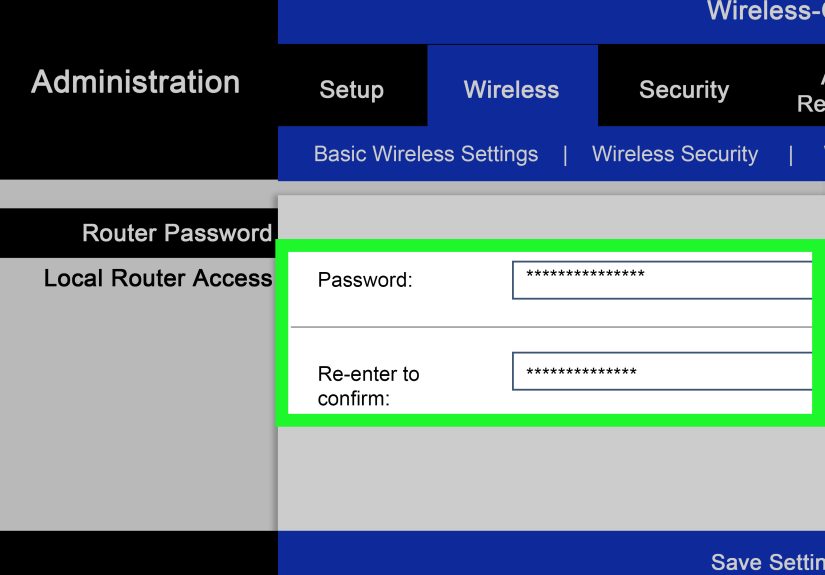
Many modern routers require the owner to create an administrator password during initial setup. That means a generic combination such as “admin” and “password” may not work, even if an old tutorial confidently insists otherwise. Credentials are also typically case-sensitive.
Step 5: Make and Save Your Changes
Router menus vary, but common sections include Wireless, Wi-Fi, Security, Administration, Advanced Settings, Connected Devices, and Firmware Update. Record important settings before changing them, especially internet connection details, DNS information, VLAN settings, or port-forwarding rules.
Select Save, Apply, or Update when finished. Some changes cause the router to reboot. If you rename the Wi-Fi network or change its password, wireless devices will disconnect and must join again using the new information.
Step 6: Sign Out
Use the dashboard’s logout option when available, then close the browser tab. Avoid leaving an administrator session open on a shared computer. Router administration is not the ideal place for an accidental click from a curious family member.
How to Find Your Router’s IP Address
The correct router address is usually listed as the default gateway or simply router in your device’s network details.
Find the Router IP Address on Windows
- Press the Windows key and search for Command Prompt.
- Open it and type
ipconfig. - Press Enter.
- Find the active Wi-Fi or Ethernet adapter.
- Copy the number beside Default Gateway.
Paste that address into your browser. A result such as 192.168.1.1, 192.168.0.1, or 10.0.0.1 is normal. You can also inspect your active connection under Windows Network & Internet settings.
Find the Router IP Address on a Mac
- Open the Apple menu and select System Settings.
- Choose Network or Wi-Fi.
- Select the active connection and click Details.
- Open TCP/IP.
- Locate the address beside Router.
Alternatively, open Terminal, type route -n get default, and look for the gateway value.
Find the Router IP Address on an iPhone or iPad
- Open Settings and tap Wi-Fi.
- Tap the information icon beside the connected network.
- Scroll to the IPv4 section.
- Copy the number shown beside Router.
Open Safari or another browser and enter that number in the address bar.
Find the Router IP Address on Android
- Open Settings.
- Go to Network & Internet, Connections, or Wi-Fi.
- Tap the connected network or its settings icon.
- Open the network details or advanced information.
- Look for Gateway or Router.
Android menu names differ by phone manufacturer, but the gateway address is normally shown with the connection details.
What If the Router Uses an App?
Many mesh routers and provider-managed gateways rely primarily on mobile apps. Google Nest Wifi is managed through the Google Home app, while systems from Eero, Deco, NETGEAR Orbi, and various internet providers may direct owners to their respective apps.
App-based systems often provide device lists, guest networking, parental controls, DNS settings, port forwarding, and update information without exposing a traditional browser dashboard. Some models offer both methods, but the web interface may contain fewer controls than the app.
If typing the gateway address produces a limited page or instructions to download an app, that behavior may be intentional rather than an error. Use the official app named in the product documentation or your provider account.
Why Can’t I Access My Router?
You Are Connected to the Wrong Router
Homes with mesh nodes, Wi-Fi extenders, multiple routers, or a separate ISP gateway can be confusing. Your default gateway may lead to the primary network device rather than the box you expected. Confirm the Wi-Fi name and physical connections, or connect directly by Ethernet.
The Browser Searches Instead of Opening the Address
Type the full address directly into the address bar. Adding http:// or https:// can help, such as http://192.168.1.1. Avoid adding “www” to a numeric IP address.
A VPN, Proxy, or Security Tool Interferes
Temporarily disconnect a VPN or proxy and try again. An overprotective firewall, browser extension, or security suite can also block local management pages. Rather than permanently disabling protection, pause the relevant feature briefly, test access, and turn it back on.
The Browser Displays a Privacy Warning
Some routers use a locally generated or self-signed security certificate that a browser cannot verify in the usual way. First confirm that the address is the router’s correct private IP and that you are connected to your own trusted network. Follow the manufacturer’s instructions for secure local access. Never casually bypass a warning on an unfamiliar network or public website.
The Page Is Blank, Slow, or Outdated
Try a private browsing window or another updated browser. Clearing cached data for the local address may fix a stale login page. You can also switch from Wi-Fi to Ethernet, restart the browser, or test from another trusted device.
The Router Needs a Reboot
Restarting is different from resetting. To reboot, unplug the router’s power, wait about 30 seconds, reconnect it, and allow several minutes for startup. This preserves the configuration and often resolves an unresponsive interface.
What to Do If You Forgot the Router Password
First, check your password manager, router documentation, device label, setup notes, and provider account. Look for a password-recovery option on the login page. Some routers can recover access through security questions, an owner account, email verification, or the official mobile app.
If the router belongs to an internet provider, contact that provider before resetting it. The equipment may require provider-specific configuration or may be managed entirely through an account portal.
A factory reset should be the final option. It erases the Wi-Fi name, passwords, internet settings, guest networks, parental controls, port forwarding, and other customizations. Reset procedures differ by model, but usually involve holding a recessed button while the router is powered on. Follow the manufacturer’s instructions exactly, then complete the initial setup again.
Important Security Changes After You Log In
Reaching the dashboard is only half the job. Use the opportunity to improve the network’s security:
- Create a strong, unique router administrator password.
- Use WPA3 Personal when supported, or WPA2 Personal for older compatible equipment.
- Install current firmware and enable automatic updates if available.
- Disable remote administration unless you specifically need and understand it.
- Turn off outdated options such as WEP and WPA.
- Create a guest network for visitors and, when appropriate, smart devices.
- Review the connected-device list for unfamiliar equipment.
- Back up the configuration after completing a stable setup, if the router supports it.
Use different passwords for Wi-Fi access and router administration. Someone who receives your guest Wi-Fi password should not automatically receive permission to redesign the entire network before dinner.
Experience-Based Lessons from Real Router Login Situations
Router access is easiest when approached as a short diagnostic process rather than a guessing competition. Several recurring situations illustrate why.
Experience 1: The Correct Password on the Wrong Login Screen
A household changes its Wi-Fi password and later tries to enter that password on the router’s administrator page. The login fails repeatedly, even though every phone still connects to Wi-Fi successfully. The problem is not a faulty router. The wireless password and administrator password are different.
The practical lesson is to label credentials clearly in a password manager: “Home Wi-Fi” for joining the network and “Router Admin” for changing its settings. This tiny bit of organization can prevent an impressive amount of frustration.
Experience 2: Two Devices Both Look Like the Router
Another common setup includes an ISP modem-router gateway plus a personally purchased mesh system. Entering the default gateway opens the ISP equipment, while the settings the owner wants are inside the mesh app. Both devices participate in the network, but only one controls the desired Wi-Fi features.
Following the cables reveals the arrangement. The ISP gateway receives the service line, and its LAN port connects to the mesh router’s WAN port. Checking the mesh manufacturer’s app then provides the correct controls. This experience also exposes possible double-NAT complications, which may matter for gaming, remote access, and port forwarding.
Experience 3: Mobile Data Quietly Takes Over
A phone appears connected to Wi-Fi, but the router is rebooting and the signal temporarily loses internet access. The phone switches to cellular data, and the browser can no longer reach the local router address. The user sees a timeout and assumes the router is broken.
Temporarily turning off cellular data keeps the phone on the local Wi-Fi connection. The admin page then loads even though the internet itself is still unavailable. This demonstrates an important distinction: local router access and external internet access are related, but they are not the same thing.
Experience 4: A Wi-Fi Change Causes an Expected “Failure”
An owner signs in successfully and changes the network name and password. Immediately after selecting Apply, the dashboard disappears and every wireless device goes offline. It looks dramatic, but the router has simply stopped broadcasting the old network information.
The solution is to open the device’s Wi-Fi settings, select the newly named network, and enter the new password. When making major wireless changes, using Ethernet avoids this apparent cliffhanger.
Experience 5: Resetting Too Soon Creates More Work
When a login page fails to load, the tempting reaction is to press the reset button. Unfortunately, a reset can erase provider credentials, reserved IP addresses, security-camera rules, custom DNS settings, and carefully configured parental controls.
A better sequence is to confirm the network connection, find the actual default gateway, disconnect the VPN, try another browser, connect with Ethernet, and reboot the router. Factory reset belongs at the end of the checklist. The reset button is useful, but it has the subtlety of clearing a desk with a leaf blower.
Conclusion
To access a router, connect to its network, find its local IP address or official setup URL, open that address in a browser, and enter the administrator credentials. If the router is app-managed, use the manufacturer’s or internet provider’s official application instead.
When the login page does not open, verify the default gateway before changing anything. Then test an Ethernet connection, disconnect VPN services, try another browser, and reboot the equipment. Reserve a factory reset for cases where password recovery and ordinary troubleshooting have failed.
Once inside, strengthen the admin password, choose modern Wi-Fi encryption, install firmware updates, and review connected devices. A few careful minutes in the router dashboard can produce a safer, more reliable home networkand may finally identify “Unknown-7B.”
Note: Access and modify only routers you own or are authorized to administer. Record important settings before making changes, and consult the router manufacturer or internet provider when a configuration option is unclear.