Table of Contents >> Show >> Hide
- What Does “Answer Calls with a Text” Mean?
- How to Answer an Incoming Call with a Text on iPhone
- How to Customize the Default “Respond with Text” Messages
- Best Custom Responses for Different Situations
- What Happens After You Send the Text?
- Can You Type a Different Message Every Time?
- Can the iPhone Automatically Text Every Caller?
- How Respond with Text Differs from Other iPhone Call Features
- How to Respond with a Text While You Are Already on a Call
- Why Is the “Message” Option Missing?
- What to Do If the Reply Will Not Send
- Privacy and Etiquette Tips
- Practical Experience: What I Learned from Using iPhone Call Replies
- Frequently Asked Questions
- Conclusion
Your iPhone starts ringing at the worst possible moment. You are in a meeting, standing in a checkout line, sitting in a quiet waiting room, or trying to convince a sleeping baby that nighttime is not a personal attack. Answering the call is impossible, but ignoring it may seem rude.
Fortunately, the iPhone includes a convenient Respond with Text feature. It lets you decline an incoming call while immediately sending the caller a short message such as “I’ll call you later” or “Can I call you back?” You can use Apple’s preset replies, create your own saved responses, or type a custom message for that particular caller.
This beginner-friendly guide explains how to answer calls with a text on an iPhone, customize quick responses, troubleshoot missing options, and use the feature without accidentally telling your dentist, “Love yousee you tonight.”
What Does “Answer Calls with a Text” Mean?
Answering a call with a text does not mean that your iPhone converts the entire phone conversation into a chat. It simply declines the incoming call and sends the caller a message explaining that you cannot talk.
The feature is useful when you want to acknowledge the call without answering it. Instead of leaving the caller wondering whether you saw the call, you can respond in seconds and provide a little context.
For example, you might send:
- “I’m in a meeting. I’ll call you in 30 minutes.”
- “Can’t talk right now. Is this urgent?”
- “I’m driving. I’ll contact you when I arrive.”
- “Please text me the details.”
The response is sent through the Messages app. Depending on your settings, connection, carrier, and the recipient’s device, it may be delivered as an iMessage, RCS message, or SMS text.
How to Answer an Incoming Call with a Text on iPhone
You do not need to open the Messages app first. The option appears directly on the incoming call screen.
Step 1: Wait for the Incoming Call Screen
When someone calls, your iPhone displays the caller’s name or phone number. The call may appear as a full-screen alert or a smaller banner, depending on your iOS version and call-notification settings.
Look for the Message button. On some layouts, it appears near options such as Remind Me, Decline, and Accept. If the call appears as a compact banner, tap or expand the banner to reveal additional controls.
Step 2: Tap “Message”
Tap Message instead of answering or immediately declining the call. Your iPhone will display several saved responses and a Custom option.
Common default responses may include wording similar to:
- “Sorry, I can’t talk right now.”
- “I’m on my way.”
- “Can I call you later?”
The exact wording can vary depending on your iOS version, language, and previously saved replies.
Step 3: Select a Saved Reply or Tap “Custom”
Tap one of the preset responses to send it immediately. The call will be declined, and the selected message will be sent to the caller.
For a more specific response, tap Custom. The Messages interface will open with the caller as the recipient. Type your message, review it, and tap the send button.
The custom option is ideal when “Can’t talk right now” is technically accurate but not especially helpful. A message such as “I’m with a client until 3:00 p.m.; I’ll call afterward” gives the caller a clearer expectation.
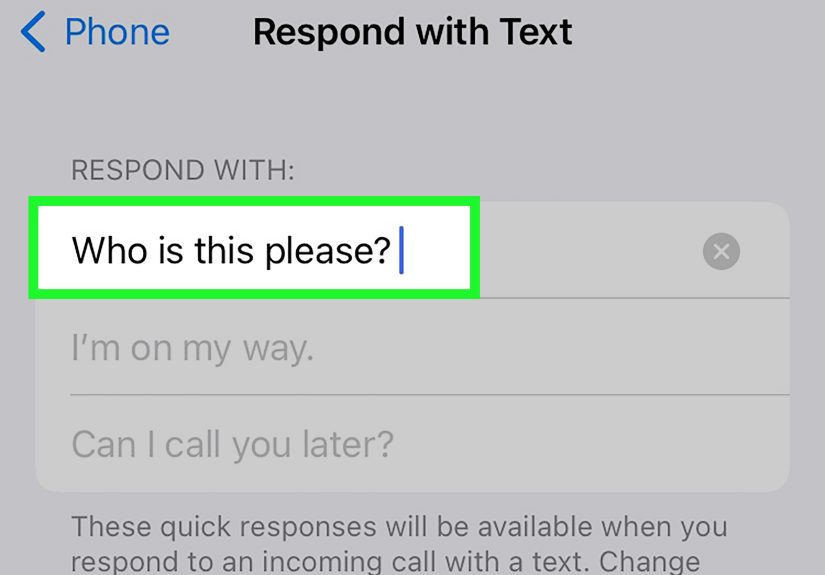
How to Customize the Default “Respond with Text” Messages
Apple allows you to replace the standard replies with messages that better match your work, schedule, and personality. Customizing these responses in advance is worthwhile because incoming calls rarely arrive when you have time to compose a tiny masterpiece.
On Current iOS Versions
- Open the Settings app.
- Scroll down and tap Apps.
- Select Phone.
- Tap Respond with Text.
- Tap one of the existing response fields.
- Delete the old message and enter your preferred reply.
The change is saved automatically when you leave the screen. The new wording will appear the next time you tap Message during an incoming call.
On Older iOS Versions
On older iPhones or earlier versions of iOS, the path may be:
Settings > Phone > Respond with Text
If you cannot find the Phone settings immediately, use the search field at the top of the Settings app and search for Respond with Text.
Best Custom Responses for Different Situations
The best quick replies are brief, polite, and informative. A saved response should tell the caller what is happening and, when possible, what will happen next.
Professional Responses
- “I’m in a meeting. I’ll return your call shortly.”
- “I’m unavailable right now. Please text me the details.”
- “I’m with a client and will call you after 2:00 p.m.”
- “I received your call. I’ll follow up later today.”
Professional messages should sound courteous without becoming a miniature corporate press release. “I’ll call you shortly” usually works better than “Your communication has been received and will be addressed in chronological order.”
Personal Responses
- “Can’t talk right now. Everything okay?”
- “I’m busy for a few minutes. I’ll call you soon.”
- “Please text meI can read messages right now.”
- “At an appointment. I’ll call when I’m finished.”
Messages for Driving
- “I’m driving and will call when I arrive.”
- “On the road right now. Please text only if it’s urgent.”
- “DrivingI’ll respond when I’m safely parked.”
Do not manually operate your iPhone while driving. Use Driving Focus, CarPlay, Siri, or a hands-free system when appropriate. A text message is not important enough to introduce your bumper to a mailbox.
Responses for Unknown Callers
- “I can’t answer. Please text your name and reason for calling.”
- “Please send a message with the purpose of your call.”
- “I don’t recognize this number. Who is calling?”
These replies can help identify delivery drivers, medical offices, contractors, or legitimate businesses without requiring you to answer an unfamiliar number.
What Happens After You Send the Text?
After you choose a response, the incoming call ends on your iPhone. In most situations, the call is declined and may be directed to voicemail, depending on your carrier, region, voicemail service, and account configuration.
The text then appears in the Messages app as part of your conversation with that phone number. You can open the conversation later, see what you sent, and continue messaging the caller.
The caller does not receive a special technical notification saying that you used an iPhone quick reply. They simply receive the message like a normal text. Unless your response says otherwise, they may not know whether you selected a preset or typed every word while hiding beneath a conference table.
Can You Type a Different Message Every Time?
Yes. Tap Message on the incoming call screen, then select Custom. You can type a unique response without changing your saved quick replies.
This is useful when the caller needs precise information. For example:
“I’m boarding a flight. I’ll land around 6:30 p.m. and call after I collect my luggage.”
Your saved responses remain unchanged, so they will still be available for the next call.
Can the iPhone Automatically Text Every Caller?
The standard Respond with Text feature is manual. You must tap Message and choose a response when the call arrives. It does not automatically send a text every time you miss or decline a phone call.
This distinction matters because Respond with Text is sometimes confused with the automatic reply available through Driving Focus. Driving Focus can send an automatic message to selected contacts while the mode is active, but it is designed around driving-related notification management rather than serving as a universal missed-call autoresponder.
Be cautious with third-party apps that promise automatic replies to every caller. Such services may require call forwarding, subscriptions, account access, or other permissions. Review their privacy policies and billing terms before handing over the keys to your digital front door.
How Respond with Text Differs from Other iPhone Call Features
Respond with Text vs. Live Voicemail
Respond with Text sends the caller a message and declines the call. Live Voicemail, by contrast, lets you view a real-time transcription while the caller leaves a voicemail. You may then decide to answer while the person is still speaking.
Use Respond with Text when you want to communicate immediately. Use Live Voicemail when you want more information before deciding whether to pick up.
Respond with Text vs. Call Screening
On supported iOS versions and in supported regions, call-screening features can ask an unknown caller to provide a name and reason for calling before your iPhone rings normally. This is especially useful for sorting legitimate callers from spam.
Respond with Text comes into play after the call reaches your screen. Call screening works earlier by gathering information from an unknown caller before you decide how to respond.
Respond with Text vs. Remind Me
The Remind Me option creates a reminder to return the call later. It does not necessarily tell the caller why you did not answer.
If you need both functions, send a quick text and create a separate reminder. This two-step approach is useful for important calls that your memory may otherwise file under “I’ll definitely remember that” before promptly deleting the thought.
How to Respond with a Text While You Are Already on a Call
If a second call arrives while you are speaking to someone else, the incoming-call controls may include a Message option. Tap it and select a saved response or create a custom message.
This allows you to acknowledge the second caller without ending the current conversation. It is particularly useful for professionals who receive several calls throughout the day.
Available controls can vary according to your carrier, call-waiting settings, call type, and network conditions. If you do not see the option, let the second call go to voicemail and send a message through the Messages app when it is safe to do so.
Why Is the “Message” Option Missing?
If you cannot answer a call with a text, one of the following explanations may apply.
The Call Is Displayed as a Compact Banner
When your iPhone is unlocked, an incoming call may appear as a small banner instead of taking over the screen. Tap or expand the banner to look for additional options.
The Call Type Does Not Support the Feature
The standard feature is designed primarily for calls handled by the iPhone’s Phone app. Calls arriving through WhatsApp, Messenger, Telegram, Microsoft Teams, or another third-party service may use different controls.
Your iOS Layout Is Different
Apple occasionally changes button locations, labels, and menu organization. Search Settings for Respond with Text if the instructions on your screen differ from those in this guide.
The iPhone Needs a Restart or Update
A temporary software problem can cause buttons or settings to behave incorrectly. Restart your iPhone and check for an iOS update under:
Settings > General > Software Update
After updating, ask someone you trust to call your number so you can test the feature. Warn them first, unless you enjoy creating small mysteries.
What to Do If the Reply Will Not Send
If the call is declined but the message fails, try these troubleshooting steps:
- Check whether your iPhone has cellular service or a working internet connection.
- Open Messages and see whether the reply shows a delivery error.
- Tap the failed message and try sending it again.
- Confirm that you can send a normal message to another person.
- Verify that your phone line and messaging service are active.
- Restart the iPhone if messages continue to fail.
- Contact your carrier if SMS messages fail across multiple conversations.
A quick response still depends on a functioning messaging service. The button may be impressively convenient, but it has not yet learned to deliver texts through optimism alone.
Privacy and Etiquette Tips
A good call-rejection message provides enough information to be useful without revealing more than necessary.
- Avoid sharing your exact location with unknown callers.
- Do not include confidential business or medical information in a saved response.
- Use a neutral message if several people may call your phone.
- Avoid promising a callback time you cannot realistically meet.
- Ask whether the matter is urgent when the caller is a close contact.
For example, “I’m unavailable until this afternoon” is safer than “I’m alone at 214 Oak Street and won’t be home until 4:30.” Your quick reply should communicate availability, not audition for a home-security cautionary tale.
Practical Experience: What I Learned from Using iPhone Call Replies
The Respond with Text feature seems almost too simple to deserve attention. You tap a button, select a sentence, and continue with your day. In practice, however, the quality of the saved responses makes a significant difference.
The first lesson is that Apple’s generic replies work, but they are not always specific enough. “I’ll call you later” could mean ten minutes, tomorrow morning, or sometime after the sun becomes a red giant. When I replaced that wording with “I’m unavailable right now; I’ll call within an hour,” callers were less likely to call again immediately.
A second useful lesson is to create responses for situations that happen regularly rather than imaginary emergencies. If most missed calls occur during meetings, one saved reply should mention meetings. If you spend time driving between appointments, another should explain that you are on the road. A response you use three times a week deserves a permanent slot; a response designed for the rare occasion when you are “temporarily unavailable due to a llama-related incident” can remain custom.
The feature is especially valuable for business calls. A missed call with no acknowledgment can feel like a dead end to a customer. Sending “I’m assisting another customer and will return your call within 30 minutes” immediately communicates that the call was noticed. The caller receives an expectation, and you gain enough breathing room to finish the current task.
However, a promised callback creates an obligation. After experimenting with overly precise replies, I learned not to promise “I’ll call in five minutes” unless five minutes is genuinely realistic. It is better to provide a modest time range than to send a confident promise and then disappear into a calendar-shaped black hole.
The Custom option is often better for family calls. A parent, partner, or close friend may interpret a generic “Can’t talk” message as unusually cold. A few extra words“At the doctor’s office, everything is fine, I’ll call afterward”can prevent unnecessary worry. Context matters more than elegance.
Unknown callers require a different strategy. A saved message asking for the caller’s name and purpose can quickly separate legitimate calls from questionable ones. Real businesses, delivery drivers, and medical offices will often provide useful details. Spam callers usually do not respond, which saves you from playing conversational roulette with a number you have never seen.
I also learned that short messages are safer. Long saved replies are difficult to scan while a phone is ringing, and a complicated sentence increases the chance of selecting the wrong response. Three clear options are more useful than three tiny autobiographies.
My preferred set is simple:
- “I’m in a meeting. I’ll call you within an hour.”
- “I’m driving. I’ll respond when I’m safely parked.”
- “I can’t answer. Please text your name and the reason for calling.”
Those replies cover work, travel, and unknown numbers without revealing private information. For everything else, the Custom button handles the details.
The biggest benefit is not avoiding conversations. It is managing them more respectfully. A quick text tells people that their call was seen and gives them another way to communicate. Used thoughtfully, Respond with Text turns a rejected call from an abrupt digital door slam into a polite “Not now, but I heard you knock.”
Frequently Asked Questions
Does responding with a text automatically block the caller?
No. Sending a quick response does not block the phone number. The caller can call or message you again unless you separately block the contact.
Can I add more than the available saved replies?
The Phone settings provide a limited number of preset response fields. You can replace their wording, but you cannot create an unlimited menu of saved replies within the standard call screen. Use Custom when none of your saved options fits.
Can I use emojis in a saved response?
You can generally enter emojis in the response fields, but use them carefully in professional messages. A small thumbs-up may feel friendly; six sirens, a dancing banana, and a skull may create more questions than the original missed call.
Will the caller know that I declined the call?
The call stops ringing and the caller receives your message. They may reasonably conclude that you could not answer, but the text does not normally announce which iPhone button you selected.
Does the feature work without cellular service?
The message needs an available delivery method. An internet-based message may work over Wi-Fi when supported, while SMS generally requires carrier service. If no compatible connection is available, the message may remain unsent until connectivity returns.
Conclusion
Learning how to answer calls with a text on an iPhone takes only a few minutes. When a call arrives, tap Message, select a saved response, or choose Custom to write a more detailed reply. To personalize the preset messages, open Settings > Apps > Phone > Respond with Text. On older iOS versions, look under Settings > Phone.
The feature is most effective when your messages are short, specific, and realistic. Tell the caller why you cannot answer, suggest texting when appropriate, and provide a reasonable callback expectation. With three thoughtful saved replies, you can handle meetings, driving, family calls, customers, and unfamiliar numbers without answering at an inconvenient momentor pretending you never saw the phone ringing two inches from your face.
Note: Button positions, menu names, voicemail behavior, messaging delivery, and call-screening options may vary by iOS version, carrier, country, region, device configuration, and call type. The instructions and related details were checked against current Apple guidance and carrier documentation, with additional reporting from established consumer-technology publications.