Table of Contents >> Show >> Hide
- The Quick Answer: Check App Data Usage in iPhone Settings
- What the Cellular Data Screen Is Really Showing You
- Why Your iPhone and Your Carrier Bill Might Not Match Perfectly
- How to Tell Which Apps Are the Biggest Data Hogs
- How to Reduce Data Usage Without Making Your iPhone Miserable
- Common Mistakes People Make When Checking iPhone Data Usage
- Troubleshooting: If Your Data Still Disappears Too Fast
- Real-World Experiences: What People Usually Discover After They Check
- Final Take
- SEO Metadata
If your iPhone data plan seems to vanish faster than fries at a sleepover, you are not imagining things. One day you are sending a few messages and checking the weather, and the next day your carrier is acting like you just livestreamed a concert from the moon. The good news is that your iPhone already includes a built-in way to see which apps are using cellular data, how much they are using, and whether the problem is one thirsty app or a whole team of tiny background offenders.
This matters because mobile data is sneaky. It is not always the app you blame first. Sure, video apps and social platforms are usual suspects, but maps, music streaming, background refresh, roaming, and even Wi-Fi Assist can quietly chip away at your plan. Once you know where to look, you can spot the biggest data hogs, cut down waste, and make your iPhone a little less dramatic.
In this guide, you will learn exactly how to check app data usage on an iPhone, what the numbers actually mean, why they do not always match your carrier bill perfectly, and how to reduce usage without turning your phone into a decorative brick.
The Quick Answer: Check App Data Usage in iPhone Settings
If you just want the fastest route, here it is: open your iPhone’s Settings app, tap Cellular, and scroll down to the list of apps. You will see how much cellular data each app has used during the current tracking period. If you want those numbers to match your monthly plan more closely, reset the statistics at the start of your billing cycle and check them regularly.
Step 1: Open the Cellular Menu
On most iPhones in the United States, the path is:
- Open Settings
- Tap Cellular
Depending on your iPhone model, iOS version, carrier, or region, the label may appear as Mobile Data, Mobile Service, or something very similar. Do not let the wording throw you off. You are looking for the menu that controls your phone’s mobile network usage.
Step 2: Scroll Down to the App List
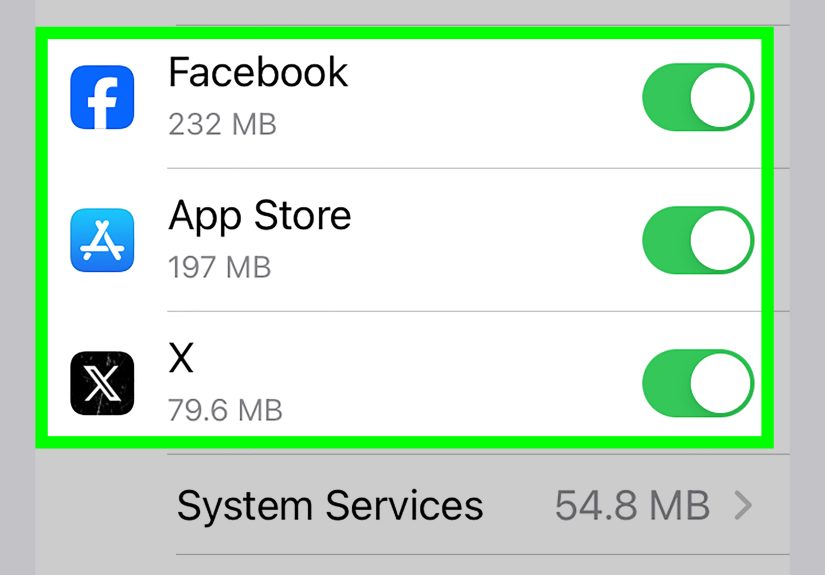
Once you are inside the Cellular screen, scroll down past the main toggles and settings. You will see a list of apps installed on your iPhone. Under each app name, your iPhone shows the amount of cellular data that app has used during the current period.
That means if Instagram says 2.3 GB, that is not a vibe. That is evidence.
This section is where the mystery usually ends. You may discover that your biggest data user is:
- a social media app that autoplays video
- a music or podcast app streaming over cellular
- a maps app working overtime during travel
- a cloud app syncing files in the background
- an app you forgot you even installed
You can also turn off cellular access for any app right from this list. When you disable cellular data for that app, it can still work on Wi-Fi, but it will stop using your mobile data connection.
Step 3: Make the Numbers Mean Something
This is the part many people miss. The usage numbers shown on your iPhone do not automatically reset every month. The “Current Period” keeps counting until you manually reset the statistics. So if you have not reset them in six months, the numbers may be technically accurate but not especially useful for your monthly bill.
To fix that:
- Scroll all the way to the bottom of the Cellular screen
- Tap Reset Statistics
- Do this on the first day of your billing cycle, or whenever you want to start fresh
Right below that, your iPhone shows a Last Reset date. That date tells you when the current tracking period began. If you want a cleaner monthly snapshot, resetting on billing day is the move.
What the Cellular Data Screen Is Really Showing You
Once you know where to look, the next question is usually: what am I actually seeing here?
Current Period
This is the total amount of cellular data your iPhone has recorded since the last time you reset the statistics. It is your device’s running counter, not necessarily your carrier’s official bill-cycle number.
Current Period Roaming
If you have used mobile data while roaming, your iPhone tracks that separately. This is especially useful when traveling internationally, because roaming charges can turn a simple directions check into a tiny financial horror movie.
App-by-App Usage
Below the overall total, your iPhone shows how much cellular data each app has used. This is the real gold mine. It helps you stop guessing and start identifying the exact app that is chewing through your plan.
System Services
Near the bottom, you can also view System Services. This gives you a breakdown for built-in system-level activity. That can help you figure out whether the culprit is a third-party app, your own habits, or your iPhone quietly doing iPhone things behind the scenes.
Dual SIM Notes
If you use Dual SIM, your iPhone can show usage for the selected cellular data number. That is helpful if one line is personal and the other is for work, travel, or a secondary plan.
Why Your iPhone and Your Carrier Bill Might Not Match Perfectly
This confuses a lot of people, so let’s clear it up. Your iPhone’s data tracker is very useful, but your carrier is still the official scorekeeper for billing. Apple itself notes that the most accurate measure of your billable usage comes from your carrier.
Why the difference?
- Your iPhone tracks usage based on when you last reset statistics
- Your carrier tracks usage based on your billing cycle
- Carrier systems may process data a little differently or with some delay
- Hotspot use, roaming rules, and plan-specific settings can affect the totals
So use your iPhone for diagnosis and habit tracking, but use your carrier account or app for bill-level precision. Think of your iPhone as the smart detective and your carrier as the accountant.
How to Tell Which Apps Are the Biggest Data Hogs
Once you open the Cellular page, you are not just hunting for the app with the highest number. You are also looking for patterns.
Video and Social Apps
Apps built around short videos, livestreams, or autoplay clips are often the first place to look. A few minutes here and there feels harmless until you realize your phone has been sipping gigabytes like iced coffee.
Music, Podcasts, and Streaming
If you stream instead of downloading for offline use, those background listening hours add up. This is especially true during commutes, workouts, or long drives.
Maps and Navigation
Navigation apps are useful, but they can use a meaningful amount of mobile data during travel. If you drive often or explore unfamiliar places, do not be shocked if Maps climbs the leaderboard.
Cloud and Photo Apps
Apps that sync photos, files, or backups can be sneaky. They may not feel “active,” but they can still move a lot of data if allowed to do so over cellular.
App Store and Automatic Downloads
Updates and downloads over cellular can also chew into your plan. One large app update on the wrong afternoon can undo an entire week of careful behavior.
How to Reduce Data Usage Without Making Your iPhone Miserable
Checking data usage is useful. Doing something about it is even better.
Turn Off Cellular Data for Specific Apps
This is the easiest fix. From Settings > Cellular, switch off cellular access for apps that do not need it. Social media, shopping apps, games, and certain streaming apps can often wait for Wi-Fi.
This is a great middle-ground option because the app still works normally when you are on Wi-Fi. You are not deleting anything. You are just setting boundaries like a healthy adult.
Use Low Data Mode
Low Data Mode is one of the best built-in tools for cutting network use. On supported iPhones, it helps reduce background network activity on both cellular and Wi-Fi connections.
To turn it on for cellular:
- Open Settings
- Tap Cellular
- Tap Cellular Data Options
- Tap Data Mode
- Select Low Data Mode
This will not magically transform every app into a monk, but it can help reduce background consumption and unnecessary data use.
Review Background App Refresh
Background App Refresh lets apps update content when you are not actively using them. Convenient? Yes. Innocent? Not always.
To review it:
- Open Settings
- Tap General
- Tap Background App Refresh
You can turn it off completely, restrict it to Wi-Fi, or disable it for individual apps. If you are trying to save both battery and cellular data, this setting deserves a look.
Check Wi-Fi Assist
Wi-Fi Assist is helpful in theory. When your Wi-Fi connection is weak, your iPhone can quietly switch to cellular so apps keep working smoothly. The catch is obvious: smooth can become expensive.
If your data usage rises even when you think you are on Wi-Fi, Wi-Fi Assist may be part of the story.
To check it:
- Open Settings
- Tap Cellular
- Scroll to the bottom
- Look for Wi-Fi Assist
If you are on a tight data plan, turning this off can help prevent surprise cellular usage on flaky Wi-Fi networks.
Watch Roaming Carefully
If you travel often, check Current Period Roaming before, during, and after trips. Reset your stats before you leave so the number reflects only that trip. That makes it much easier to see whether roaming is under control or heading toward “please sit down before you read this bill” territory.
Common Mistakes People Make When Checking iPhone Data Usage
- They never reset statistics. Then they panic over a giant number that actually represents months of use.
- They confuse storage with data usage. iPhone Storage and cellular data are completely different things.
- They blame the wrong app. The app you use the most is not always the one that uses the most data.
- They ignore system services. Sometimes the issue is bigger than one app.
- They assume Wi-Fi means zero cellular use. With weak Wi-Fi and features like Wi-Fi Assist, that assumption can backfire.
Troubleshooting: If Your Data Still Disappears Too Fast
If you already checked the app list and your usage still feels weird, try this simple routine:
- Reset your statistics
- Use your phone normally for 24 to 72 hours
- Check which apps rise the fastest
- Turn off cellular access for the biggest suspects
- Review System Services
- Compare your phone’s numbers with your carrier app or account page
This mini-audit works well because it shows fresh behavior instead of old history. It is much easier to identify a problem app over a few days than over a fuzzy six-month blur.
Real-World Experiences: What People Usually Discover After They Check
Here is the funny thing about checking iPhone app data usage: most people go in expecting one obvious villain and come out with a whole plot twist.
The first common experience is discovering that the “harmless” apps are not harmless at all. People often blame Netflix, YouTube, or another obvious streaming app, only to find that the bigger offender is a social media app running dozens of short autoplay videos. Because the usage happens in tiny bursts throughout the day, it feels invisible. Five minutes in line, three minutes in the car, seven minutes during lunch, and suddenly an app that seemed casual has eaten more data than a full movie.
The second experience is the shock of seeing how long the Current Period has been running. Plenty of iPhone users open the Cellular screen, see several gigabytes under one app, and think something is seriously wrong. Then they scroll down and realize the stats have not been reset since autumn, or since the last presidential election, or possibly since dinosaurs had carrier contracts. Once they reset the numbers and watch usage over a normal week, the picture becomes a lot more sensible.
Another very common discovery is that music and podcasts add up more than expected. People think of audio as “small” compared with video, and that is often true, but streaming for hours every week is still streaming. If someone listens during workouts, commuting, errands, and walks, the total can grow quietly. Downloading playlists and episodes on Wi-Fi usually feels like a tiny lifestyle change, but it can have a surprisingly large effect on monthly data usage.
Travelers often have their own moment of truth. A person goes on a trip, uses maps constantly, uploads a few photos, checks translation apps, and maybe shares a hotspot once or twice. Then they look at Current Period Roaming and suddenly understand why travel data feels like a luxury item. This is one reason experienced travelers often reset statistics before leaving home. It gives them a clean scoreboard and helps them avoid the classic “I thought I barely used my phone” line.
Many users also realize that the real solution is not deleting apps. It is setting smarter rules. Turning off cellular data for shopping apps, large game downloads, backup-heavy apps, and nonessential tools often solves the problem without making the phone less useful. In other words, you do not have to become a digital hermit. You just have to stop letting every app act like it deserves VIP access to your data plan.
Then there is the Wi-Fi Assist surprise. A lot of people swear they were on Wi-Fi the whole time, and to be fair, they probably were connected to Wi-Fi. But being connected and having a strong enough connection are not always the same thing. When Wi-Fi is weak, iPhone can use cellular to keep things moving. For users on unlimited home internet but limited mobile data, that feature can feel helpful right up until it does not.
The most useful experience of all, though, is simple: once people check the data list a few times, they stop feeling confused. They know where the problem lives, which apps deserve restriction, and what their normal monthly pattern actually looks like. That confidence matters. A phone feels a lot less expensive when it stops springing little mobile-data jump scares on you.
Final Take
If you want to know how much data your iPhone apps are using, the built-in answer is already on your phone. Open Settings > Cellular, scroll through the app list, and pay close attention to the numbers under each app. Then reset statistics so the tracking period matches your real life instead of some ancient, mysterious timeline.
Once you do that, your iPhone becomes much easier to manage. You can identify the true data hogs, turn off cellular access for apps that do not need it, enable Low Data Mode, review Background App Refresh, and keep a closer eye on roaming or weak Wi-Fi behavior. It is not glamorous, but neither is an overage charge. And this fix is a lot cheaper.