Table of Contents >> Show >> Hide
- What “Google Drive backup” can mean
- Method 1: Download files or folders directly from Google Drive
- Method 2: Use Google Takeout for a full Google Drive backup
- Method 3: Download using Google Drive for desktop
- How to find and handle device backups in Google Drive
- Common problems when downloading a backup from Google Drive
- Best practices for a safer Google Drive backup
- Which method should you choose?
- Real-world experiences with downloading a Google Drive backup
- Conclusion
Cloud storage is wonderful right up until the moment you need an actual copy of your stuff on your actual computer. Then suddenly everyone becomes very interested in the phrase “Where did my files go?” If you have important documents, photos, folders, or device backups tied to Google Drive, downloading a backup is one of those smart, unglamorous tasks that future-you will deeply appreciate.
The good news is that Google gives you more than one way to do it. The slightly annoying news is that the right method depends on what you mean by “backup.” Sometimes you want to download a few folders from Google Drive. Sometimes you want a full archive of your Drive data. And sometimes you are talking about an Android device backup that lives in the Backups section and behaves very differently from ordinary files.
This guide breaks it all down in plain English. No jargon soup. No robotic filler. Just clear steps, smart backup habits, and a few warnings so you do not accidentally spend your afternoon downloading the wrong thing and muttering at your browser.
What “Google Drive backup” can mean
Before you click anything, pin down which kind of backup you want. This matters because Google treats each one differently.
1. A manual backup of files and folders in Google Drive
This is the most common situation. You have files in My Drive, shared folders, PDFs, spreadsheets, photos, or project folders, and you want a local copy on your computer or external drive.
2. A full export of your Google Drive data
If you want a broader archive for safekeeping, migration, or recordkeeping, Google Takeout is usually the better option. It lets you export selected Google data, including Drive content, into downloadable archive files.
3. A phone or device backup stored in Google’s backup system
This is where many people get tripped up. A device backup is not the same thing as a regular folder sitting in Drive waiting for you to drag it to your desktop. You can view backup listings, but restoring that data usually happens during device setup or reset, not as a simple “download this folder” action.
So if your goal is “I want my Drive files on my laptop,” use the file or archive methods below. If your goal is “I want to restore my Android phone backup,” skip ahead to the device backup section and save yourself a headache.
Method 1: Download files or folders directly from Google Drive
If you only need a few items, this is the fastest route. No export request. No waiting around for archive emails. No dramatic speeches about digital preservation.
Step 1: Open Google Drive in your browser
Go to your Google Drive account and sign in with the correct Google account. That last part sounds obvious, but lots of people have two or three accounts floating around like ghosts of productivity past.
Step 2: Find the file or folder you want
Browse My Drive, Shared drives, or recent files until you locate the content you want to back up. If you are downloading multiple files, it helps to organize them into one folder first so your download is cleaner and easier to manage.
Step 3: Select and download
Click the file, or hold Ctrl on Windows or Command on Mac to select multiple items. Then right-click and choose Download. For Google Docs, Sheets, Slides, and similar files, you can also open the file and use File > Download to save it in a different format such as PDF, DOCX, XLSX, or PPTX.
Step 4: Save the download to a smart location
Do not just dump everything into your Downloads folder and hope your future self becomes a detective. Create a clearly named folder on your computer, external hard drive, or NAS, such as:
Google Drive Backup – April 2026
Inside it, keep subfolders for documents, photos, invoices, work files, and anything else you will need later.
Best time to use this method
- When you only need selected files or folders
- When you want a quick local copy
- When you want to export Google Docs into Office or PDF formats
When this method is not ideal
- When you want a full account archive
- When you have a huge amount of data
- When you want a repeatable backup process
Method 2: Use Google Takeout for a full Google Drive backup
If you want a more complete archive, Google Takeout is the grown-up option. It is built for exporting Google data at scale and is especially useful when you are moving accounts, cleaning up digital life, or making a proper long-term backup.
Step 1: Open Google Takeout
Sign in to your Google account and open Google Takeout. By default, Google often preselects a whole buffet of services. That is great if you want everything. It is less great if you only came for Drive and suddenly end up exporting YouTube history from 2014.
Step 2: Deselect everything you do not need
Choose Deselect all, then scroll to Drive and enable it. If Google gives you an All data included option, review it carefully. This lets you narrow the export to specific Drive content instead of exporting the whole digital attic.
Step 3: Choose your delivery method
Now decide how Google should deliver the archive. You can usually choose options like:
- Email a download link
- Add the export to Drive
- Add it to another cloud destination such as Dropbox, OneDrive, or Box
If your plan is to keep a local offline copy, the email link route is usually simplest. If your export is huge, sending it to another cloud destination first can be more convenient.
Step 4: Pick export frequency
You can create a one-time archive or set up scheduled exports. Scheduled exports are useful if you want repeated snapshots without remembering to do this every few months like a heroic but forgetful squirrel.
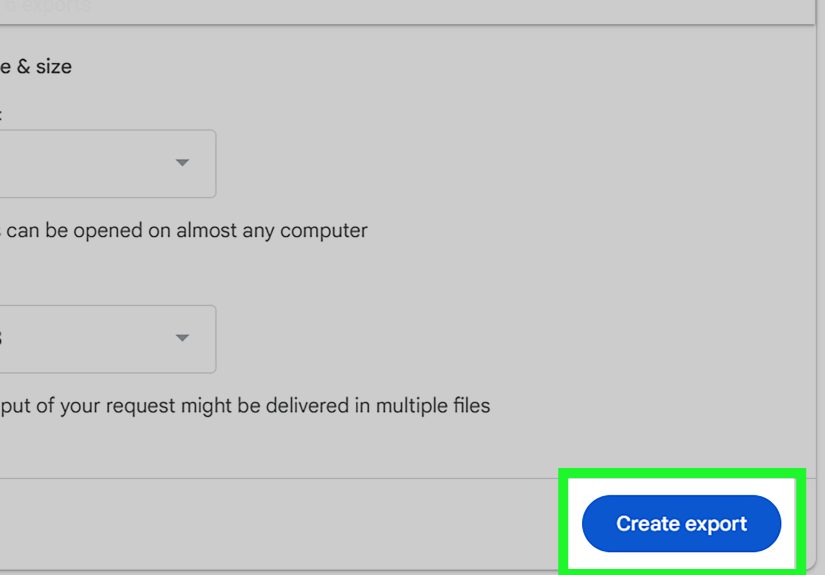
Step 5: Choose file type and archive size
Google typically lets you choose archive file types such as ZIP or TGZ, and set a maximum archive size. If your backup is larger than the size you choose, Google will split it into multiple archive files. ZIP is usually the easiest choice for most people because it opens cleanly on nearly any modern computer.
Step 6: Click “Create export” and wait
Once you submit the request, Google starts preparing the archive. Small exports may finish fairly quickly. Larger ones can take longer, especially if your Drive is packed with media files, old project folders, giant videos, or mystery files you forgot existed but apparently needed in 2018.
Step 7: Download and store the archive safely
When the export is ready, download every archive part and save them in one parent folder. If the export was split, make sure all parts finish downloading before you start extracting. Then test a few files to confirm the backup is actually usable. A backup you never verify is basically a motivational poster.
Best time to use Google Takeout
- When you want an archive of most or all Drive data
- When you are switching Google accounts
- When you want a cleaner backup process than downloading folder by folder
- When you want a recurring export schedule
Method 3: Download using Google Drive for desktop
If you work with Drive constantly, Google Drive for desktop can be the easiest long-term setup. It brings your Drive into File Explorer on Windows or Finder on Mac so your cloud files feel more like regular files.
Stream files vs. mirror files
This choice matters a lot:
- Stream files keeps most content primarily in the cloud and fetches it as needed. Good for saving local space.
- Mirror files stores Drive files on both your computer and in the cloud. Good if you want an always-available local copy.
If your goal is an easy local backup-like experience, mirroring is usually the more reassuring choice. If your computer is short on storage, streaming plus selective offline access is smarter.
How to use it
- Install Google Drive for desktop.
- Sign in to your Google account.
- Open preferences and choose whether to stream or mirror files.
- If using streaming, right-click specific files or folders and mark them as available offline.
- Copy your mirrored or offline files to an external drive if you want a second local backup.
This method is especially good for ongoing backups because it feels less like a project and more like part of your normal workflow. That is usually how good backup habits survive real life.
How to find and handle device backups in Google Drive
If you are looking for an Android phone backup, open Google Drive and check the Backups area. You can view available backups and see when they were last updated. That said, this is not the same as browsing a regular folder full of files you can casually download and unzip over coffee.
In most cases, Android backup restoration happens when you set up a new phone or reset an existing one. So if you were hoping to click a backup and download your whole phone to your desktop as a neat file package, Google may gently, silently, and somewhat annoyingly remind you that life is not always that simple.
Use this backup type when
- You are restoring to a new Android device
- You need app data, settings, contacts, messages, and supported device data restored
- You want to confirm a backup exists before resetting a phone
Do not rely on it for
- A normal offline archive of your personal files
- A browsable copy of all data on your computer
- A substitute for downloading important documents and media separately
Common problems when downloading a backup from Google Drive
The download will not start
Check your browser first. Some Drive downloads can fail if settings or extensions interfere. If downloads suddenly stop working, try another browser, disable extensions temporarily, or review cookie settings.
You cannot download a shared file
The owner may have disabled downloading, printing, or copying for viewers and commenters. In that case, the problem is not your computer. It is permissions.
The backup is too big
Use Google Takeout and split the archive into manageable chunks. Also make sure your local storage has enough room before the download begins. Nothing ruins your backup mood like discovering your laptop has 2.7 GB free and an optimistic personality.
You downloaded the files but cannot open them
Check the format. Google Docs files exported through Drive can be saved in Office or PDF formats, and Takeout may produce ZIP or TGZ archives. Extract the archive first, then open the contents with the right app.
You thought Google Drive was your only backup
This is the big one. Google Drive is excellent storage, but smart backup strategy still means keeping more than one copy. The classic rule is to have multiple copies across more than one medium, with one kept off-site. In normal human terms: cloud storage is great, but having a second copy on an external drive is even better.
Best practices for a safer Google Drive backup
- Name backup folders with dates so you know what is current.
- Keep at least one copy offline or on an external drive.
- Test a few restored files after every major backup.
- Use Takeout for full exports and direct downloads for quick grabs.
- Do not assume a phone backup works like a regular file archive.
- Review storage space before starting large downloads.
- Repeat the process on a schedule instead of waiting for panic o’clock.
Which method should you choose?
Choose direct Drive download if you need a handful of files or folders right now.
Choose Google Takeout if you want a fuller archive for migration, safekeeping, or compliance with your inner organized adult.
Choose Drive for desktop if you want ongoing local access and a more automatic routine.
Choose device backup restore only if you are dealing with Android phone recovery or setup.
Real-world experiences with downloading a Google Drive backup
One of the most common experiences people have with Google Drive backups is realizing, a little too late, that they never decided what kind of backup they actually needed. Someone wants a copy of family photos, opens Google Drive, sees a few folders, downloads them, and assumes the job is done. A week later they remember their Google Docs, shared spreadsheets, and scanned records were never included. Another person uses Google Takeout, gets a multi-part export, and panics because the result looks more technical than expected. Both people are doing something sensible, but they are solving different problems.
A freelancer might download project folders from Drive at the end of every month and save them to an external SSD. That works beautifully because the goal is simple: keep finished client work in a second location. A parent might want a broader archive that includes Drive documents, family planning spreadsheets, school forms, and digital keepsakes. In that case, Google Takeout makes more sense because it creates a bigger snapshot of account data in one pass.
Then there is the office or school user who discovers that shared documents are not always as straightforward as personal files. Maybe a team folder was easy to access online, but once it came time to preserve important records locally, permissions got in the way. That experience teaches a useful lesson: just because you can view a file in the cloud does not always mean you can download it without restrictions. If a file really matters, it is worth confirming download permissions before the urgent moment arrives.
People also learn very quickly that storage math becomes real when backups are involved. The cloud feels infinite until you try to bring everything home to your laptop. Suddenly a 256 GB internal drive looks less like a computer and more like an overstuffed closet. That is why many experienced users save Google Drive backups to an external hard drive, a larger desktop, or a NAS instead of relying on a cramped local disk.
Another common experience is confusion around Android backups. Plenty of users assume a phone backup in Google’s system can be downloaded like a normal folder full of pictures, app files, and settings. Then they find out the backup is mainly designed for restoration during phone setup. That moment is mildly frustrating, but it also pushes people toward a smarter system: keep device backup enabled and separately save important files, photos, and documents where they can be downloaded and checked.
The people who end up happiest with their backup routine are usually the ones who stop chasing a perfect one-click solution and instead build a simple habit. Maybe they run Google Takeout every quarter. Maybe they mirror key folders with Drive for desktop and copy them to an external drive once a month. Maybe they keep one “must never lose” folder with tax records, IDs, contracts, and family photos backed up in two places. Fancy is optional. Consistent is what wins.
Conclusion
Downloading a backup from Google Drive is not hard, but it does require choosing the right tool for the job. If you want a few files, download them directly from Drive. If you want a bigger archive, use Google Takeout. If you want ongoing local copies, set up Drive for desktop. And if you are dealing with a phone backup, remember that it is usually meant for restoring to a device, not acting like a regular downloadable folder.
The real victory is not just getting a backup once. It is building a repeatable system that keeps your files accessible, organized, and safe. Because the best backup is the one you make before you need it, not after your computer starts making noises that sound like a tiny robot clearing its throat.