Table of Contents >> Show >> Hide
- Before You Download Messenger: What You Need
- Quick Comparison: Which Messenger Installation Method Is Best?
- 1. Download and Install Messenger on Android
- 2. Download and Install Messenger on iPhone or iPad
- 3. Use Facebook Messenger in a Web Browser
- 4. Install Messenger as a Web App on Windows, Mac, or Mobile
- How to Sign In to Messenger After Installation
- Messenger Security Tips: Download Safely and Protect Your Account
- Common Messenger Download and Installation Problems
- Which Facebook Messenger Download Method Should You Choose?
- Final Thoughts
- Real-World Experiences With Downloading and Installing Messenger
- SEO Tags
Need to install Facebook Messenger but are not sure which download button is the real one? You are not alone. Between app stores, browser shortcuts, old desktop-app advice, and pop-ups yelling “DOWNLOAD NOW” like they just drank six espressos, getting Messenger can feel more dramatic than sending a simple “Hey.”
The good news: downloading and installing Messenger is usually quick, free, and painless when you use official sources. Whether you have an Android phone, iPhone, iPad, Windows PC, Mac, or simply prefer using a browser, there is a safe route that fits.
This guide explains four practical ways to download and install Facebook Messenger, now commonly branded simply as Messenger. You will also learn how to sign in safely, avoid fake downloads, troubleshoot common installation problems, and choose the best Messenger setup for your device.
Before You Download Messenger: What You Need
Before pressing any install button, make sure you have a stable internet connection, enough free storage space, and access to your Facebook or Messenger account. You do not always need a phone number to use Messenger, but you will need account credentials or a method to recover them.
For the safest experience, download Messenger from an official app store or use Messenger through its official web address. Avoid random APK files, pop-up ads, “premium Messenger” downloads, and websites that promise secret features. Messenger is free. Anyone demanding payment for a “special installer” is offering a red flag with a tiny party hat.
Quick Comparison: Which Messenger Installation Method Is Best?
- Android app: Best for Android phones and tablets that need notifications, calling, camera access, and easy sharing.
- iPhone or iPad app: Best for Apple users who want the full mobile Messenger experience.
- Messenger in a browser: Best for quick computer access without installing anything.
- Messenger as a web app: Best for desktop users who want an app-like icon and separate window without relying on an old standalone desktop installer.
1. Download and Install Messenger on Android
The official Google Play Store is the easiest and safest place to download Messenger on Android. This method works on most Android phones and tablets from brands such as Samsung, Google Pixel, Motorola, OnePlus, Sony, and many others.
Steps to Install Messenger From Google Play
- Open the Google Play Store on your Android device.
- Tap the search bar and type Messenger.
- Look for the official app published by Meta Platforms, Inc.
- Tap Install.
- Wait for the download to finish, then tap Open.
- Log in with your Facebook account, Messenger account, email address, or phone number when prompted.
If the button says Open instead of Install, Messenger is already on your device. If it says Update, you have the app but need a newer version. Updating Messenger can fix annoying issues such as failed notifications, blurry calls, missing reactions, or that mysterious message badge that insists you have one unread chat even when you have checked everything twice.
Android Messenger Permissions to Review
Messenger may ask for access to your microphone, camera, contacts, photos, notifications, or location. Some permissions are useful for specific features. For example, Messenger needs microphone access for voice calls and camera access for video calls. Still, you do not have to approve every permission immediately.
You can usually change permissions later by opening your Android settings, choosing Apps, selecting Messenger, and reviewing Permissions. It is perfectly reasonable to allow the microphone while saying no to location access unless you actually want to share your location in chats.
Should You Download a Messenger APK?
For most people, no. An APK is an Android installation file, but downloading one from an unofficial website can expose your phone to fake apps, malware, account theft, or unwanted ads. Google Play Protect helps scan apps for harmful behavior, but the smartest move is still avoiding questionable downloads in the first place.
Stick with Google Play whenever possible. If someone sends you a message claiming that you must install a special Messenger APK to keep your account active, treat it like a text from a prince offering you a gold suitcase: entertaining, perhaps, but not trustworthy.
2. Download and Install Messenger on iPhone or iPad
On an iPhone or iPad, Messenger is available through Apple’s App Store. The process is similar to installing any other iOS app, and it takes only a few taps.
Steps to Install Messenger From the App Store
- Open the App Store on your iPhone or iPad.
- Tap Search and enter Messenger.
- Choose the official Messenger app from Meta Platforms, Inc.
- Tap Get.
- Confirm the download using Face ID, Touch ID, or your Apple Account password if requested.
- Tap Open after installation finishes.
- Sign in and follow the on-screen setup steps.
If you previously installed Messenger, you may see a cloud-download icon instead of the Get button. That simply means Apple remembers that you downloaded it before. Tap the icon to reinstall it without paying anything. Messenger is still free, and your wallet can remain safely asleep.
What to Do if Messenger Will Not Download on iPhone
First, check your Wi-Fi or cellular connection. Then make sure you have available storage space and are signed in to the App Store with your Apple Account. Restarting the iPhone or iPad can also solve a surprising number of problems, including the timeless classic known as “the button does nothing even though I tapped it seventeen times.”
If the App Store shows an error, confirm that your device software is reasonably current. Older operating systems may not support the latest Messenger release. You can also check whether content restrictions, Screen Time settings, or a managed work or school profile is preventing new app downloads.
3. Use Facebook Messenger in a Web Browser
Do not want another app on your phone or computer? You can use Messenger directly in a web browser. This is especially helpful on shared computers, work devices where you cannot install software, or laptops where you want to keep your desktop less crowded than a teenager’s laundry chair.
How to Use Messenger Without Downloading an App
- Open a modern browser such as Chrome, Edge, Safari, or Firefox.
- Type messenger.com into the address bar.
- Sign in using your Facebook or Messenger account details.
- Open your conversations, send messages, share files, or start calls when available.
The web version gives you access to many core Messenger features, including individual chats, group chats, message reactions, photo sharing, voice messages, and calls. Feature availability can vary by browser, operating system, account type, and region, so do not panic if one button looks slightly different from what your friend sees.
Why Browser Messenger Is Useful
Browser Messenger is ideal when you need to answer messages quickly on a desktop computer. It also avoids the confusion surrounding older standalone Messenger desktop apps. Meta has changed its desktop-app availability over time, so the web version is generally the most reliable computer option for most people.
For better privacy on a public or shared computer, use a private browsing window, do not save your password, and always log out when you finish. Leaving Messenger signed in on a library computer is basically the digital equivalent of handing strangers your unlocked diary and hoping they only read the weather notes.
4. Install Messenger as a Web App on Windows, Mac, or Mobile
A web app gives Messenger a more app-like feel without requiring an old-fashioned standalone desktop download. It can appear as an icon in your Start menu, Dock, desktop, or home screen and open in its own window.
This option is particularly useful if you use Messenger all day for family chats, customer communication, school groups, gaming friends, or that group conversation where everyone sends 47 photos of the same brunch.
Install Messenger as a Web App in Google Chrome
- Open Google Chrome on your computer.
- Go to messenger.com and sign in.
- Select the three-dot menu in Chrome.
- Choose Cast, save, and share.
- Select Install page as app.
- Follow the prompts to install Messenger as a web app.
Once installed, Messenger can open in its own window instead of sitting among twenty browser tabs. Your tab bar may breathe a sigh of relief.
Install Messenger as a Web App in Microsoft Edge
- Open Microsoft Edge and visit messenger.com.
- Click the three-dot menu in the upper-right corner.
- Select Apps.
- Choose Install this site as an app.
- Name the app if prompted, then click Install.
Edge may also show an install icon in the address bar when it recognizes that a site can be installed as an app. This can be handy on Windows because the web app can be pinned to the Start menu or taskbar for quick access.
Create a Messenger Web App on Mac
On newer versions of macOS, Safari can turn a website into a web app. Open Messenger in Safari, then choose File and select Add to Dock. Give it a simple name like Messenger, then add it. The web app can appear in your Dock and Applications folder for easy access.
Add Messenger to Your iPhone, iPad, or Android Home Screen
You can also make a Messenger shortcut or web app on a mobile device. In Safari on iPhone or iPad, visit Messenger in the browser, tap Share, then choose Add to Home Screen. On Android Chrome, open Messenger in Chrome, tap the menu, choose Add to Home screen, and follow the prompts.
This is not always a complete replacement for the official Messenger mobile app, but it is useful when you want fast access without installing another full app.
How to Sign In to Messenger After Installation
After Messenger installs, open it and sign in with the account you normally use for Facebook or Messenger. Depending on your account setup, you may log in with an email address, phone number, password, or saved account profile.
If you have forgotten your password, use the account recovery option rather than guessing repeatedly. Too many failed attempts can trigger security checks, and then you may spend your afternoon proving to a robot that you are, in fact, you.
When signing in on a new device, Messenger may ask you to confirm a login, enter a verification code, or approve the attempt from another device. These checks can feel mildly inconvenient, but they are much better than discovering someone else has been reading your group chat arguments about pineapple pizza.
Messenger Security Tips: Download Safely and Protect Your Account
Installing Messenger safely is only the first step. Your account security matters just as much after the app is on your device.
- Download only from the App Store, Google Play Store, Messenger’s official website, or a trusted browser web-app option.
- Confirm that the publisher is Meta Platforms, Inc. before installing a mobile app.
- Do not click links in messages claiming that you must “verify Messenger” or “install an urgent update.”
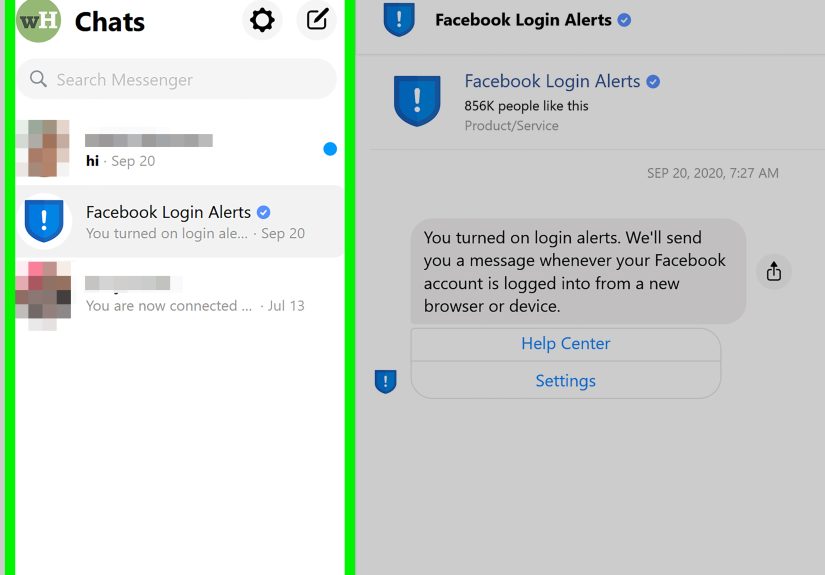
- Turn on two-factor authentication through Meta’s Accounts Center and review login alerts.
- Use a strong, unique password that is not recycled from your email, banking, or online-shopping accounts.
- Review Messenger privacy settings and message storage settings, especially after signing in on a new device.
- Log out after using Messenger on a public, borrowed, or shared computer.
Messenger supports end-to-end encrypted chats for protected conversations, which means the content is designed to be readable only by the people in the chat. Still, encryption cannot stop a scammer from pretending to be your friend or stop someone from forwarding a screenshot. Technology can lock the door; it cannot prevent your cousin from sending a terrible meme.
Common Messenger Download and Installation Problems
Messenger Is Not Showing in the App Store or Google Play
Check your spelling, device region, account settings, and operating-system version. You should search for Messenger, not “Facebook chat app deluxe ultra edition,” even though that name sounds exciting. If the app is not available, your device may be too old, restricted by parental controls, or managed by an employer or school.
The Installation Is Stuck
Pause and restart the download, switch between Wi-Fi and mobile data, free up storage, and restart your device. On Android, make sure Google Play Store services are working normally. On iPhone or iPad, check whether you are signed in to the App Store and whether a billing or verification issue is blocking downloads.
Messenger Opens but Will Not Let You Log In
Double-check your email address, phone number, and password. Try resetting the password through the official Facebook or Messenger sign-in screen. Also review whether you have a two-factor authentication method available. If you recently changed your password, give the account a few minutes to sync before trying again.
Messenger Web Version Is Not Working
Refresh the page, clear browser cookies for Messenger, disable problematic extensions, or try another supported browser. A corporate firewall, VPN, ad blocker, privacy extension, or browser setting may interfere with calls, notifications, camera access, or login windows.
Which Facebook Messenger Download Method Should You Choose?
For most people, the answer is simple: install the official Messenger app from Google Play or the App Store. It offers the smoothest mobile experience, better notifications, easier camera access, and convenient calling features.
For computer users, Messenger in a browser is the easiest choice. If you want a more dedicated desktop setup, install Messenger as a web app through Chrome, Edge, or Safari. It feels more organized than keeping Messenger buried in a browser tab between spreadsheets, online shopping carts, and a recipe you promised yourself you would make someday.
Final Thoughts
Downloading Facebook Messenger does not need to be complicated. Use Google Play for Android, the App Store for iPhone and iPad, messenger.com for browser access, or a web-app installation for a cleaner desktop experience. The key is choosing official sources, keeping the app updated, and protecting your account with strong security settings.
Once Messenger is installed, you can focus on the important things: chatting with friends, joining group calls, sharing photos, sending voice notes, and pretending you did not see the message until you were emotionally prepared to reply.
Real-World Experiences With Downloading and Installing Messenger
Installing Messenger is usually easy, but real-world experiences show that the “best” method depends heavily on the device, the person using it, and how often they actually message. A college student who lives in group chats may need the full mobile app with push notifications, while a remote worker may prefer Messenger in a browser so it stays separate from personal phone activity. Meanwhile, a parent helping a grandparent install Messenger may discover that the most difficult step is not downloading the app at all. It is explaining why the blue chat bubble icon is not the same as every other blue icon on the screen.
Android users often have the quickest setup because Google Play makes the process straightforward. Open the store, search Messenger, tap Install, and the app usually appears within minutes. The most common issue is confusing the official Meta app with similarly named apps. Search results can include unrelated “messenger” tools, SMS apps, or unofficial shortcuts. Checking the publisher name before installing saves a lot of trouble. It is a small step, but it matters. A fake app can look convincing in the same way a plastic houseplant looks convincing from six feet away: fine until you inspect it closely.
iPhone and iPad users usually have a smooth experience through the App Store, especially when Face ID is already set up. The frustrating moments tend to involve storage space or Apple Account verification. A user may tap Get, see the loading circle spin, and wonder whether Messenger is downloading, thinking about downloading, or quietly judging their collection of 14,000 screenshots. In many cases, clearing storage or restarting the device fixes the issue faster than repeatedly tapping the app icon.
Desktop users often discover that Messenger on the web is more useful than expected. It is especially convenient during work hours because typing on a full keyboard is much easier than composing a detailed message with two thumbs while pretending to listen during a meeting. The browser version also works well for users who do not want another desktop application running in the background. They can sign in, reply to messages, upload a file, and log out when finished.
Installing Messenger as a web app is a favorite option for people who want a cleaner workflow. A web app creates a dedicated Messenger window and icon without depending on old desktop software. This can make Messenger feel more organized, particularly for people who use it every day. It is also useful for families sharing a computer because each user can keep their own browser profile and Messenger access separate.
Security is another area where experience matters. Many users have learned the hard way that fake Messenger updates often arrive through suspicious links, urgent-looking messages, or advertisements. A safe habit is to ignore links that demand immediate installation and instead open the official App Store, Google Play Store, or messenger.com manually. That extra ten seconds can prevent a much bigger headache later.
Finally, Messenger works best when users take a few minutes after installation to adjust notifications, privacy settings, and account security. Turning off noisy group-chat alerts, enabling login protection, and reviewing permissions can transform Messenger from a buzzing distraction machine into a useful communication tool. The app may be built for conversation, but your settings decide whether those conversations feel convenient or like a tiny digital marching band following you through the day.
Note: Menu names, features, and availability can vary by device model, operating-system version, browser, account type, and country. For the safest installation, always use the official app store or the official Messenger website.