Table of Contents >> Show >> Hide
- What Is the Uber Ride App?
- Before You Download: What You Need
- How to Download the Uber App on iPhone
- How to Download the Uber App on iPad
- How to Download the Uber App on Android
- How to Create or Sign In to an Uber Account
- Setting Up Payment in the Uber App
- How to Request Your First Ride
- Important Safety Tips After Downloading Uber
- How to Avoid Fake Uber Apps
- Troubleshooting: Uber App Will Not Download
- Should You Download Uber on Wi-Fi or Mobile Data?
- Keeping the Uber App Updated
- Experience-Based Tips for Downloading and Using Uber
- Conclusion
Note: This guide is written for everyday riders who want the fastest, safest way to download the Uber ride app on iPhone, iPad, or Android without accidentally inviting a suspicious “Uber-but-with-a-fake-mustache” app onto their device.
Downloading the Uber ride app sounds simple: open an app store, tap a button, and boomyour phone is suddenly a tiny transportation command center. But if you have ever stared at a screen full of similar-looking icons, forgotten your Apple ID password, or wondered why your Android phone refuses to install anything until it has a little emotional support Wi-Fi, you are not alone.
This complete guide explains how to download the Uber app on iPhone, iPad, and Android, how to sign in or create an account, what to check before your first ride, and how to avoid common download problems. The goal is not just to install the app. The goal is to install the correct app, set it up properly, and feel confident using it whether you are heading to school, work, the airport, dinner, or the grocery store because someone in the house bravely finished the last snack.
What Is the Uber Ride App?
The Uber ride app is the mobile application riders use to request rides from nearby drivers. After installing the app, you can enter your pickup location, choose a destination, compare available ride options, review estimated prices and arrival times, and request a trip. The app also includes account settings, payment tools, safety features, trip history, customer support, and options such as scheduled rides or sharing trip status when available in your area.
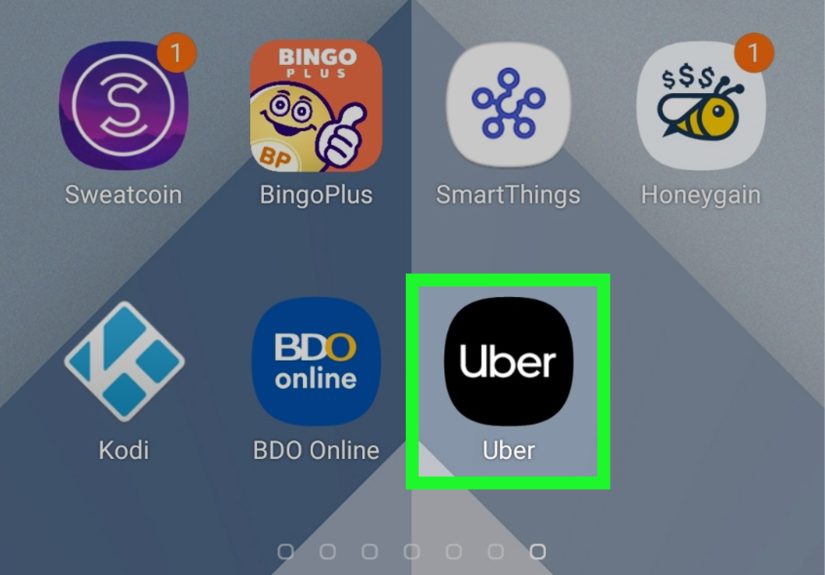
In app stores, the official rider app is commonly listed as Uber – Request a ride and is published by Uber Technologies, Inc. That publisher name matters. Before tapping download, check it the same way you would check whether your pizza actually has toppings. It is a small step, but it saves trouble.
Before You Download: What You Need
Before downloading the Uber app, make sure your device is ready. Uber’s rider app currently supports Android devices running Android 8.0 or higher and iPhone or iPad devices running iOS 15.0 or higher. You also need a stable internet connection, enough storage space, and access to the Apple App Store or Google Play Store.
Basic Requirements
- An iPhone, iPad, or Android phone/tablet with a supported operating system
- A working Wi-Fi or mobile data connection
- An Apple ID for iPhone or iPad, or a Google Account for Android
- A valid phone number and email address for Uber account setup
- A payment method, depending on your region and available Uber payment options
If your device is old enough to remember early social media drama, check the operating system first. On iPhone or iPad, go to Settings > General > Software Update. On Android, the path may vary by brand, but it is usually under Settings > System > System update or Settings > Software update.
How to Download the Uber App on iPhone
Downloading Uber on iPhone is usually quick because the App Store handles the installation for you. Here is the clean, safe route.
Step-by-Step Instructions for iPhone
- Unlock your iPhone and open the App Store.
- Tap the Search tab at the bottom of the screen.
- Type Uber in the search bar.
- Look for Uber – Request a ride by Uber Technologies, Inc.
- Tap Get. If you see a cloud download icon, it means you downloaded the app before.
- Confirm with Face ID, Touch ID, or your Apple ID password if asked.
- Wait for the app to install, then tap Open.
Once the app opens, you can sign in if you already have an Uber account. If you are new to Uber, choose the registration option and follow the prompts. Uber may ask for your name, phone number, email address, password, preferred language, and SMS verification code.
How to Download the Uber App on iPad
Yes, you can download Uber on an iPad. The process is similar to iPhone, but there is one important detail: some apps designed primarily for iPhone may appear in the App Store with iPhone-style formatting. That does not mean your iPad is broken. It just means the app was built mainly for phone screens, where ride-hailing makes the most sense.
Step-by-Step Instructions for iPad
- Open the App Store on your iPad.
- Tap Search.
- Enter Uber.
- Select Uber – Request a ride from Uber Technologies, Inc.
- Tap Get or the cloud icon.
- Authenticate if required.
- Tap Open after installation.
Using Uber on an iPad can be helpful if you are planning rides at home, helping a family member, or using a tablet with cellular service. However, for real-time pickups, an iPhone is often easier because it fits in your pocket and follows you to the curb. An iPad at pickup time can work, but it may feel like bringing a cutting board to a coffee date.
How to Download the Uber App on Android
On Android, the safest and easiest way to download the Uber ride app is through the Google Play Store. Avoid random APK websites or links from unknown messages. Your future self will thank you, probably while sitting comfortably in the correct car.
Step-by-Step Instructions for Android
- Unlock your Android device and open the Google Play Store.
- Tap the search bar at the top.
- Type Uber and tap search.
- Choose Uber – Request a ride.
- Confirm that the developer is Uber Technologies, Inc.
- Tap Install.
- After installation finishes, tap Open.
If you do not see the Install button, your device may not be compatible, your Play Store may need an update, or your Google Account settings may need attention. Also make sure your Android phone has enough storage. Apps do not enjoy being squeezed into a device with three photos of lunch and 9,000 screenshots from 2018.
How to Create or Sign In to an Uber Account
After downloading the Uber app, you need an account to request rides. If you already use Uber or Uber Eats, your existing account may work. If you are new, the app will guide you through registration.
Information Uber May Ask For
- First and last name
- Mobile phone number
- Email address
- Password or sign-in verification
- Preferred language
- Payment method
Uber typically verifies your phone number by text message. Enter the code carefully. If the code does not arrive, check that your phone number is correct, your signal is working, and your device is not blocking short-code messages. If you forgot your password, use Uber’s password reset option instead of creating duplicate accounts. Duplicate accounts are like extra house keys: occasionally useful, but mostly confusing when you are in a hurry.
Setting Up Payment in the Uber App
Once your account is ready, open the Uber app and go to your account or wallet area to add a payment method. Depending on your location, Uber may support credit cards, debit cards, digital wallets, gift cards, vouchers, or other local payment options. Availability varies, so the app is the best place to see what works in your area.
To add a card, you may be able to scan it with your camera or enter the card number, expiration date, security code, and billing ZIP code manually. Always add payment details inside the official app. Do not send card information through text messages, social media chats, or suspicious emails claiming to be “Uber support.” Real support does not need your financial life story delivered in a DM.
How to Request Your First Ride
After installing Uber and setting up your account, requesting a ride is straightforward. Open the app and enter your destination in the Where to? box. Confirm your pickup location, review the ride options, compare estimated arrival times and upfront prices, choose the ride type that fits your needs, and tap the request button.
Before You Confirm
- Check that the pickup pin is in the correct spot.
- Review the destination spelling and address.
- Compare ride options and estimated prices.
- Look at the driver’s estimated arrival time.
- Make sure the selected payment method is correct.
One common beginner mistake is placing the pickup pin on the wrong side of a large building, mall, airport, campus, or apartment complex. The app is smart, but it is not psychic. If your pickup spot is tricky, use the notes or pickup instructions feature when available.
Important Safety Tips After Downloading Uber
Downloading the Uber app is only step one. Using it wisely is step two, and step two deserves snacks and attention. Before getting into any vehicle, match the driver’s name, license plate, car make, model, and photo with what appears in the app. Never get into a car just because someone says, “Uber?” That is not a security system; that is a two-syllable guess.
Useful Uber Safety Features
- GPS tracking: Trips are tracked in the app during the ride.
- Share Trip Status: You can share your location and ETA with trusted contacts.
- Phone number privacy: Uber can help keep direct phone numbers private when riders and drivers contact each other through the app.
- RideCheck: Uber may check in if the app detects unusual trip activity.
- PIN verification: In some areas, riders can use a PIN to help confirm they are entering the correct vehicle.
For extra peace of mind, share your trip status with a parent, friend, roommate, or trusted contact. It lets them follow your route and estimated arrival time. Also, sit where you feel comfortable, wear your seat belt, and speak up if the pickup location or route seems wrong.
How to Avoid Fake Uber Apps
The safest way to download Uber is from the Apple App Store or Google Play Store. Fake apps, look-alike icons, and suspicious download links can put your privacy or device at risk. If a website tells you to install a mysterious file because it is a “special premium Uber version,” close it. That is not premium. That is digital raccoon behavior.
Checklist for a Safe Download
- Use only the App Store on iPhone or iPad.
- Use only the Google Play Store on Android.
- Confirm the app name: Uber – Request a ride.
- Confirm the developer: Uber Technologies, Inc..
- Read recent reviews if something looks unusual.
- Avoid downloading APK files from unknown websites.
- Keep your operating system and app store updated.
Android users should keep Google Play Protect enabled. iPhone and iPad users should pay attention to App Store privacy information and permissions. The Uber app needs certain permissions to work well, such as location access, but you can review and adjust permissions in your device settings.
Troubleshooting: Uber App Will Not Download
If the Uber app will not download, do not panic. Most installation problems are boring, fixable, and not a sign that your phone has joined a labor union.
For iPhone and iPad
- Check your internet connection.
- Make sure your Apple ID is signed in.
- Confirm your iOS or iPadOS version is supported.
- Free up storage by deleting unused apps or large files.
- Restart your device.
- Update your device software if needed.
- Check whether Screen Time or parental controls block app downloads.
For Android
- Check Wi-Fi or mobile data.
- Make sure your Google Account is working in the Play Store.
- Confirm that your Android version is supported.
- Clear Play Store cache if downloads get stuck.
- Free up storage space.
- Restart your phone.
- Keep Google Play Services and the Play Store updated.
If you still cannot install Uber, try using another network or checking whether your device is certified for Google Play. On iPhone, make sure the App Store is available in your region and that your account settings are not preventing downloads.
Should You Download Uber on Wi-Fi or Mobile Data?
Wi-Fi is usually the better choice because app downloads can use a noticeable amount of data, especially if updates install at the same time. Mobile data works too, but it may be slower or limited by your carrier plan. If you are traveling, download Uber before you leave home, the hotel, or the airport Wi-Fi zone. Future-you standing outside with luggage will deeply appreciate present-you’s planning skills.
Keeping the Uber App Updated
After installing Uber, keep it updated. App updates can include bug fixes, performance improvements, security enhancements, and new features. On iPhone or iPad, you can update Uber from the App Store. On Android, use Google Play Store. Turning on automatic updates is a good idea if you do not want to manually babysit every app like a tiny digital garden.
If the Uber app behaves strangely, updating it is one of the first troubleshooting steps to try. You can also restart your phone, check your internet connection, and sign out and back in if needed.
Experience-Based Tips for Downloading and Using Uber
The best time to download the Uber ride app is not when you are already late. It is not when your suitcase is leaning against your leg at the airport curb. It is not when rain starts falling sideways and everyone within five blocks suddenly decides they are also “just five minutes away.” Download the app before you need it.
A smart approach is to install Uber at home while connected to reliable Wi-Fi. Open the app, create or sign in to your account, verify your phone number, add a payment method, and look around the interface. You do not need to request a ride immediately. Just become familiar with where the destination box, wallet, account settings, safety tools, and trip history live. Think of it as a practice lap before the transportation Olympics.
Another helpful habit is checking your pickup location carefully. GPS is impressive, but it can be slightly confused around tall buildings, apartment complexes, campuses, airports, stadiums, and shopping centers. Before confirming a ride, zoom in on the map. Make sure the pin is placed where a driver can actually stop. If you are at a large venue, look for signs that say rideshare pickup. Many airports and event centers have specific areas for Uber and other ride-hailing services.
If you are helping a family member download Uber, walk them through the setup slowly. Make sure they know how to confirm the driver, car, and license plate before entering. Show them how to share trip status and where to find help inside the app. For older adults or first-time users, the app may feel busy at first. A five-minute walkthrough can prevent a lot of “Where did the button go?” confusion later.
For iPad users, the experience can be useful for planning, but less convenient for street pickups. If the iPad only works on Wi-Fi, it may lose connection when you leave the building. A cellular iPad can work better, but most riders will still find an iPhone or Android phone easier because it travels with them naturally. Nobody wants to wave a tablet around at a curb unless they are directing airport traffic.
Android users should be especially careful about avoiding third-party download links. The official Google Play Store is the best place to install Uber. Downloading APK files from random websites may seem faster, but it can create security risks. Even if a file looks legitimate, you may not know whether it has been modified. When transportation, payment, and location data are involved, “probably fine” is not a security strategy.
One practical tip is to set your home or frequent destination after your account is ready, if the feature is available in your app. This can make future ride requests faster. Also review notification permissions. Uber notifications can alert you when your driver is arriving, when a trip changes, or when important account information needs attention. Turning off every notification may feel peaceful until you miss the one saying your ride is outside.
Finally, keep the app updated and keep your phone charged. A ride-hailing app is only magical while your battery is alive. If you are going out for the day, especially in a new city, carry a charger or power bank. Downloading Uber is easy; using Uber smoothly depends on preparation, awareness, and not treating a 2% battery like a personality trait.
Conclusion
Downloading the Uber ride app on iPhone, iPad, or Android is simple when you use the official app store, choose the correct app, and follow the setup steps carefully. On iPhone and iPad, use the Apple App Store. On Android, use the Google Play Store. Confirm that the app is published by Uber Technologies, Inc., sign in or create your account, verify your phone number, add a payment method, and review safety features before your first ride.
The Uber app can make everyday travel easier, but the best experience starts before the first trip. Install it early, update it regularly, protect your account, check your pickup location, and always verify the vehicle and driver details before getting in. Do that, and your phone becomes less of a screen full of icons and more of a pocket-sized ride coordinator with surprisingly good timing.