Table of Contents >> Show >> Hide
- What Does “Invalid SIM” Mean on an iPhone?
- 1. Make Sure Your Cellular Plan Is Active
- 2. Turn Airplane Mode On and Off, Then Restart Your iPhone
- 3. Check Whether Your iPhone Is Carrier-Locked
- 4. Check for a Carrier Settings Update
- 5. Remove and Reinsert the SIM Card Carefully
- 6. Update iOS
- 7. Reset Network Settings
- 8. Contact Your Carrier or Apple Support
- Extra Tips to Prevent the Invalid SIM Error from Coming Back
- Final Thoughts
- Real-World Experiences With the Invalid SIM Error on iPhone
If your iPhone suddenly throws an “Invalid SIM” message at you, it feels a little dramatic. One minute you are texting, scrolling, and pretending to answer emails. The next minute your phone acts like your SIM card is a total stranger. No calls. No texts. No cellular data. Just betrayal in a tiny rectangle.
The good news is that this problem is usually fixable. In many cases, the issue comes down to a loose SIM, outdated carrier settings, a software hiccup, a locked device, or an eSIM that needs your carrier to step back in and do its job. In other words, your iPhone is not necessarily doomed. It is just being fussy.
In this guide, you will learn how to fix Invalid SIM on iPhone with eight quick solutions that start simple and get more advanced only when necessary. Whether you use a physical SIM card or an eSIM, these steps can help you get your cellular service back without turning your living room into a full-time Apple Genius Bar.
What Does “Invalid SIM” Mean on an iPhone?
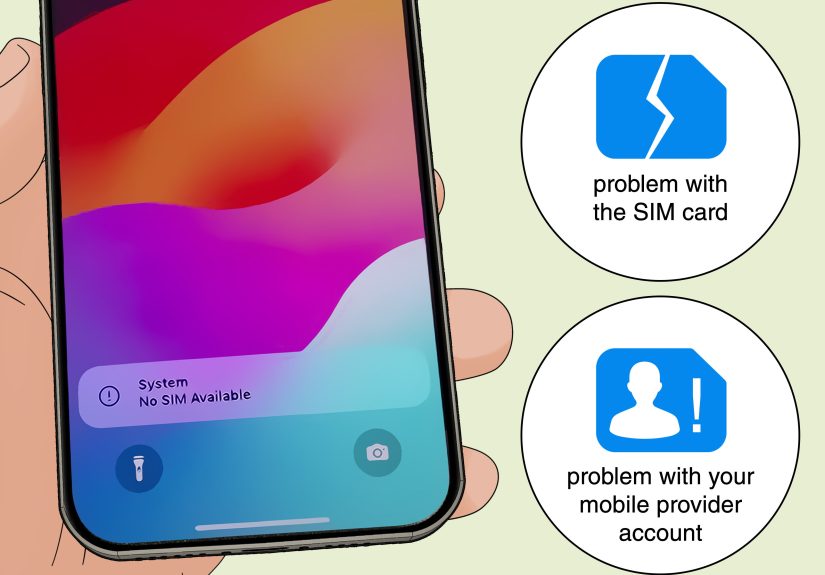
An Invalid SIM alert usually means your iPhone can see something is going on with your cellular setup, but it cannot properly connect to the carrier. Think of it like a bouncer checking ID and saying, “This looks familiar, but I still cannot let you in.”
That can happen for several reasons:
- Your SIM card is loose, dirty, damaged, or inserted incorrectly.
- Your eSIM was not activated correctly or needs to be re-provisioned.
- Your iPhone is locked to a different carrier.
- Your carrier settings or iOS version are out of date.
- Your line is inactive, suspended, or having an account-side issue.
- Your iPhone has a network or hardware problem.
Before you panic-buy a new phone at 2 a.m., work through these fixes in order.
1. Make Sure Your Cellular Plan Is Active
This sounds almost too obvious, which is exactly why people skip it. If your wireless plan is inactive, suspended, or stuck in activation limbo, your iPhone may show an Invalid SIM error even when the SIM itself is fine.
What to check
- Log in to your carrier account and confirm your line is active.
- Check whether your bill is past due or your line was suspended.
- Confirm your SIM or eSIM is assigned to the correct device and phone number.
- If you recently switched carriers, verify that the activation process fully completed.
For example, this happens a lot after phone upgrades. You move your old SIM into the new iPhone, assume everything is magical, and then the phone says “Invalid SIM” because the account still expects the old device or the carrier wants you to finish activation.
If you use an eSIM-only iPhone, this step matters even more. There may be nothing physical to reseat, so the problem often lives on the carrier side.
2. Turn Airplane Mode On and Off, Then Restart Your iPhone
Yes, this is the digital equivalent of “Have you tried unplugging it?” But it works often enough to earn a permanent seat at the troubleshooting table.
Why this helps
Toggling Airplane Mode forces the iPhone to disconnect and reconnect to cellular services. Restarting clears temporary glitches that may be interfering with SIM recognition.
How to do it
- Open Settings.
- Turn Airplane Mode on.
- Wait about 10 to 15 seconds.
- Turn Airplane Mode off.
- Now restart your iPhone.
If your iPhone is frozen or unresponsive, do a force restart instead. On most newer iPhones, press and quickly release Volume Up, press and quickly release Volume Down, then press and hold the Side button until the Apple logo appears.
It is fast, harmless, and has rescued more phones than people like to admit.
3. Check Whether Your iPhone Is Carrier-Locked
Sometimes the issue is not the SIM card at all. Sometimes your iPhone is locked to one carrier and you are trying to use a SIM from another. That is when the phone essentially says, “Nice try.”
How to check carrier lock status
- Go to Settings.
- Tap General.
- Tap About.
- Scroll to Carrier Lock.
If it says No SIM restrictions, your iPhone is unlocked. If it shows a carrier name or indicates a restriction, the device may still be locked.
This is especially common with used iPhones, replacement devices, or phones that were financed through a carrier and never unlocked. If that is your situation, contact the original carrier and ask about unlocking eligibility.
Quick reality check: if you bought a “great deal” from a stranger online and the phone turns out to be locked, the SIM card is not the villain. The plot twist was there from the start.
4. Check for a Carrier Settings Update
Carrier settings updates are tiny, unglamorous, and weirdly important. They help your iPhone talk correctly to your carrier’s network for calling, texting, and cellular data.
How to update carrier settings
- Connect your iPhone to Wi-Fi or cellular if possible.
- Open Settings.
- Tap General.
- Tap About.
- Wait a few seconds.
If an update is available, your iPhone should prompt you to install it. Tap Update.
This fix is easy to miss because the update does not always scream for attention. It just quietly waits in the background like a polite but essential houseguest.
5. Remove and Reinsert the SIM Card Carefully
If your iPhone uses a physical SIM card, the next step is to check it directly. A slightly crooked card, a dusty tray, or a worn SIM can cause the Invalid SIM message.
How to reseat the SIM card
- Power off your iPhone.
- Use a SIM-eject tool or a paper clip to open the tray.
- Remove the SIM card gently.
- Check for dust, scratches, moisture, or obvious damage.
- Wipe the SIM card lightly with a dry, lint-free cloth if needed.
- Place it back correctly in the tray.
- Reinsert the tray fully and turn the phone back on.
Use the tray that came with your iPhone. Mixing trays from different models is a bad idea, kind of like wearing someone else’s prescription glasses and insisting the room is the problem.
If the SIM looks damaged, do not keep wrestling with it. Ask your carrier for a replacement SIM.
If your iPhone uses eSIM instead
On many newer U.S. iPhone models, there may be no physical SIM tray at all. In that case, open Settings > Cellular and check whether your line appears. If it does, try turning that line off and back on. If setup is incomplete or the line is missing, your carrier may need to resend the eSIM activation.
6. Update iOS
If your iPhone software is outdated, weird cellular behavior can follow. Updating iOS can fix bugs, improve carrier compatibility, and clear up network-related issues.
How to update your iPhone
- Open Settings.
- Tap General.
- Tap Software Update.
- Install any available update.
Make sure your iPhone is charged and connected to Wi-Fi. If you cannot update wirelessly, you can update using a trusted computer.
Software updates are not exciting, but neither is being trapped in SIM-error purgatory, so this is a good trade.
7. Reset Network Settings
If the error still will not go away, a network settings reset can help clear corrupted cellular settings. This is one of the most effective deeper fixes when the issue is software-related.
How to reset network settings
- Open Settings.
- Tap General.
- Tap Transfer or Reset iPhone.
- Tap Reset.
- Tap Reset Network Settings.
Important: this removes saved Wi-Fi passwords, cellular settings, VPN settings, and certain APN-related settings. So yes, it is helpful, but yes, it also makes you re-enter Wi-Fi passwords later. Mildly annoying, but often worth it.
Use this step when simpler fixes have failed, especially if the problem started after a software update, carrier switch, or travel-related setup change.
8. Contact Your Carrier or Apple Support
If none of the quick fixes work, it is time to stop arguing with the phone and bring in reinforcements.
Contact your carrier if
- Your line is inactive or suspended.
- You use eSIM and activation is stuck.
- You need a replacement SIM card.
- Your iPhone is locked and needs carrier authorization to unlock.
- Your SIM was blocked or improperly provisioned.
Contact Apple if
- The SIM card works in another phone but not in your iPhone.
- The SIM tray seems bent, loose, or damaged.
- Your iPhone keeps showing Invalid SIM after all software and carrier fixes.
- You suspect a hardware issue with the device.
A useful test is trying another known-working SIM from the same carrier, if available. If that SIM works, your original SIM is probably the problem. If it does not, the issue is likely the iPhone itself or the account setup.
Extra Tips to Prevent the Invalid SIM Error from Coming Back
- Keep iOS updated.
- Install carrier settings updates when prompted.
- Avoid swapping SIM cards too often unless necessary.
- Keep the SIM tray dry and clean.
- Buy used iPhones only after checking carrier lock status.
- Confirm eSIM compatibility before switching carriers.
Final Thoughts
An Invalid SIM message on iPhone is annoying, but it is usually not a sign that your phone has entered its dramatic final act. Most of the time, the fix is surprisingly ordinary: restart the device, update carrier settings, reseat the SIM, update iOS, or reset network settings. If the issue turns out to be carrier-related, your provider can often re-provision the line or replace the SIM without much drama.
The key is working through the fixes in a smart order. Start with the easy stuff. Check the account. Check the lock status. Check the SIM or eSIM. Then move on to updates and resets. That approach saves time, saves frustration, and saves you from randomly mashing buttons while whispering threats at your phone.
If you are still stuck after all eight solutions, the likely answer is simple: your carrier or Apple needs to step in. At that point, you have done your part. Heroically, even.
Real-World Experiences With the Invalid SIM Error on iPhone
One reason the Invalid SIM on iPhone issue feels so stressful is that it rarely happens at a convenient time. It shows up when people are traveling, switching carriers, setting up a new phone, or trying to log in to important accounts that send verification texts. In other words, it has excellent timing in the worst possible way.
A common experience happens after upgrading to a newer iPhone. Someone transfers data from the old phone, sees all their photos and apps appear, and assumes the job is done. Then the new iPhone flashes the Invalid SIM message because the carrier still needs to finish activation, the eSIM did not transfer cleanly, or the physical SIM was never properly assigned to the new device. Everything looks ready, but the cellular line is still stuck backstage.
Another frequent scenario involves people buying secondhand iPhones. The phone powers on, Wi-Fi works, the screen looks great, and confidence levels soar. Then a new SIM card goes in and the phone refuses to connect because it is still locked to another carrier. This is one of the most frustrating situations because the SIM card gets blamed first, even though the real issue is the device’s lock status. That is why checking Carrier Lock under the About screen is such a valuable step.
Travelers also run into this problem when swapping in a local SIM card or trying an eSIM abroad. Sometimes the iPhone is unlocked and fully compatible, and everything works beautifully. Other times, the local carrier supports eSIM but the activation link fails, or the user discovers their phone is not actually unlocked after all. That is when a five-minute travel hack becomes a full afternoon project with weak airport Wi-Fi and a growing sense of betrayal.
Physical SIM users often describe simpler stories. They remove the SIM, notice a bit of dust or a tiny misalignment, put it back properly, and the phone works again. It feels almost insulting how easy the fix can be. But that is exactly why reseating the SIM remains such a classic solution. Tiny hardware issues can create outsized chaos.
On the eSIM side, the experience is different. There is nothing to hold, wipe, or dramatically inspect under bright kitchen lighting. Instead, the fix often depends on carrier support: resend the eSIM, remove the broken setup, or re-provision the line. It is less satisfying than physically fixing something, but it is often the correct move.
In real life, the best results usually come from staying calm and going step by step. People who jump randomly between settings often end up confused. People who start with the basics tend to solve it faster. So if your iPhone says Invalid SIM, take a breath. It may not be a catastrophe. It may just be your phone asking for a little patience, a little logic, and possibly a stern conversation with your carrier.