Table of Contents >> Show >> Hide
- What Is an MS Access Database?
- Step 1: Plan the Database Before Opening Access
- Step 2: Create a New Database in MS Access
- Step 3: Create Tables and Choose the Right Fields
- Step 4: Set a Primary Key
- Step 5: Build Table Relationships
- Step 6: Enter or Import Data
- Step 7: Create Queries to Find Answers
- Step 8: Build Forms for Easy Data Entry
- Step 9: Create Reports for Clean Output
- Step 10: Test the Database Before Real Use
- Step 11: Split the Database for Multiple Users
- Step 12: Maintain and Back Up Your Access Database
- Common Mistakes to Avoid When Making an Access Database
- Practical Example: A Small Inventory Database
- When Should You Use MS Access Instead of Excel?
- Experience-Based Tips for Building a Better MS Access Database
- Conclusion
Microsoft Access may not wear sunglasses or call itself “enterprise-grade” at parties, but for small businesses, classrooms, clubs, local offices, and personal projects, it remains one of the most practical tools for building a usable database without needing to become a full-time programmer. If Excel is a neat notebook, Access is a filing cabinet with a brain. It stores information in tables, connects related records, lets users enter data through forms, finds answers with queries, and turns raw data into reports that look like someone planned ahead.
In this guide, you will learn how to make a database using MS Access from the ground up. We will cover planning, creating tables, setting primary keys, designing relationships, building queries, creating forms, generating reports, importing data, and maintaining your database so it does not become a digital junk drawer with a login screen.
What Is an MS Access Database?
An MS Access database is a desktop database file that stores structured information. Instead of keeping everything in one giant spreadsheet, Access organizes data into related tables. A customer table might store names and phone numbers, while an orders table stores purchases. The two tables can be connected so you can see which customer placed which order without typing the same customer details again and again.
The main parts of an Access database are tables, queries, forms, reports, relationships, and sometimes macros or VBA code. For beginners, the first four are the big players. Tables store the data. Queries search, filter, calculate, and combine it. Forms make data entry easier. Reports present information for printing, sharing, or decision-making.
Step 1: Plan the Database Before Opening Access
The most common beginner mistake is opening Access too early. That sounds strange, but it is true. A good database begins on paper, in a notes app, or on a whiteboard where your ideas can make a mess before your data does.
Start by asking a simple question: what do I need this database to track? For example, if you are building an inventory database, you may need to track products, suppliers, purchase orders, stock levels, and categories. If you are creating a student attendance database, you may need students, classes, teachers, dates, and attendance status.
Example Planning List
For a simple customer order database, your list might look like this:
- Customers: customer name, phone, email, address
- Products: product name, category, price, stock quantity
- Orders: order date, customer, payment status
- Order Details: product ordered, quantity, unit price
Notice that “orders” and “order details” are separate. That is because one order can contain several products. If you jam all products into one order field, Access will not explode, but your future self may write an angry memo.
Step 2: Create a New Database in MS Access
Open Microsoft Access and choose either a blank database or a template. A blank database gives you full control, while a template provides prebuilt tables, forms, queries, reports, and relationships for common tasks such as inventory, contacts, project tracking, and asset management.
How to Create a Blank Database
- Open Microsoft Access.
- Select File, then New.
- Choose Blank database.
- Enter a file name, such as CustomerOrders.accdb.
- Choose the folder where you want to save it.
- Click Create.
Access will create the database file and open a new table. This is where the real construction begins. Think of the file as the building, and tables as the rooms. A database with only one table is technically a database, but it is often just a spreadsheet wearing a database costume.
Step 3: Create Tables and Choose the Right Fields
Tables are the foundation of an Access database. Each table should represent one subject. A customers table should store customer information, not product prices, order notes, and your lunch plans. Keeping each table focused makes the database easier to search, update, and expand.
Use Clear Field Names
Fields are the columns in a table. Good field names are short, clear, and consistent. Instead of naming a field “customer thing,” use “CustomerName.” Instead of “date,” use “OrderDate.” Avoid spaces if you plan to use queries, macros, or VBA later. Access can handle spaces, but clean naming makes advanced work easier.
Choose Suitable Data Types
Every field in Access has a data type. The data type controls what kind of information the field can store. Common data types include Short Text, Long Text, Number, Date/Time, Currency, Yes/No, AutoNumber, and Attachment.
For example, use Short Text for names, phone numbers, and email addresses. Use Currency for prices. Use Date/Time for order dates. Use AutoNumber for unique ID fields. Do not use Number for phone numbers, because phone numbers are labels, not values you will add together. Nobody wants the grand total of three customer phone numbers.
Step 4: Set a Primary Key
A primary key uniquely identifies each record in a table. In many Access databases, this is an AutoNumber field such as CustomerID, ProductID, or OrderID. Access can automatically generate a unique number for each new record, which makes it easier to connect tables accurately.
For example, two customers may both be named John Smith. If you rely on names alone, your database may confuse them. A CustomerID keeps each customer separate, even if the names match. This is not just neat design; it is data survival.
Step 5: Build Table Relationships
Relationships are where Access becomes more powerful than a basic spreadsheet. A relationship connects matching fields between tables. Usually, the primary key in one table connects to a foreign key in another table.
For example, the Customers table may have CustomerID as its primary key. The Orders table may also have a CustomerID field. When you connect these fields, Access understands which orders belong to which customers.
Common Relationship Types
- One-to-one: One record in Table A matches one record in Table B.
- One-to-many: One customer can have many orders. This is the most common relationship.
- Many-to-many: Many products can appear in many orders. This usually requires a junction table, such as OrderDetails.
Enable Referential Integrity
When you create relationships, enable referential integrity when appropriate. Referential integrity helps prevent orphan records, such as an order assigned to a customer who no longer exists. It is like a polite but firm office manager saying, “No, we are not filing paperwork under imaginary people today.”
Step 6: Enter or Import Data
You can enter data directly into Access tables, but if you already have information in Excel, CSV files, text files, or another database, importing can save time. Before importing, clean your data. Remove duplicate columns, fix inconsistent spelling, check date formats, and make sure the first row contains clear column headings.
To import from Excel, go to the External Data tab, choose New Data Source, select From File, then choose Excel. Access lets you import the spreadsheet into a new table, append it to an existing table, or link to the Excel file. Importing copies the data into Access; linking keeps the data connected to the original Excel workbook.
Step 7: Create Queries to Find Answers
Queries let you ask questions of your database. Want to see all unpaid orders? Create a query. Want to list products with stock below 10 units? Query time. Want to calculate total sales by month? Access can help with that too.
Simple Query Example
Suppose you have an Orders table with OrderDate, CustomerID, and PaymentStatus. You can create a query that shows only orders where PaymentStatus equals “Unpaid.” This gives you a working collection list without manually scrolling through every record like a tired detective in a spreadsheet crime drama.
Access includes Query Wizard for beginners and Query Design for more control. The wizard is helpful when you are learning, while Query Design gives you more flexibility for criteria, joins, sorting, calculated fields, and summary totals.
Step 8: Build Forms for Easy Data Entry
Forms make your database friendlier. Instead of forcing users to type directly into tables, you can create a form with labels, text boxes, drop-down lists, buttons, and subforms. Forms reduce errors and make the database feel like an actual application.
To create a form, select a table or query in the Navigation Pane, go to the Create tab, and choose Form, Form Wizard, Split Form, or Multiple Items. A customer form, for example, can show one customer at a time, while a subform displays that customer’s orders underneath.
Good Form Design Tips
- Use clear labels so users know what to enter.
- Use combo boxes for repeated choices, such as category or status.
- Group related fields together.
- Avoid clutter. A form should not look like a spaceship control panel unless you are building a spaceship database.
Step 9: Create Reports for Clean Output
Reports turn database records into organized pages. They are useful for invoices, customer lists, sales summaries, inventory sheets, attendance records, and management reports. Unlike forms, which are designed for entering and viewing data, reports are designed for presentation.
To create a report, choose a table or query, then go to the Create tab and select Report or Report Wizard. The wizard lets you choose fields, group records, sort data, and pick a layout. You can then customize the report in Layout View or Design View.
For example, a monthly sales report might group orders by month, show customer names, list order totals, and calculate a grand total at the bottom. That is much better than emailing someone a raw table and saying, “Good luck, brave warrior.”
Step 10: Test the Database Before Real Use
Before you rely on the database, test it with sample data. Add fake customers, products, orders, and reports. Try to break things gently. Enter missing values, duplicate records, strange dates, and unexpected text. Testing helps you find problems before real users do, and real users have a magical gift for discovering bugs five minutes before lunch.
Testing Checklist
- Can users add new records through forms?
- Do relationships prevent invalid records?
- Do queries return the expected results?
- Do reports print or export correctly?
- Are required fields truly required?
- Are backup copies being made?
Step 11: Split the Database for Multiple Users
If several people will use the database over a network, consider splitting it into a front-end and back-end database. The back end stores the tables. The front end contains forms, queries, reports, macros, and linked tables. Each user gets a local copy of the front end, while everyone shares the same back-end data file.
This setup can improve performance and reduce the risk of file corruption. It also makes updates easier because you can distribute a revised front end without replacing the shared data. For small teams, this is one of the most practical MS Access database design habits to learn early.
Step 12: Maintain and Back Up Your Access Database
A database is not something you build once and abandon like a treadmill in February. It needs maintenance. Make regular backups, especially before changing table structure, importing large data sets, or redesigning forms and reports.
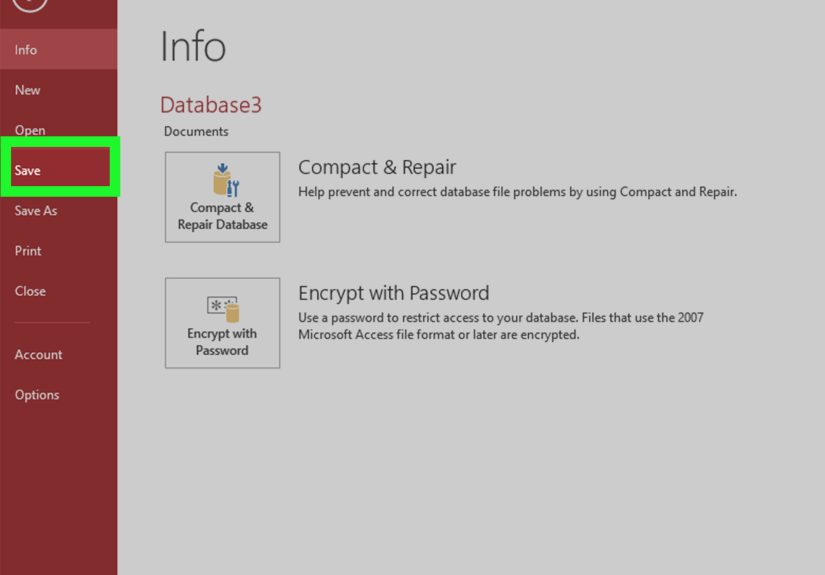
Access includes a Compact and Repair feature that can reduce file size and fix certain database issues. You can find it under File, then Info, then Compact & Repair Database. For shared databases, make sure other users are out of the file before compacting and repairing.
Common Mistakes to Avoid When Making an Access Database
Using One Giant Table
One huge table may feel simple at first, but it becomes hard to manage. Break information into logical tables, such as Customers, Orders, Products, and Payments.
Skipping Primary Keys
Every important table should have a primary key. Without one, relationships become messy and duplicate records become more likely.
Typing the Same Data Repeatedly
If you keep typing the same customer name or product category over and over, your database design probably needs another table and a relationship.
Ignoring Data Types
Wrong data types create reporting and sorting problems later. Dates should be dates, prices should be currency, and IDs should be consistent.
Forgetting Backups
Backups are boring until they become heroic. Save copies regularly and store them somewhere safe.
Practical Example: A Small Inventory Database
Imagine you run a small office supply room. You want to track items, suppliers, stock levels, and restock dates. A simple Access database could include these tables:
- Products: ProductID, ProductName, Category, UnitPrice, QuantityOnHand, ReorderLevel
- Suppliers: SupplierID, SupplierName, Phone, Email
- Purchases: PurchaseID, SupplierID, PurchaseDate
- PurchaseDetails: PurchaseDetailID, PurchaseID, ProductID, Quantity, UnitCost
You could create a query that lists products where QuantityOnHand is less than ReorderLevel. Then you could build a report called “Items to Reorder.” Suddenly, your supply closet has gone from chaos cave to command center.
When Should You Use MS Access Instead of Excel?
Use Excel when you need quick calculations, charts, simple lists, or one-person analysis. Use Access when your data has multiple related categories, repeated records, multiple users, forms, reports, and structured workflows.
For example, a personal budget may work fine in Excel. But a customer order system with customers, invoices, products, payments, and reports is usually a better fit for Access. The moment your spreadsheet starts growing extra sheets like a digital octopus, it may be time to consider a database.
Experience-Based Tips for Building a Better MS Access Database
After working with Access-style databases, one lesson becomes clear very quickly: design matters more than decoration. A beautiful form sitting on top of messy tables is like a shiny sports car with square wheels. It may look impressive, but nobody is going far. Spend serious time planning tables, field names, and relationships before creating fancy buttons and reports.
Another useful habit is to start small. Beginners often try to build the final dream system on day one: customers, billing, inventory, employee schedules, barcode scanning, automatic emails, world peace, and maybe a dashboard with twelve colors. That approach usually creates confusion. Instead, build one working module first. For example, create the Customers table, make a customer form, test it, then move to Orders. Small wins build confidence and reveal design problems early.
It is also smart to use sample data before entering real data. Add ten fake customers, five fake products, and several fake orders. Make one record incomplete. Add one weird name with an apostrophe. Try a very long product name. These little tests help expose problems with field sizes, validation rules, form layout, and queries. Testing with fake data is much less stressful than realizing your real customer list imported sideways.
One experience many Access users share is that naming conventions save time. Use names like CustomerID, OrderID, OrderDate, and ProductName. Avoid vague names like Name, Date, Type, or Notes2FinalNew. When you return to the database months later, clear names help you understand what you built. Future you deserves kindness. Future you also has coffee but limited patience.
Forms should be designed for the person entering data, not for the person who already understands the database. Use tab order correctly so users can move through fields naturally. Add drop-down lists where possible. Use default values for common entries. Mark required fields clearly. A good form quietly guides users toward correct data entry. A bad form makes them guess, and guessing is how databases become haunted.
Reports should answer real business questions. Do not create reports just because Access makes it easy. Create reports such as “Unpaid Orders,” “Low Stock Products,” “Monthly Sales Summary,” or “Customer Contact List.” Each report should have a purpose. If nobody uses it, delete it or redesign it.
Backups deserve special attention. Before changing table structure, importing a large spreadsheet, deleting records, splitting the database, or experimenting with macros, make a backup copy. Label backups with dates, such as CustomerOrders_Backup_2026_06_02.accdb. A backup with a clear name is useful. A folder full of files named final, final2, final_REAL, and final_really_real is not a backup system; it is a cry for help.
For multi-user databases, splitting the database is often a turning point. Keeping tables in the back end and interface objects in the front end makes the system more manageable. Each user can work with a front-end copy, while the shared data remains in one back-end file. This is not a replacement for a large SQL Server application, but for many small teams, it is a practical and affordable structure.
Finally, remember that Microsoft Access is strongest when used for the right scale. It is excellent for desktop databases, internal tools, small office systems, prototypes, and structured tracking applications. If your project grows into thousands of concurrent users, web-based access, heavy automation, or strict enterprise security requirements, you may eventually need SQL Server, Azure SQL, MySQL, PostgreSQL, or a custom web app. But for many real-world office problems, Access is still a wonderfully useful tool. It turns scattered information into a working system without requiring a computer science degree or a wizard robe.
Conclusion
Learning how to make a database using MS Access is less about clicking buttons and more about thinking clearly. Start with a plan. Divide information into focused tables. Set primary keys. Build relationships. Use queries to find answers, forms to simplify data entry, and reports to present results. Then test, back up, maintain, and improve the database as your needs grow.
Microsoft Access is not the right tool for every project, but when used well, it can turn messy lists into organized, searchable, report-ready information. Whether you are tracking customers, inventory, students, donations, appointments, or projects, Access gives you the building blocks to create a practical database that works harder than a spreadsheet and complains less than a committee.