Table of Contents >> Show >> Hide
- What “preloading thumbnails” really means in Windows 10
- Step 1: Make sure Windows 10 is allowed to show thumbnails
- Step 2: Use a thumbnail-friendly view to force Windows to generate previews
- Step 3: Rebuild the thumbnail cache if thumbnails are blank, wrong, or painfully slow
- Step 4: Make sure the file type actually supports thumbnail previews
- Step 5: Make File Explorer faster so thumbnail loading feels preloaded
- What not to do
- Troubleshooting checklist for missing thumbnails in Windows 10
- A real-world experience with preloading thumbnails in Windows 10
- Final thoughts
If you have ever opened a folder in Windows 10 and watched a sea of bland file icons slowly turn into thumbnails one by one, you already know the feeling: it is like waiting for popcorn, except less delicious. The good news is that Windows 10 can show file thumbnails quickly. The less-fun news is that it does not offer a magical button labeled “Preload all thumbnails now, dear user.”
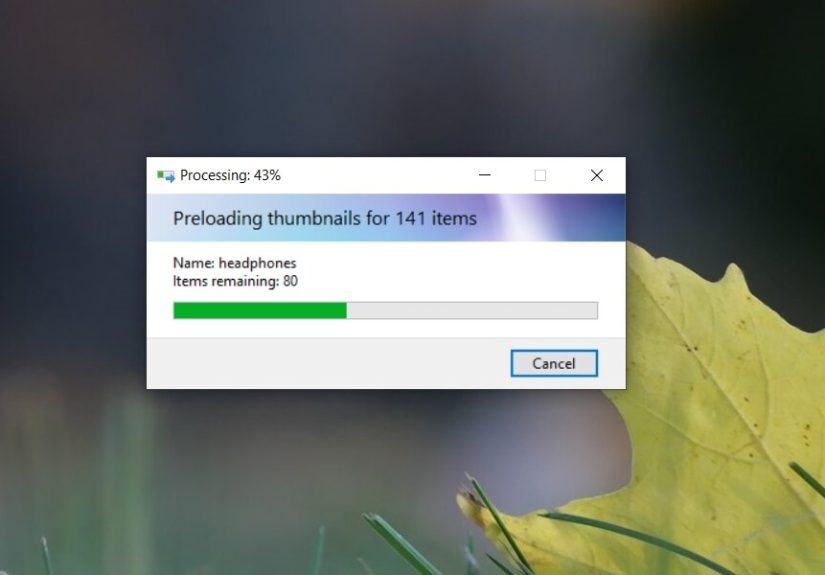
Still, there are smart ways to get very close to that result. By enabling thumbnail previews, forcing File Explorer to generate them, rebuilding the thumbnail cache when it gets cranky, and making sure the right file handlers are installed, you can make folders feel much faster and more visual. In everyday terms, “preloading thumbnails” in Windows 10 really means helping the operating system create previews ahead of time and store them in cache so they appear faster the next time you open that folder.
In this guide, you will learn how thumbnail previews work in Windows 10, how to force them to load for files, how to fix missing or broken previews, and what to do when formats like PDFs, HEIC images, or cloud-based files refuse to cooperate. We will also cover a real-world experience section at the end, because sometimes technical advice makes more sense when it steps out of the lab and into a messy folder full of vacation photos, screenshots, and mystery PDFs.
What “preloading thumbnails” really means in Windows 10
Let’s clear up the main idea first. In Windows 10, File Explorer usually creates thumbnails on demand. When you open a folder in a thumbnail-friendly view, Windows generates image previews for supported file types and stores that preview data in its thumbnail cache. The next time you open the same folder, those thumbnails can appear faster because Windows does not have to build them all over again.
So when people talk about how to preload thumbnails for files in Windows 10, they are usually talking about one of these practical goals:
- Turning thumbnail previews on if they were disabled
- Opening folders in a view that forces Windows to generate previews
- Fixing a corrupted thumbnail cache
- Making sure special file types have the right preview support
- Keeping cloud files available offline so thumbnails can actually be built
That is the real game. Not wizardry. Just File Explorer, a cache database, and a little patience.
Step 1: Make sure Windows 10 is allowed to show thumbnails
Before you try to “preload” anything, make sure Windows is not sabotaging you with the wrong settings.
Check File Explorer settings
- Open File Explorer.
- Click View, then Options.
- Open the View tab.
- Make sure Always show icons, never thumbnails is unchecked.
- Click Apply, then OK.
If that box is checked, Windows will show generic icons instead of thumbnail previews. In other words, your thumbnails are not “slow.” They are just grounded, like a teenager who borrowed the car without asking.
Check visual effects settings
- Open Settings and go to System > About.
- Click Advanced system settings.
- Under Performance, click Settings.
- In the Visual Effects tab, make sure Show thumbnails instead of icons is checked.
- Click Apply, then OK.
These two settings are the foundation. If they are wrong, every other thumbnail trick is basically trying to make toast with the toaster unplugged.
Step 2: Use a thumbnail-friendly view to force Windows to generate previews
This is the closest thing to true thumbnail preloading in Windows 10.
Open the folder containing your images, videos, documents, or other supported files. Then switch File Explorer to Medium icons, Large icons, or Extra large icons. Thumbnails are far more likely to generate in those views than in a tiny Details layout where Windows has no reason to render visual previews for everything.
Once you are in the right view, scroll through the folder slowly. Yes, really. As you browse, Windows generates thumbnails and stores them in the cache. If the folder is large, give it a minute to settle. Then close the folder and reopen it. In many cases, previews will appear much faster the second time around.
If you want to preload thumbnails for multiple folders, repeat the process for each folder or subfolder that matters most. It is not glamorous, but it works. Think of it as meal prep for File Explorer.
Tips that help this method work better
- Start with the folders you use most often instead of trying to preview your entire drive.
- Use Extra large icons for photo-heavy folders where visual scanning matters.
- Let the folder finish loading before jumping elsewhere.
- If thumbnails vanish after a reboot or update, your cache may need rebuilding.
Step 3: Rebuild the thumbnail cache if thumbnails are blank, wrong, or painfully slow
Windows 10 keeps thumbnail data in cache files under your local profile. Over time, that cache can become outdated or corrupted. When that happens, you may see blank icons, old previews, mismatched thumbnails, or missing images that should have thumbnails.
The fastest fix is often to clear the thumbnail cache and let Windows rebuild it.
Method 1: Use Disk Cleanup
- Open File Explorer.
- Right-click your system drive, usually C:, and choose Properties.
- Click Disk Cleanup.
- Check Thumbnails.
- Clear the other boxes if you only want to rebuild thumbnail previews.
- Click OK, then confirm.
After cleanup, reopen File Explorer and browse your folders again so Windows can regenerate the previews.
Method 2: Use Command Prompt
If you like the command-line route, this is the classic thumbnail-cache reset:
This shuts down File Explorer, deletes the thumbnail cache database files, and starts Explorer again. Once you revisit folders in a thumbnail view, Windows will rebuild the previews from scratch.
Step 4: Make sure the file type actually supports thumbnail previews
Here is where many people get tripped up: not every file type will show thumbnails automatically, and some formats need extra support.
PDF thumbnails
PDF files are a classic example. Windows does not always handle their thumbnail previews the way users expect unless the installed PDF software provides a shell preview component. If you use Adobe Acrobat or Acrobat Reader, open the app’s preferences and enable PDF thumbnail previews in Windows Explorer. Without that setting, you may only see the standard PDF icon instead of a mini preview of the first page.
HEIC, HEIF, and some video formats
If you work with iPhone photos, modern image formats, or certain video codecs, missing extensions can stop thumbnails from appearing properly. On some Windows 10 systems, especially Windows 10 N editions, you may need the Media Feature Pack or related codec extensions such as HEIF Image Extensions or HEVC Video Extensions.
So if your JPG thumbnails look fine but your HEIC files act like shy woodland creatures, format support may be the problem, not File Explorer itself.
OneDrive and cloud files
If the file lives in OneDrive and is online-only, Windows may not build a reliable local thumbnail preview until the file is available on the device. Right-click the file or folder and choose Always keep on this device. That downloads the file locally and gives File Explorer a better chance to generate thumbnails. For OneDrive specifically, some previews also have size and format limits, so not every cloud item will behave like a local JPG sitting happily on your SSD.
Step 5: Make File Explorer faster so thumbnail loading feels preloaded
Sometimes the thumbnails are technically working, but Windows 10 is taking its sweet time. In that case, performance tuning matters.
Give Windows enough breathing room
- Keep reasonable free space on your system drive.
- Use an SSD if possible instead of an older spinning hard drive.
- Close a few heavyweight apps if Explorer is lagging.
- Restart File Explorer or reboot the PC if previews suddenly stop updating.
Thumbnail generation is not the most demanding task in the world, but it still benefits from a healthy system. A cramped drive, unstable app integration, or too many background tasks can make Explorer feel like it is trudging uphill in wet boots.
Restore File Explorer defaults if things got weird
If someone changed several folder settings over time, or if a Windows update left Explorer acting odd, resetting File Explorer options can help. Open File Explorer Options, go to the View tab, and restore defaults. Then re-enable thumbnail settings if needed.
What not to do
Not every tweak improves thumbnail loading. Some ideas floating around online are useful only in special cases.
- Do not disable thumbnail caching on a normal personal PC if your goal is faster previews. Caching is what makes repeat visits to folders quicker.
- Do not clear the thumbnail cache every day unless you enjoy making Windows regenerate everything from scratch over and over.
- Do not assume every file type supports thumbnails natively. Some need app-specific preview handlers or codecs.
- Do not expect instant thumbnails on very large folders, network shares, or online-only files. Those scenarios are naturally slower.
In short, the cache is your friend until it becomes a corrupted little goblin. Then you reset it and move on with your life.
Troubleshooting checklist for missing thumbnails in Windows 10
- Uncheck Always show icons, never thumbnails.
- Check Show thumbnails instead of icons in visual effects.
- Switch to Large or Extra large icons.
- Clear the thumbnail cache with Disk Cleanup.
- Restart File Explorer.
- Update Windows if the issue started after a glitch.
- Install needed extensions for HEIC, HEIF, HEVC, or Windows 10 N media support.
- Enable Adobe’s PDF thumbnail option for PDF previews.
- For OneDrive files, choose Always keep on this device.
- Run system file checks if Windows seems broadly unstable, not just visually moody.
A real-world experience with preloading thumbnails in Windows 10
A common real-world experience goes something like this: you open a folder with a few thousand family photos, some PDFs, a pile of phone screenshots, and a couple of videos that you definitely meant to rename six months ago. At first, everything looks generic. Just rows of icons staring back at you like they know you are in a hurry. You switch the folder to Extra large icons, and slowly, one by one, the previews begin to appear.
At that point, many users think the system is broken because the first load can feel slow. But after the folder sits open for a bit and you scroll through it once, the second visit is usually much faster. That is the “aha” moment. Windows 10 was not refusing to show thumbnails. It was building them and storing them in cache. In other words, the folder was not lazy. It was meal-prepping.
Now imagine another folder: scanned receipts as PDFs, some downloaded design mockups, several HEIC images from an iPhone, and a few cloud-only OneDrive files. This is where things get spicy. The JPEGs may preview immediately, the PDFs may only show icons, the HEIC images may refuse to display anything useful, and the cloud files may sit there like they are considering your request. In practice, this is when users discover that thumbnail loading is not just one setting. It is a chain of support. File Explorer settings matter, but so do codecs, app preview handlers, and whether the file is actually stored locally.
Once the right fixes are in place, the experience changes dramatically. Adobe starts showing PDF thumbnails. OneDrive files begin behaving after you choose Always keep on this device. HEIC images stop acting mysterious after the right extensions are installed. Suddenly, that folder becomes visual again instead of feeling like a filing cabinet built by a committee that hates joy.
There is also the classic thumbnail-cache-corruption moment. You open a folder and notice the wrong image preview on the wrong file, or a blank icon where a perfectly normal photo should be. This is where many people waste time blaming the file itself, when the faster fix is often to clear the thumbnail cache and let Windows rebuild it. After a reboot or Explorer restart, the previews start returning, and your stress level drops by at least two notches.
The practical lesson from all of this is simple: “preloading thumbnails” in Windows 10 is really about setting up the system so previews can be generated once and reused later. If the folder view is right, the cache is healthy, the file type is supported, and the files are local, Windows usually does a decent job. Not perfect. Not glamorous. But good enough that you can stop opening random files just to figure out whether “IMG_4821” is your tax document, a lasagna recipe, or a picture of your dog sleeping on your clean laundry.
Final thoughts
If you want to preload thumbnails for files in Windows 10, focus on the practical workflow: enable thumbnails, use a large-icon view to force File Explorer to generate them, rebuild the cache when previews go bad, and make sure special file formats have the right support. That combination gives you the closest thing to a thumbnail preload system without installing complicated third-party tools or turning your PC into a weekend repair project.
For most users, the fastest win is also the simplest: turn thumbnails on, open the folder in a larger view, let it finish loading, and revisit it later. If the previews still do not behave, the cache or file-type support is usually the next thing to investigate. Once you understand that pattern, Windows 10 becomes a lot less mysteriousand a lot more visual.