Table of Contents >> Show >> Hide
- What Is a PDF and Why Is It So Popular?
- Before You Save a File as a PDF
- How to Save a File as a PDF in Microsoft Word, Excel, or PowerPoint
- How to Save a File as a PDF on Windows
- How to Save a File as a PDF on Mac
- How to Save a Google Doc as a PDF
- How to Save a Web Page as a PDF
- How to Download PDFs from Websites
- How to Download PDFs Safely
- Best Practices for Saving PDFs
- Common Problems and How to Fix Them
- Specific Examples
- Experience Notes: Practical Lessons from Saving and Downloading PDFs
- Conclusion
Saving a file as a PDF sounds simple until your document turns into a formatting pancake, your browser hides the download button like it owes you money, or your “final_final_REAL_final.pdf” ends up in a mystery folder. The good news: saving and downloading PDFs is not difficult once you understand the main paths. Whether you are using Microsoft Word, Google Docs, a Mac, Windows, Chrome, Firefox, or a cloud drive, the process usually follows the same logic: prepare the file, choose the PDF option, name it clearly, save it somewhere sensible, and check that it opens correctly.
This guide explains how to save a file as a PDF, how to download PDFs safely, how to avoid common mistakes, and how to keep your PDF files organized after they land on your computer. Think of it as a seatbelt for your digital documents: not flashy, but extremely useful when things start moving fast.
What Is a PDF and Why Is It So Popular?
PDF stands for Portable Document Format. It was created to make documents easier to share across different devices, operating systems, and software without destroying the layout. In plain English, a PDF helps your file look the same on your laptop, your coworker’s tablet, your teacher’s desktop, and your aunt’s printer from 2009 that still makes heroic noises.
PDFs are widely used for resumes, contracts, invoices, school assignments, ebooks, manuals, tax forms, reports, presentations, and printable documents. The main advantage is consistency. A Word document might shift when opened on another device if fonts are missing or margins behave differently. A PDF is more like a digital snapshot of the finished version, while still allowing useful features such as searchable text, hyperlinks, comments, form fields, and password protection.
Before You Save a File as a PDF
Before converting anything to PDF, take a minute to clean up the original file. This tiny pause can save you from sending a document with a missing page, a giant blank space, or a header that has decided to start a new life on page two.
Check the layout
Review the file in print preview or page layout view. Look at margins, page breaks, headers, footers, images, tables, and page numbers. If you are working with a resume, proposal, invoice, or school paper, make sure the important content does not spill awkwardly onto a new page.
Name the file clearly
A good file name is short, descriptive, and easy to recognize later. Instead of “document.pdf,” use something like “Marketing_Report_May_2026.pdf” or “Tran_Resume_Product_Designer.pdf.” Avoid strange symbols, extra punctuation, and names that look like a keyboard sneezed.
Choose the right folder
Save the PDF in a folder you can find again. The Downloads folder is convenient, but it can become a digital junk drawer. For important PDFs, use folders such as “Work,” “School,” “Invoices,” “Applications,” “Contracts,” or “Tax Documents.”
How to Save a File as a PDF in Microsoft Word, Excel, or PowerPoint
Microsoft Office apps make PDF export fairly straightforward. The exact menu may vary slightly depending on your version, but the general steps are similar.
Steps for Word
- Open your document in Microsoft Word.
- Click File.
- Choose Save As, Save a Copy, or Export.
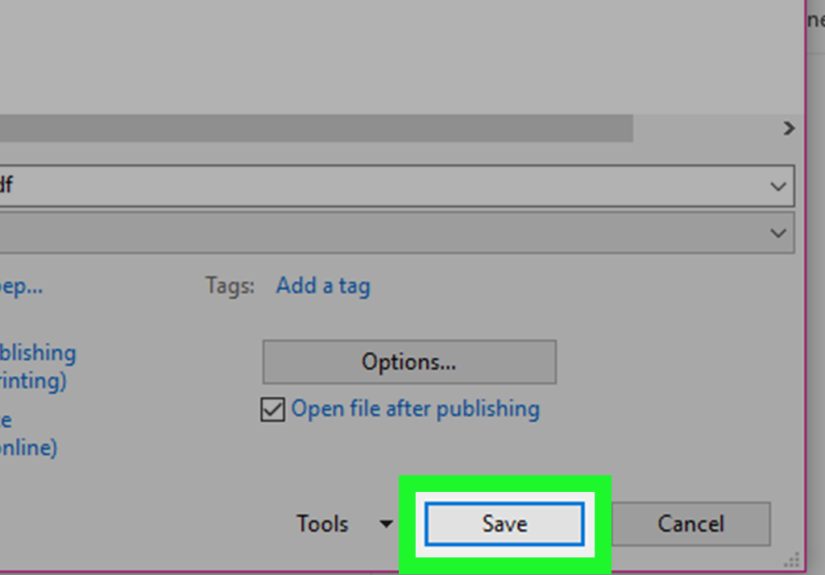
- Select PDF as the file type.
- Choose a folder and enter a clear file name.
- Click Save or Publish.
- Open the PDF to check the formatting.
Steps for Excel
Excel needs a little extra attention because spreadsheets can be wider than a polite PDF page. Before saving, check the print area, orientation, scaling, and page breaks. If your spreadsheet has 25 columns, the PDF may shrink into ant-sized text unless you adjust the settings.
- Open the spreadsheet.
- Set the print area if you only need part of the sheet.
- Go to File and choose Save As or Export.
- Select PDF.
- Use options such as active sheet, entire workbook, or selected cells if available.
- Save and review the PDF carefully.
Steps for PowerPoint
PowerPoint presentations can be saved as PDFs when you want to share slides without allowing easy editing. You can usually export full slides, handouts, notes pages, or selected slides.
- Open the presentation.
- Click File.
- Choose Save As or Export.
- Select PDF.
- Choose whether to export all slides or a specific range.
- Save the file and open it to make sure images and text appear correctly.
How to Save a File as a PDF on Windows
Windows users often have two practical options: exporting directly from an app or using the print menu. Exporting is usually better when the app supports it because it may preserve clickable links, text quality, bookmarks, and document structure. Printing to PDF is useful when an app does not offer a direct PDF export option.
Using Print to PDF
- Open the file you want to convert.
- Press Ctrl + P or choose File > Print.
- Select Microsoft Print to PDF or a similar PDF option as the printer.
- Adjust page range, orientation, paper size, and scaling.
- Click Print.
- Choose where to save the new PDF.
- Enter a file name ending in .pdf.
Remember: printing to PDF does not mean paper will come out of your printer. No trees are harmed. Your computer simply creates a PDF file instead of sending the document to a physical printer.
How to Save a File as a PDF on Mac
macOS has built-in PDF tools, which is one reason many Mac users accidentally become PDF power users without realizing it. In many apps, you can save a document as a PDF from the print dialog.
- Open the document on your Mac.
- Choose File > Print.
- Look for the PDF button or menu in the print window.
- Select Save as PDF.
- Enter a file name, title, author, subject, or keywords if needed.
- Choose a save location.
- Click Save.
You can also use Preview for basic PDF viewing, combining, markup, signing, and exporting. For quick everyday work, Preview is like the quiet friend who somehow always has a charger.
How to Save a Google Doc as a PDF
Google Docs, Sheets, and Slides are popular because they live in the browser and make collaboration easy. When you need a fixed version for sharing, submitting, or printing, downloading as PDF is usually the best move.
Google Docs
- Open your document in Google Docs.
- Click File.
- Choose Download.
- Select PDF Document (.pdf).
- Find the PDF in your Downloads folder or the folder selected by your browser.
Google Sheets
Google Sheets offers export settings before download. You can choose paper size, orientation, margins, scale, page order, gridlines, notes, and whether to export the current sheet or workbook. This matters because spreadsheets are allergic to looking normal on the first try.
Google Slides
For presentations, use File > Download > PDF Document. This creates a PDF version of the slides. It is useful for sharing lecture notes, pitch decks, lesson materials, and printable handouts.
How to Save a Web Page as a PDF
Saving a web page as a PDF is helpful when you want a receipt, article, confirmation page, recipe, travel booking, or online guide available offline. Most modern browsers support this through the print menu.
In Google Chrome
- Open the web page.
- Press Ctrl + P on Windows or Command + P on Mac.
- Under destination, choose Save as PDF.
- Adjust layout, pages, margins, scale, background graphics, and headers if needed.
- Click Save.
In Firefox
- Open the page you want to save.
- Choose the print option or press the print shortcut.
- Select Save to PDF if available.
- Preview the pages before saving.
- Save the PDF to a clear location.
A quick tip: not every web page converts perfectly. Menus, ads, pop-ups, sticky headers, videos, and dynamic content can make PDFs look odd. If the page offers a “print” or “reader” version, use that first. Your PDF will usually look cleaner, and your future self will not have to scroll past a giant cookie banner frozen forever on page one.
How to Download PDFs from Websites
Downloading a PDF usually means saving an existing PDF file from a website, email, cloud drive, or browser viewer. The steps depend on how the site displays the file.
Method 1: Click the download button
Many PDF viewers show a download icon near the top-right corner. It may look like a downward arrow. Click it, choose a folder if prompted, and save the file.
Method 2: Right-click the PDF link
If a web page has a direct PDF link, right-click the link and choose Save link as or a similar option. This is useful when the PDF opens in the browser but you want to store it on your computer.
Method 3: Use browser shortcuts
If the PDF is open in your browser, try Ctrl + S on Windows or Command + S on Mac. This often opens a save dialog. Choose a folder, confirm the file name, and save.
Method 4: Download from cloud storage
In services such as Google Drive or Dropbox, select the file and choose the download option. If you download multiple files at once, the service may package them into a ZIP file. In that case, you will need to unzip the folder before opening the PDFs.
How to Download PDFs Safely
PDFs are common, useful, and mostly harmless, but you should still be careful when downloading files from unfamiliar websites or unexpected emails. A PDF can be used as bait in phishing attempts, especially when the message creates urgency: “Open immediately,” “Account suspended,” “Invoice overdue,” or “You won a prize, mysterious stranger!” Spoiler: mysterious strangers rarely deliver good paperwork.
Use these safety habits
- Download PDFs only from websites and senders you trust.
- Check the sender’s email address before opening attachments.
- Be cautious with urgent messages asking you to click links or enter passwords.
- Keep your browser, operating system, and PDF reader updated.
- Use security software and scan suspicious downloads.
- Do not enable macros, scripts, or extra permissions unless you fully trust the document.
- When in doubt, contact the sender through a separate, trusted channel.
Best Practices for Saving PDFs
Use “Export” when quality matters
If your app has a PDF export feature, use it before trying print to PDF. Exporting often preserves text, links, accessibility tags, bookmarks, and image quality better than printing.
Use “Print to PDF” for quick captures
Print to PDF is great for receipts, web pages, simple documents, and apps that do not include PDF export. It is fast, practical, and available almost everywhere.
Check file size before sharing
A PDF with high-resolution images can become large. If you need to email it or upload it to a website with a size limit, compress the PDF using a trusted tool. After compression, check that the text is still readable and images still look acceptable.
Protect sensitive documents
If a PDF contains private information, consider password protection, secure sharing permissions, or encrypted storage. For highly sensitive documents, avoid uploading them to random free conversion websites. Convenience is nice; accidentally sharing confidential information with the internet goblin is not.
Common Problems and How to Fix Them
The PDF formatting looks wrong
Go back to the original file and check margins, fonts, images, and page breaks. If a special font is causing trouble, switch to a common font or use export settings that embed fonts. For web pages, try reader mode or print-friendly view before saving.
The PDF is too large
Large PDFs often contain oversized images, scanned pages, or unnecessary embedded data. Compress the file, reduce image resolution, remove unused pages, or export with a smaller file size setting. For scanned documents, black-and-white or grayscale may be enough if color is not required.
The PDF opens in the browser instead of downloading
This is normal. Most browsers include built-in PDF viewers. Look for the download icon, use Ctrl + S or Command + S, or right-click the PDF link and choose Save link as.
You cannot find the downloaded PDF
Check your Downloads folder first. In Chrome, Firefox, and many browsers, you can open the downloads list from the toolbar or menu. You can also search your computer for recent files ending in .pdf.
The PDF will not open
The download may be incomplete, the file may be corrupted, or the extension may be wrong. Try downloading it again. If the file name does not end with .pdf, rename it only if you are sure it is actually a PDF. Also try opening it in another PDF reader or browser.
Specific Examples
Example 1: Saving a resume as a PDF
You finish your resume in Word. Before saving, you check that it fits on one or two clean pages, the bullet points align, and your contact information is correct. Then you choose File > Save As > PDF. You name it FirstName_LastName_Resume.pdf. Finally, you open the PDF and confirm that it looks professional. Congratulations: your resume is no longer vulnerable to the chaos gremlins of formatting.
Example 2: Downloading a receipt as a PDF
After buying something online, you reach the order confirmation page. You press Ctrl + P or Command + P, choose Save as PDF, and save it as Order_Receipt_May_2026.pdf in your Receipts folder. Later, when you need proof of purchase, you are not digging through 4,000 emails like a digital archaeologist.
Example 3: Sharing class notes
You create notes in Google Docs and want to share them without letting the layout change. You choose File > Download > PDF Document. The PDF downloads to your computer, ready to upload, email, or store in a class folder.
Experience Notes: Practical Lessons from Saving and Downloading PDFs
The biggest lesson about working with PDFs is that the “save” button is not the finish line. The finish line is opening the PDF afterward and checking it like a normal human who does not blindly trust software. Many PDF problems happen because people export a document and immediately send it without reviewing the result. That is how missing pages, strange spacing, broken images, and surprise blank sheets travel the world wearing business shoes.
Another useful habit is to build a naming system. It does not need to be fancy. A simple pattern like ProjectName_DocumentType_Date.pdf works beautifully. For example, ClientA_Invoice_2026-05-14.pdf is much easier to find than invoice new latest version 2 updated.pdf. File names should answer three questions: What is it? Who or what is it for? When was it created? If your file name does that, you are already ahead of half the internet.
Folder discipline also matters. Downloads folders become messy because they are treated like temporary parking lots, except nobody ever tows anything. If a PDF matters, move it right away. Put resumes in a career folder, receipts in a finance folder, manuals in a product folder, and school documents in a class folder. The few seconds you spend organizing today can save twenty minutes of annoyed searching later.
When saving web pages as PDFs, expect imperfection. Some pages are designed for screens, not paper. A recipe page may include ads, comments, pop-ups, navigation bars, and an emotional essay about someone’s grandmother’s basil plant. Before saving, look for a print button or reader mode. These cleaner views often create better PDFs with fewer distractions.
For professional documents, exporting is usually better than printing to PDF. Export tools are more likely to preserve selectable text, hyperlinks, document structure, and image clarity. Print to PDF is still excellent for quick captures, but it can sometimes flatten content in ways that make editing, searching, or accessibility weaker.
Finally, be careful with downloaded PDFs. Most are fine, but unexpected attachments deserve suspicion. If an email pressures you to open a PDF immediately, verify the sender first. A healthy pause is not paranoia; it is digital hygiene. The best PDF workflow is simple: save carefully, download safely, organize immediately, and check before sharing. Your files will behave better, your future self will thank you, and your Downloads folder may finally stop looking like a garage sale hosted by a robot.
Conclusion
Learning how to save a file as a PDF and download PDFs is one of those basic digital skills that quietly makes everything easier. PDFs help preserve formatting, simplify sharing, and create reliable copies of important documents. Whether you are exporting from Microsoft Office, downloading from Google Docs, saving a web page in Chrome or Firefox, or using the print dialog on Windows or Mac, the core idea is the same: choose PDF, name it clearly, save it somewhere logical, and review it before sending.
The best PDF habits are simple but powerful. Use export when quality matters. Use print to PDF when you need a quick copy. Be careful with unknown downloads. Keep your files organized. And always open the finished PDF before you share it, because nothing humbles a person faster than sending a beautifully written document with page two completely blank.