Table of Contents >> Show >> Hide
- Why Screenshots Matter More Than You Think
- How to Take a Screenshot on a Nokia Smartphone in 3 Easy Steps
- Alternative Screenshot Methods on Some Nokia Phones
- How to Take a Scrolling Screenshot on a Nokia Smartphone
- Where Screenshots Are Saved on a Nokia Phone
- What to Do If Screenshot Is Not Working on Your Nokia Smartphone
- Tips for Taking Better Screenshots
- When a Screenshot Is Better Than Copy and Paste
- Real-World Experiences Using Screenshots on a Nokia Smartphone
- Conclusion
Need to save a recipe, capture a hilarious text, or freeze that one screen your friend swears they never sent? Good news: taking a screenshot on a Nokia smartphone is usually quick, easy, and way less dramatic than trying to photograph your phone with another phone like it’s 2012.
Most Nokia smartphones run a clean version of Android, so the screenshot process is familiar, fast, and pleasantly free of weird surprises. In most cases, you can do it with two buttons and about one second of finger coordination. If your timing is off, your phone may lock, lower the volume, or open the power menu like an overenthusiastic assistant. But once you know the right steps, it becomes second nature.
In this guide, you’ll learn exactly how to take a screenshot on a Nokia smartphone in 3 easy steps, where to find your screenshots, what to do if the shortcut is not working, and a few smart tips for capturing cleaner images. At the end, you’ll also find a longer real-world section about how screenshots actually help in daily life, because sometimes a screenshot is not just a screenshot. Sometimes it is evidence.
Why Screenshots Matter More Than You Think
A screenshot is simply a saved image of whatever is on your phone’s screen. That sounds basic, but it is wildly useful. You can save directions before entering a dead-zone parking garage, grab a payment confirmation after online shopping, keep a record of an appointment time, or store a funny social media post before it disappears into the internet void.
On a Nokia smartphone, screenshots are especially handy because many Nokia devices are designed to keep Android simple and straightforward. That means the feature is usually built right in, with no extra app needed and no technical gymnastics required. Just open the screen you want, use the shortcut, and your phone does the rest.
How to Take a Screenshot on a Nokia Smartphone in 3 Easy Steps
Step 1: Open the screen you want to capture
Start by navigating to the exact page, app, message, image, or website you want to save. Make sure everything you want appears clearly on the screen before you try the screenshot shortcut.
This sounds obvious, but it matters. If you are trying to save a chat, scroll to the right part of the conversation first. If you are capturing a shopping receipt, wait until the order number is visible. If you are screenshotting directions, zoom in enough that the street names are readable. Your future self will appreciate the extra two seconds of preparation.
Step 2: Press the Power and Volume Down buttons at the same time
Here is the main screenshot method on most Nokia smartphones: press the Power button and the Volume Down button simultaneously. Hold them very briefly, then release.
If you do it correctly, the screen will usually flash, make a subtle capture sound, or show a preview thumbnail. That little preview is your sign that the screenshot worked. Congratulations. You have successfully frozen your screen in time.
The key detail here is timing. Press both buttons together, not one after the other. If you hold the Power button too long, your Nokia may open the power menu. If you only tap Volume Down, your phone will just lower the volume, which is not harmful, but also not helpful. Think of it like a tiny finger duet: same time, short press, quick release.
Step 3: Tap the preview to edit, share, or save it for later
After you take the screenshot, a small preview may appear on the screen. Tap it if you want to crop the image, mark it up, or share it immediately. If you ignore the preview, the screenshot will usually save automatically to your phone.
That’s it. Those are the three easy steps. Open the screen, press Power + Volume Down, then use the preview if needed. For most Nokia users, this is the fastest and most reliable method.
Alternative Screenshot Methods on Some Nokia Phones
Because Nokia phones span different models and Android versions, you may also see other screenshot options on some devices. These are not universal, but they are worth knowing about.
Use the notification shade Screen Capture option
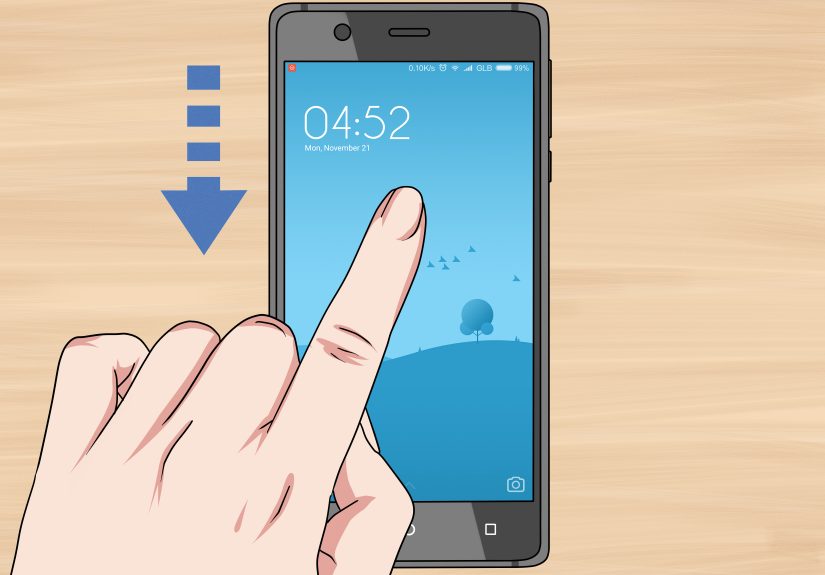
Some Nokia and HMD user guides mention a Screen capture option in the notification panel or quick settings area. To try this, swipe down from the top of the screen to open the notification shade. If you see a tile or shortcut labeled Screenshot or Screen capture, tap it.
This method can be helpful if your physical buttons are hard to press or if you are trying to avoid the classic accidental volume drop.
Use the power menu on some Android versions
On certain Android versions, pressing and holding the Power button may reveal a Screenshot option. If your Nokia phone supports it, tap that option to capture the screen. If you do not see it, do not panic. Just return to the Power + Volume Down method, which is still the standard choice on most devices.
How to Take a Scrolling Screenshot on a Nokia Smartphone
If your Nokia smartphone runs a newer Android version, especially Android 12 or later, you may be able to take a scrolling screenshot. This is useful when one screen is not enough, such as a long article, a receipt, a long settings page, or a conversation that keeps going like your uncle’s holiday stories.
To do this, first take a regular screenshot using the standard button combo. Then look for an option like Capture more. Tap it, and your phone may let you extend the screenshot downward to include more of the page.
This feature does not appear everywhere. It usually works only on screens that can scroll, and support can vary by app and software version. Still, when it works, it is incredibly useful and saves you from taking five separate screenshots of the same thing.
Where Screenshots Are Saved on a Nokia Phone
Once you capture a screenshot, it is normally saved automatically. On many Nokia smartphones, you can find it in one of these places:
- Google Photos or your phone’s photo app
- Collections or On this device
- Screenshots folder
- Files app under Pictures or Screenshots
If you cannot find the image right away, open your Photos app and look for a folder or album named Screenshots. You can also use the search function in your gallery or file manager. In most cases, the file is there, quietly waiting for you.
What to Do If Screenshot Is Not Working on Your Nokia Smartphone
Sometimes screenshots fail, and it is not always your fault. Here are the most common reasons and fixes.
1. Your button timing is off
This is the most common issue. Try pressing the Power and Volume Down buttons at exactly the same moment. Do a short press instead of a long hold. It can take a couple of tries before your fingers learn the move.
2. You are holding the buttons too long
If the power menu appears, you held the buttons too long or hit the Power button first. Try again with a quick, light press-and-release.
3. The app blocks screenshots
Some apps do not allow screenshots for privacy or security reasons. Banking apps, certain streaming services, and protected content screens may block captures. If nothing happens or the image turns out black, the app may be restricting screenshots on purpose.
4. Storage is too full
If your phone is low on storage, it may fail to save new screenshots. Delete old files, clear unused apps, or move media to cloud storage or a memory card if your device supports it.
5. Your buttons are damaged or difficult to press
If one of the physical buttons is not responding well, try the notification shade screenshot option if your Nokia model has it. Restarting the phone can also help if the issue is temporary.
6. Your phone needs a quick restart
Yes, the oldest tech advice still works. Restart your Nokia smartphone and try again. Sometimes Android just needs a tiny reset to behave properly.
Tips for Taking Better Screenshots
Taking a screenshot is easy. Taking a useful screenshot is a little more of an art form.
- Clean up the screen before capturing it. Close pop-ups, dismiss notifications, and remove clutter.
- Increase brightness if the image looks too dim.
- Crop out unnecessary areas after capture so the important part stands out.
- Use scrolling screenshots when one screen is not enough.
- Rename important screenshots if you need to find them later.
- Delete junk screenshots once you are done, because “random accidental lock-screen image collection” is not a hobby.
When a Screenshot Is Better Than Copy and Paste
There are times when a screenshot works better than copying text. Maybe the formatting matters. Maybe the image matters. Maybe the proof matters. A screenshot preserves context, layout, timestamps, icons, prices, and the exact way something appeared on your screen at that moment.
That is why people use screenshots for everything from travel booking confirmations to bug reports, school instructions, payment receipts, customer service chats, and map locations. On a Nokia phone, the simplicity of Android makes this especially convenient. You can capture, crop, share, and move on with your day in less time than it takes to explain the problem to someone else.
Real-World Experiences Using Screenshots on a Nokia Smartphone
Using screenshots on a Nokia smartphone becomes more useful the longer you own the phone. At first, most people only think of screenshots as a way to save a meme or capture a text conversation. Then real life happens, and suddenly screenshots become one of the most practical features on the device.
For example, imagine you are ordering food from a delivery app. The app shows an estimated arrival time, the driver’s name, and the order number. A quick screenshot lets you save all of that before the screen changes. If something goes wrong, you have the details ready. No frantic searching, no trying to remember whether the order number had a 7 or a 1 in it.
Another common experience is travel. People use their Nokia phones to save boarding passes, hotel addresses, train schedules, and map directions. Even if mobile data gets spotty, the screenshot stays on your phone. That means you still have the information when you are in a parking garage, on a subway platform, or in a mysterious corner of a city where your signal decides to take a personal day.
Screenshots are also incredibly useful for shopping. Maybe you compare prices on two websites. Maybe you want to remember a coupon code before checkout. Maybe you see a product size chart that you absolutely do not trust yourself to remember. A screenshot solves the problem in one second. It is a little digital sticky note, except it does not fall off your monitor and disappear forever.
Students and remote workers also get a lot of value from screenshots. A Nokia phone can capture assignment instructions, login details, meeting links, app errors, or slides that appear briefly during a video call. It is much faster than writing everything down by hand. It is also more accurate, especially when the information contains dates, times, passcodes, or tiny details that love to vanish from memory the moment you look away.
Then there is troubleshooting. This is where screenshots become heroes. If your phone shows an error message, or an app behaves strangely, taking a screenshot gives you something concrete to share with support. Instead of saying, “It showed a weird message with a triangle thing and maybe a warning,” you can send the image and save everyone ten minutes of confusion.
Many users also discover that screenshots help with everyday organization. You can save a recipe while cooking, a workout plan at the gym, a parking space number at the mall, or a confirmation screen after paying a bill. On a Nokia smartphone, that process feels natural because Android keeps screenshots easy to access and simple to share.
In other words, screenshots are not just for funny posts and dramatic group chats. They are tiny digital receipts for everyday life. Once you get comfortable using the feature on your Nokia phone, you start noticing dozens of moments where one quick capture saves time, prevents mistakes, and keeps useful information within reach.
Conclusion
If you want the simplest answer possible, here it is: on most Nokia smartphones, open the screen you want, press Power + Volume Down at the same time, and check the preview or your Screenshots folder afterward. That is the standard method, and it works on most Nokia devices running Android.
From there, you can do much more. You can edit the image, share it instantly, store it for records, or use scrolling screenshots on supported phones to capture longer pages. If the shortcut does not work, try the quick settings screen capture option, restart the phone, or check whether the app you are using blocks screenshots.
Once you learn the rhythm, taking a screenshot on a Nokia smartphone becomes one of those tiny skills you use all the time without thinking about it. And honestly, that is the best kind of phone feature: simple, fast, and ready exactly when you need it.