Table of Contents >> Show >> Hide
- What Is HDR in Gaming?
- Is HDR Good for Gaming?
- How HDR Improves the Gaming Experience
- When HDR Is Not Worth It
- HDR10, Dolby Vision, HDR10+, and Auto HDR: What Do They Mean?
- What Makes a Display Good for HDR Gaming?
- How to Set Up HDR for Gaming
- Best Types of Games for HDR
- Common HDR Gaming Problems and Fixes
- Should Beginners Turn HDR On or Off?
- Buying Tips for HDR Gaming Beginners
- Beginner-Friendly HDR Setup Checklist
- Real-World Experience: What HDR Gaming Feels Like After the Settings Are Right
- Conclusion: Is HDR Good for Gaming?
HDR is one of those gaming features that sounds like it was invented by a marketing department after three coffees and a whiteboard session: High Dynamic Range. Big words. Shiny promise. Mysterious settings menu. But once you see HDR working properly, it can make a game feel dramatically more alive. Sunlight looks brighter without turning the whole image into a flashlight. Dark caves keep their detail instead of becoming a black soup. Neon signs, explosions, magic spells, headlights, lava, laser beams, and glowing health potions all get a little more “whoa.”
So, is HDR good for gaming? Yes, HDR can be excellent for gaming, but only when your display, console or PC, game, and settings are all working together. Poor HDR can look washed out, dim, gray, or strangely overcooked, like someone seasoned your graphics card with confusion. Great HDR, on the other hand, can improve contrast, color depth, highlight detail, and immersion in ways that standard dynamic range, or SDR, simply cannot match.
This beginner-friendly guide explains what HDR does, when it is worth using, what hardware you need, how to set it up, and why some games look amazing in HDR while others look like they were calibrated inside a haunted refrigerator.
What Is HDR in Gaming?
HDR stands for High Dynamic Range. In simple terms, it allows a compatible screen to show a wider range between the darkest shadows and the brightest highlights. Instead of treating every scene like it must fit into a narrow brightness box, HDR gives games more room to display light, contrast, and color.
In SDR, a bright sky, a reflective sword, and a glowing fireball may all hit the same limited brightness ceiling. HDR lets those highlights rise higher while preserving detail in darker areas. That means a torch in a dungeon can glow intensely without erasing the stone wall behind it. A sunset can look rich and layered instead of flat. A cyberpunk city can finally achieve its true destiny: making your room look like a futuristic noodle shop.
HDR Is Not Just “More Brightness”
A common beginner mistake is thinking HDR simply makes everything brighter. It should not. Good HDR is about controlled brightness. The average image may look similar to SDR, but the highlights, colors, and contrast should feel more realistic and impactful.
Think of HDR like giving a game a larger box of crayons and a better lamp. The image can include deeper blacks, brighter highlights, and more subtle transitions between colors. But if the game or display uses HDR badly, the result may look worse than SDR. That is why setup matters.
Is HDR Good for Gaming?
HDR is good for gaming when three conditions are met: the game has a quality HDR implementation, the display has enough brightness and contrast to show HDR properly, and the settings are calibrated correctly. When those pieces line up, HDR can be one of the most noticeable visual upgrades in modern gaming.
For cinematic single-player games, HDR can be stunning. Open-world adventures, racing games, horror games, sci-fi shooters, fantasy RPGs, and visually rich action games often benefit the most. Imagine driving at night with realistic headlights, exploring a forest where sunlight breaks through leaves, or fighting a boss whose glowing attacks actually look dangerous instead of mildly decorative.
For competitive gaming, HDR is more complicated. Some players love it because it makes the game look richer. Others turn it off because they prefer maximum visibility, consistent brightness, and the lowest possible display processing. HDR itself does not automatically make you better at games. Sadly, it will not teach you map awareness, improve your aim, or stop you from blaming lag when you ran directly into a rocket launcher.
How HDR Improves the Gaming Experience
Better Contrast and Deeper Shadows
One of the biggest benefits of HDR gaming is improved contrast. A good HDR display can show bright objects next to dark backgrounds with more impact. This is especially noticeable in games with night scenes, caves, space environments, horror lighting, or dramatic weather.
On an OLED screen, black areas can look truly black because each pixel can turn off individually. On a good mini-LED display, local dimming zones help dark areas stay dark while bright highlights pop. Both technologies can make HDR gaming look impressive, though they achieve it in different ways.
More Realistic Highlights
HDR shinesliterallywhen a game uses bright highlights well. Sunlight reflecting off water, muzzle flashes, lightning, sparks, fire, glowing signs, magic effects, and explosions can look more intense without destroying the whole image.
In SDR, the brightest parts of a scene often flatten out. HDR gives those highlights more room, so a bright object can still contain detail. The difference is not always obvious in every scene, but when it works, it makes the world feel less like a screen and more like a place.
Richer Color and Better Gradation
HDR is often paired with wide color gamut support, which allows compatible displays to show more vivid and varied colors. This does not mean every game should look like a bag of candy exploded on your monitor. It means colors can appear more natural, nuanced, and expressive when the content is mastered properly.
Gradient quality can also improve. Skies, fog, glowing effects, and subtle lighting transitions may look smoother because HDR content can preserve more brightness steps. That can reduce the flat, banded look sometimes seen in SDR images.
When HDR Is Not Worth It
HDR is not always better. On low-quality HDR displays, enabling HDR can make games look dull, washed out, or dim. This usually happens because the display technically accepts an HDR signal but does not have the brightness, contrast, local dimming, or color performance needed to show HDR well.
This is common with entry-level monitors labeled “HDR” or “HDR compatible.” Some displays can process HDR10 signals but still lack the hardware muscle to make HDR look meaningfully better than SDR. In other words, the box says HDR, but your eyeballs file a complaint.
HDR Can Look Washed Out on Weak Displays
If your screen has poor black levels, low brightness, or no effective local dimming, HDR may raise the overall image level and make blacks look gray. Instead of dramatic contrast, you get a foggy image that looks like your game is being viewed through a sandwich bag.
This does not mean HDR is bad. It means the display is not delivering a strong HDR experience. A good SDR image can absolutely look better than bad HDR.
Some Games Have Poor HDR Implementation
Not all HDR games are created equal. Some titles have excellent HDR calibration menus and thoughtful tone mapping. Others simply stretch SDR into HDR and call it a day. Bad HDR implementation can crush shadows, blow out highlights, oversaturate colors, or make the whole game look dim.
If a specific game looks worse in HDR, turn HDR off for that game. There is no shame in choosing the better image. Your console will not judge you. Your PC might, but only silently.
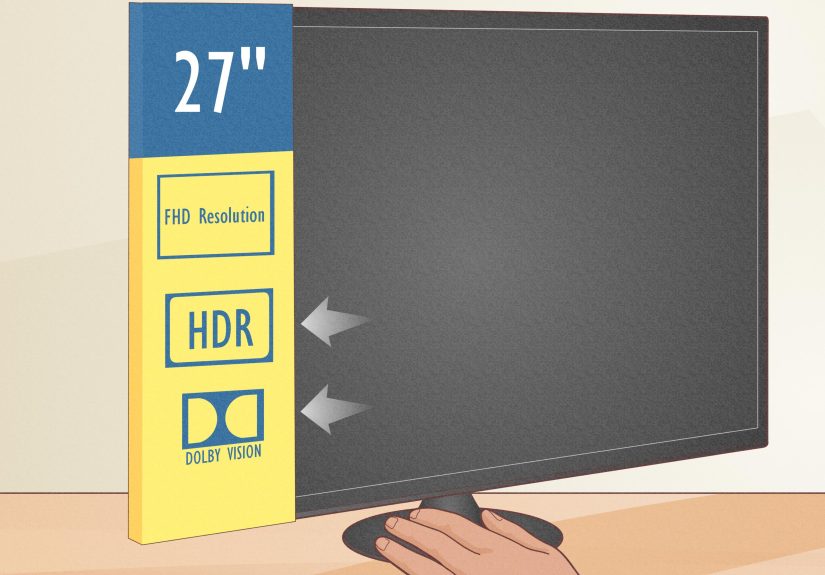
HDR10, Dolby Vision, HDR10+, and Auto HDR: What Do They Mean?
HDR10
HDR10 is the most common HDR format in gaming. Most HDR-compatible TVs, monitors, consoles, and PC games support it. It uses static metadata, meaning the brightness information is generally set for the content rather than changing dynamically scene by scene.
For beginners, HDR10 is the baseline standard to look for. If your display supports HDR gaming, it almost certainly supports HDR10.
Dolby Vision for Gaming
Dolby Vision can use dynamic metadata, which allows more precise tone mapping on supported displays and content. Some Xbox Series X|S games support Dolby Vision gaming, and it can look excellent on a compatible TV. However, support varies by game, display, and platform.
Beginners do not need to chase Dolby Vision as a must-have gaming feature. It is a nice bonus, especially for Xbox players with a compatible TV, but HDR10 remains the most universal gaming HDR format.
HDR10+
HDR10+ is another dynamic HDR format. It is more common in video streaming and certain TV ecosystems than in mainstream gaming. For most gamers, HDR10 and Dolby Vision are the formats they will hear about most often.
Auto HDR
Auto HDR is a feature that can apply HDR-like presentation to games that were originally designed for SDR. Windows and some consoles offer versions of this idea. Auto HDR can make older games look more vibrant on a good HDR display, but results vary. Sometimes it looks surprisingly good; sometimes it looks like the game discovered neon and got a little too excited.
What Makes a Display Good for HDR Gaming?
The display matters more than almost anything else. A powerful gaming PC or console cannot create great HDR if the screen cannot show it. When shopping for an HDR gaming monitor or TV, look beyond the “HDR compatible” label and pay attention to real performance.
Peak Brightness
Peak brightness measures how bright the display can get in small highlight areas. Strong HDR displays often reach much higher brightness than basic screens. Bright highlights are important because HDR depends on contrast between dark areas and bright elements.
A display with very low peak brightness may technically support HDR but fail to create the sparkle and punch people expect. For monitors, VESA DisplayHDR certifications can help, though they should not be your only buying factor.
Local Dimming
Local dimming allows parts of the backlight to dim or brighten independently. This is especially important for LCD and mini-LED displays. Without effective local dimming, bright highlights may lift the black level across the screen, making shadows look gray.
Mini-LED displays can be strong HDR performers because they use many small dimming zones. More zones usually means better control, though processing quality also matters.
OLED vs. Mini-LED for HDR Gaming
OLED displays are famous for perfect blacks, fast pixel response, and excellent contrast. They are fantastic for dark-room HDR gaming and cinematic experiences. Their weakness is that they may not get as bright as the best mini-LED displays in full-screen brightness, and burn-in risk is something heavy static-interface users should understand.
Mini-LED displays can get extremely bright and work well in brighter rooms. They are great for impactful highlights and large-screen gaming. However, they can show blooming, which is a halo around bright objects on dark backgrounds.
There is no universal winner. Choose OLED if you want perfect blacks and elite contrast in a controlled room. Choose mini-LED if you want higher brightness, strong HDR impact, and better performance in bright environments.
Color Performance
A good HDR display should cover a wide color gamut and track colors accurately. This helps games look rich without becoming cartoonishly oversaturated. Brightness gets the headlines, but color accuracy keeps the image from looking weird.
Input Lag and Refresh Rate
Gamers should also care about input lag, refresh rate, and variable refresh rate support. HDR should not come at the cost of sluggish controls. On TVs, use Game Mode when playing. On monitors, check reviews for measured input lag and HDR performance, not just marketing claims.
How to Set Up HDR for Gaming
Step 1: Check Your Display Settings
Many TVs require enhanced HDMI settings before they allow full 4K HDR output. Depending on the brand, this setting may be called HDMI Enhanced Mode, Deep Color, UHD Color, Input Signal Plus, or something equally determined to confuse normal people.
Make sure your console or PC is connected to an HDMI port that supports HDR. If you use an AV receiver, soundbar, splitter, or capture card, that device must also support the required HDR signal.
Step 2: Enable HDR on Your Platform
On Windows, HDR can be enabled in the display settings. Windows also includes HDR calibration tools and Auto HDR options for supported games. On PlayStation 5, HDR can be set to “Always On” or “On When Supported,” and most beginners should start with “On When Supported” so SDR games remain SDR. On Xbox, check the video modes menu and confirm that HDR10 or Dolby Vision settings match your display’s capabilities.
Step 3: Calibrate HDR
Calibration is where many HDR problems begin. Most consoles and some games include HDR adjustment screens. These usually ask you to raise or lower brightness until a symbol is barely visible or disappears. Follow the instructions carefully, and avoid guessing based on vibes. Vibes are great for playlists, not luminance.
If your TV has HGiG or a similar setting that disables extra dynamic tone mapping for games, use it before running console HDR calibration. This helps the console and game understand your display’s real brightness limits instead of fighting the TV’s processing.
Step 4: Use Game Mode
Game Mode reduces input lag by turning off extra image processing. Some TVs have separate HDR Game Mode settings, so you may need to adjust brightness, local dimming, tone mapping, and color settings again after HDR activates.
Step 5: Adjust Per Game
Many games include their own HDR sliders for peak brightness, paper white, black level, or UI brightness. Set these carefully. A game’s default HDR settings may not match your display. If clouds lose detail, highlights are too high. If the whole image looks gloomy, paper white may be too low. If shadows become invisible, black level may be too aggressive.
Best Types of Games for HDR
HDR works especially well in games with dramatic lighting and strong art direction. Open-world games with day-night cycles can look more natural. Racing games benefit from headlights, reflections, sun glare, and weather. Horror games gain atmosphere from deeper shadows and controlled highlights. Sci-fi and fantasy games often use glowing objects, portals, spells, holograms, stars, lasers, and other HDR-friendly eye candy.
Examples of genres that often benefit from HDR include:
- Open-world adventure games
- Racing and driving simulators
- Space and sci-fi games
- Fantasy RPGs
- Horror games
- Cinematic action games
- First-person shooters with strong lighting design
Competitive esports titles may benefit less because players often prioritize clarity, high frame rates, and low latency over cinematic visuals. That does not mean HDR is useless in competitive games, but it is less essential.
Common HDR Gaming Problems and Fixes
Problem: HDR Looks Washed Out
Try lowering black level settings, enabling local dimming, using Game Mode, and checking that the correct HDMI mode is active. On PC, make sure Windows HDR is calibrated and that SDR brightness is not set too high. If your monitor has poor HDR hardware, SDR may simply look better.
Problem: HDR Looks Too Dark
Increase the in-game paper white or brightness setting. Check whether your TV is using an energy-saving mode, automatic brightness limiter, or inaccurate picture preset. Also make sure the game’s peak brightness setting matches your display.
Problem: Highlights Are Blown Out
Reduce peak brightness in the game’s HDR settings. Re-run console HDR calibration. If dynamic tone mapping is enabled, try HGiG or a static tone mapping option if available.
Problem: Colors Look Too Saturated
Switch to a more accurate picture mode, avoid vivid or dynamic presets, and check color space settings. HDR should look rich, not radioactive.
Problem: HDR Adds Input Lag
Use Game Mode and disable unnecessary motion smoothing, noise reduction, and extra processing. Most modern gaming TVs and monitors handle HDR with low lag, but settings matter.
Should Beginners Turn HDR On or Off?
If you have a good HDR display, turn HDR on for games that support it natively. Native HDR usually gives the best results because the game was designed with HDR brightness and color in mind. For SDR games, use Auto HDR only if you like the result. Do not force HDR just because the option exists.
If you have an entry-level HDR monitor or a TV where HDR looks gray, dim, or strange, do not feel bad about using SDR. A well-calibrated SDR image is better than broken HDR. The goal is not to win a settings menu trophy. The goal is to enjoy the game.
Buying Tips for HDR Gaming Beginners
If you are shopping for a new gaming display, do not buy based on the word “HDR” alone. Look for reviews that measure HDR brightness, contrast, local dimming, color gamut, input lag, and tone mapping. A display with strong real-world HDR performance will make a much bigger difference than a cheap screen with an HDR sticker.
For console gaming, a modern 4K TV with HDMI 2.1, low input lag, VRR, ALLM, and good HDR performance is ideal. For PC gaming, choose a monitor that balances HDR quality with refresh rate, response time, resolution, and GPU demands. A 4K HDR monitor is beautiful, but your graphics card still has to push the pixels. Graphics cards are powerful, not magical woodland creatures.
Beginner-Friendly HDR Setup Checklist
- Use a display with real HDR performance, not just basic HDR compatibility.
- Enable enhanced HDMI mode on your TV if required.
- Use the correct HDMI or DisplayPort connection.
- Enable HDR in Windows, PlayStation, or Xbox settings.
- Run HDR calibration on your system.
- Use Game Mode on TVs.
- Adjust HDR settings inside each game.
- Use HGiG or accurate tone mapping when available.
- Turn HDR off for games where it looks worse.
Real-World Experience: What HDR Gaming Feels Like After the Settings Are Right
The first time many players enable HDR, the reaction is not always excitement. Sometimes it is panic. The screen changes modes, the TV flashes a black screen for two seconds, the game comes back looking either amazing or suspiciously gray, and suddenly you are deep in a settings menu wondering whether “paper white” is a display term or an office supply emergency.
In real use, HDR gaming is a learning curve. The biggest lesson is that HDR is not a magic switch. It is more like tuning a guitar. When it is out of tune, everything feels wrong. When it is tuned correctly, you stop thinking about the settings and simply enjoy the performance.
On a strong HDR display, the difference is easiest to notice in games with natural light. Riding across a desert at sunset, walking through a rainy city at night, or entering a dark building from a bright outdoor scene can look much more convincing. The screen does not just get brighter; it gains depth. Light feels like it has direction. Shadows feel layered. A campfire in a dark forest looks warm and intense instead of orange and flat. That subtle realism can pull you into a game more effectively than a higher texture setting.
HDR also changes how certain details feel. In a racing game, the reflection of sunlight on the hood of a car can have real punch. In a sci-fi shooter, glowing panels and energy weapons can stand out against dark metal corridors. In a fantasy RPG, magical effects can look more powerful because the display has room to make them bright without washing out the entire scene. It is the visual equivalent of giving the game a better stage lighting crew.
However, the frustrating side is real. Some games ship with HDR sliders that are poorly explained. A beginner may see terms like peak brightness, tone mapping, black point, paper white, UI luminance, and maximum nits, then immediately consider moving to a peaceful cabin with no electronics. The good news is that most problems can be solved with patience. Start with system-level calibration, then adjust the in-game settings slowly. Change one setting at a time. Use a bright sky, a dark interior, and a normal mid-brightness scene to judge the image instead of relying on one menu screen.
Another practical experience: HDR is more impressive in a darker room. Bright room lighting can reduce perceived contrast, especially on glossy screens. If your display is fighting sunlight from a window, HDR highlights may lose impact and blacks may look raised. Closing curtains or reducing glare can improve the experience dramatically. This is the least expensive “upgrade” in gaming, unless your curtains are somehow RGB.
For PC gamers, HDR can require extra patience. Windows HDR has improved, but the desktop may still look different when HDR is enabled. Some players prefer turning HDR on only before launching HDR games, while others leave it on and adjust SDR content brightness. The best approach depends on your monitor and habits. If HDR makes your desktop look odd, do not assume your games will look bad too. Test native HDR games separately.
For console gamers, the experience is usually smoother. PlayStation 5 and Xbox Series X|S both provide system HDR settings, and many modern TVs automatically switch into Game Mode. Still, the TV’s own settings can make or break the result. A console can send a correct HDR signal, but if the TV is using the wrong HDMI mode, aggressive dynamic contrast, or an inaccurate picture preset, the final image may suffer.
After living with HDR for a while, many players settle into a simple rule: use HDR when it looks better, disable it when it does not. That sounds obvious, but it is freeing. You do not have to prove loyalty to a feature. HDR is a tool. In the right game on the right display, it can be breathtaking. In the wrong conditions, SDR may be cleaner and more consistent. The best gaming setup is the one that makes your games look good and feel responsive, not the one with the most logos on the box.
Conclusion: Is HDR Good for Gaming?
HDR is absolutely good for gaming when it is supported by a capable display, properly calibrated settings, and a game with a thoughtful HDR implementation. It can add richer contrast, brighter highlights, deeper shadows, and more immersive color. For cinematic and visually ambitious games, HDR can feel like a genuine upgrade rather than a minor checkbox feature.
But HDR is not automatically better in every situation. Weak HDR displays, poor calibration, bad game implementation, or forced HDR on SDR content can make games look worse. Beginners should start with native HDR games, use proper calibration tools, enable Game Mode, and judge each game by how it actually looks.
The simple answer: HDR is worth using for gaming if your screen can do it well. If not, a clean SDR image is still perfectly respectable. After all, the best display setting is the one that makes you forget about display settings and get back to saving the galaxy, winning the race, or accidentally falling off a cliff because you were admiring the sunset.