Table of Contents >> Show >> Hide
- What Is a PSF File?
- The Most Common Types of PSF Files
- How to Identify Which PSF File You Have
- How to Open a PSF File
- Why PSF Files Often Refuse to Open
- Can You Convert a PSF File?
- PSF vs. Similar File Extensions
- Best Practices Before You Open or Move a PSF File
- Troubleshooting a PSF File That Still Won’t Open
- Common Experiences With PSF Files in the Real World
- Final Thoughts
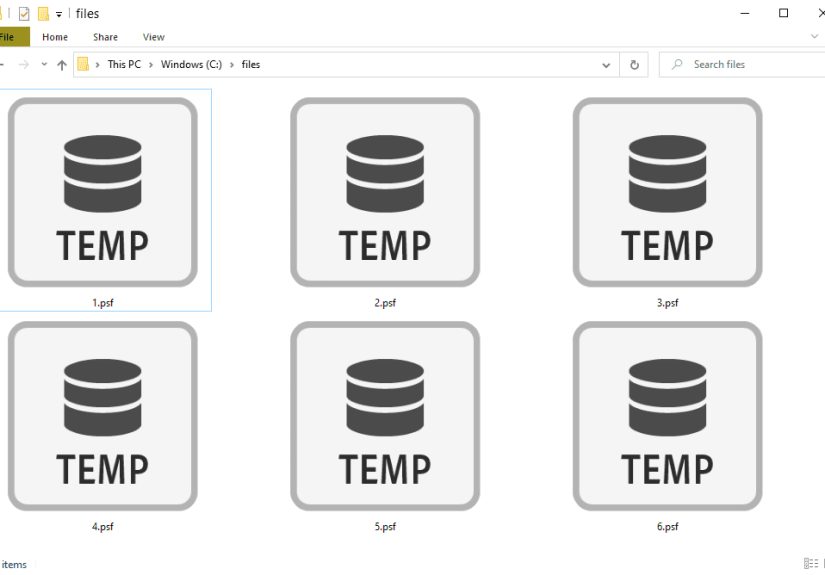
File extensions can be sneaky little gremlins. At first glance, a PSF file looks like it should be easy to open: click, wait, done. In reality, PSF is one of those extensions that can mean several different things depending on what program created it. So if you double-click it and your computer responds with the digital equivalent of a blank stare, that does not necessarily mean the file is broken. It usually means the file needs the right app, the right workflow, or a little detective work first.
In most cases, a PSF file is either an Adobe Photoshop proof settings file or an ArcSoft PhotoStudio image file. Less commonly, it can belong to specialized software tied to CAD, printing, GPS, or older niche tools. That matters because the answer to “How do I open a PSF file?” depends entirely on which kind of PSF you actually have. Same extension, different personality.
This guide breaks down what a PSF file is, how to identify the type you have, which programs can open it, whether it can be converted, and the mistakes people make when they try to force a file into the wrong software. By the end, you should be able to handle a PSF file without resorting to random downloads from the internet or shouting at your laptop like it personally caused the problem.
What Is a PSF File?
A PSF file is a file that uses the .psf extension, but that extension is not tied to a single universal format. Instead, it is used by more than one program. That means you cannot identify the file type from the extension alone with complete confidence. You need context.
The most common meanings include:
- Photoshop Proof Settings File used by Adobe Photoshop to store custom proof setup information for color-managed print preview workflows.
- PhotoStudio File an image or project file associated with ArcSoft PhotoStudio, often containing layers, text, and graphic edits.
- Other specialized PSF formats found in some technical, printing, audio, or older software environments.
That is the golden rule of PSF files: do not guess based on the letters alone. A PSF from a print designer, a camera software bundle, or a CAD workstation may be completely different under the hood.
The Most Common Types of PSF Files
1. Photoshop Proof Settings File
This is the PSF meaning many people run into first. In Adobe Photoshop, a PSF file can store custom proof settings used for soft proofing. Soft proofing helps you preview how an image may look when printed on a specific device or output condition. In plain English, it is Photoshop’s way of saying, “Before you spend money on ink, let’s see whether that bright blue is about to become a sad gray-blue surprise.”
These files are useful in print workflows where color accuracy matters. A designer might create a custom proof setup for a certain printer profile, save it, and then load it later to preview output more consistently. This kind of PSF file is not usually an image you browse like a photo. It is more like a settings file that tells Photoshop how to simulate output conditions.
2. ArcSoft PhotoStudio File
Another common PSF meaning is an ArcSoft PhotoStudio file. This version is more like a traditional editable image project. It may include layers, shapes, text, and image edits. If you got a PSF from older consumer photo-editing software, especially software bundled with a camera or scanner years ago, this is a strong possibility.
Unlike a Photoshop proof settings file, this type of PSF may contain visual content you actually want to open, edit, or export. The catch is that ArcSoft PhotoStudio is old, and support around it is not exactly thriving. It is less “mainstream workflow” and more “I found this on a backup drive from three laptops ago.”
3. Other Niche PSF Formats
Some PSF files belong to less common software environments. For example, certain Autodesk workflows use PSF for PostScript-related font substitution data, and some older or specialized tools have used the extension for technical support files, proxy output, scripts, or audio-related formats. These are much less likely for the average home user, but they do show up in professional or legacy environments.
If your PSF file came from an engineering office, a print production setup, a GPS workflow, or a retro software archive, do not assume Photoshop is the answer.
How to Identify Which PSF File You Have
Before opening a PSF file, spend one minute identifying it. That minute can save you thirty minutes of opening the wrong apps and questioning your life choices.
Check Where the File Came From
If the file came from a graphic designer, print vendor, or Photoshop project folder, it is likely a Photoshop proof settings file. If it came from older photo-editing software or a camera archive, it could be a PhotoStudio file. If it came from a CAD department, print automation workflow, or technical archive, it may be one of the niche PSF varieties.
Look at the File Name and Folder
Context clues matter. A file named Canon_Printer_Proof.psf points one way. A file named Vacation_Edit.psf points another. A file stored beside PSD files, ICC profiles, or print presets likely belongs to Photoshop. A file stored beside JPEGs from an old camera software package might be from PhotoStudio.
Check the File Size
A tiny PSF file is often a settings or support file. A larger PSF file may be an actual image project. This is not a perfect test, but it is helpful. A proof settings file usually will not be the size of a layered photo project unless something unusual is going on.
Try a Safe Text Peek
Sometimes opening the file in a plain text editor can reveal readable clues, such as product names, paths, or keywords. Do not edit and save the file in a text editor; just inspect it. If you see references to Adobe, proof, color, printer profiles, or ArcSoft, you have your answer faster.
How to Open a PSF File
Open a Photoshop PSF File
If your PSF belongs to Adobe Photoshop, do not try to open it like a regular image. Instead, load it from within Photoshop’s proof setup controls.
- Open Adobe Photoshop.
- Go to View.
- Select Proof Setup.
- Choose Custom.
- Click Load.
- Select the PSF file.
This works because the file is part of Photoshop’s color proofing workflow, not a standard image document. If you were expecting to see a photo appear on the screen, Photoshop is not being rude; you were simply asking the wrong question.
Open a PhotoStudio PSF File
If the file is an ArcSoft PhotoStudio project, the best option is to use the software that created it. Older copies of ArcSoft PhotoStudio can open this kind of PSF, and some third-party viewers may recognize the format as well. XnView is one of the more widely referenced tools for broad format support, and it may help with certain PhotoStudio files.
However, compatibility can vary. Older proprietary image formats love to age dramatically. One day they open fine; the next day they behave like they are guarding classified documents. If the file is important, work on a duplicate copy and preserve the original.
Open a Niche or Technical PSF File
If the file came from AutoCAD, printing software, or another technical workflow, open it with the software environment it belongs to. A CAD-related PSF is not something a basic image viewer will understand. In these cases, ask whoever sent the file which program created it, or inspect nearby files for hints about the software stack involved.
Use Windows or macOS the Smart Way
If double-clicking the file opens the wrong app, right-click the file and use Open with to choose a different program. On Windows, you can also change the default app for that extension if needed. Just remember: changing which app opens a file is not the same as converting the file format. That is like changing who answers the phone and expecting the caller to speak a different language.
Why PSF Files Often Refuse to Open
There are a few common reasons a PSF file fails to open:
- You are using the wrong app. The most common issue by far.
- The file association is wrong. Your computer may send all PSF files to a program that cannot read that particular type.
- The file is from discontinued software. Older PhotoStudio-era files can be tricky.
- The file extension is being misread. PSF looks similar to PSD, PFS, PSS, and PSP.
- The file is damaged. Corruption happens, especially with old backups, email transfers, and failing drives.
When in doubt, copy the file first, inspect the context, and open it only with software that matches its origin.
Can You Convert a PSF File?
Sometimes yes, sometimes no, and sometimes “technically yes, but not in the way you hoped.”
Photoshop Proof Settings PSF
A Photoshop proof settings PSF is generally not something people convert into JPG, PNG, or PDF because it is not an image in the normal sense. It is a settings file. Its job is to store proofing information. In most workflows, you keep it as-is and load it when needed.
PhotoStudio PSF
A PhotoStudio PSF may be exportable to standard formats like JPG, PNG, or TIFF after it is opened in compatible software. The correct path is usually to open the project first and then use Save As or Export. That preserves the intended interpretation of the file.
What you should not do is assume that simply renaming .psf to .jpg magically converts the contents. Changing the extension changes the label, not the file’s internal structure. Your computer may act impressed for a moment, but the format itself has not changed.
Technical PSF Files
Niche PSF files used by CAD, PostScript, or other specialized tools may not have a meaningful consumer-friendly conversion path. In those cases, conversion depends on what the software allows. The rule is simple: identify the format first, then look for export options inside the original program.
PSF vs. Similar File Extensions
It is surprisingly easy to confuse PSF with other file types. That confusion sends plenty of people down the wrong troubleshooting rabbit hole.
- PSD Adobe Photoshop Document, a layered image file.
- PFS often associated with completely different programs.
- PSS can refer to other specialized formats unrelated to PSF.
- PSP often tied to PaintShop Pro formats or Photoshop preferences, depending on context.
- PS usually a PostScript file, not a PSF file.
If your file still will not open, zoom in on the extension and make sure it truly says .psf. One swapped letter can change the entire answer.
Best Practices Before You Open or Move a PSF File
- Make a backup copy before experimenting.
- Do not overwrite the original unless you know exactly what the program is doing.
- Avoid random “universal opener” downloads from unknown sites.
- Check nearby project files, folders, and app names for clues.
- If the file came from someone else, ask what program created it.
- Keep extensions visible in File Explorer or Finder so you can verify what you are working with.
These habits are not dramatic, but they prevent the classic file-format disaster where someone edits the only copy, converts it poorly, or opens it in the wrong app and concludes the file is useless.
Troubleshooting a PSF File That Still Won’t Open
The File Opens as Gibberish
That usually means the wrong program is trying to read it as text or as a generic document. Switch to an app that matches the file’s real origin.
The File Opens in Photoshop but Not as an Image
That may actually be normal. If it is a proof settings PSF, it belongs in the proof setup workflow, not the standard image-open workflow.
No Program Recognizes It
Check whether the file came from discontinued software, older hardware bundles, or a professional toolset you do not have installed. Search your archive for app installers, manuals, or project folders from the same period.
You Think the File Is Corrupt
Try opening a copy on another computer or with another compatible version of the software. If it came through email or cloud sync, compare the file size with the sender’s original version. A suspiciously small file may be incomplete.
Common Experiences With PSF Files in the Real World
One reason PSF files confuse so many people is that they tend to appear at exactly the wrong time. Nobody wakes up on a peaceful Saturday morning thinking, “Today I hope I discover an unfamiliar legacy file extension.” PSF files usually show up during a deadline, a migration, a print job, or a digital clean-up session that already has enough drama.
A very common experience happens in design teams. Someone receives a PSF from a coworker and assumes it is an image, because it came from a Photoshop-related folder. They double-click it, nothing useful happens, and panic quietly begins. Then they learn the file is actually a proof settings file, not artwork. Once they load it through View > Proof Setup > Custom > Load, everything suddenly makes sense. The file was never broken; it was just being treated like the wrong kind of asset.
Another familiar scenario involves old family photo software. A user finds a folder from an ancient camera CD, discovers a PSF file, and assumes it is either malware or some bizarre document. In reality, it may be a PhotoStudio project containing edits, text, or layered changes from years ago. That can be a surprisingly emotional moment. Old file formats are sometimes annoying, but they also act like tiny time capsules. You are not just opening data; you are reopening someone’s half-finished scrapbook project from 2008.
Professionals in print and prepress environments tend to have a different experience. For them, PSF files are less mysterious and more practical. A saved proof setup can help keep output previews consistent across jobs, devices, and review rounds. The frustration usually comes later, when files move between machines and the workflow assumptions do not travel with them. One designer may have the right profiles and presets installed; another may load the same job and wonder why the screen preview looks completely different. That is where PSF-related workflow discipline matters.
There is also the “IT cleanup” experience. Someone inherits an old workstation full of unknown files, including PSF, and has to decide what stays, what goes, and what must be preserved before software is removed. In these situations, the smartest approach is never to delete first and ask questions later. A weird extension can represent useless clutter, but it can also represent a critical workflow component that only looks boring because computers are masters of unglamorous naming.
What ties all these experiences together is a simple lesson: the extension is only the beginning of the story. People run into trouble when they assume every file with a familiar-looking name must behave like a modern mainstream format. PSF files reward patience, context, and a little format literacy. Once you know whether you are dealing with proof settings, an image project, or a specialized support file, the mystery shrinks fast. The file stops looking like a riddle and starts looking like what it actually is: a tool from a specific workflow waiting for the right software to catch up.
Final Thoughts
A PSF file is not one thing. It is a shared extension used by multiple formats, and that is why opening one can feel confusing at first. In many cases, the file is either a Photoshop proof settings file used in color-managed printing or an ArcSoft PhotoStudio file used for editable image projects. Other PSF files exist too, especially in technical or legacy workflows.
The best way to open a PSF file is to identify where it came from, match it to the right software, and avoid shortcuts that pretend file conversion is just a matter of renaming the extension. Once you treat the file according to its actual role, the problem becomes much easier. That is good news for your workflow, your blood pressure, and your poor mouse, which did not deserve to be clicked fourteen times in frustration.